1
Using Web Browser Control
You can use a Web browser to control the unit and set up a network and password.
Before Using Web Browser Control
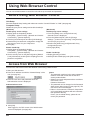
To use the Web browser control, the unit and computer setups are required.
Unit Setup
Set each “Network Setup” setting and make sure to set the “Control I/F Select” to “LAN”. (see page 52)
Computer Setup
Disable the proxy server settings and enable JavaScript.
(Windows)
Disable proxy server settings
1 Display [Internet Properties] window.
Click [Start] – [Control Panel] – [Network and Internet
Connections] – [Internet Options].
2 Click the [Connections] tab and then [LAN Settings].
3 Deselect the [Use automatic conguration script] and
[Use a proxy server for your LAN] boxes.
4 Click [OK].
Enable JavaScript
1 Display [Internet Properties] window.
Click [Start] – [Control Panel] – [Network and Internet
Connections] – [Internet Options].
2 Set the security level on the [Security] tab to [Default
Level]. Alternatively enable [Active scripting] from the
[Custom Level] button.
(Macintosh)
Disable proxy server settings
1 From the [Safari] menu, click [Preferences].
General screen is displayed.
2 From the [Advanced] tab, click the [Change
Settings…] button next to [Proxies]. Click [Proxies]
and set up a proxy server.
3 Deselect the [Web Proxy] and [Automatic Proxy
Conguration] boxes.
4 Click [Apply Now].
Enable JavaScript
1 Display [Security] of Safari.
2 Select [Enable JavaScript] under [Web content].
Access from Web Browser
Access to the TOP screen of the Web browser control using a Web browser.
1 Start your Web browser.
2 Enter the IP address set with the “Network Setup” of the
unit. (see page 52)
3 Enter the user name and password when the
Authentication screen is displayed.
Authentication screen
4 Click [OK].
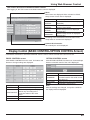
After logged in, the TOP screen of the Web browser
control is displayed. (see page 63)
62
Notes:
The password used here is the same password
used for command control and the PJLink™
security authentication.
Default user name and password are as follows:
User name: user1
Password: Panasonic
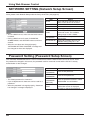
The password can be changed on the Password
Setup screen after logging in (see page 64). The
user name cannot be changed.
Under no circumstances, Panasonic Corporation
or it's associated companies will ask customers
their password directly.
Even if you are asked directly, please do not
reveal your password.