1
Configure the settings relating to the authentication
[Authentication setup]
The settings relating to the authentication such as users and PCs restrictions for accessing the unit can be configured on this page.
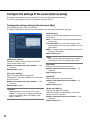
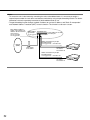
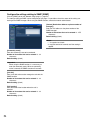
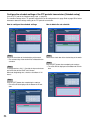
The "Authentication setup" page has 2 tabs of the [User] tab and the [Host] tab.
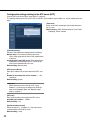
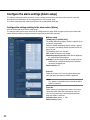
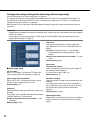
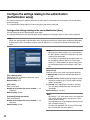
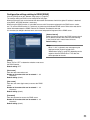
Configure the settings relating to the user authentication [User]
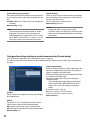
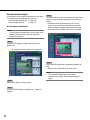
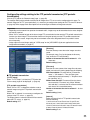
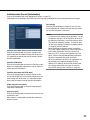
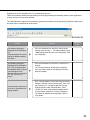
Click the [User] tab on the "Authentication setup" page.
The settings relating to the user authentication can be configured on this page. Up to 16 users can be registered.
Note:
When user authentication (authentication error) has failed to pass 8 times (6 times when clicking the [Go] button
of the browser) within 30 seconds using the same IP address (PC), access to the camera will be denied for a
while.
Note:
When the user name already in use is entered and
the [SET] button is clicked, the respective user information will be overwritten.
For example, the password for the administrator can
be changed by entering "admin" for "User name",
selecting "1. Administrator" for "Access level", entering a desired password, and clicking the [SET] button.
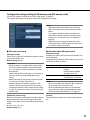
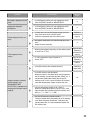
[User authentication]
Select ON or OFF to determine whether or not to
authenticate the user.
Default setting: OFF
[User name]
Enter a user name.
Number of characters that can be entered: 1 - 32
characters
Default setting: (blank)
[Password] [Retype password]
Enter the password.
Number of characters that can be entered: 4 - 32
characters
Default setting: (blank)
46
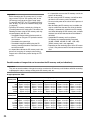
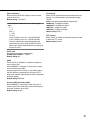
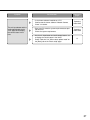
[Access level]
Select the access level of the host from the following.
1. Administrator: Allowed all available operations of
the unit.
2. Camera control: Allowed to display images from the
unit and to control the unit. The unit setting configuration is unavailable.
3. Live only: Only displaying live images is available.
The unit setting configuration and unit control are
unavailable.
Default setting: 3. Live only
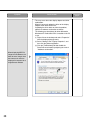
Note:
By clicking [i] of "User name check", the registered
user can be selected and the selected user’s information can be checked.
The registered user will be displayed with the access
level. (Example: admin [1])
To delete the registered user, click the [DEL] button
after selecting the user to be deleted.