1
Updating Your Testifire Firmware
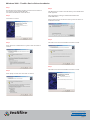
Before connecting Testifire to the computer, first install
the Flash Loader software.
Step 1
Step 4
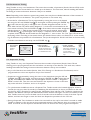
After installing the Testifire Flash Loader software, start the application
from either the program menu or desk top icon.
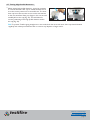
The application will now scan the computers USB ports to detect the
devices connected. This process should be instant and the screen below
will be shown.
Step 2
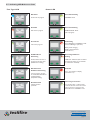
If the Testifire is not detected instantly, the scanning process will
continues until either the Testifire is detected or the user clicks on Back
or Cancel buttons.
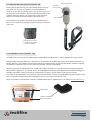
Insert a fully charged battery into Testifire and then switch the unit on.
Step 3
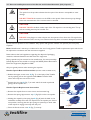
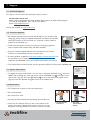
Connect the USB cable to Testifire and then to the computer. If the
Testifire device drivers have not been previously installed the computer
will launch the Found New Hardware Wizard. Please refer to the
instructions in the Testifire Driver Installation Guide (link here) before
installing the drivers. The drivers must be installed correctly before
continuing.
testifire
®
MULTI-STIMULUS DETECTOR TESTER
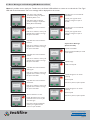
Failure to detect the Testifire may be due to:
The unit is not switched on.
The USB cable is not connected correctly.
The Testifire USB device drivers may not be installed correctly.
The USB port on the computer may not be functioning.
More than one Testifire is connected to the computer at the same time.
Back to Contents Page
www.testifire.com
page 32