1
MT 2500
User Guide
GSM2418UG001
Version:1.01
03 January, 2012
General
TERMS OF USE OF NEW MATERIALS - PLEASE READ CAREFULLY
From time to time, Enfora, in its sole discretion, may make available for download on its website
(www.enfora.com), or may transmit via mail or email, updates or upgrades to, or new releases of, the
firmware, software or documentation for its products (collectively, 'New Materials'). Use of such New
Materials is subject to the terms and conditions set forth below, and may be subject to additional terms
and conditions as set forth in Enfora's Technical Support Policy (posted on its website) and/or any written
agreement between the user and Enfora.
All New Materials are provided AS IS. Enfora makes no warranty or representation with respect to the
merchantability, suitability, functionality, accuracy or completeness of any such New Materials. The user of
such New Materials assumes all risk (known or unknown) of such use. Enfora reserves all rights in such
New Materials. The user shall have only a revocable and limited license to use such New Materials in
connection with the products for which they are intended. Distribution or modification of any New
Materials without Enfora's consent is strictly prohibited.
IN NO EVENT WILL ENFORA BE RESPONSIBLE FOR ANY INCIDENTAL, INDIRECT, CONSEQUENTIAL OR
SPECIAL DAMAGES AS A RESULT OF THE USE OF ANY NEW MATERIALS. ENFORA'S MAXIMUM LIABILITY
FOR ANY CLAIM BASED ON THE NEW MATERIALS SHALL NOT EXCEED FIFTY U.S. DOLLARS ($50).
Copyright
© 2012 Enfora, Inc. All rights reserved. Complying with all applicable copyright laws is the responsibility of
the user. Without limiting the rights under copyright, no part of this document may be reproduced, stored
in or introduced into a retrieval system, or transmitted in any form or by any means (electronic,
mechanical, photocopying, recording or otherwise), or for any purpose, without the express written
permission of Enfora, Inc.
Enfora and the Enfora logo are either registered trademarks or trademarks of Enfora, Inc. in the United
States.
251 Renner Pkwy
Richardson, TX 75080 USA
Phone: (972) 633-4400
Fax: (972) 633-4444
Email: [email protected]
www.enfora.com
-i-
Warranty Information
[Revised: 11/11/2010]
This warranty applies to (a) products sold directly by Enfora, unless a different warranty is specified in a
written agreement between Enfora and the purchaser; and (b) products sold to end users through a
distributor authorized by Enfora, but only where the authorized distributor does not provide a separate
warranty on such products, and Enfora has agreed to provide this warranty to such end users. If you
purchased the product from an authorized distributor, please check whether this warranty from Enfora, or
a separate warranty from the distributor, applies to your purchase. This warranty does not apply to any (i)
accessories or batteries for the products; or (ii) demonstration samples or prototypes of the products.
Unless otherwise provided in a written agreement between Enfora and the purchaser, all such accessories,
batteries, samples or prototypes are provided by Enfora AS IS without any warranty of any kind.
Enfora warrants to the original purchaser of the product from Enfora or its authorized distributor (as
applicable) that, for a period of one (1) year from the date of shipment of the product from Enfora, the
product hardware will be substantially free from defects in material or workmanship under normal
operation, and the product firmware will perform substantially in accordance with the product
documentation provided by Enfora. Enfora does not warrant that (a) the product hardware or firmware
will meet the purchaser's requirements; (b) the operation of the product hardware or firmware will be
uninterrupted or error-free; or (c) the product, when integrated in, or combined with, other products or
software not supplied by Enfora, will continue to perform substantially in accordance with the product
documentation. This limited warranty is for the benefit of the original purchaser, and is not transferable.
During the warranty period, Enfora, at its expense and in its sole discretion, will repair the product, or
replace the product with a corresponding or equivalent product, if it is determined to have a covered
defect, provided that the purchaser first notifies Enfora (directly or through its authorized distributor from
which the product was purchased) of any such defect, furnishes Enfora with a proof of purchase (if
required), requests and obtains a return merchandize authorization (RMA) number from Enfora, and
returns the product under that RMA to Enfora (or, at Enfora's option, to its authorized distributor), with the
shipping charges being prepaid by purchaser.If, upon reasonable examination of the returned product,
Enfora does not substantiate the defect claimed by purchaser, or determines that the defect is not covered
under this limited warranty, Enfora will not be required to repair or replace the product, but may instead
reship the product to the purchaser (or, at Enfora's option, to its authorized distributor where the product
can be made available to purchaser), in which case the purchaser shall be responsible for paying Enfora's
cost for reshipping the product to purchaser (or to Enfora's authorized distributor), and Enfora's usual
charges for unpacking, testing, and repacking the product for reshipment to purchaser (or to Enfora's
authorized distributor). Purchaser shall bear the risk of loss or damage in transit to any product returned
by purchaser to Enfora, or any returned product not found to be defective or covered under this warranty,
and reshipped by Enfora to purchaser (or to Enfora's authorized distributor). In the event Enfora repairs or
- ii -
replaces a defective product covered by this limited warranty, the repaired or replacement product will be
covered under this limited warranty for the remainder of the original warranty period on the defective
product, or a period of ninety (90) days, whichever is longer. If Enfora is unable to repair or replace a
defective product covered by this limited warranty, Enfora will provide to purchaser a credit or a refund
(at Enfora's option) of the original purchase price (excluding taxes and shipping charges). Any returned and
replaced product, or any product for which Enfora has furnished a credit or a refund, becomes the
property of Enfora.
Enfora shall not have any obligation to provide any firmware bug fixes, upgrades or new releases except as
may be necessary to correct any covered defect of which purchaser notifies Enfora in writing during the
warranty period. Enfora, from time to time and in its sole discretion, may make available for download on
its website (www.enfora.com), or may provide via email, certain firmware bug fixes, upgrades or new
releases for the product. Download and use of any such bug fixes, upgrades or new releases is subject to all
of the applicable terms and conditions of Enfora's technical support policy as posted and updated on its
website. Enfora shall have no obligation under this limited warranty for (a) normal wear and tear; (b) the
cost of procurement of substitute products; or (c) any defect that is (i) discovered by purchaser during the
warranty period but for which purchaser does not request an RMA number from Enfora, as required
above, until after the end of the warranty period, (ii) caused by any accident, misuse, abuse, improper
installation, handling or testing, or unauthorized repair or modification of the product, (iii) caused by use of
any materials not supplied by Enfora, or by use of the product other than in accordance with its
documentation, or (iv) the result of electrostatic discharge, electrical surge, fire, flood or similar causes.
The purchaser (or its customers, as applicable) shall be solely responsible for the proper configuration,
testing and verification of the Enfora product prior to deployment in the field, and for ensuring that any
end user product or system into which the Enfora product is integrated or incorporated operates as
intended and meets the requirements of purchaser (or its customers). Enfora shall have no responsibility
whatsoever for the integration, configuration, testing, verification, installation, upgrade, support or
maintenance of any such end user product or system, or for any liabilities, damages, costs or expenses
associated therewith.
ENFORA'S SOLE RESPONSIBILITY AND PURCHASER'S SOLE REMEDY UNDER THIS LIMITED WARRANTY
SHALL BE FOR ENFORA TO REPAIR OR REPLACE THE PRODUCT (OR IF REPAIR OR REPLACEMENT IS NOT
POSSIBLE, PROVIDE A CREDIT OR REFUND OF THE PURCHASE PRICE) AS PROVIDED ABOVE. ENFORA
EXPRESSLY DISCLAIMS ALL OTHER WARRANTIES OF ANY KIND, EXPRESS OR IMPLIED, INCLUDING
WITHOUT LIMITATION ANY IMPLIED WARRANTIES OF NON- INFRINGEMENT, MERCHANTABILITY,
SATISFACTORY PERFORMANCE AND FITNESS FOR A PARTICULAR PURPOSE. IN NO EVENT SHALL ENFORA
BE LIABLE FOR ANY INDIRECT, SPECIAL, EXEMPLARY, INCIDENTAL OR CONSEQUENTIAL DAMAGES
(INCLUDING WITHOUT LIMITATION LOSS OR INTERRUPTION OF USE, DATA, REVENUES OR PROFITS)
RESULTING FROM A BREACH OF THIS WARRANTY OR BASED ON ANY OTHER LEGAL THEORY, EVEN IF
ENFORA HAS BEEN ADVISED OF THE POSSIBILITY OR LIKELIHOOD OF SUCH DAMAGES.
- iii -
Some jurisdictions may require a longer warranty period than specified above and, accordingly, for
products sold in those jurisdictions the applicable warranty period shall be extended as required under the
laws of those jurisdictions. Furthermore, some jurisdictions may not allow the disclaimer of implied
warranties or the exclusion or limitation of incidental or consequential damages, so the above disclaimer,
limitation or exclusion may not apply to products sold in those jurisdictions. This limited warranty gives the
purchaser specific legal rights and the purchaser may have other legal rights that vary from jurisdiction to
jurisdiction. This limited warranty shall be governed by the laws of the State of Texas, United States of
America, without regard to conflict of laws principles. This limited warranty shall not be governed in any
respect by the United Nations Convention on Contracts for the International Sale of Goods.
Regulatory Compliance
FCC
This device complies with Part 15 of the FCC Rules. Operation is subject to the following two conditions: (1)
This device may not cause harmful interference, and (2) this device must accept any interference received,
including interference that may cause undesired operation.
This equipment has been tested and found to comply with the limits pursuant to Part 15 Subpart B, Part 22,
and Part 24 of the FCC rules. These limits are designed to provide reasonable protection against harmful
interference in an appropriate installation. This equipment generates, uses, and can radiate radio
frequency energy and, if not used in accordance with instructions, can cause harmful radiation to radio
communication. However, there is no guarantee that interference will not occur in a particular installation.
RF EXPOSURE
Your device is a radio transmitter and receiver. It is designed and manufactured not to exceed the
emissions limits for exposure to radio frequency (RF) energy set by the Federal Communications
Commission (FCC) of the U.S. Government. These limits are part of comprehensive guidelines and establish
permitted levels of RF energy for the general population. These guidelines are based on the safety
standards previously set by the U.S. and international standards bodies. The standards include a substantial
safety margin designed to assure the safety of all persons, regardless of age and health.
The exposure standard for wireless RF devices, such as the device, employs a unit of measurement known
as the Specific Absorption Rate, or SAR. The SAR limit set by the FCC is 1.6W/kg. SAR values at or below
that limit are considered safe for the general public.
Before a wireless RF device is made available for sale to the Public, it must be tested and certified to the
FCC that it does not exceed the SAR limits established by the FCC. Tests for SAR are conducted using the
positions and locations (e.g., at the ear or worn on the body) as required by the FCC for each device model.
- iv -
The device has been tested and meets the FCC RF exposure guidelines when used against the body under
normal usage conditions.
R&TTE
Effective with HW revision B, the device is in conformity with the requirements of the R&TTE directive
1999/5/EC. It has been fully tested and complies with all the requirements of EN301489-1, EN301489-3,
EN301489-7 and EN60950-1. Compliance to EN301511 has been demonstrated by testing on both the
device and the integrated module.
The hardware revision of the device is identified on the label an also by the presence of the CE mark.
ROHS COMPLIANCE
The device complies with the European Union Restriction of the Use of Certain Hazardous Substances in
Electrical and Electronic Equipment ([RoHS) Directive (2002/95/EC), effective since July 1, 2006.
DISCLAIMER
The information and instructions contained within this publication comply with all FCC, GCF, PTCRB,
R&TTE, IMEI and other applicable codes that are in effect at the time of publication. Enfora disclaims all
responsibility for any act or omissions, or for breach of law, code or regulation, including local or state
codes, performed by a third party. Enfora strongly recommends that all installations, hookups,
transmissions, etc., be performed by persons who are experienced in the fields of radio frequency
technologies. Enfora acknowledges that the installation, setup and transmission guidelines contained within
this publication are guidelines, and that each installation may have variables outside of the guidelines
contained herein. Said variables must be taken into consideration when installing or using the product, and
Enfora shall not be responsible for installations or transmissions that fall outside of the parameters set
forth in this publication.
BATTERY INFORMATION AND SAFETY REQUIREMENTS
NOTE: Failure to comply with all of the following precautions could:
l
l
l
Cause personal injury or property damage
Cause abnormal chemical reactions which would make the battery over heat, smoke, distort, leak, or
catch on fire
Destroy internal protections built into the battery
-v-
l
l
Shorten battery life
Reduce battery performance
Precautions
l
l
l
l
l
l
l
l
l
l
l
l
l
l
l
l
l
l
l
l
l
l
Read this entire manual and the label on the exterior of the battery.
Keep the battery away from sources of excessive heat such as fire, stoves, or direct sunlight.
Keep the battery away from sources of high voltage or static discharge.
Do not use or store the battery with other batteries or where it could touch metal.
Do not put the battery into a microwave oven.
Do not allow the battery to be crushed.
Keep the battery away from children.
Do not drop the battery.
Do not allow anything to touch any of the battery contacts, or to connect two or more of the contacts.
Do not disassemble, destroy, or attempt reassembly of the battery.
Do not place or leave the battery in a damp or wet environment.
Do not allow water to touch the battery.
Do not wrap the battery with conductive material.
Properly dispose of the battery.
Do not incinerate or burn the battery.
Do not leave or discard the battery where it could get wet or become submerged in water.
Do not damage the battery.
Do not weld or solder anything to the battery, the attached wires, or the connector.
Do not use this battery in any device other than supplied.
Do not touch a leaking battery. Avoid leaked-out materials. Do not allow it to touch your skin or
clothes. If touched, immediately rinse affected areas thoroughly with water. Leaked materials may
cause skin irritation. Seek medical attention if irritation persists. If it contacts your eyes, do not rub
your eyes. Rinse the eyes thoroughly with water, and see a doctor immediately.
Use of this battery in other devices could result in unsafe conditions.
Risk of explosion if battery is replaced by an incorrect type.
- vi -
Table of Contents
1 Introduction
1
1.1 References
1
1.2 Applicable Products
1
2 Overview
2
2.1 Description
2
2.1.1 MT 2500 Panel Illustration
2
2.2 Label
2
2.3 Accelerometer
3
2.4 Battery Power Switch
3
2.5 Connector and LEDs
4
2.6 GSM Radio
5
2.7 GPS
5
2.8 GPIO
5
2.9 Analog to Digital Converter (ADC)
5
2.9.1 ADC Scaling
5
3 Hardware Features
7
3.1 Opening the Device
7
3.2 Closing the Device
8
3.3 SIM Card Access
8
3.4 Power
9
3.5 Power Consumption
9
3.6 GPS Specifications
10
3.7 Optional Battery Backup
10
3.8 USB 2.0 Connector
11
3.9 USB Cable
12
3.10 16-Pin I/O Connector
14
- vii -
4 Software Features
18
4.1 Software Features
18
5 Installation
19
5.1 Inserting the SIM
19
5.2 Device Installation
19
5.3 Device Orientation
20
5.4 Manual USB Driver Installation
21
5.4.1 Connect the device to a USB Port
21
5.4.2 Install the USB Drivers
21
5.5 USB Driver Installation Using the Enfora Driver Setup Utility (Windows XP)
26
5.6 USB Driver Installation Using the Enfora Driver Setup Utility (64 Bit Windows 7)
34
6 Network Test Procedure
42
6.1 Configure the Computer and Verify Correct Communications
6.1.1 Configure the Device to Communicate with the Enfora Server
42
42
6.2 Verifying Server Connectivity
47
6.3 Verify GPS Operation
50
7 Glossary
52
- viii -
Table of Figures
Figure: 1 - MT 2500
2
Figure: 2 - MT 2500 Label
3
Figure: 3 - MT 25000 Power Switch
4
Figure: 4 - MT 2500 Connectors and LEDs
4
Figure: 5 - Opening the MT 2500 Case
7
Figure: 6 - MT 2500 With Cover Unsnapped
7
Figure: 7 - MT 2500 Cover Replacement
8
Figure: 8 - MT-2500 Internals
9
Figure: 9 - MT 2500 Optional Battery Mounted in Cover
11
Figure: 10 - MT 2500 Optional Battery Connection
11
Figure: 11 - USB Power Cable Construction
13
Figure: 12 - USB Power Cable with I/O and Audio Construction
14
Figure: 13 - 16-Pin I/O Connector
15
Figure: 14 - MT 2500 SIM Holder with SIM Installed (Lower Left)
19
Figure: 15 - MT 2500 Mounting Anchors and "Sky Side" Label
20
Figure: 16 - Found New Hardware Wizard Window
22
Figure: 17 - Hardware Wizard – Install from specific location
23
Figure: 18 - Hardware Wizard – Search for best driver
24
Figure: 19 - Hardware Wizard – Windows Logo testing
24
Figure: 20 - You will see the screen that shows the installation progress:
25
Figure: 21 - Hardware Wizard – Completing
26
Figure: 22 - Enfora Driver Setup Utility Extraction
27
Figure: 23 - Enfora Driver Setup Utility Welcome
28
Figure: 24 - Enfora Driver Setup Utility Prepare System Window
29
Figure: 25 - Enfora Driver Setup Utility Installation Window
30
Figure: 26 - Enfora Driver Setup Utility Driver Installation
31
-9-
Figure: 27 - Enfora Driver Setup Utility Driver Installation Progress
31
Figure: 28 - Windows Security Window
32
Figure: 29 - Enfora Driver Setup Utility Driver Install Completion Window
33
Figure: 30 - Enfora Driver Setup Utility Attached Devices Window
34
Figure: 31 - Enfora Driver Setup Utility Welcome Window
35
Figure: 32 - Enfora Driver Setup Utility Preparation Window
36
Figure: 33 - Enfora Driver Setup Utility Installation Window
37
Figure: 34 - Enfora Driver Setup Utility Driver Installation
38
Figure: 35 - Windows Security Window
38
Figure: 36 - Enfora Driver Setup Utility Driver Install Completion Window
39
Figure: 37 - Enfora Driver Setup Utility Attached Devices Window
40
Figure: 38 - Enfora Driver Setup Utility Apply Fix Window
40
Figure: 39 - Enfora Driver Setup Utility Attached Devices Window
41
Figure: 40 - ATI Response
43
Figure: 41 - Verify GPRS Status
45
Figure: 42 - Verify GPRS Activation
46
Figure: 43 - Wakeup Command
47
Figure: 44 - Verify Server Connectivity
48
Figure: 45 - Wakeup Messages
49
Figure: 46 - ATI Response
50
Figure: 47 - Verify GPS Operation
51
- 10 -
1 Introduction
1.1 References
l
l
l
Spider MT 2500 AT Command Set (GSM2418AT001)
GSM Network Configuration Worksheet (GSM0000AN019)
Mobile Tracker Event Cookbook (GSM2000CB001)
1.2 Applicable Products
This document applies to the following products:
l
l
GSM2418-00
GSM2418-01
-1-
2 Overview
2.1 Description
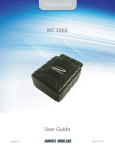
The MT 2500 has a V0 fire rated plastic housing measuring 82 x 46 x 21 mm. It contains internal GPS and
quad-band GSM antennas, an internal SIM holder, 16-pin Molex I/O connector, a USB 2.0 connector, and
three LED indicators.
2.1.1 MT 2500 Panel Illustration
Figure: 1 - MT 2500
2.2 Label
The MT 2500 has a printed label on the top side of the device. The figure below shows the information
included on the label.
-2-
Figure: 2 - MT 2500 Label
2.3 Accelerometer
The three-axis digital accelerometer provides the following features:
l
l
l
Motion alert (towing alert)
Driver behavior reporting
l Rapid acceleration
l Harsh braking
Configurable thresholds
l Range settings
l Mode (Normal, Sleep, Wakeup)
l Wakeup pause (20 to 2560 msec)
l Sample Rate (0-25 per second)
l Filter Coefficient and Filter Bandwidth
l Device Orientation Setup
2.4 Battery Power Switch
The MT 2500 Battery Power Switch is used to apply or remove battery power to the device. The on position
is with the switch toward the dot. The off position is with the switch moved away from the dot.
The figure below shows the MT 2500 Battery Power Switch in the off position.
-3-
The power switch must be placed in the on position before the optional backup battery may be used for
programming or operating the MT 2500.
Figure: 3 - MT 25000 Power Switch
Move the power switch to the off position when shipping or transporting the device
by air.
2.5 Connector and LEDs
The MT 2500 includes a 16-Pin I/O connector, a USB 2.0 connector, and LEDs to indicate GSM, GPS, and
power status.
Figure: 4 - MT 2500 Connectors and LEDs
-4-
2.6 GSM Radio
The MT 2500 contains a quad-band (850/900/1800/1900 MHz) GSM radio.
l
l
Class 4 (2W@850/900 MHz)
Class 1 (1W@1800/1900 MHz)
2.7 GPS
GPS functionality includes:
l
l
l
l
l
NMEA update with all data points
Binary
Buffered GPS message feature
Geo-fencing
Virtual odometer
2.8 GPIO
The MT 2500 includes the following inputs and outputs:
2 (0-16V) analog inputs
l 1 user programmable digital input
l 1 latched output
l 2 user programmable digital outputs
For detailed information about the MT 2500 inputs and outputs, see the 16-Pin IO Connector section of this
manual.
l
2.9 Analog to Digital Converter (ADC)
The ADC voltage ranges are 0 to 16 volts and 0 to 32 volts.
2.9.1 ADC Scaling
The ADCs have 10 bit resolution.
The scale range of the AT$IOADC command is 0 to 1023.
This results in a value of 0.0156V per bit for the 0 to 16 volt ADC and a value of 0.03125V per bit for the 0
to 32 volt ADC.
-5-
The ADC resistor divider is +/- 1%.
For uses requiring precise values, Enfora recommends that the user calibrate to a
known voltage. As there may be some drift over time or due to temperature, periodic
recalibration is also recommended for those applications.
-6-
3 Hardware Features
3.1 Opening the Device
It is highly recommended that you use the Metal Lever (Enfora part number GPS0309MG299) when
opening the MT 2500 in order to prevent damaging the device.
To open the MT 2500, follow the following steps:
1. Insert the curved foot of the Metal Lever into the gap between the lid and the body next to the
retainer snaps as shown below.
Figure: 5 - Opening the MT 2500 Case
2. Gently apply pressure upwards on the lever until the lid unsnaps.
Figure: 6 - MT 2500 With Cover Unsnapped
-7-
3. Carefully slide the cover off the device.
3.2 Closing the Device
Replace the MT 2500 cover by using the following steps:
1. Place the MT 2500 cover onto the base as shown in the following figure.
Figure: 7 - MT 2500 Cover Replacement
2. Carefully slide the lid so that it snaps in place.
3.3 SIM Card Access
The MT 2500 includes an onboard SIM carrier. There is no external access to the SIM.
-8-
Figure: 8 - MT-2500 Internals
3.4 Power
The MT 2500 requires 9-16 VDC minimum 2 amps input power. Pin 11 on the 16-Pin IO connector is the
power input and pin 6 is ground.
An inline power fuse has been added to the HW revision B of the product. Refer to the
device label for the hardware version.
3.5 Power Consumption
Typical Power Consumption for the MT 2500:
• +12V, Sleep=2, GPS on, GSM idle, DRX5* = ~70 mAmps
• +12V, Sleep=2, GPS off, GSM idle, DRX5* = ~38 mAmps
• +12V, Sleep=4, GPS on, GSM idle, DRX5* = ~48 mAmps
-9-
• +12V, Sleep=4, GPS off, GSM idle, DRX5* = ~16 mAmps
Discontinuous Reception (DRX) refers to the setting of the GSM paging interval. This
is normally sent from the network to the mobile terminal. The units are in 51multiframes, which are 235 msec each. So a setting of DRX 5 indicates that the
paging interval is 5 * 235 msec or 1.175 sec. This allows the mobile to reduce the
power consumption between the paging and 'wake up' at the correct time to receive
the network paging signals.
3.6 GPS Specifications
Specification
Parameter/Conditions
Min Typ Max Units
Accuracy
-130 dBm, Autonomous CEP (50%)
2
-130 dBm, Autonomous CEP (95%)
3
Acquisition Times Cold Start TTFF @ -130 dBm
5
37 60
Hot Start
2
Reacquisition after 30 sec loss
Sensitivity
m
6
6
m
Seconds
Seconds
Seconds
Tracking
-161
dBm
Acquisition
-149
dBm
3.7 Optional Battery Backup
An optional 230 mAH backup battery is available. The battery backup may be turned off using a recessed
on/off switch when required (e.g. when shipping by air). The following figures show the optional battery
and the connector cable.
- 10 -
Figure: 9 - MT 2500 Optional Battery Mounted in Cover
Figure: 10 - MT 2500 Optional Battery Connection
3.8 USB 2.0 Connector
Warning: The USB (2.0) connector is an input/output connector and is not intended
for general use. This connector should only be used when programming the modem.
- 11 -
Note: This USB port cannot be used to supply power to other USB devices and nothing
should be connected to this port which the vehicle is in motion.
The USB connector is only used to program the modem. When programming the modem, a USB cable is
required.
3.9 USB Cable
The USB connector is only used to program the modem. When programming the modem, a USB cable is
required.
- 12 -
Figure: 11 - USB Power Cable Construction
- 13 -
Figure: 12 - USB Power Cable with I/O and Audio Construction
3.10 16-Pin I/O Connector
The 16-Pin I/O Connector provides the following functionality:
- 14 -
PIN
SIGNAL
1
Mic + (Differential Audio Input)
2
Mic - (Differential Audio Input)
3
Ignition Sense
4
USB D+
5
USB D-
6
Ground
7
GPO5 (General Purpose Output)
8
GPO2 (General Purpose Output)
9
EARP (Differential Audio Output)
10
EARN (Differential Audio Output)
11
Power Input (9-16 VDC)
12
USB Vbus
13
GPI1 (General Purpose Digital Input)
14
GPO3 (Latched General Purpose Output)
15
A/D IN 2 (Dual Function Input) (Operation as Analog or Digital Input is Configured via AT Command)
16
A/D IN 1 (Analog Input)
16-Pin I/O Connector
Figure: 13 - 16-Pin I/O Connector
Pin
Label
Function
Description
1
Mic+
Differential Microphone Input (+)
Maximum differential input range
2
Mic-
Differential Microphone Input (-)
Maximum differential input range
1&2
Mic+ & Mic-
Differential Microphone Input ( + / - )
Nominal reference level
- 15 -
1&2
Mic+ & Mic-
Differential Microphone Input ( + / - )
Differential input resistance
3
Ignition Sense Switched Vehicle Power
Operating Range
4
USB D+
Serial Interface Input High (VIH_RXD_DAT)
USB Data (+) 5 V Tolerant Data
Serial Interface Input Low (VIL_RXD_DAT)
5
USB D-
USB Data (-) 5 V Tolerant Data
Serial Interface Output High (VOH_TXD_DAT)
Serial Interface Output Low (VOL_TXD_DAT)
6
GND
Ground (Vehicle Chassis)
7
GPO5
User Output
High Output, No Load (VOHNL)
High Output (VOH)
Low Output (VOL) NOTE: During RESET, Output is LOW
8
GPO2
User Output
High Output, No Load (VOHNL)
High Output (VOH) NOTE: During RESET, Output is HIGH
Low Output (VOL)
Sink Resistance (RDSON)
9
EARP
Differential Audio Out (+)
Differential resistive load (ZLOAD)
10
EARN
Differential Audio Out (-)
Differential resistive load (ZLOAD)
9 & 10
EARP & EARN Differential Audio Out (+) & Differential Audio Out (-) Differential Maximum capacitor load
Common mode Minimum Resistive Load
11
Power In
Unswitched Vehicle Power
Common mode Maximum Capacitive Load
12
USB VBUS
5v-tolerant USB power Supply VBUS line
Operating Range
13
GPI-1
Digital Input with Selectable Pull-Up/Down
Pull-up/Pull-down
Minimum High input threshold (VIH)
Maximum Low input threshold (VIL)
Input range (VIN)
14
GPO3
High Current Sink - Latched
High Output (no sourcing capability) (VOH)
Low Output (VOL)
15
A/D_IN2
15 alternate GPI-9
Analog to Digital Input #2
Measurement range, 10 bit (0 to 1023) (VIN)
Digital Input with Selectable Pull-Up/Down
Pull-up/Pull-down
Minimum High input threshold (VIH)
Maximum Low input threshold (VIL)
Input range (VIN)
16
A/D_IN1
Analog to Digital Input #1
Measurement range, 10 bit (0 to 1023) (VIN)
Input resistance (RIN)
Pin
Conditions
Min Norm
1
Max Units
32.5 mVrms
- 16 -
2
32.5 mVrms
1&2
-10
1&2
dBm0
36
3
RIN = 100 kΩ
2.0
4
RXD Input High On D+
2.0
4
RXD Input Low On D+
5
ISOURCE = 4 mA TXD Output High On D-
2.4
5
ISINK = -4 mA TXD Output Low on D-
0.0
14.2
kΩ
16.0 Vdc
V
0.8
V
3.3
3.6
V
0.1
0.4
V
4.2
V
6
7
no load
7
ISOURCE = 10 mA RSOURCE = 100 Ω
7
ISINK = -4 mA
8
no load
8
ISOURCE = 10 mA
8
ISINK = -1.1 A (maximum) Switch Max Pwr = 2 W
3.0
0.0
0.1
V
0.4
V
4.2
V
3.0
0.0
8
V
0.55 V
250
500
mΩ
9
Between EARP and EARN.
33
120
Ω
10
Between EARP and EARN.
33
120
Ω
9 & 10
Between EARP and EARN
100
pF
9 & 10
Load at EARP or EARN.
11
Load at EARP or EARN.
200
50
12
13
kΩ
Ref. 3.3 V / GND
8.0
14.2
16.0 Vdc
4.4
5.0
5.25 Vdc
13
47
13
kΩ
1.5
Vdc
13
0.3
14
pF
0.0
Vdc
16.0 Vdc
14
ISINK = -1.1 A (maximum) Switch Max Pwr = 2 W
16.0 V
15
RIN = 37.6 kΩ
0.0
0.55 V
15 alternate
Ref. 3.3 V/GND
0.0
16.0 Vdc
15 alternate
47
15 alternate
kΩ
1.5
Vdc
15 alternate
0.3
16
0.0
16
0.0
16
16.0 Vdc
16.0 Vdc
16.8
- 17 -
Vdc
kΩ
4 Software Features
4.1 Software Features
The MT 2500 supports the following software features:
l
l
l
l
l
l
FOTA
I/O control
Binary reporting
Timed reporting
Alarm reporting
Driver behavior events with configurable
thresholds
l Sudden acceleration
l Harsh braking
l Motion detection
l
l
l
l
l
l
- 18 -
GPS content
Distance reporting
Geo-fencing
Virtual odometer
Status change reports
Maximum speed exceeded alerts
5 Installation
5.1 Inserting the SIM
Insert the SIM per the following procedure:
Note: The SIM card is not provided with the MT 2500 device. The SIM must be
obtained from the GSM/GPRS service provider and must be provisioned by the
operator for data. Always take care to protect the SIM. Without the SIM installed, the
MT 2500 modem is not able to communicate on the network.
1. Carefully remove the device cover to access the internal SIM holder.
2. Insert the SIM into the SIM holder of the MT 2500.
3. Replace the cover.
Figure: 14 - MT 2500 SIM Holder with SIM Installed (Lower Left)
5.2 Device Installation
The MT 2500 case includes molded anchor points for mounting as shown in the figure below. Additionally,
the device must be mounted with the correct side facing skyward as shown in the figure below.
- 19 -
See "Device Installation" on page 19
Figure: 15 - MT 2500 Mounting Anchors and "Sky Side" Label
Power must be applied to the MT 2500 by moving the Battery Power Switch to the ON
position before connecting any auxiliary I/O device. Failure to apply power to the MT
2500 before connecting auxiliary devices may result in damage to the attached I/O
device.
The MT 2500 must be securely mounted to ensure proper accelerometer operation.
Mounting the device to cable runs or other structures that may allow the device's
orientation to shift may cause inaccurate results to be reported by the
accelerometer.
5.3 Device Orientation
The device orientation is set with respect to the vehicle body by the AT$ACCORN command.
The orientation parameters are used to convert the accelerometer axes to the vehicle axes so that
acceleration and deceleration along the vehicle centerline (front-to-back) can be measured separately
from the side-to-side and up-and down accelerations.
- 20 -
5.4 Manual USB Driver Installation
These instructions illustrate how to manually install the USB drivers in Windows XP. The procedure will
vary for other Operating Systems.
1. Connect the Device to the USB port on a Windows-based computer.
2. Install the USB drivers (as described in this section).
5.4.1 Connect the device to a USB Port
Supported Operating Systems include Windows 2000, Windows XP, and Windows Vista. When you connect
the device to the computer, you will be prompted to install the drivers.
Follow the steps in the next section to install the drivers.
5.4.2 Install the USB Drivers
After you download the USB drivers, make sure you note the location on your computer where the drivers
are located.
- 21 -
Note: Drivers can be requested from Enfora® support via email
[email protected] or using the support section of the website
http://www.enfora.com.
After connecting the device to the computer, follow these instructions to complete the installation of the
USB drivers.
There may be multiple steps to installing the USB drivers. Once each step is complete, the process will
automatically begin again.
The following screen captures may reflect a different device driver that the one you
are installing, however the steps in the procedure will remain the same.
1. The Windows Operating System will detect the new USB device.
2. You will see the following screen:
Figure: 16 - Found New Hardware Wizard Window
- 22 -
3. Click on No, not this time.
4. Click Next.
5. You will see the following screen:
The name of the driver may vary based on the product, but the process remains the same.
Figure: 17 - Hardware Wizard – Install from specific location
6. Click the radio button next to Install from a list or specific location (Advanced).
7. Click Next.
8. You will see the following screen:
- 23 -
Figure: 18 - Hardware Wizard – Search for best driver
9.
10.
11.
12.
Click on the check box marked Include this location in the search.
Browse to the location on your computer where the USB drivers are located.
Click Next.
You may see the following screen:
Figure: 19 - Hardware Wizard – Windows Logo testing
- 24 -
Note: If you see this warning, click on Continue Anyway
13. You will see the screen that shows the installation progress:
Figure: 20 - You will see the screen that shows the installation progress:
14. When the installation of the USB device driver is complete, you will see the following screen
(the name of the driver on the following screen may vary based on the product, but the process
remains the same):
- 25 -
Figure: 21 - Hardware Wizard – Completing
15. Click Finish.
This process may need to be repeated a number of times depending on which device driver is being
installed.
5.5 USB Driver Installation Using the Enfora Driver Setup
Utility (Windows XP)
These instructions illustrate how to correctly install the USB drivers in Windows XP using the Enfora Driver
Setup Utility.
1. Run the Enfora Driver Setup Utility by double clicking the EnforaDriverSetup executable file.
The Enfora Driver Setup Utility Extraction window will open.
- 26 -
Figure: 22 - Enfora Driver Setup Utility Extraction
Once the contents have been extracted to memory the Welcome Window is displayed.
- 27 -
Figure: 23 - Enfora Driver Setup Utility Welcome
2. To install the drivers, select the Install button.
The Enfora Driver Setup Utility Prepare System Window will be displayed.
- 28 -
Figure: 24 - Enfora Driver Setup Utility Prepare System Window
3. Select the Next button to continue.
The Enfora Driver Setup Utility Installation Window will be displayed while the system installs the drivers.
Be sure to disconnect any Enfora devices. Previous drivers will be removed during this phase.
Note: During the installation, your computer's display may freeze and appear nonresponsive. If this occurs, allow the computer to continue working. After 2-3 minutes
the display and installer will resume normal behavior.
- 29 -
Figure: 25 - Enfora Driver Setup Utility Installation Window
- 30 -
Figure: 26 - Enfora Driver Setup Utility Driver Installation
4. When prompted to install the device driver select the Next button.
Figure: 27 - Enfora Driver Setup Utility Driver Installation Progress
5. During the driver install phase you may be prompted to Continue or Stop installation due to potential
compatibility issues. Select the Continue Anyway button.
- 31 -
Figure: 28 - Windows Security Window
Upon completion of the installation the Enfora Driver Setup Utility Driver Install Completion Window is
displayed.
- 32 -
Figure: 29 - Enfora Driver Setup Utility Driver Install Completion Window
6. Select the Finish button.
When the installation is complete the list of Attached Devices will be displayed within the Enfora Driver
Setup Utility Attached Devices Window
- 33 -
Figure: 30 - Enfora Driver Setup Utility Attached Devices Window
5.6 USB Driver Installation Using the Enfora Driver Setup
Utility (64 Bit Windows 7)
These instructions illustrate how to correctly install the USB drivers in Windows 7 using the Enfora Driver
Setup Utility.
1. Run the Enfora Driver Setup Utility by double clicking the EnforaDriverSetup executable file.
The Enfora Driver Setup Utility Extraction window will open.
- 34 -
Figure: 31 - Enfora Driver Setup Utility Welcome Window
Once the contents have been extracted to memory the Welcome Window is displayed.
- 35 -
Figure: 32 - Enfora Driver Setup Utility Preparation Window
2. To install the drivers, select the Install button.
The Enfora Driver Setup Utility Prepare System Window will be displayed.
- 36 -
Figure: 33 - Enfora Driver Setup Utility Installation Window
3. Select the Next button to continue.
The Enfora Driver Setup Utility Installation Window will be displayed while the system installs the drivers.
Be sure to disconnect any Enfora devices. Previous drivers will be removed during this phase.
Note: During the installation, your computer's display may freeze and appear nonresponsive. If this occurs, allow the computer to continue working. After 2-3 minutes
the display and installer will resume normal behavior.
- 37 -
Figure: 34 - Enfora Driver Setup Utility Driver Installation
4. When prompted to install the device driver select the Next button.
Figure: 35 - Windows Security Window
During the driver install phase you may be prompted to Continue or Stop installation due to potential
compatibility issues. Select the Install this driver software anyway button.
- 38 -
Figure: 36 - Enfora Driver Setup Utility Driver Install Completion Window
Upon completion of the installation the Enfora Driver Setup Utility Driver Install Completion Window is
displayed.
5. If the Status displayes an issue click on the Correct issues button
6. At the "OK to apply fix" prompt, click on the Yes button.
- 39 -
Figure: 37 - Enfora Driver Setup Utility Attached Devices Window
Figure: 38 - Enfora Driver Setup Utility Apply Fix Window
When the installation is complete the list of Attached Devices will be displayed within the Enfora Driver
Setup Utility Attached Devices Window.
- 40 -
Figure: 39 - Enfora Driver Setup Utility Attached Devices Window
- 41 -
6 Network Test Procedure
6.1 Configure the Computer and Verify Correct
Communications
Please refer to Enfora document ENF0001IN001 – USB Installation Guide for detailed instructions for
installing USB drivers and connecting with the modem.
6.1.1 Configure the Device to Communicate with the Enfora Server
Note: In the following instructions, <CR> means using the Enter Key on the keyboard.
1. Connect and verify connectivity with the device.
a. Connect the PC connector to the device.
b. Type AT<CR>. The device should respond with OK.
i. If you do not see the letters AT, send the following command to the device:
ii. ATE1<CR>
c. Type ATI<CR>. The device should respond with Enfora, Inc. If you get any different response,
you are not connected to the Enfora device. See Figure: 40 - "ATI Response"
- 42 -
Figure: 40 - ATI Response
2. Configure the device to communicate with the Enfora Test Server.
a. The following information will need to be obtained from the SIM provider. Please refer to
GSM0000AN019 – Network Configuration Worksheet.
i. APN
ii. Username and password (If necessary.)
b. Reset the device to factory defaults:
i. To restore the device to factory defaults, send the following command: AT&F<CR>
ii. To write current configuration to memory, send the following command: AT&W<CR>
iii. To reset the device, send the following command: AT$RESET<CR>
c. Configure the device to access the GPRS network.
i. To configure the device with the proper APN, send the following command:
AT+CGDCONT=1,”IP”,”apn”<CR> (substitute the letters “APN” for the supplied APN.)
ii. To configure the device with the proper username and password, (if necessary) send the
following command: AT%CGPCO=1,”username,password”,0<CR> (substitute the correct
username and password)
iii. To configure the device to enable auto GPRS registration, send the following command:
AT$AREG=2<CR>
- 43 -
Note: When the device is reset, Windows will detect the detachment of the device
and you may have to close and reopen the communication program to reestablish
communications with the device.
Verify GSM status by sending the following command:
AT+CREG?<CR>
If everything is working, you should receive one of two responses:
+CREG: 0,1 (GSM registered to home network)
OR
+CREG: 0,5 (GSM registered roaming.)
Verify GPRS status by sending the following command: AT%CGREG?<CR>
If everything is working, you should receive one of two responses:
%CGREG: 0,1 (GPRS registered to home network)
Or
%CGREG: 0,5 (GPRS registered roaming.)
See Figure: 41 - "Verify GPRS Status"
- 44 -
Figure: 41 - Verify GPRS Status
Verify GPRS activation by sending the following command: AT$NETIP?<CR>
If the response is non-zero, then everything is working.
See Figure: 42 - "Verify GPRS Activation"
- 45 -
Figure: 42 - Verify GPRS Activation
If AT$NETIP returns all zeros, send the following command: AT$CGEER<CR>
There are three common responses:
l
l
l
$CGEER: no PDP reject cause (Everything should be working OK)
$CGEER: requested service option not subscribed (APN is incorrect or SIM has not been enabled for
data mode.)
$CGEER: user authentication failed (username and/or password is incorrect.)
Configure the device to access the Enfora Server.
To configure the device for server interoperability, several things have to be addressed:
l
l
l
Most GPRS configurations are Mobile Originate only. The mobile device must initiate a conversation
with a remote server before the remote server can talk to the device.
IP addresses are dynamically assigned and can change.
Some IP addresses are NAT and are non-routable IP addresses.
These issues are addressed with the following configuration commands.
The examples will use the following information:
l
l
l
Modem ID/name = “MT_Test”
Remote Server DNS address = apitest.enfora.com
Remote Server IP port = 1721
1. Give the device a unique name send the following command:
AT$MDMID=”MT_Test”
This command, combined with the wakeup message, will allow the server to associate a Public IP address
with a specific device and create a window of opportunity where the server can send commands to the
device See Figure: 4 - "Wakeup Command"
2. To talk with a specific server send the following command:
AT$FRIEND=1,1,”apitest.enfora.com”
3. To set the port number send the following command:
- 46 -
AT$UDPAPI=,1721
4. To Enable periodic messages (wakeup) to be sent to the server every 60 seconds send the following
command:
AT$WAKEUP=1,1
See Figure: 43 - "Wakeup Command"
Figure: 43 - Wakeup Command
6.2 Verifying Server Connectivity
Note: For the following tests, Java Runtime must be installed on the computer. (To
install Java Runtime, please visit the Java website:
http://www.java.com/en/download/manual.jsp)
- 47 -
1. Start Internet Explorer and enter the following URL: http://apitest.enfora.com/udpapp/
2. Enter the name used in the MDMID command in the box. Select Connect See Figure: 44 - "Verify
Server Connectivity"
Figure: 44 - Verify Server Connectivity
3. Select the tab with the device name. (In this diagram it is labeled "MT_Test") Within approximately
60 seconds the wakeup messages should be seen in the window See Figure: 45 - "Wakeup Messages"
- 48 -
Figure: 45 - Wakeup Messages
4. Enter the following command in the command/ data block:
ATI
5. Select Write
6. Verify that you see the device respond with Enfora, Inc. See Figure: 46 - "ATI Response" . If so,
you have successfully configured the device to talk with the server.
- 49 -
Figure: 46 - ATI Response
6.3 Verify GPS Operation
Follow these directions to verify GPS Operation.
1. From the terminal window, send the following command: AT$GPSRD=10<CR>
2. The device should respond with a standard GPRMC message that looks similar to the following:
$GPRMC,221223.00,A,3301.5080,N,09642.3857,W,000.0,000.0,230805,05.9,E,A*19
l
l
l
A = OK
V = Warning
9 = Enfora Specific response that GPS solution is not valid and the last known GPS location is being
substituted.
Here is an example of a GPRMC message without a GPS lock: $GPRMC,221553.30,V,,,,,,,,,,N*7C The same
command can be used in the server application See Figure: 47 - "Verify GPS Operation" .
- 50 -
Figure: 47 - Verify GPS Operation
- 51 -
7 Glossary
A
Analog
Analog refers to signals that can represent an infinite range of numbers, as opposed to digital
which can only be distinct whole numbers. Analog data often comes from measurements, like a
sine wave. The sound a modem makes over the phone is analog since it can be any of a number of
different frequencies. The fixed-line networks usually transfer analog data and fax. The GSM networks are Digital.
ANSI
ANSI graphics is a set of cursor control codes which originated on the VT100 smart terminal. Many
BBS's use these codes to help improve the sending of characters to communications programs. It
uses the escape character, followed by other characters, which allows movement of the cursor on
the screen, a change of color, and more.
ASCII
American Standard Code of Information Interchange. It uses 7 bits to represent all uppercase and
lowercase characters, as well as numbers, punctuation marks, and other characters. ASCII often
uses 8 bits in the form of bytes and ignores the first bit.
ASCII transfer
When a text file is sent directly as it is, without any special codes.
Asynchronous Transmission
Transmission method in which the intervals between transmitted characters may be unequal of
length. Transmission is controlled by start and stop bits at the beginning and end of each character.
This way, if there is line noise, the modem can find out right away where the next byte should
start.
AT commands
AT is a contraction of attention, a command used to program SmartModems from Hayes Microcomputer Products. AT commands program a variety of modem hardware settings and were
adopted by other modem manufacturers who wanted to market their wares with the coveted
phrase Hayes-compatible. At one time, you couldn't call yourself an online aficionado if you didn't
- 52 -
know that ATL0 turned your modem speaker way down and ATM0 turned it off. Now the commands are usually hidden under a menu option in your communication software.
Auto Reliable
The ability of a modem to be able to communicate both with modems that do have error-control
and/or data compression, and those that do not.
B
Bandwidth
The difference between the upper and lower limits of a band. A range of radio, audio, or other
frequencies. Since it is so limited, a modem must carefully change data into sounds that "fit" within
this range. Similar to frequency spectrum. Bandwidth of a voice channel is 3000Hz-300Hz which
equals 2700Hz. Telephone lines have a bandwidth from 300 hertz to 3400 hertz.
Baud
A term referring to the speed at which modems communicate. Technically, it is the number of
changes in an electronic signal per second. Since the number of changes used to be the same as
the number of bits sent or received per second, bps and baud are often used interchangeably. However, there is a difference, which is very often confused. For example, many 1200bps modems
were advertised as 1200 baud, even though they operate at 600 baud. They send out 2 bits 600
times a second, which means that it is 600 baud. However, since it is so often misunderstood, you
can assume that when you see "baud" it means bits per second, unless it is stated otherwise. The
term comes from the scientist J. M. E. Baudot.
BFT
Binary File Transfer
Bit
A Binary digIT. It is a number in base 2 (binary), which means that it can only be a 0 or a 1. It is
used in the expres-sion `bits per second'.
Block size
When used with either error control or data compression protocols, refers to the number of characters to be sent at one time. If error control is used, the codes are sent immediately following this
block. Typical block sizes are 64, 128, 192, or 256 characters. Small block sizes are better when the
line quality is bad (such as for long distance calls), while large block sizes are better during good
connections (such as for local calls).
- 53 -
bps
Bits Per Second. The transmission speed of most modems is measured in baud or bps. Bps is literally the number of bits sent by the modem every second.
byte
A group of 8 bits. It usually represents one character.
C
Carrier Detect
The information as to whether or not the modem senses a carrier, like a fixed-line dialling tone or
a data/fax services enabled on a GSM subscription.
Carrier Detect Threshold
A way of measuring how well a modem can detect valid data over noisy phone lines. It is measured
in negative dBm's (decibel-milliwatts). The bigger the number (the more negative) the better. For
example,45 dBm is better than40 dBm.
CCITT
Consultative Committee International on Telephones and Telegraphy. Used to set standards for
modems. Replaced by the ITU.
CDMA
Code Divison Multiple Access. A digital cellular technique invented by Qualcomm.
Cell
The receiver/transmitter a GSM phone connects to; the equivalent of the base station of a cordless
phone. A cell can support a number of simultaneous calls.
Cell Broadcast
Cell Broadcast is designed for simultaneous delivery of messages to multiple users in a specified
area.
Checksum
A number that represents a larger group of numbers in order to check for errors in data transmission. It is commonly used when downloading a program, as well as in error control protocols.
The checksum is the result of a mathematical equation, such as adding all the numbers in a block
together.
- 54 -
CLIP
Caller Line ID Presentation. A code that is sent over the phone lines in some areas when a person
makes a phone call. This code includes the phone number of the person making the call. Some
modems are able to understand this signal, and let you know who is calling you before you answer
the phone.
CLIR
Caller Line ID Restriction. The ability to block someone who you're calling from seeing your
number.
CODEC
COmpressor/DECompressor, the chip inside every digital GSM cellphone that allows the cellphone
to tranmsit voice data at high efficiency and speed across the GSM cellular network. The CODEC
will trip redundant voice data like when neither party is talking allowing more effcient use of
scarse bandwidth.
Compress
To make data take up less space. Archiving programs do this, which means that files will take less
time to transfer with modems. Many modems now have the ability to automatically compress the
information they send and receive.
CTS
Clear To Send. This is when the modem lets the other computer know that it can send information
to the other computer.
D
Data Transmission rate
The speed at which data travels. For example, data may be sent at 115,200bps. Same as transmission rate, transmission speed, data rate.
dBm
Decibel refers to one milliwatt. This is used to measure certain levels, such as transmit level.
DCE
Data Circuit Terminating Equipment. Sets up and maintains a data connection link over a communications medium. For example, a modem.
- 55 -
Digital
A system using discrete numbers to represent data. In computer systems, these are the numbers 0
and 1 (for binary).
DRX
Discontinuous Reception
DTMF
Dual Tone Multi-Frequency. This is used in tone dialing. It is a method where 2 distinct tones are
sent for each digit dialed.
E
EEPROM
Electrically Erasable Programmable Read-Only Memory.
E-mail
Electronic mail. Messages that are sent to individual people. You choose who to send the message
to and only that person receives the message.
F
FAQ
Frequently Asked Questions.
Flow control
A method of controlling when information is sent. One method is Xon/Xoff, where a BBS will send
information until your computer sends an Xoff (CTRL-S). It will resume sending information when
you send an Xon.
Full Duplex
A channel providing simultaneous transmission in both directions.
G
GSM
GSM originally stood for Groupe Speciale Mobile but has been anglicised to Global System for
Mobile Communications, an international digital cellular standard.
- 56 -
H
Half Duplex
A channel which signals in both directions, but not simultaneously.
Handover
What occurs when a cell phone used in a car moves out of the range of one cell and needs to connect to the next available cell. The preceding cell then hands over the connection to the stronger
cell.
Hertz
A unit of frequency, which equals cycles per second.
I
ISO
The International Standards Organisation, the body responsible for setting world technical standards. It is based in Geneva, Switzerland.
ITU
International Telecommunications Union, based in Geneva, Switzerland.
M
MO/MT
Mobile Originated/Mobile Terminated. Mobile Originated: Device sending the message is mobile.
Mobile Terminated: Device receiving the message is mobile.
Modem
A MOdulator DEModulator computer peripheral which allows a computer to communicate over telephone lines. This is the heart of computer telecommunications. The main factor that differentiates modems is their speed, measured in bps. Analogue modems talk to one another by
converting digital info from the computer into tones called PSK’s.
Modulation
A process whereby a signal is transformed from its original form into a signal that is more suitable
for transmission over the medium between transmitter and receiver.
- 57 -
N
Network Operators
The companies who install and maintain GSM cellular networks. Click here to see a list of GSM
operators around the world.
P
PABX
Private Branch Exchange. This is the telephone system that many offices have, allowing extensions
for each telephone, and a connection to the main telephone system.
Parity Bit
Most modems have the capability to send an extra bit for every byte sent, which is used to help
sense errors. This is called the parity bit. It can be set to no parity, mark parity, space parity, odd
parity or even parity.
PDU
Protocol Data Unit. Information delivered as a unit that may contain control information, address
information, or data.
PSTN
Public Switched Telephone Network. This is the regular phone lines that just about everybody uses.
Pulse dialing
A method that some phones use to dial numbers. It involves a series of "clicks." Most modems support this type of dialing, which is the only type available in some remote areas. The other method
of dialing is tone dialing.
R
Reset
A modem can be reset. This will change any options (such as parity and speed) to the values that
they have when the modem is first used. This can be useful if you change some values for the
modem and aren't sure what they do, and then you find that the modem won't work. Resetting the
modem will fix everything for you. With Enfora modems, this is the ATZ command.
- 58 -
S
Serial Transmission
A method of transmitting data in which bits are sent sequentially.
SIM
Subscriber Identity Module. This is a Smart Card installed in every GSM handset. Within the GSM
application the three primary roles of the SIM are access control to the network (authentication &
ciphering), service personalisation (SMS, advice of charge, etc.), network branding and advertising
(graphics printed on SIM card). The new generation of Phase 2+ SIMs will enable services such as
virtual cash, mobile banking, ticket reservations etc.
SMS
Short Message Service will display a pager-like 160 character message in the LCD panel on the
phone. Your phone must support SMS.
T
TDMA
Time Division Multiple Access, the magical technique used by the digital GSM network to squeeze
more calls onto one channel by dividing a calling channel into a few "discontinuous" pieces.
Tone Dialing
This is a method that a phone or modem can use to dial a phone number. It uses one audible tone
per digit to be dialed.
U
UART
Universal Asynchronous Receiver/Transmitter. This is a device in a computer or modem that will
change serial data (the way data comes in over the phone line) to parallel, and vice versa.
X
Xoff
The CTRL-S character. This is often used to pause information that is being sent. The information
will be continued when an CTRL-Q is received.
- 59 -
Xon/Xoff
The flow control method using the Xon and Xoff characters. It is built into the software, not the
hardware.
- 60 -