1
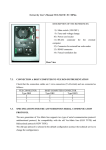
ComfoControl Ease User manual Heating Cooling Fresh Air Clean Air All rights reserved. This documentation has been compiled with the utmost care. The publisher cannot be held liable for any damage caused as a result of missing or incorrect information in this manual. 2 - EN Table of contents Foreword 1. Introduction and Safety ..................................................................................... 4 2. Use of the ComfoControl Ease .......................................................................... 5 2.1. Time and Date Settings .............................................................................. 6 2.2. Reading and setting the comfort temperature ............................................ 7 2.3. Reading and setting the ventilation volume ................................................ 7 2.4. Temporarily activating high setting ............................................................. 8 2.5. Switching the extractor hood on/off (optional) ........................................... 9 2.6. Switching supply and exhaust fan on/off .................................................... 9 2.7. Ventilation programme settings (optional) ................................................ 10 2.8. Setting additional programmes via P menus ............................................ 11 3. P menus ............................................................................................................. 12 4. Warranty and liability ....................................................................................... 16 5. End of useful life ............................................................................................... 16 6.Maintenance ..................................................................................................... 16 7.Malfunctions ..................................................................................................... 17 EN - 3 Foreword Read this manual carefully before use. This manual provides all the information required for safe and optimal operation and maintenance of the ComfoControl Ease. The device is subject to continuous development and improvement. There is therefore a possibility that the ComfoControl Ease differs slightly from the descriptions given. Applicable pictograms The following pictograms are used in this manual: Point to watch. Questions Please contact Zehnder with any questions you might have on +31 38 42 96 911 or via email at [email protected]. You can find more information on Zehnder at: www.zehnder-jestorkair.nl. 1.Introduction Congratulations, you now own a ComfoControl Ease. We wish you lots of comfort. What is the purpose of this control unit? The ComfoControl Ease - referred to further as the CC Ease - enables users 4 - EN to easily and comfortably operate a Zehnder balanced ventilation system with heat recovery. The CC Ease is usually mounted on the living room wall. It displays all important information about the ventilation system - referred to further as the ComfoAir - being operated. This means it is not necessary to access the ComfoAir unit itself to check that everything is functioning properly. The ComfoAir user manual covers in greater detail ventilation issues and how the ComfoAir works. A copy of this manual can be obtained from Zehnder. Safety instructions Always comply with safety regulations in this manual. If the safety regulations, warnings, comments and instructions are not complied with, this can lead to personal injury or damage to the CC Ease. ■The CC Ease may only be fitted, connected and commissioned by a registered installer; ■Installation of the CC Ease must be carried out in accordance with the general and locally applicable construction, safety and installation instructions of the local council and electricity company; ■Store the manual in the vicinity of the CC Ease for its entire working life. 2. Use of the ComfoControl Ease The overview below summarizes the information that will be displayed on the CC Ease. Time and date Automatic (AUTO) or manual ventilation (MANUAL) Signal to replace internal (I) or external (E) filter Actual ventilation setting (with activated extractor hood where fitted) Supply air or exhaust air ON or OFF Geothermal heat exchanger (EWT), Post-heater and/or bypass activated Comfort temperature or temporary high setting, analogue programme active The CC Ease panel has a number of buttons to operate the ComfoAir and to enter the settings. These buttons are illustrated below. This button switches to the highest ventilation setting. - Press for less than 2 seconds Extractor hood ON or OFF (optional). - Press for longer than 2 seconds Temporary high setting ON. This button allows you to switch between supply/exhaust. - Press once SUPPLY OFF (and EXHAUST ON). - Press twice EXHAUST OFF (and SUPPLY ON). - Press 3 times SUPPLY and EXHAUST both ON. This button allows you to display or set the comfort temperature. - Press for less than 2 seconds READ. - Press for longer than 2 seconds SET. This button allows you to adjust two settings. - Press for less than 2 seconds Set ventilation programme (AUTO / MANUAL). - Press for longer than 2 seconds Set date and time. These buttons allow you to adjust various settings: - In P menu or comfort temperature screen Set values. - In main menu enter ventilation setting (A, 1, 2, 3). EN - 5 If an extractor hood is not registered or is not supported, then the Temporary High Setting will be activated by a short press of the button. 2.1 Time and date settings 1.Press longer than 2 seconds. - Wait until the day, e.g. “Sa”, starts flashing. 2. Select the required day using or . While the open fire programme is activated, or when an ComfoCool is registered, the supply and exhaust fan cannot be manually switched off. Not all CC Ease operating functions are supported by each ventilation system. The CC Ease allows the following functions to be programmed and displayed: ■Reading and setting the day and time; ■Reading and setting the comfort temperature; ■Reading and setting the ventilation volume; ■Activating the temporary high setting; ■Switching the extractor hood on/off (optional); ■Switching the supply and exhaust fan on/off (optional); ■Setting a personal ventilation programme; ■Setting additional ventilation programmes/options in the P menus. 3.Press . - Wait until the hours, e.g. “12”, flash. 4. Select the required hour using or . 5.Press . -Wait until the minutes, e.g. “00”, flash. 6. Select the required minutes using or . A concise explanation of the above listing is given in the paragraphs below. I f no buttons are used for 30 seconds, then the CC Ease will automatically return to the main screen. 6 - EN 7.Press to save the settings and return to the main screen. 2.2 Reading and setting the comfort temperature The comfort temperature can be read, but also set to the desired indoor temperature. Based on this temperature, the ComfoAir will then automatically switch to free cooling using the bypass if required. Reading the comfort temperature 1. Press briefly. - Wait until the comfort temperature is displayed. 2. Press to return to the main screen. Setting the comfort temperature 1. Press longer than 2 seconds. - Wait until the comfort temperature, e.g. “20.0”, flashes. 2. Select the desired comfort temperature using or . 3. Press (this time briefly) to save the settings and return to the main screen. It is best to set the comfort temperature to the same temperature as the room thermostat (of the central heating system). 2.3 Reading and setting the ventilation volume Reading the ventilation volume The current ventilation volume, e.g. “2”, will always be displayed on the CC Ease. Normally the ComfoAir regulates the required ventilation levels automatically in accordance with a preset ventilation programme. During automatic ventilation mode “AUTO” will be displayed on the CC Ease. Besides showing the programmed ventilation setting, the CC Ease panel also displays whether a temporary control system (such as a CO2 sensor or a bathroom switch) is overriding the ventilation setting. In the event a required ventilation setting is being overridden by a time delay function (such as the bathroom switch deactivation delay), a “t” is displayed in the bottom right-hand corner of the CC Ease. In the event a required ventilation setting is being overridden by a signal from a sensor (such as a CO 2 sensor), an “A” is displayed in the bottom right-hand corner of the CC Ease. EN - 7 Setting ventilation levels: 1.Press to increase the ventilation level. 2.Press to decrease the ventilation level. Setting the ventilation levels The ventilation level can also be set manually by setting this higher or lower. A total of 4 ventilation volumes/levels can be set. These are: ■ Setting A ¨ A bsent. - U se when house is unoccupied. ■ ■ ■ ■ At level A, the house is ventilated using the minimum prescribed ventilation volume. Setting 1 L ow. - U se for low ventilation requirements. Setting 2 M edium. - U se for normal ventilation requirements. Setting 3 High. - U se when cooking, showering and when extra ventilation is required. Temporary high setting Timer - U se this position during cooking, showering and when extra ventilation is briefly required. The ComfoAir will switch to the highest ventilation position set in the house unless overruled by an automated software programme. 8 - EN During manual ventilation, the CC Ease will not display “AUTO”, but “MANUAL”. 3. Press to return to automatic ventilation. 2.4 Temporarily activating high setting 1. Press longer than 2 seconds. - Wait until “3t” is displayed. Once the programmed time delay is complete, the ComfoAir automatically switches back to the former ventilation setting. The timer of the temporary high setting can be switched off early by pressing , or . 2.5Switching the extractor hood on/ off (optional) 1.Press . - Wait until the ComfoAir switches to Setting 3 and the symbol for the extractor hood is displayed. While the time delay is still active, a “t” will be displayed instead of the extractor hood symbol. he timer of the extractor hood time T delay programme can be switched off early by pressing or . 2.6 S witching supply and exhaust fan on/off (optional) 2. Press “ ” to switch off the extractor hood. After switching off the extractor hood the ComfoAir returns to the normal ventilation setting and the extractor hood symbol disappears from the CC Ease. While the open fire programme is activated, or when an ComfoCool is registered, the supply and exhaust fan cannot be manually switched off. 1.Press once (first time) to switch off the supply fan. AUTO I f a time delay has been programmed for the extractor hood, then the ComfoAir will only switch to the normal ventilation setting once the time delay has run its course. This setting is used when the windows are open in the summer. Then fresh air is not supplied via the supply fan, but through the open windows. EN - 9 2.Press again (second time) to switch the exhaust fan off (and to switch the supply fan on at the same time). 3.Press again (third time) to switch the supply and exhaust fans on again. ear in mind that switching off B the supply or exhaust fan will temporarily immobilize your dwelling’s balanced ventilation system. 2.7 Ventilation programme settings Ex-factory the ComfoAir has a standard ventilation level (setting 2) in its ventilation programme. If required, you can change the default ventilation setting to suit your individual situation. Examples include weekday and weekend programmes. 10 - EN Setting A can not be programmed. For the remaining settings eight changeovers per day can be programmed. The ventilation volume can be changed/ set as follows: 1.Press and together for 2 seconds. - Wait until the ventilation programme appears. 2. Programme the required day or series of days. - Select the required option using or . You can choose from: - Weekend: “SaSu”; - Working week: “MoTuWeThFr”; - Week: “SaSuMoTuWeThFr”; - S eparate days: “Sa”, “Su”, “Mo”, “Tu”, “We”, “Th” and “Fr”; 3.Press ; - Wait until the number of the ventilation profile stage flashes (bottom right); 4. Select the desired ventilation profile stage using or , e.g. a “1” flashes. The selected ventilation profile stage will be deleted if ventilation setting “d” is selected here. Setting A can not be programmed. 5. Press . - Wait until the hours flash, e.g. “7”. 6. Select the required start time in hours using or . 11. Press to save the settings and return to the main screen. 12. Programme the next ventilation profile stage if required. Up to eight ventilation profile stages can be programmed. - Simply repeat steps 1 to 11. 7. Press . - Wait until the minutes flash, e.g. “00”. 8. Select the required start time in minutes using or . 19. Press - Wait until the ventilation setting flashes, e.g. “3”. 10. Select the desired ventilation setting using or . Selecting factory reset will reload the default ventilation programme. 2.8 Setting additional programmes via P menus Using some P menus in the ComfoAir, you can: ■ Read the status of various ventilation programmes; ■ Switch the time delay function on or off for various ventilation programmes; ■ Programme a time delay for various ventilation settings. The user can only access P menus: P1, P2 and P9 additional programme settings. The remaining P menus (P3 to P8) are for use by the installer only. EN - 11 Accessing the P menus 1.Press and together for 2 seconds. - Wait until P menu “P2” appears on the display. 2. Select the required P menu, e.g. 2, using or . Return to main screen 9. Press twice to go back. 3.Press . 4. Select the required P submenu, e.g. “23”, using or . 5.Press . ettings can only be entered in S the P2 menus. The other P menus (P1 and P9) are read-only. Exiting read-only menu ■Press at step 7 (instead of ). 3 P menus Entering settings in P menus he minimum and maximum T values for the available ventilation programmes are preset in the software. 6. Select a new value for the programme using or . 7.Press to save these settings. 8. Repeat steps 4 to 7 to enter multiple programmes in succession. Or press to return to the P menus so you can repeat steps 2 to 7. 12 - EN Not all functions are supported by every ComfoAir. This might result in certain P menus not being visible. It is also possible that some changes you enter appear to have no effect. The ComfoAir user manual states which functions are supported. This manual will also mention the effects of the different functions. Menu P1 ➝ Status of programmes Status Sub-menu Description Activated P10 Is menu 20 currently active? Yes (1) / No (0) P11 Is menu 21 currently active? Yes (1) / No (0) P12 Is menu 22 currently active? Yes (1) / No (0) P13 Is menu 23 currently active? Yes (1) / No (0) P14 Is menu 24 currently active? Yes (1) / No (0) P15 Is menu 25 currently active? Yes (1) / No (0) P16 Is menu 26 currently active? Yes (1) / No (0) P19 Is menu 29 currently active? Yes (1) / No (0) Menu P2 ➝ Setting time delays Values Time delay Sub-menu Description Minimum Maximum Factory reset P20 (Optional) Deactivation delay for the extractor hood programme. ■“x” minutes after operating the extractor hood switch, the ComfoAir reverts back to its normal setting. 0 Min. 180 Min. 0 Min Activation delay for the bathroom switch (to switch to high position). ■“x” minutes after operating the bathroom switch, the ComfoAir switches to the high setting. 0 Min. 15 Min. 0 Min. Deactivation delay for the bathroom switch (to switch to normal setting). ■“x” minutes after operating the bathroom switch, the ComfoAir switches to the normal setting. 0 Min. 120 Min. 30 Min. Note: Only applicable to installations with a corded extractor hood with temperature sensor. P21 (Optional) Note: Only applies to systems fitted with a corded switch and a second switch in the bathroom. P22 (Optional) Note: Only applies to systems fitted with a corded switch and a second switch in the bathroom. EN - 13 Values Time delay Sub-menu Description Minimum Maximum Factory reset P23 (Optional) Deactivation delay for ventilation setting 3. ■If you BRIEFLY engage ventilation setting 3 (<3sec.), the ComfoAir switches to the HIGH SETTING for “x” minutes and then switches back automatically to the normal ventilation setting. 0 Min. 120 Min. 0 Min. Note: Only applies to systems fitted with a corded 3-position switch. If a 3-position switch is operated during the time delay mode, then the ComfoAir switches immediately to the selected ventilation setting. P24 Filter warning ■“x” weeks after the filter has been cleaned or replaced, a “filter dirty” alert will appear once again. 10 weeks 26 weeks 16 weeks P25 (Optional) Deactivation delay for ventilation setting ). 3 (using 1 Min. 20 Min. 10 Min. Note: Only applies to systems fitted with an RF switch. ■ After pressing BRIEFLY (<2 sec.), the ComfoAir switches to the high setting for “x” minutes and then switches back automatically to the normal ventilation setting. 1 Min. 120 Min. 30 Min. If a 3-position switch is operated during the time delay mode, then the ComfoAir switches immediately to the selected ventilation setting. P26 (Optional) Deactivation delay for ventilation setting . 3 Note: Only applies to systems fitted with an RF switch. ■ After pressing and HOLDING (>2 sec.) , the ComfoAir switches to the high setting for “x” minutes and then switches back automatically to the normal ventilation setting. If a 3-position switch is operated during the time delay mode, then the ComfoAir switches immediately to the selected ventilation setting. 14 - EN Values Time delay Sub-menu Description Minimum Maximum Factory reset P27 Time for the temporary high setting. ■After pressing and holding (>2 sec.) , the ComfoAir switches to the high setting for “x” minutes and then switches back automatically to the normal ventilation setting. 0 Min. 120 Min. 30 Min. 1% 99% 10% If a 3-position switch is operated during the time delay mode, then the ComfoAir switches immediately to the selected ventilation setting. P29 (Optional) Note: Only applicable to installations with a corded extractor hood with temperature sensor. Setting the extractor hood ventilation levels. ■When the extractor hood is switched on, its ventilation levels can be set x % higher than the corresponding “normal” ventilation levels. Menu P9 ➝ Status of programmes (from menus P5 and P6 additional programmes) Status Sub-menu Description Activated P90 Open fire programme active? Yes (1) / No (0) P91 Bypass Open Yes (1) / No (0) P92 Geothermal heat exchanger valve (EWT) Open Yes (1) / No (0) P93 Post-heater on? Yes (1) / No (0) P94 Analogue ports (0-10V) active? Yes (1) / No (0) P95 Frost protection or frost-free element active? Yes (1) / No (0) P96 Extractor hood programme on? Yes (1) / No (0) P97 Enthalpy programme active? Yes (1) / No (0) EN - 15 4.Warranty and liability Warranty conditions The CC Ease is covered by a manufacturer’s warranty for a period of 24 months after fitting up to a maximum of 30 months after the date of manufacture. Warranty claims may only be submitted for material faults and/or construction faults arising during the warranty period. In the case of a warranty claim, the CC Ease must not be dismantled without written permission from the manufacturer. Spare parts are only covered by the warranty if they were supplied by the manufacturer and have been installed by an approved fitter. The warranty becomes invalid if: ■The guarantee period has elapsed; ■Parts are used which were not supplied by the manufacturer; ■Unauthorized alterations and/or modifications have been made to the unit. Liability The CC Ease is designed and manufactured for use with a balanced ventilation system with heat recovery. Any other application is seen as inappropriate use and can result in damage to the CC Ease or personal injury, for which the manufacturer cannot be held liable. The manufacturer is not liable for any damage originating from: ■Non-compliance with the safety, operating and maintenance instructions in this manual; ■The use of components not supplied or recommended by the manufacturer (the responsibility for the use of such components lies entirely with the fitter); ■Normal wear and tear. 5.End of useful life Discuss with the supplier what to do with the CC Ease at the end of its useful life. If the CC Ease cannot be returned to the supplier, avoid disposing of it with the domestic waste, and ask your local council about the options for recycling the components or processing the materials in an environmentally friendly manner. 6.Maintenance The CC Ease does not require maintenance. However, the ComfoAir controlled by the CC Ease does require periodic maintenance. The maintenance required by the ComfoAir is stipulated in the ComfoAir’s user manual. 16 - EN Demounting If you need to demount the CC Ease front section, for instance for painting purposes, then follow the steps below: 1. Disconnect the ComfoAir from its power supply. 2. Press the CC Ease front section downwards. 3. Pull the lower edge of the CC Ease front section away from the wall. 4. Disconnect the front section from the PCB in the wall-mounted casing. ■A flashing “A” with a number extension in the field that normally displays the ventilation setting; ■A flashing “E” with a number extension in the field that normally displays the ventilation setting; ■A flashing “E A” with a number extension in the field that normally displays the ventilation setting; 1 2 Assembly To remount the CC Ease front section, follow the steps below: 5. Connect the front section to the PCB in the wall-mounted casing. 6. Place the upper part of the CC Ease front section on the wall-mounted casing, then push it downwards. 7. Push the lower edge of the CC Ease front section against the wall. 8. Reconnect the power to the ComfoAir. 7.Malfunctions If the ComfoAir has a malfunction, then in most cases a malfunction alert will appear in the CC Ease screen. Malfunction alerts appear on the CC Ease as: ■A flashing “Filter I” or “Filter E” below the field displaying the ventilation modes. Filter malfunction The filters must be cleaned or replaced if one of the filter warnings below appears on the CC Ease: ■“ FILTER I ” T he internal filters must be cleaned or replaced; ■“ FILTER E ” T he external filters must be cleaned or replaced (optional). EN - 17 The internal filters are included in the standard configuration of the ComfoAir. The external filters (optional) form part of the ducting of the ventilation system, yet do not form part of the ComfoAir. Meanings of malfunction alerts Code Description A0 NTC sensor Tge is defective. (= Temperature of outdoor air for geothermal heat exchanger) A1 NTC sensor T1 is defective. (= outside air temperature) A2 NTC sensor T2 is defective. (= supply air temperature) A3 NTC sensor T3 is defective. ( =return air temperature) A4 NTC sensor T4 is defective. (= exhaust air temperature) A5 Malfunction in the bypass motor. A6 Malfunction in the frost-free element. A7 Frost-free element not heating sufficiently. A8 Frost-free element becomes too hot. A10 NTC sensor Tch is defective. (= Temperature in the extractor hood) A11 NTC sensor Tah is defective. (= temperature of the Post-heater) E1 Exhaust fan not rotating. E2 Supply fan not rotating. If the malfunction does not disappear or returns repeatedly, please contact the fitter. ■Make a note of your ComfoAir type; ■Make a note of any malfunction codes on the CC Ease display. E3 Temperature sensor extractor hood too high. E4 The ComfoAir has been switched off by external contact EA1 Enthalpy sensor measures excessive Relative Humidity (RH) values. EA2 The ComfoAir is not communicating with the enthalpy sensor. The system should remain connected to its power supply unless the ComfoAir requires taking out of service due to a serious malfunction or for filter cleaning/ replacement or any other compelling reasons. When the unit is disconnected, the dwelling will no longer enjoy mechanical ventilation, and this can lead to problems with damp and mould. Longterm deactivation of the ComfoAir must be prevented. NC CC Ease is not communicating with the ComfoAir FilterI Internal Filter is dirty. FilterE External Filter is dirty. Cleaning or replacing filters: 1.Press until the filters malfunction disappears (min. 3 sec.). 2. Disconnect the ComfoAir from its power supply. 3. Replace or clean the filters as described in the ComfoAir user manual. What to do in the event of a malfunction All malfunction alerts on the CC Ease can be reset by following the steps below: - Press until the malfunction alert disappears (min. 3 sec.). 18 - EN EN - 19 ZGNL-Manual_849051024, V0512, EN, Subject to change Zehnder Group Nederland B.V. Lingenstraat 2 · 8028 PM · Postbus 621 · 8000 AP Zwolle T +31 38 429 69 11 · F +31 38 422 56 94 [email protected] · www.zehnder-jestorkair.nl