1
View: Data Sheets
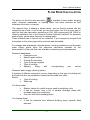
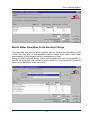
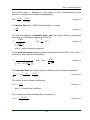
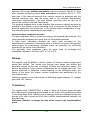
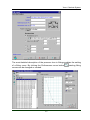
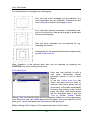
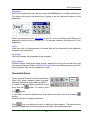
For example three rectangles are overlapping:
First only the outer rectangle can be marked. The
inner rectangles are not available. Therefore we are
now shifting the selected rectangle to back.
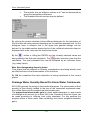
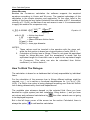
As a result the second rectangle is accessible now,
but not the third one. Now we are going to send back
the second rectangle.
Now the inner rectangle can be selected for e.g.
changing the format.
Analogously to the described procedure objects also
can be shifted to front.
Note: Graphics in the second level also can be selected by pressing the
CONTROL-key when clicking the mouse.
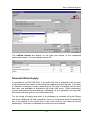
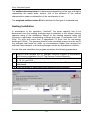
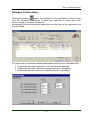
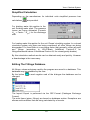
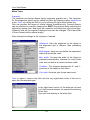
Add / save layer:
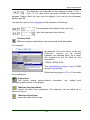
Here one can activate or add a
new layer. Remember: pages
generally consist of one or more
layers.
In the cell Active layer you can
select the layer that you want to
activate. Only active layers can be
processed. In the table underneath
all layers that belong to the current
page are listed. Non-active layers
will be displayed pale if you set
True in column Visible. When
setting False the selected layer will be completely faded out in the page layout
view. Moreover one can delete layers from the page, add more layers from the
layer pool, create new layers and save them in the layer pool.
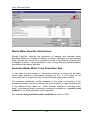
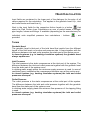
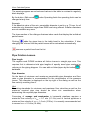
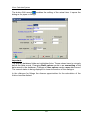
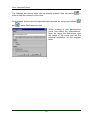
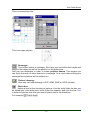
When clicking Add all layers of the central layer pool will be listed:
32