1
DiGiCo SD App
1.3.2 Modes.......................................................................................
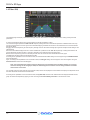
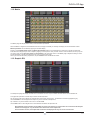
There are 10 buttons on the left of the screen which are used to select the Mode.
When a Mode is selected, its button is highlighted in yellow.
Note: In some Modes there will be different sets of controls visible for different channel types
For example, in Mix Mode, only Input Channels will display Channel Pans.
For CG Channels, no controls are displayed in Channel Setup, EQ, Dynamics, Aux or Buss Routing Modes
The following pages contain details for each of these 10 Modes
1.3.3 Session Information................................................................
The top left corner of the screen displays information about the currently loaded session and the current snapshot.
Tapping on the Session Name will open a dialogue box allowing a session to be saved on the console (after a confirmation stage)
Note: If a session is saved from the iPad, the current console session is immediately overwritten - this is the equivalent
of the console Save Session command.
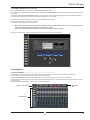
1.3.4 The Universal Rotary Controller............................................
All on screen rotary controls such as Gain and Trim can be adjusted by tapping on them to open the Universal Rotary Controller which
will temporarily replace the Mode Buttons on the left of the screen. If the controller is not used for a short period of time it will disappear
automatically or it can be hidden manually by touching an empty area of the main channel display.
While the Controller is visible, a different on screen rotary control can be selected and the controller function will change to the newly
selected rotary.The currently Selected rotary is highlighted in yellow and the details of that rotary are displayed above the fader in the
controller strip and the value is also displayed.
Tapping the value display box will open an on screen keyboard allowing numeric entry of values.
While the on screen keyboard is visible, tapping on the units display (dB / ms etc) will change the units' type.
1-4