1
DiGiCo SD App
1.1 Introduction
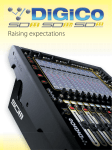
The DiGiCo SD App allows wireless control of any DiGiCo SD Series console with an Apple iPad or iPad Mini.
1.1.1 System Requirements.............................................................
iPad 2 or later
iOS 7 or later - iOS 7.x recommended
A wireless access point with a minimum wireless speed 150Mbps connected to the console ethernet port.
SD console software V685+ with the relevant SD console External Control software installed and enabled.
DO NOT run the External Control Activators on consoles running V634 or earlier as the External Control functions WILL NOT work correctly.
For details on installing and enabling SD Console External Control please see the relevant Technical Note available from support@
digiconsoles.com or the Support section of www.digico.biz
NOTE: With the DiGiCo SD App V1.2.0 running on iOS8, the Offline Demo Mode is not available. It is available with
iOS7.
NOTE: With the DiGiCo SD App V1.2.0 and SD Console software version V685, only one iPad can be connected to the
console at one time
1.1.2 Important Considerations.......................................................
PLEASE READ THIS FIRST
1) iPad Mobile Data should be switched off and Wi-Fi switched on when using the DiGiCo SD App.
2) Please ensure that the SD App is closed before loading or restructuring a session on the console.
Press the iPad "Home" button to close the App and then restart the App from the DiGiCo SD icon on the iPad screen once the
session has been successfully loaded or restructured.
3) If the console and iPad are used in an environment where several different wireless networks are available, it is possible
that the iPad might switch automatically from one wireless network to another and console control will be lost.
In this case, close the DiGiCo SD App and reconnect to the console again.
4) If several different wireless networks are available and sharing WIFI channels there is a greater possibility of interference,
slower communications and losses in data between the iPad and the console.
This will possibly cause the console and/or iPad response to appear slower than normal.
5) If the DiGiCo SD App is to be used to control a console or engine that is mirrored to another console or engine eg. two mirrored engines in an SD7, the External Control system should only be enabled on one of those consoles or engines.
If one console or engine is being controlled, the mirroring functions will themselves ensure that the other device is adjusted in
the same way as the first one.
6) If your session contains MULTIS (Mutlichannels) and the members of the MULTI also exist independently on the console
worksurface please note that, when controlled from the iPad, the member channels' faders, mutes and buss routing will behave as if linked to all other members of the Multi. Therefore adjusting the faders, mutes or group routing of an individual Multi
member on the iPad will also adjust the same parameters for all other members.
1.1.3 Features...................................................................................
The following console functions can be displayed / controlled:
Channel Setup - +48V, polarity, analogue gain, digital trim, channel delay, insert points on/off, meters
Mix – channel label, Main/Alt input, pan, mute, solo, fader level, channel presets, meters
Filter / EQ – 4 band EQ (or 8 band where applicable), HPF/LPF, Dynamic EQ parameters, presets
Dynamics – all dynamics parameters for all console dynamics modes, presets
Auxes – auxiliary send levels, on/off, auxiliary pans
Buss Routing – assignment of input or group channels to busses
Macros – access to any Macro function that has been created in a dedicated OSC Macro on the console
Snapshots – insert new, recall, undo, update, rename, delete, notes display
Matrix – sends, on/off, matrix input labels, presets
Graphic EQ – 32 faders and on/off for each unit, flatten all bands, presets
Save Session
1-1