1
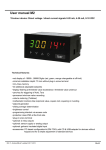
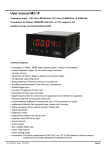
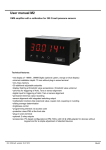
User manual M2
Profibus DP
Technical features:
• 6-digit red display (optional: green, orange, blue)
• minimal installation depth: 70 mm excluding plug-in terminal
• programming interlock via access code
• protection class IP65 (front side)
• plug-in terminal
M2_1B9GB.pdf update: 22.11.2013
96x48
Identification
STANDARD TYPES
ORDER NUMBER
Profibus DP
Housing size: 96x48 mm
M2-1BR6B.9000.570CD
M2-1BR6B.9000.670CD
Options – breakdown order code:
M 2- 1 B R 6 B. 9 0 0 0. 6 7 0 C D
Standard type M-Line
Dimension
D physical unit
Installation depth
89 mm incl. plug-in terminal
2
Version
C C
Housing size
B96xH48xD70 mm
1
Switching points
0 no switching points
Display type
binary
B
Protection class
1 without keypad,
Display colour
Blue
B
7 IP65 / plug-in terminal
operation on the back
Green
G
Red
R
Yellow
Y
Supply voltage
4 115 VAC
5 230 VAC
Number of digits
6-digit
6 10-30 VDC galv. insulated
6
Measuring input
0 none
Digit height
14 mm
Digital input
Profibus
B
Analog output
0 none
9
Sensor supply
0 none
Please state physical unit by order, e.g. m/min.
Contents
1.
Assembly
2
2.
Electrical connection
3
3.
Function and operation description
4
4.
Setting up the device
5
4.1. Switching on
5
4.2. Parameterisation
5
5.
Reset to factory settings
6
6.
Operating modes
7
6.1. Operating mode 1
7
6.2. Operating mode 2
7
6.3. Operating mode 3
8
6.4. Operating mode 4
8
6.5. Operating mode 5
9
6.6. Explanations to panel parameters
10
6.7. Explanations to the position after decimal point
10
6.8. Explanations to the mode
11
6.8.1 Modus 0
11
6.8.1 Modus 1
´
11
7.
Error indications
12
8.
Technical data
13
9.
Safety advice
14
1
1. Assembly
1. Assembly
Please read the Safety advice on page 13 before installation and keep this user manual for future reference.
3,0
48,0
M2
Se
alin
g
,0
89
Gap for physical unit
1.
2.
3.
After removing the fixing elements, insert the device.
Check the seal to make sure it fits securely.
Click the fixing elements back into place and tighten the clamping screws by hand. Then use a
screwdriver to tighten them another half a turn.
CAUTION! The torque should not exceed 0.1 Nm!
The dimension symbols can be exchanged before installation via a channel on the side!
2
2. Electrical connectio
2. Electrical connection
Type M2-1BR5B.9000.570CD supply of 230 VAC
Type M2-1BR5B.9000.670CD supply of 10-30 VDC
Connection example:
Profibus arranges the devices in sequence. An allocation in form of a star is not acceptable! Both ends of
the data line require a termination. One in the triggering included termination needs to be activated. The
maximum allowable length of the data line depends on the baudrate an is 1000 m.
For simplification of the electrical connection, the terminals are carried out doubly. At the last device of tha
bus-line, the termination can be switched onto the bus-line with two bridges.
3
3. Function and operation description
3. Function and operation description
Operation
The device is triggered via Profibus and shows numerics and signs in a 6-digit 7-segment display.
Thereby the communication can be triggered via a Bus master. The display recognizes automatically the
used Baudrate with a Bus master and needs as single information the Profibus address, which can be
parameterised via the keypad of the display.
Parameterisation level:
Parameter deposited in the menu item can here be parameterised.
Functions, that can be changed or adjusted, are always signalised by a flashing of the display. Settings
that are made in the parameterisation level are confirmed with [P] and thus safed. By pressing the [O]-key
(zero-key) it leads to a break-off of the value input and to a change into the menu level.
All adjustments are safed automatically by the device and it changes into operating mode, if no further key
operation is done within the next 10 seconds.
Operation and display elements:
Level
Key
Description
Change to parameterisation level and deposited values.
Menu level
Keys for up and down navigation in the menu level.
Change into operation mode.
To confirm the changes made at the parameterization level.
Parameterisation
level
Adjustment of the value / the setting.
Change into menu level or break-off in value input.
4
4. Setting up the device
4. Setting up the device
4.1. Switching-on
Once the installation is complete, you can start the device by applying the voltage supply. Before, check once
again that all electrical connections are correct.
Starting sequence
For 1 second during the switching-on process, the segment test (8 8 8 8 8) is displayed followed by an
indication of the software type and, after that, also for 1 second the software version. After the starting
sequence, the device switches to operation/display mode.
4.2. Standard parameterisation: (Flat operation level)
To parameterize the display, press the [P] key in operating mode for 1 second. The display then changes to
the menu level with the first menu item TYPE.
Menu level
Parameterisation level
Selection of the device address Adr:
Default: 125
Device addresses from 1-125 can be parameterised. The address 126 is preset as default
value, which is the delivery state. After changing this parameter, the device does a soft test
bevor switching back into operation mode. After this, the new address will be directly in use.
Setting the decimal point, dot:
Default: 0
The decimal point on the display can be moved with [▲] [▼] and confirmed with [P]. The
display then switches back to the menu level again.
Adjusting the brightness brt:
Default: 100
With this parameter the brightness of the display can be reduced onto 25% of the total
brilliancy. With [P] the selection is confirmed and the device switches back into menu level.
5
5. Reset to factory settings
Menu level
Parameterisation level
Administrator code / Master code (4-digit number-combination free available), A.Co:
Default: 1234
With this code all parameters can be re-activated, after LOC has been activated under menu
item run before. By pushing [P] in operation mode for approx. 3 seconds, CodE occurs in the
display and enables the user to reach all parameters by entering the A.co. While leaving the
parameterisation under run, the parameterisation can be activated permanently by selection of
ULC. So that at a renew pushing of [P] in operating mode, no new entering of the code needs to
be done.
Activiation and/or deactivation of the programming interlock or closing-off of the
parameterisation, run:
Default: ulc
With the navigation keys [▲] [▼], one can choose between the deactivated key lock Uloc
(works setting) and the activated key lock Loc. Confirm the selection with [P]. After this, the
display confirms the settings with "- - - - -", and automatically switches to operating mode. If Loc
was selected, the keyboard is locked. To get back into the menu level, press [P] for 3 seconds
in operating mode. Now enter the CODE (works setting 1 2 3 4) that appears using [▲] [▼] plus
[P] to unlock the keyboard. FAIL appears if the input is wrong. By pressing [P] in operation mode
for approx. 3 seconds, the first menu group adr appears in the display and thus confirms the
change into parameterisation. It stays activated as long as ULOC is entered in menu group RUN,
thus the display is set back in standard parameterisation again.
5. Reset to factory settings (default values)
To return the unit to a defined basic state, a reset can be carried out to the default values.
The following procedure should be used:
• Switch off the power supply
• Press button [P]
• Switch on voltage supply and press [P]-button until „- - - - -“ is shown in the display.
With reset, the default values of the program table are loaded and used for subsequent operation. This puts
the unit back to the state in which it was supplied.
Caution! All application-related data are lost.
6
6. Operating modes
6. Operating modes
The Profibus displays support 5 different operating modes, as given below.
6.1. Operating mode 1
Display of 16 bit signed integer values (-32768…32767).
Configuration values
Byte-No.
Characteristic
Description
Function
0
0x21
2 Bytes output data
Display value „signed integer“
Output data
Byte-No.
Function
0
Display value High-Byte
1
Display value Low-Byte
6.2. Operating mode 2
Display value of 16 bit signed integer values (-32768…32767), with brightness control, flashing and position
after decimal point.
Configuration data
Byte-No.
Characteristic
Description
Function
0
0x21
2 Bytes output data
Panel parameter (see 6.6.)
1
0x20
1 Byte output data
Position after decimal point (see 6.7)
2
0x21
2 Bytes output data
Position after decimal point „signed integer“
Output data
Byte-No.
Function
0-1
Panel parameter (see explanations under 6.6.)
2
Position after decimal point (see explanations under 6.7)
3
Display value High-Byte
4
Display value Low-Byte
7
6. Operating modes
6.3. Operating mode 3
Display value of 32 bit signed integer values (-4.294.967.296…4.294.967.295).
Configuration data
Byte-No.
Characteristics
Description
Function
0
0x23
4 Bytes output data
Display value „signed long integer“
Output data
Byte-No.
Function
0
Display value High-Word, High-Byte
1
Display value High-Word, Low-Byte
2
Display value Low-Word, High-Byte
3
Display value Low-Word, Low-Byte
6.4. Operating mode 4
Display value of 16 bit signed integer value (-32768…32767), with brightness control, flashing and position
after decimal point.
Configuration data
Byte-No.
Characteristic
Description
Function
0
0x21
2 Bytes output data
Panel parameter (see explanations 6.6)
1
0x20
1 Byte output data
Position after decimal point (see 6.7)
4
0x23
4 Bytes output data
Display value „signed long integer“
Output data
Byte-No.
Function
0-1
Panel parameter (see explanations under 6.6)
2
Position after decimal point (see explanations under 6.7)
3
Display value High-Word, High-Byte
4
Display value High-Word, Low-Byte
5
Display value Low-Word, High-Byte
6
Display value Low-Word, Low-Byte
8
6. Operating modes
6.5. Operating mode 5
Direct display triggering with brightness control.
Configuration data
Byte-No.
Characteristics
Description
Function
0
0x21
2 Bytes output data
Panel parameter (see explanations 6.6)
2
0x21
2 Bytes output data
Mode (see explanations 6.8)
4
0x27
8 Bytes output data
Direct display
Output data
Byte-No.
Function
0-1
Panel parameter (see explanations 6.6)
2-3
Mode (see explanations 6.8)
4
1. Digit (display digit with the lowest value)
5
2. Digit
6
3. Digit
7
4. Digit
8
5. Digit
9
6. Digit
10
7. Digit
11
8. Digit
With 6-digit displays, the 1st and 2nd digit may not be triggered (and so on). But all 8 digits always need to be
assigned!
9
6. Operating modes
6.6. Explanations to panel parameters
Byte-No.
Function
0-1*
00 equates 100 % brightness
01 equates 75% brightness
10 equates 50% brightness
11 equates 25 % brightness
2-7
Reserved
8
Flashing at 1.digit (display digit with the lowest value)
9
Flashing at 2.digit
10
Flashing at 3.digit
11
Flashing at 4.digit
12
Flashing at 5.digit
13
Flashing at 6.digit
14
Flashing at 7.digit
15
Flashing at 8.digt
*Brightness control not availabe for outdoor displays!
6.7. Explanations to position after decimal point
Byte-No.
Function
0-2
000 no position after decimal point
001 1 position after decimal point
010 2 positions after decimal point
011 3 positions after decimal point
100 4 positions after decimal point
101 5 positions after decimal point
110…6 positions after decimal point
111…7 positions after decimal point
3-6
Reserved
7
0
1
Display
Display test
10
6. Operation types
6.8. Explanations of the mode
Byte-No.
Function
0-6
00000000
00000001
00000010
…
00000100
7
0
1
Display via ASCII table (see 6.8.1)
Direct triggering of the segments (see 6.8.2)
Reserved
Reserved
Display
Display test
6.8.1. Mode 0
ASCII table:
HEX
00
01
02
03
04
05
06
07
08
09
0A
0B
0C
0D
0E
00
10
20
30
40
50
60
70
At all empty fields a space is displayed.
6.8.2. Mode 1
Direct triggering of the segments (bit coded, all values in hexadecimal notation.
04H
02H
20H
01H
10H
Example:
To display the sign with the ASCII code 32H („2“) in mode 1, the
value 5BH = (01H x 02H + 40H + 10 H + 08H) needs to be entered
in the data field.
08H
11
80H
0F
7. Error indications
7. Error indications
The display controls several possibilites of errors and shows them if required in the display.
Overflow behavior
If a process value (Integer value) is transfered, that exceeds the display range of the display, then the
display shows a fast flashing display with the incorrect value, this means the available significant digits.
The minus sign needs its own digit. The same happens in operation type 5, if segments are triggered, that
are not available in the display. In this case the defined display segments are flashing with a high
frequency.
Error indications
During the starting sequence a check of the configuration is done. Furthermore an error number / warning
number can be found in the Gateway. It then alerts a checksum error, an EEPROM error or a Profibus
error.
After this the device processor starts with the cyclic scanning of the display segments that need to be
displayed, which state the operating mode.
Source of error
Message
Description
Checksum error
„HLP“
Parameter in device processor is not consistent
Gateway error
„Er1“
Gateway does not answer
EEPROM error
„Er2“
Communikation error with EEPROM
SPC3 error
„Er3“
Gateway Profibus error
PCHECKSUM error
„Er4“
Gateway checksum of a parameter is faulty
DATA overflow
„Er5“
Gateway receives too many data
Data exchange error
„Er6“
Profibus master offline
Configuration error
„Er7“
Gateway works in an inoperative operating type
Watchdog overflow
„Er8“
Watchdog in Gateway is invalid
If an initialisation error occurs, the error indications appears directly in the display. At an operating error the
display reacts with fast flashing of the current dates for at least 10 seconds.
Occured errors can be called up by shortly pushing the [▲] or [▼] key. The single errors can be called up
by pushing the keys shortly several times. Each single error can be deleted by pushing the [▲] or [▼] key
for approx. 1 second.
If no error did occur then „noE“ appears. After the error indication the display changes back automatically
into operting mode after approx. 7 seconds.
12
8. Technical data
8. Technical data
Housing
Dimensions
96x48x70 mm (BxHxD)
96x48x89 mm (BxHxD) incl. plug-in terminal
Panel cut-out
92.0+0.8 x 45.0+0.6 mm
Wall thickness
up to 15 mm
Fixing
screw elements
Material
PC Polycarbonate, black, UL94V-0
Sealing material
EPDM, 65 Shore, black
Protection class
Standard IP65 (Front), IP00 (Back)
Weight
approx. 400 g
Connection
plug-in terminal; wire-cross section up to 2.5 mm2
Display
Digit height
14 mm
Segment colour
red (optional green, yellow or blue)
Display
6-digit
Interface Profibus
Protocol
Profibus DP
Baud rates
Autobaud recognition up to 12 MBaud
Interface
RS485
Wire length
max. 1000 m
Bus termination
pull-up/pull-down according to EN50170
Termination
can be activated via connection terminal
Power pack
10-30 VDC max. 4 VA
230 VAC +/- 10 % max. 10 VA
Memory
EEPROM
Data life
> 30 years at 25°C
Ambient conditions
Working temperature
0…50°C
Storing temperature
-20…80°C
Wheatering resistance
relative humidity 0-80% on years average without dew
EMV
EN 61326
CE-sign
Conformity to directive 2004/108/EG
Safety standard
According to low voltage directive 2006/95/EG
EN 61010; EN 60664-1
13
9. Safety advice
9. Safety advice
Please read the following safety advice and the assembly chapter 1 before installation and keep it
for future reference.
Proper use
The M2-1B9-device is designed for the evaluation and display of sensor signals.
Attention! Careless use or improper operation can result in
personal injury and/or damage to the equipment.
Control of the device
The panel meters are checked before dispatch and sent out in perfect condition. Should there be
any visible damage, we recommend close examination of the packaging. Please inform the
supplier immediately of any damage.
Installation
The M2-1B9-device must be installed by a suitably qualified specialist (e.g. with a qualification
in industrial electronics).
Notes on installation
• There must be no magnetic or electric fields in the vicinity of the device, e.g. due to
transformers, mobile phones or electrostatic discharge.
• The fuse rating of the supply voltage should not exceed a value of 6A N.B. fuse.
• Do not install inductive consumers (relays, solenoid valves etc.) near the device and
suppress any interference with the aid of RC spark extinguishing combinations or freewheeling diodes.
• Keep input, output and supply lines separate from one another and do not lay them parallel
with each other. Position “go” and “return lines” next to one another. Where possible use
twisted pair. So, you receive best measuring results.
• Screen off and twist sensor lines. Do not lay current-carrying lines in the vicinity. Connect the
screening on one side on a suitable potential equaliser (normally signal ground).
• The device is not suitable for installation in areas where there is a risk of explosion.
• Any electrical connection deviating from the connection diagram can endanger human life
and/or can destroy the equipment.
• The terminal area of the devices is part of the service. Here electrostatic discharge needs to be
avoided. Attention! High voltages can cause dangerous body currents.
• Galvanic insulated potentials within one complex need to be placed on a appropriate point
(normally earth or machines ground). So, a lower disturbance sensibility against impacted
energy can be reached and dangerous potentials, that can occur on long lines or due to faulty
wiring, can be avoided.
M2_1B9GB.pdf
14
Update: 22.11.2013