1
3
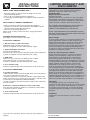
READING CODES
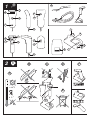
Check the scanning engine
Is the scanning engine on? Is a red light beam visible?
If not, press the trigger key.
For models without a trigger key check the cable connection.
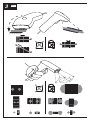
Approach the code
• Point the reading window of the scanner in the direction of the code.
• The code should fit from margin to margin in the light beam width.
• Move the scanner close to the label.
• Check the data at the connected computer device.
A “Good Read” means that the scanner has effectively recognized and decoded the code. In most cases, the application
program will provide an indicator signal or a buzzer signal to indicate a good read to the user.
When the read is incorrect you can try again, paying attention to the instructions below.
?
TROUBLE SHOOTING
General checks:
• Make sure the scanner is installed properly.
• Check the power supply of all devices.
• Is the reading window of the scanner clean?
• Are the codes on the labels damaged?
Scanner does not operate:
• Check the trigger switch
• Check if you connected the right interface
Code could not be read:
• Check that the width of the code does not exceed the width of the light beam.
• Change the angle between the code and the scanner.
• Change the distance between the code and the scanner.
Communication malfunctioning:
• Check if the interface cable is undamaged, and properly connected to the cradle and the host computer.
• Check the connection of the power supply.
• Check if the main socket has power.
• Check if the connection is configured properly.
If you can not solve the problem:
Contact your local dealer or Opticon.
When the scanner needs to be repaired:
The label with serial number should be present.
If returning the scanner, please use the original packaging to minimize the chance of damage.
More information:
The scanner is configured to default factory settings and is supplied with information that gives you a quick understanding of
the product. More product details, additional support, or configuration options to your own preferences (by Opticonfigure) will
be updated at www.opticon.com