1
Synology VisualStation User's Guide
Double-clicking any camera feed enlarges the image of that feed. Double-clicking again returns to the normal
view.
Controller Panel
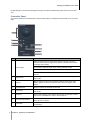
This section explains the Controller panel, which provides options to manipulate camera feeds on the Live View
page.
Item
Name
Function
Adjust angle and zoom of cameras that support PTZ (pan, tilt, zoom)
controls. These controls are grayed out when the selected camera does
not support PTZ controls.
1.
PTZ Controls
Arrow buttons adjust the angle of the currently selected camera.
Home button returns the selected camera to its default position.
Plus and minus buttons adjust the mechanical zoom of the selected
camera.
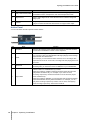
7
2.
Digital Zoom
Drag to adjust digital zoom of the selected camera. Click the image and
drag to pan.
3.
Volume
Drag to adjust the volume of the selected camera’s audio output. This
slider is grayed out when the selected camera does not support audio
output.
4.
Pause/Resume
Pause or resume the selected camera feed.
5.
Full Screen
Enters full screen mode, hiding the Taskbar and Controller panels. Rightclick to exit.
6.
Snapshot
Saves a still snapshot of the selected camera feed. A USB drive must be
connected to VisualStation in order to save snapshots.
7.
Live View Layout Menu
Switch Live View layouts. For more details, please see “Customizing Live
View Layouts” on page 4.
8.
Information
Click to show or hide the status of each camera (name, enabled, disable,
or recording).
Chapter 3: Operating VisualStation