1
Printing on Both Sides of the Paper
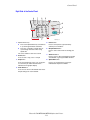
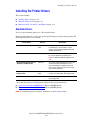
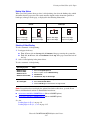
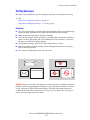
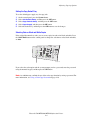
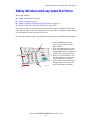
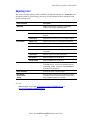
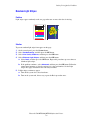
Binding Edge Options
When you use the printer driver to select 2-sided printing, also select the binding edge, which
determines how the pages turn. The actual outcome depends on the orientation (portrait or
landscape) of images on the page, as displayed in the following illustrations.
Portrait
Landscape
Bind on Side Edge
Bind on Top Edge
Bind on Side Edge
Bind on Top Edge
Flip on Long Edge
Flip on Short Edge
Flip on Short Edge
Flip on Long Edge
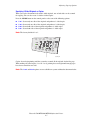
Selecting 2-Sided Printing
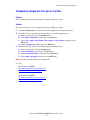
To select automatic 2-sided printing:
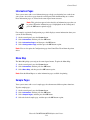
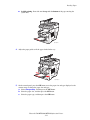
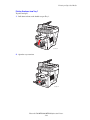
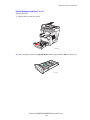
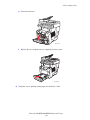
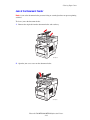
1. Load paper in the tray.
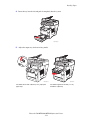
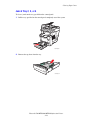
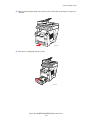
■ Tray 1: Insert side one faceup with the bottom of the page entering the system first.
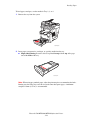
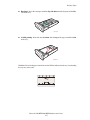
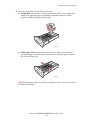
■ Tray 2, 3, or 4: Insert side one facedown with the top of the page toward the back of
the tray.
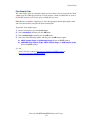
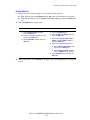
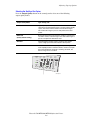
2. Select 2-sided printing in the printer driver.
To select automatic 2-sided printing:
Operating System
Steps
Windows Vista,
Windows 2000,
Windows XP, or
Windows Server 2003
1. Select the Paper/Output tab.
Mac OS X, version
10.3 and higher
2. Select an option under 2-Sided Printing:
■
2-Sided Print
■
2-Sided Print, Flip on Short Edge
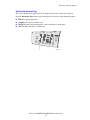
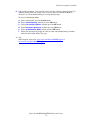
1. In the Print dialog box, select Layout.
2. Select Print on Both Sides.
3. Click the Binding icon that matches the edge to bind.
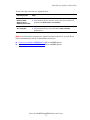
Note: If your driver does not display the options listed in the table above, go to the Xerox
Drivers and Downloads website to download the latest driver:
■
■
www.xerox.com/office/8560MFPdrivers (Phaser 8560MFP printer)
www.xerox.com/office/8860MFPdrivers (Phaser 8860MFP printer)
See also:
Loading Paper in Tray 1 on page 3-9
Loading Paper in Tray 2, 3, or 4 on page 3-15
Phaser® 8560MFP/8860MFP Multifunction Printer
3-27