1
FreeNAS Setup and User Guide
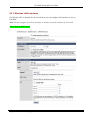
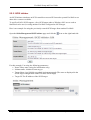
5.8.2 MS Active Directory
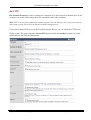
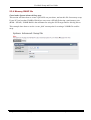
FreeNAS can get the user database (login and password) from a Microsoft Active Directory
(Windows 2000/2003).
Note: in FreeNAS, you must use the pre-win2000 domain name. For example if your domain name
is ‘freenas.org’, you must set the domain name ’FREENAS’
After configuring, CIFS/FTP/SSH/Unison authentication will rely ONLY on user’s accounts present
in the AD.
5.8.3 LDAP
The LDAP page is enabled on the 0.684b but doesn’t work.
Page 71 of 73
Copyright © 2005, 2007 FreeNAS Documentation Project.
Ver 0.684b