1
Fife-Tidland GmbH
GLOBAL WEB MANAGEMENT SOLUTION
guiding inspection slitting winding
Fifestraße 1 - 65779 Kelkheim - Deutschland
Siemensstraße 13-15 - 48683 Ahaus - Deutschland
Telefon: +49 - 6195 - 7002 - 0 Fax: +49 - 6195 - 7002 - 933
GB
SE-46
Operating Instructions
SE-46.Deckblatt.fm
Digital Line Sensor
MI 1 1039 B
CONTENTS
I
INTRODUCTION
1-1
About these operating instructions . . . . . . . . . . . . . . . . . . . . . . . . . . . . . . . . . . . . . . . 1-1
Proper use . . . . . . . . . . . . . . . . . . . . . . . . . . . . . . . . . . . . . . . . . . . . . . . . . . . . . . . . . . 1-1
Operating principle . . . . . . . . . . . . . . . . . . . . . . . . . . . . . . . . . . . . . . . . . . . . . . 1-2
Options . . . . . . . . . . . . . . . . . . . . . . . . . . . . . . . . . . . . . . . . . . . . . . . . . . . . . . . 1-3
SAFETY INSTRUCTIONS
2-1
Notes on using the SE-46 sensor . . . . . . . . . . . . . . . . . . . . . . . . . . . . . . . . . . . . . . . . . 2-1
Information about safety instructions . . . . . . . . . . . . . . . . . . . . . . . . . . . . . . . . . . . . . 2-1
Safety instructions . . . . . . . . . . . . . . . . . . . . . . . . . . . . . . . . . . . . . . . . . . . . . . . 2-1
Symbols . . . . . . . . . . . . . . . . . . . . . . . . . . . . . . . . . . . . . . . . . . . . . . . . . . . . . . 2-2
Hazards . . . . . . . . . . . . . . . . . . . . . . . . . . . . . . . . . . . . . . . . . . . . . . . . . . . . . . . . . . . . 2-2
Installation and commissioning . . . . . . . . . . . . . . . . . . . . . . . . . . . . . . . . . . . . . 2-2
Operation . . . . . . . . . . . . . . . . . . . . . . . . . . . . . . . . . . . . . . . . . . . . . . . . . . . . . 2-3
Maintenance . . . . . . . . . . . . . . . . . . . . . . . . . . . . . . . . . . . . . . . . . . . . . . . . . . . 2-3
INSTALLATION
3-1
Transport and storage . . . . . . . . . . . . . . . . . . . . . . . . . . . . . . . . . . . . . . . . . . . . . . . . . 3-1
Scope of delivery . . . . . . . . . . . . . . . . . . . . . . . . . . . . . . . . . . . . . . . . . . . . . . . . . . . . . 3-1
Mounting . . . . . . . . . . . . . . . . . . . . . . . . . . . . . . . . . . . . . . . . . . . . . . . . . . . . . . . . . . 3-1
Dimensions . . . . . . . . . . . . . . . . . . . . . . . . . . . . . . . . . . . . . . . . . . . . . . . . . . . . 3-2
Installation location of sensor SE-46 . . . . . . . . . . . . . . . . . . . . . . . . . . . . . . . . . . 3-2
Mechanical fastening . . . . . . . . . . . . . . . . . . . . . . . . . . . . . . . . . . . . . . . . . . . . 3-4
Electrical connection . . . . . . . . . . . . . . . . . . . . . . . . . . . . . . . . . . . . . . . . . . . . . . . . . . 3-6
Connections on sensor SE-46 . . . . . . . . . . . . . . . . . . . . . . . . . . . . . . . . . . . . . . 3-6
COMMISSIONING OF THE SE-46 SENSOR
4-1
Sensor SE-46 . . . . . . . . . . . . . . . . . . . . . . . . . . . . . . . . . . . . . . . . . . . . . . . . . . . . . . . . 4-1
COMMISSIONING OF WEB GUIDE CONTROLLERS
5-1
D-MAX . . . . . . . . . . . . . . . . . . . . . . . . . . . . . . . . . . . . . . . . . . . . . . . . . . . . . . . . . . . . 5-1
1. Calibrating the analog signal inputs of the D-MAX Controller . . . . . . . . . . . . 5-1
2. Setting the ASC (Automatic Sensor Control) . . . . . . . . . . . . . . . . . . . . . . . . . 5-6
3. Setting the polarity and gain . . . . . . . . . . . . . . . . . . . . . . . . . . . . . . . . . . . . . 5-6
Operation . . . . . . . . . . . . . . . . . . . . . . . . . . . . . . . . . . . . . . . . . . . . . . . . . . . . . 5-7
DP-20 . . . . . . . . . . . . . . . . . . . . . . . . . . . . . . . . . . . . . . . . . . . . . . . . . . . . . . . . . . . . . 5-8
1. Calibrating the analog signal inputs of the DP-20 . . . . . . . . . . . . . . . . . . . . . 5-8
2. Setting the ASC (Automatic Sensor Control) . . . . . . . . . . . . . . . . . . . . . . . . 5-12
3. Setting the polarity and gain . . . . . . . . . . . . . . . . . . . . . . . . . . . . . . . . . . . . 5-12
Operation . . . . . . . . . . . . . . . . . . . . . . . . . . . . . . . . . . . . . . . . . . . . . . . . . . . . 5-13
CDP-01 . . . . . . . . . . . . . . . . . . . . . . . . . . . . . . . . . . . . . . . . . . . . . . . . . . . . . . . . . . . 5-14
1. Calibrating Analog signal inputs . . . . . . . . . . . . . . . . . . . . . . . . . . . . . . . . . 5-14
2. Setting the ASC (Automatic Sensor Control) . . . . . . . . . . . . . . . . . . . . . . . . 5-17
3. Setting the polarity and gain . . . . . . . . . . . . . . . . . . . . . . . . . . . . . . . . . . . . 5-18
Operation . . . . . . . . . . . . . . . . . . . . . . . . . . . . . . . . . . . . . . . . . . . . . . . . . . . . 5-19
OPERATION VIA SENSOR KEYBOARD
6-1
Precondition . . . . . . . . . . . . . . . . . . . . . . . . . . . . . . . . . . . . . . . . . . . . . . . . . . . . . . . . 6-1
Safety instructions . . . . . . . . . . . . . . . . . . . . . . . . . . . . . . . . . . . . . . . . . . . . . . . . . . . . 6-1
MI 1 1039 B
SE-46
26.01.09
CONTENTS
II
User interface . . . . . . . . . . . . . . . . . . . . . . . . . . . . . . . . . . . . . . . . . . . . . . . . . . . . . . . 6-2
Keys and their functions . . . . . . . . . . . . . . . . . . . . . . . . . . . . . . . . . . . . . . . . . . 6-2
Displays . . . . . . . . . . . . . . . . . . . . . . . . . . . . . . . . . . . . . . . . . . . . . . . . . . . . . . . 6-2
SE-46 operation states . . . . . . . . . . . . . . . . . . . . . . . . . . . . . . . . . . . . . . . . . . . . . . . . . 6-4
Instructions for calibration . . . . . . . . . . . . . . . . . . . . . . . . . . . . . . . . . . . . . . . . . . . . . . 6-4
Select a suitable reference . . . . . . . . . . . . . . . . . . . . . . . . . . . . . . . . . . . . . . . . . 6-4
Scan frequency . . . . . . . . . . . . . . . . . . . . . . . . . . . . . . . . . . . . . . . . . . . . . . . . . 6-5
Sensor mode . . . . . . . . . . . . . . . . . . . . . . . . . . . . . . . . . . . . . . . . . . . . . . . . . . . 6-6
Calibration of the SE-46 . . . . . . . . . . . . . . . . . . . . . . . . . . . . . . . . . . . . . . . . . . . . . . . 6-7
Enhanced functionality . . . . . . . . . . . . . . . . . . . . . . . . . . . . . . . . . . . . . . . . . . . . . . . . 6-8
Deviation Tolerance . . . . . . . . . . . . . . . . . . . . . . . . . . . . . . . . . . . . . . . . . . . . . . 6-8
Active Profile . . . . . . . . . . . . . . . . . . . . . . . . . . . . . . . . . . . . . . . . . . . . . . . . . . . 6-8
Interrupted reference . . . . . . . . . . . . . . . . . . . . . . . . . . . . . . . . . . . . . . . . . . . . 6-9
Active field of view . . . . . . . . . . . . . . . . . . . . . . . . . . . . . . . . . . . . . . . . . . . . . . 6-9
PARAMETER SETTING VIA SENSOR KEYBOARD
7-1
Notes . . . . . . . . . . . . . . . . . . . . . . . . . . . . . . . . . . . . . . . . . . . . . . . . . . . . . . . . . . . . . 7-1
Menu structure . . . . . . . . . . . . . . . . . . . . . . . . . . . . . . . . . . . . . . . . . . . . . . . . . . . . . . 7-1
M1 Deviation Tolerance . . . . . . . . . . . . . . . . . . . . . . . . . . . . . . . . . . . . . . . . . . . . . . . 7-2
M2 Scan Frequency . . . . . . . . . . . . . . . . . . . . . . . . . . . . . . . . . . . . . . . . . . . . . . . . . . . 7-3
M3 Type of Illumination . . . . . . . . . . . . . . . . . . . . . . . . . . . . . . . . . . . . . . . . . . . . . . . 7-5
M4 Active Profile . . . . . . . . . . . . . . . . . . . . . . . . . . . . . . . . . . . . . . . . . . . . . . . . . . . . . 7-6
M5 Hardware Settings . . . . . . . . . . . . . . . . . . . . . . . . . . . . . . . . . . . . . . . . . . . . . . . . . 7-8
M5.1 Distance Gauge . . . . . . . . . . . . . . . . . . . . . . . . . . . . . . . . . . . . . . . . . . . . . . . . . 7-9
M5.3 Simulate Analog Signals . . . . . . . . . . . . . . . . . . . . . . . . . . . . . . . . . . . . . . . . . . 7-10
MX menus . . . . . . . . . . . . . . . . . . . . . . . . . . . . . . . . . . . . . . . . . . . . . . . . . . . . . . . . 7-12
MX.1 - Active Field of View . . . . . . . . . . . . . . . . . . . . . . . . . . . . . . . . . . . . . . . . . . . . 7-13
MX.2 - Profile Switching activated ? . . . . . . . . . . . . . . . . . . . . . . . . . . . . . . . . . . . . . 7-15
THE D-MAX OPERATOR INTERFACE IS USED FOR CONTROL
8-1
Notes . . . . . . . . . . . . . . . . . . . . . . . . . . . . . . . . . . . . . . . . . . . . . . . . . . . . . . . . . . . . . 8-1
Priority of keyboard and displays . . . . . . . . . . . . . . . . . . . . . . . . . . . . . . . . . . . . 8-1
Top level . . . . . . . . . . . . . . . . . . . . . . . . . . . . . . . . . . . . . . . . . . . . . . . . . . . . . . . . . . . 8-2
Calibration of the SE-46 . . . . . . . . . . . . . . . . . . . . . . . . . . . . . . . . . . . . . . . . . . . . . . . 8-2
D-MAX menu of the SE-46 . . . . . . . . . . . . . . . . . . . . . . . . . . . . . . . . . . . . . . . . . . . . . 8-3
Menu structure . . . . . . . . . . . . . . . . . . . . . . . . . . . . . . . . . . . . . . . . . . . . . . . . . 8-3
Menu identification . . . . . . . . . . . . . . . . . . . . . . . . . . . . . . . . . . . . . . . . . . . . . . 8-3
APPLICATION EXAMPLES
9-1
Edges of printed images . . . . . . . . . . . . . . . . . . . . . . . . . . . . . . . . . . . . . . . . . . . . . . . 9-1
Guiding lines . . . . . . . . . . . . . . . . . . . . . . . . . . . . . . . . . . . . . . . . . . . . . . . . . . . . . . . . 9-2
Complex patterns as guiding lines . . . . . . . . . . . . . . . . . . . . . . . . . . . . . . . . . . . . . . . . 9-3
Setting the width of the reference pattern . . . . . . . . . . . . . . . . . . . . . . . . . . . . . 9-5
Print marks . . . . . . . . . . . . . . . . . . . . . . . . . . . . . . . . . . . . . . . . . . . . . . . . . . . . . . . . . 9-5
MI10391BIVZ.fm
MAINTENANCE
10-1
Maintenance work . . . . . . . . . . . . . . . . . . . . . . . . . . . . . . . . . . . . . . . . . . . . . . . . . . 10-1
Decommissioning . . . . . . . . . . . . . . . . . . . . . . . . . . . . . . . . . . . . . . . . . . . . . . . . . . . 10-1
26.01.09
SE-46
MI 1 1039 B
CONTENTS
III
TROUBLESHOOTING
11-1
Information . . . . . . . . . . . . . . . . . . . . . . . . . . . . . . . . . . . . . . . . . . . . . . . . . . . . . . . . 11-1
Display possibilities . . . . . . . . . . . . . . . . . . . . . . . . . . . . . . . . . . . . . . . . . . . . . 11-1
Procedure . . . . . . . . . . . . . . . . . . . . . . . . . . . . . . . . . . . . . . . . . . . . . . . . . . . . 11-1
LED display on the SE-46 . . . . . . . . . . . . . . . . . . . . . . . . . . . . . . . . . . . . . . . . . . . . . . 11-2
Faults . . . . . . . . . . . . . . . . . . . . . . . . . . . . . . . . . . . . . . . . . . . . . . . . . . . . . . . . . . . . 11-4
Problems when calibrating the reference . . . . . . . . . . . . . . . . . . . . . . . . . . . . . . . . . . 11-5
Error message when exiting a menu . . . . . . . . . . . . . . . . . . . . . . . . . . . . . . . . 11-5
Rollback . . . . . . . . . . . . . . . . . . . . . . . . . . . . . . . . . . . . . . . . . . . . . . . . . . . . . 11-5
Problems with guiding . . . . . . . . . . . . . . . . . . . . . . . . . . . . . . . . . . . . . . . . . . . . . . . 11-6
Error messages on the optional D-MAX operator interface . . . . . . . . . . . . . . . . . . . . 11-7
Error message when exiting a menu . . . . . . . . . . . . . . . . . . . . . . . . . . . . . . . . 11-7
Error messages when cancelling a calibration . . . . . . . . . . . . . . . . . . . . . . . . . 11-7
TECHNICAL DATA
12-1
General information . . . . . . . . . . . . . . . . . . . . . . . . . . . . . . . . . . . . . . . . . . . . . . . . . 12-1
Optical properties . . . . . . . . . . . . . . . . . . . . . . . . . . . . . . . . . . . . . . . . . . . . . . . . . . . 12-1
Electrical connection . . . . . . . . . . . . . . . . . . . . . . . . . . . . . . . . . . . . . . . . . . . . . . . . . 12-2
X1 plug connector . . . . . . . . . . . . . . . . . . . . . . . . . . . . . . . . . . . . . . . . . . . . . 12-2
X2 plug connector . . . . . . . . . . . . . . . . . . . . . . . . . . . . . . . . . . . . . . . . . . . . . 12-2
Output signals . . . . . . . . . . . . . . . . . . . . . . . . . . . . . . . . . . . . . . . . . . . . . . . . . 12-2
Power supply . . . . . . . . . . . . . . . . . . . . . . . . . . . . . . . . . . . . . . . . . . . . . . . . . 12-3
Standards and regulations . . . . . . . . . . . . . . . . . . . . . . . . . . . . . . . . . . . . . . . . . . . . . 12-3
APPENDIX A - MENU STRUCTURE
13-1
APPENDIX B - SCAN FREQUENCY DIAGRAM
14-1
APPENDIX C - MENU STRUCTURE OF D-MAX
15-1
SERVICE
16-1
Requests for Service . . . . . . . . . . . . . . . . . . . . . . . . . . . . . . . . . . . . . . . . . . . . . . . . . 16-1
Addresses . . . . . . . . . . . . . . . . . . . . . . . . . . . . . . . . . . . . . . . . . . . . . . . . . . . . . . . . . 16-1
MI 1 1039 B
SE-46
26.01.09
INTRODUCTION
1-1
1
About these operating
instructions
INTRODUCTION
These Operating Instructions describe the commissioning,
operation and maintenance of the SE-46 digital line sensor
and provide important instructions for proper use.
These operating instructions are intended for both the
system construction master as well as the operator who uses
the SE-46 sensor in production. The Operating Instructions
must be read and applied by everyone who is responsible for
commissioning, operating or maintaining the SE-46 sensor.
The Operating Instructions must be carefully kept and must
always be available throughout the service life of the SE-46
sensor.
Translation of the original Operating Manual:
This Operating Manual is a translation. The original
Operating Manual was composed in German.
Proper use
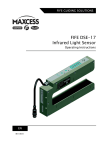
The SE-46 sensor is a line sensor for web guiding systems with
an optical viewing range of 30mm. The SE-46 recognises a
calibrated reference on the material web and generates
guide signals from it that are used together with a web guide
controller from Fife-Tidland GmbH for precise guiding of the
material web.
Note:
The SE-46 sensor must not be opened.
SE-46.Einführung.fm
If the SE-46 sensor is opened, no claims will be honoured
under the warranty.
26.01.09
SE-46
MI 1 1039 B
INTRODUCTION
1-2
Operating principle
Active illumination (7) makes the material web brighter,
which makes Information such as contrast transitions, lines or
structures more visible. The SE-46 sensor samples this
information with an imager (8) and compares it with an
image line of the template saved during the calibration
(reference). The sensor derives the position difference (offset)
from this information if the similarity is sufficient.
1
2
6
7
8
3
9
5
4
1
2
3
4
5
6
7
8
9
Keyboard
Threading for sensor bracket
Software numbers
Connections
Ambient light hood
Nameplate
Illumination
Imager
Target light
Fig. 1.1: Layout of the SE-46 sensor
A target light (9 - Fig. 1.1) makes it possible to display
detected positions on the material web while operation
continues. The distance between the target light and the
viewing area is 45mm (see also A in Fig. 1.2, page 1-3).
MI 1 1039 B
SE-46
26.01.09
INTRODUCTION
1-3
1
2
5
3
7
45mm
A
8
6
4
6 Viewing direction
7 Material web
8 Sensor field of view
1 Ambient light hood
2 Marking of sensor center line
3 Marking of viewing area at a
distance of 10mm
4 Marking of viewing direction
5 Target light
A Distance from the viewing area to the target
light
Fig. 1.2: Ambient light hood and target light
The notch in the front (2) of the ambient light hood
identifies the center of the sensor field of view.
When the distance between the sensor and material web (7)
is 10mm, the notch in the side (3) of the ambient light hoot
is located exactly above the viewing area.
The side slots (4) in the ambient light hood indicate the
viewing direction (6) independently of the distance from the
sensor to the material web.
Options
Illumination
SE-46.Einführung.fm
The SE-46 sensor provides high-intensity colour lighting
(RGB) for on-light applications that can be used to make
even very faint orientation features visible.
26.01.09
SE-46
MI 1 1039 B
INTRODUCTION
1-4
Fife-Tidland GmbH offers additional types of illumination for
other applications that cannot be detected with this standard
lighting.
Beginning with firmware version 004, the sensor can also be
used for back light applications.
A D-MAX operator interface is used for control
The SE-46 sensor can also be set and calibrated with a
D-MAX operator device. This may be a convenient solution,
for example, if the SE-46 is mounted in a place that is not
suitable for operation or if guiding of the material web is
implemented by a D-MAX system.
Fig. 1.3: D-MAX operator interface
MI 1 1039 B
SE-46
26.01.09
SAFETY INSTRUCTIONS
2-1
2
Notes on using the SE-46
sensor
SAFETY INSTRUCTIONS
Problem-free and reliable operation of the SE-46 sensor
requires that the system be properly transported, stored,
installed and placed in operation. Proper operation and
careful maintenance will ensure a long service life for your
sensor.
Only persons who are acquainted with the installation,
commissioning, operation and maintenance of the sensor
and who possess the necessary qualifications for their
activities may work on the SE-46 sensor.
Please note the following:
– The content of these Operating Instructions
– National and local requirements for accident prevention
and environmental protection
Information about safety
instructions
The safety instructions and symbols described in this section
are used in these Operating Instructions. They are used to
avoid possible dangers for users and to prevent material
damage.
Safety instructions
SIGNAL WORD:
Source of danger and its results.
Ö Avoiding dangers.
The signal word WARNING refers to the danger of moderate
to severe bodily injuries.
SE-46.Sicherheit.fm
The signal word CAUTION refers to the danger of slight to
moderate bodily injuries or material damage.
26.01.09
SE-46
MI 1 1039 B
SAFETY INSTRUCTIONS
2-2
Symbols
Warning/caution - dangerous area
Reference to general hazards that may result in bodily injuries
or damage to the device
Warning/caution - danger due to crushing
Refers to danger of injury caused by crushing
Warning/caution - danger due to cutting
Refers to danger of injury caused by cutting
Warning/caution - danger due to temporary blinding
Refers to dangers that may be caused by being briefly
blinded.
Additional symbols
– This dash is followed by an enumeration.
z This dot is followed by a prompt to do something.
1. Prompts following describing what to do in numbered
order.
Note:
Reference to important information.
Hazards
Installation and
commissioning
Observance of the following points is mandatory to ensure
reliable work with the SE-46 sensor.
z If a sensor is damaged, it must not be installed or placed
in operation.
z All assembly tasks on the sensor must only be performed
when there is no electrical power in the system.
z Assembly tasks and mechanical settings must only be
performed when the machine has been stopped and
secured from being turned on again.
MI 1 1039 B
SE-46
26.01.09
SAFETY INSTRUCTIONS
2-3
z The sensor must only be placed in operation if it has been
securely mounted.
z Electrical connections on the sensor should always be
made or disconnected while there is no electrical power
in the system. Failure to observe this instruction may
result in damage to the sensor.
z The parameters specified in Section Technical data must
be observed.
z Only accessories and replacement parts that have been
approved by Fife Tidland may be used.
z No changes may be made to the sensor.
z Avoid direct visual contact with the sensor lighting. The
radiated power is very high and may result in temporary
blindness or damage to eyes.
Temporary blindness or dazzling may diminish visual
capacity and cause afterimages. This in turn may result in
accidents in the workplace.
Care must therefore be taken not to place the sensor in
operation until it is mechanically fastened to its intended
support rod and the material web has been moved in
front of the sensor's field of vision.
Operation
z During operation, do not touch or reach close to moving
parts (rollers, web). There is a danger of being crushed.
z There is a danger of being cut by the web edge due to
the web material and/or the movement of the web itself.
z Avoid direct visual contact with the sensor lighting during
operation (for example during a web change).
Maintenance
z Maintenance work must only be performed on the sensor
SE-46.Sicherheit.fm
when the power is turned off, the machine is stopped,
and it is protected against being turned back on.
26.01.09
SE-46
MI 1 1039 B
INSTALLATION
3-1
3
Transport and storage
INSTALLATION
– The sensor must be protected against slipping during
transport.
– The sensor must be stored in a cool, clean, and dry place.
– The sensor must not be stored close to strong magnetic
fields. The electronic components of the sensor could be
damaged.
Scope of delivery
– Sensor SE-46
The model designation, serial number, and the firmware
and software numbers are on the nameplates on the
housing.
– Operating Instructions
Mounting
WARNING:
Ö All assembly tasks on the sensor must be performed when
there is no electrical power in the system.
Ö Assembly tasks and mechanical settings must only be
performed when the machine has been stopped and secured
from being turned on again.
MI 1 1039 B
SE-46
26.01.09
INSTALLATION
3-2
Dimensions
Fig 3.1 shows the dimensions of sensor SE-46.
C
A
E
B
D
D Viewing area
E Sensor field of view
A Mounting holes
B Material web
C Recommended distance from the material web to
the sensor
Fig. 3.1: Dimensions of sensor SE-46
Installation location of sensor
SE-46
– Protection class: IP54
– Operating temperature: 0°C ... 60°C
Relative humidity up to 90% non-condensing
– Protected from vibrations
– Do not place close to strong magnetic fields:
The electronic components may be damaged.
– The SE-46 sensor is normally mounted at a distance of
10mm from the material web (see C in Fig 3.1).
SE-46.Installation.fm
– Unless another arrangement is recommended, mount the
SE-46 sensor directly behind the offset pivot guide. The
greater the distance from the sensor to the offset pivot
guide, the lower the guiding accuracy.
26.01.09
SE-46
MI 1 1039 B
INSTALLATION
3-3
0);58G
– The material edge must be guided through a support
roller in the sensor field of view so that there is no plane
change (see Fig 3.2).
– The material web must run parallel to the lower edge of
the sensor (see Fig 3.3).
– On-light applications:
Ideally the viewing area on the material web should be on
or just behind the support roller (see Fig 3.3).
– Back light applications with external light source:
The SE-46 sensor must be mounted either between two
rollers or close behind one support roller.
Fig. 3.2: Assembly location of SE-46
89 C89
89
R
89 C89
AE DA
A D?
0);589F
0!(59
@9
1
@C
2
1 Material web
2 Support roller
Fig. 3.3: Sensor SE-46 and support roller
MI 1 1039 B
SE-46
26.01.09
INSTALLATION
3-4
Mechanical fastening
To assist in mounting the SE-46 sensor, holes have been
drilled in the housing (see A in Fig 3.1). Together with
various sensor bracket, this provides a wide range of
installation options.
Fig. 3.4: SE-46 mounted
Assembly of the SE-46 with sensor bracket M
C
D
8
Sensor bracket with distance adjustment
z Screw the micro-adjusting device (1) onto the SE-46
sensor with the M4x6 screws
CAUTION
If longer screws are used, there is a danger of
destroying the electronics located in the
sensor's housing.
@
Fig. 3.5: Sensor bracket M
Ö Because of this, make certain when fastening the sensor
bracket onto the SE-46 sensor that only the original M4x6
screws or identical ones are used.
z Screw the adapter plate (2) onto the micro-adjusting
device (1) with the M4x6 screws (5)
z Screw the sensor bracket (3) onto the adapter plate with
the M5x6 (4) screws
z Screw in the star knob (6)
z Push the assembled unit onto the rectangular bar
SE-46.Installation.fm
Note:
Sensor bracket M can also be assembled directly onto the
sensor with the adapter plate and without the microadjusting device (see Assembly of the SE-46 with sensor
bracket MB, page 3-5).
26.01.09
SE-46
MI 1 1039 B
INSTALLATION
3-5
Sensor bracket MB
RA9
RA9
Sensor bracket M
R
VK
A
B
M-20
20
25,5
0,5
M-25
25
26
M-32
32
27,5
R
VK
A
B
MB-20
20
10,5
0,5
2,5
MB-25
25
11
2,5
6
MB-32
32
12,5
6
Fig. 3.6: Sensor bracket M and MB of the SE-46
Assembly of the SE-46 with sensor bracket MB
D
@
z Screw the adapter plate (2) onto the sensor with the
C
Sensor bracket without distance adjustment
M4x6 screws (5)
CAUTION
If longer screws are used, there is a danger of
destroying the electronics located in the
sensor's housing.
Fig. 3.7: Sensor bracket MB
Ö Because of this, make certain when fastening the sensor
bracket onto the SE46- sensor that only the original M4x6
screws or identical ones are used.
z Screw the sensor bracket (3) onto the adapter plate with
the M5x6 (4) screws
z Screw in the star knob (6)
z Push the assembled unit onto the rectangular bar
MI 1 1039 B
SE-46
26.01.09
INSTALLATION
3-6
Electrical connection
CAUTION:
Electrical connections on the sensor should always be made
or disconnected while there is no electrical power in the
system.
Failure to observe this instruction may result in damage to
the sensor.
The sensor must be connected to the web guide controller as
shown in the system diagram that appears in the system
documentation.
Connections on sensor SE-46
Connection
Designation
X1
Ethernet (optional)
X2
Power supply and control signals
SE-46.Installation.fm
For technical details and additional information, please
consult Section 12 Technical data.
26.01.09
SE-46
MI 1 1039 B
COMMISSIONING OF
THE SE-46 SENSOR
4-1
4 COMMISSIONING OF THE SE-46 SENSOR
Sensor SE-46
The sensor can be placed in operation when
– all assembly and connection tasks have been checked and
– the SE-46 is in proper working condition.
WARNING:
There is a danger of cutting on the material web and a
danger of crushing on the actuator if the web guide
controller to which the sensor is wired is placed in operation.
Ö Therefore, do not reach onto or close to the material web
or moving parts of the connected actuator.
WARNING:
If there is direct visual contact with the sensor lighting, there
is danger of temporary blinding and accidents occurring as a
result (see also page 2-3).
Ö Avoid direct visual contact with the sensor illumination.
1. Turn on the electrical power to the sensor, either through
the connected web guide controller or through a separate
power supply.
The SE-46 sensor is ready for operation about 3 seconds
after the power supply unit is turned on.
The last settings that were active are loaded.
MI 1 1039 B
SE-46
26.01.09
COMMISSIONING OF THE SE-46 SENSOR
4-2
2. The sensor should be mounted at a distance of 10mm
from the surface of the material web. This mechanical
setting can optionally be checked with an adjustment
tool.
(see M5.1 Distance Gauge, page 7-9)
3. The sensor is now ready for operation and can be
calibrated to the desired reference (contrast transitions,
lines or patterns.
(see Calibration of the SE-46, page 6-7)
Note:
Despite the SE-46‘s high immunity to extraneous light,
drastic changes in ambient lighting conditions should be
avoided during operation. This could result in the
reference no longer being clearly detected or being lost
entirely.
4. If the sensor is used with a web guide controller, the web
guide controller must be set up.
Note:
When a complete system is delivered, it has already been
calibrated in the factory.
However, this does not apply to replacement parts or
replacement part deliveries.
Make the following settings on the web guide controller:
1. Calibrating analog signal inputs
2. Setting the ASC (Automatic Sensor Control)
3. Setting the polarity and gain
SE-46.Inbetriebnahme Sensor.fm
(see also the information about D-MAX web guide
controllers (page 5-1), DP-20 (page 5-8) and CDP-01
(page 5-14))
26.01.09
SE-46
MI 1 1039 B
COMMISSIONING OF
WEB GUIDE CONTROLLERS
5-1
5 COMMISSIONING OF WEB GUIDE CONTROLLERS
D-MAX
Note:
Detailed information about sensor calibration is available in
the "D-MAX Operating Instructions". "Supplementary
Operating Instructions“ may also be available.
Fife-Tidland GmbH
GLOBAL WEB MANAGEMENT SOLUTION
guiding inspection slitting winding
Fifestrasse 1 - 65779 Kelkheim - Germany
Siemensstrasse 13-15 - 48683 Ahaus - Germany
Phone: +49 - 6195 - 7002 - 0 Fax: +49 - 6195 - 7002 - 933
GB
D-MAX
Operating Instructions
D-MAX Controller with Operater Interface
D-MAX.Deckblatt.fm
Precondition:
The SE-46 sensor is connected to the D-MAX Controller as
specified in the system diagram to X5 or X9.
MI 1 5000 A
The SE-46 sensor can be operated via
– the sensor keyboard or
A
1. Calibrating the analog
signal inputs of the D-MAX
Controller
– a D-MAX operator interface (D-MAX OI).
In this case the A key (select "Device") must be used
during the calibration process to switch between the
D-MAX controller (controller menu structure) and the
SE-46 sensor (sensor menu structure) when operation
requires doing so.
Note:
Calibration for analog control signals must only be
performed if the SE-46 sensor is not connected via an
Ethernet cable with the D-MAX Controller.
1.1. Preparing the D-MAX Controller for the calibration
A
F3 D
MI 1 1039 B
a. D-MAX operator interface (D-MAX OI):
Press the A key to select the D-MAX Controller to which
the SE-46 sensor is connected
b. D-MAX operator interface (D-MAX OI):
Press the F3 key to set "Manual" operating mode on the
selected D-MAX Controller
SE-46
26.01.09
COMMISSIONING OF
WEB GUIDE CONTROLLERS
5-2
F4 E
c. D-MAX operator interface (D-MAX OI):
Press the F4 key to
- select the job with y = 'J' if the SE-46
sensor is connected to input X5 or
- select the job with y = 'K' if the SE-46
sensor is connected to input X9.
The entry changes in the second place of the menu
identification depending on the job selected.
Note:
If the job cannot be selected with y = 'J' or y = 'K' , the
software of the D-MAX Controller has not been prepared for
analog sensor signals. Please check the system
documentation!
The calibration process cannot be continued.
1.2. Call menu M5.3 Simulate Analog Signals on the SE-46
The analog signals required for the calibration are simulated
by sensor SE-46.
a. Sensor keyboard:
Select menu M5.3 Simulate Analog Signals
(press the SET key for 1 second Æ Select parameter M5 Æ
Press the SET key Æ Select parameter M5.3)
Press the SET key.
or
SE-46.Inbetriebnahme Prozessor.fm
Menu structure of the SE-46 sensor (D-MAX OI):
Select menu xy.5.3 Simulate Analog Signals
(Hardware Settings Æ Simulate Analog Signals)
ENTER
Press the ENTER key
N
Note:
See M5.3 Simulate Analog Signals, page 7-10 for additional
information.
26.01.09
SE-46
MI 1 1039 B
COMMISSIONING OF
WEB GUIDE CONTROLLERS
5-3
1.3. Calibrating the locking signal on the D-MAX
Depending on how the sensor is connected to the D-MAX
Controller, perform the calibration for:
– S 01 - Locking signal (menu 1y.5.1.1) if the SE-46 sensor
is connected to input X5 or for
– S 03 - Locking signal (menu 1y.5.1.3) if the SE-46 sensor
is connected to input X9.
a. Sensor keyboard:
Press the Left Arrow key to select 0mA
or
J
or
K
Menu structure of SE-46 sensor (D-MAX OI):
Use the arrow keys to select a signal assignment of 0mA
b. Menu structure of controller (D-MAX OI):
Select menu 1y.5.1.1.1 for S 01 or 1y.5.1.3.1 for S 03
(Hardware IOs Æ Sensor Setup Æ S 01 (X5/1) or S 03
(X9/1) Æ Calibration Æ 1. Reference Value (Lower Limit))
ENTER
Press the ENTER key
N
c. Sensor keyboard:
Press the Right Arrow key to select 10mA
or
J
MI 1 1039 B
or
K
Menu structure of SE-46 sensor (D-MAX OI):
Use the arrow keys to select a signal assignment of 10mA
SE-46
26.01.09
COMMISSIONING OF
WEB GUIDE CONTROLLERS
5-4
d. Menu structure of controller (D-MAX OI):
(2. Reference Value (Upper Limit))
ENTER
Press the ENTER key
N
e. Menu structure of controller (D-MAX OI):
ENTER
Press the ENTER key to save the calibration
N
1.4. Calibrating the position signal on the D-MAX
Depending on how the sensor is connected to the D-MAX
Controller, perform the calibration for:
– S 02 - Position signal (menu 1y.5.1.2) if the SE-46 sensor
is connected to input X5 or for
– S 04 - Position signal (menu 1y.5.1.4) if the SE-46 sensor
is connected to input X9.
a. Sensor keyboard:
Press the Left Arrow key to select 0mA
or
SE-46.Inbetriebnahme Prozessor.fm
J
or
K
Menu structure of SE-46 sensor (D-MAX OI):
Use the arrow keys to select a signal assignment of 0mA
b. Menu structure of controller (D-MAX OI):
Select menu 1y.5.1.2.1 for S 02 or 1y.5.1.4.1 for S 04
(Hardware IOs Æ Sensor Setup Æ S 02 (X5/2) or S 04
(X9/2) Æ Calibration Æ 1. Reference Value (Lower Limit))
ENTER
Press the ENTER key
N
26.01.09
SE-46
MI 1 1039 B
COMMISSIONING OF
WEB GUIDE CONTROLLERS
5-5
c. Sensor keyboard:
Press the Right Arrow key to select 10mA
or
J
or
K
Menu structure of SE-46 sensor (D-MAX OI):
Use the arrow keys to select a signal assignment of 10mA
d. Menu structure of controller (D-MAX OI):
(2. Reference Value (Upper Limit))
ENTER
Press the ENTER key
N
e. Menu structure of controller (D-MAX OI):
ENTER
Press the ENTER key to save the calibration
N
ESC
H
f. Menu structure of controller (D-MAX OI):
Press and hold the ESC key until you reach the user level
of the controller
1.5. Exit menu M5.3 Simulate Analog Signals on the SE-46
a. Sensor keyboard:
To exit the menu M5.3 Simulate Analog Signals press the
SET key
or
ESC
H
MI 1 1039 B
Menu structure of SE-46 sensor (D-MAX OI):
Press and hold the ESC key until you reach the top level of
the sensor
SE-46
26.01.09
COMMISSIONING OF
WEB GUIDE CONTROLLERS
5-6
2. Setting the ASC (Automatic
Sensor Control)
Note:
Connection to X5: job with y = 'J'
Connection to X9: job with y = 'K'
2.1. Setting ASC thresholds
a. Menu structure of controller (D-MAX OI):
Select menu 1y.3.y6.2
(Job Settings Æ ASC Æ ASC Threshold 1 (Pos))
Set ASC threshold 1 (pos) to 90.0%
b. Menu structure of controller (D-MAX OI):
Select menu 1y.3.y6.3
(Job Settings Æ ASC Æ ASC Threshold 2 (Neg))
Set ASC threshold 2 (neg) to −90.0%
2.2. Switching on the ASC function
a. Menu structure of controller (D-MAX OI):
Select menu 1y.3.y6.1
(Job Settings Æ ASC Æ ASC State)
Set the ASC status to ON
3. Setting the polarity and
gain
Note:
Connection to X5: job with y = 'J'
Connection to X9: job with y = 'K
3.1. Setting the polarity
SE-46.Inbetriebnahme Prozessor.fm
The guiding direction (polarity) must be checked depending
on the mechanical installation direction of the system and
adjusted if necessary.
a. Menu structure of controller (D-MAX OI):
Select menu 1.y.3.y8
(Job Settings Æ Polarity)
Set the desired polarity
26.01.09
SE-46
MI 1 1039 B
COMMISSIONING OF
WEB GUIDE CONTROLLERS
5-7
3.2. Setting the gain
The gain must be set optimally.
a. Menu structure of controller (D-MAX OI):
Select menu 1.y.3.y3
(Job Settings Æ Gain)
Set the gain
Operation
MI 1 1039 B
Note:
Depending on whether the sensor is connected to X5 or X9,
operation on the D-MAX Controller in „Automatic” operating
mode will proceed with job 'J' or 'K'.
SE-46
26.01.09
COMMISSIONING OF
WEB GUIDE CONTROLLERS
5-8
DP-20
Note:
You can find detailed information about sensor calibration in
the "DP-20 Operating Instructions".
Fife-Tidland GmbH
GLOBAL WEB MANAGEMENT SOLUTION
guiding inspection slitting winding
Fifestraße 1 - 65779 Kelkheim - Germany
Siemensstraße 13-15 - 48683 Ahaus - Germany
Telephone: +49 - 6195 - 7002 - 0 Fax: +49 - 6195 - 7002 - 933
GB
DP-20
Operating Instructions
Application:
standard
The DP-20 must be equipped with firmware version 1.05 or
higher.
DP-20.Deckblatt.fm
Precondition:
The SE-46 sensor is connected to the DP-20 web guide
controller on input X4. The calibration described here only
applies to this input.
MI 1 1018 A
The SE-46 sensor can be operated via
– the sensor keyboard or
– a D-MAX operator interface (D-MAX OI).
1. Calibrating the analog
signal inputs of the DP-20
1.1. Preparing the DP-20 for calibration
C
a. DP-20 web guide controller:
Press the Manual key to set „Manual“ operating mode
b. DP-20 web guide controller:
Select menu 3x.2.7 Set sensor type
(Manual Æ Special Æ Set sensor type)
Set the sensor type to LINE SENSOR
c. DP-20 web guide controller:
Continue pressing the Sensor key until sensor line
centre - ý is selected (menu 3D)
SE-46.Inbetriebnahme Prozessor.fm
1.2. Call menu M5.3 Simulate Analog Signals on the SE-46
The analog signals required for the calibration are simulated
by sensor SE-46.
a. Sensor keyboard:
Select menu M5.3 Simulate Analog Signales
(press the SET key for 1 second Æ Select parameter M5 Æ
Press the SET key Æ Select parameter M5.3)
26.01.09
SE-46
MI 1 1039 B
COMMISSIONING OF
WEB GUIDE CONTROLLERS
5-9
Press the SET key.
or
Menu structure of SE-46 sensor (D-MAX OI):
Select menu xy.5.3 Simulate Analog Signals
(Hardware Settings Æ Simulate Analog Signales)
ENTER
Press the ENTER key
N
Note:
See M5.3 Simulate Analog Signals, page 7-10 for additional
information.
1.3. Calibrating the position signal on the DP-20
a. DP-20 web guide controller:
Select menu 3D.1.4.1 Select Sensor
(Manual Æ Basic Æ Calibration Æ Select Sensor)
Select (X4) (line sensor - line centre ý)
Press the ENTER key
G
b. Sensor keyboard:
Press the Left Arrow key to select 0mA
or
J
or
K
Menu structure of SE-46 sensor (D-MAX OI):
Use the arrow keys to select a signal assignment of 0mA
c. DP-20 web guide controller:
Determine the first reference value
MI 1 1039 B
SE-46
26.01.09
COMMISSIONING OF
WEB GUIDE CONTROLLERS
5 - 10
Press the ENTER key
G
d. Sensor keyboard:
Press the Right Arrow key to select 10mA
or
J
or
K
Menu structure of SE-46 sensor (D-MAX OI):
Use the arrow keys to select a signal assignment of 10mA
e. DP-20 web guide controller:
Determine the second reference value
Press the ENTER key
G
The DP-20 web guide controller returns to the user area if
the calibration was successful.
1.4. Calibrating the locking signal on the DP-20
a. DP-20 web guide controller:
Select menu 3E.1.4.1 Select Sensor
(Manual Æ Basic Æ Calibration Æ Select Sensor)
Select (X4) (line sensor - print or material edge §)
Press the ENTER key
SE-46.Inbetriebnahme Prozessor.fm
G
b. Sensor keyboard:
Press the Left Arrow key to select 0mA
or
26.01.09
SE-46
MI 1 1039 B
COMMISSIONING OF
WEB GUIDE CONTROLLERS
5 - 11
J
or
K
Menu structure of SE-46 sensor (D-MAX OI):
Use the arrow keys to select a signal assignment of 0mA
c. DP-20 web guide controller:
Determine the first reference value
Press the ENTER key
G
d. Sensor keyboard:
Press the Right Arrow key to select 10mA
or
J
or
K
Menu structure of SE-46 sensor (D-MAX OI):
Use the arrow keys to select a signal assignment of 10mA
e. DP-20 web guide controller:
Determine the second reference value
Press the ENTER key
G
The DP-20 web guide controller returns to the user area if
the calibration was successful.
1.5. Exit menu M5.3 Simulate Analog Signals on the SE-46
a. Sensor keyboard:
Press the SET key to exit menu M5.3 Simulate Analog
Signals
or
MI 1 1039 B
SE-46
26.01.09
COMMISSIONING OF
WEB GUIDE CONTROLLERS
5 - 12
ESC
H
2. Setting the ASC (Automatic
Sensor Control)
Menu structure of SE-46 sensor (D-MAX OI):
Press and hold the ESC key until you reach the top level of
the sensor
2.1. Selecting the ASC source
a. DP-20 web guide controller:
Select menu 3D.5.3
(Manual Æ Custom Æ ASC Source)
As ASC source select Line sensor - Line edge §
2.2. Setting ASC limits
a. DP-20 web guide controller:
Select menu 3D.5.2
(Manual Æ Custom Æ ASC Limits)
Set the values of the ASC limits to the range from -90% to
+90%
2.3. Switching on ASC locking
a. DP-20 web guide controller:
Select menu 3D.5.1
(Manual Æ Custom Æ ASC Control)
Set the status of ASC locking to ON
3. Setting the polarity and
gain
Note:
Settings must be made for sensor mode D - Line centre ý.
3.1. Setting the polarity
SE-46.Inbetriebnahme Prozessor.fm
The guiding direction (polarity) must be checked depending
on the mechanical installation direction of the system and
adjusted if necessary.
a. DP-20 web guide controller:
Select menu 3D.1.3
(Manual Æ Basic Æ Guide Polarity)
Set the desired polarity
26.01.09
SE-46
MI 1 1039 B
COMMISSIONING OF
WEB GUIDE CONTROLLERS
5 - 13
3.2. Setting gain
Gain must be set optimally.
a. DP-20 web guide controller:
Select menu 3D.1.1
(Manual Æ Basic Æ Gain)
Set the gain
Operation
MI 1 1039 B
Note:
The DP-20 web guide controller must be operated in
„Automatic“ mode with sensor mode D - Line centre ý.
SE-46
26.01.09
COMMISSIONING OF
WEB GUIDE CONTROLLERS
5 - 14
CDP-01
CDP-01
Operating Manual
Note:
Detailed information about sensor calibration is available in
the "CDP-01 Operating Instructions". "Supplementary
Operating Instructions“ may also be available.
If the system documentation includes "Supplementary
Operating Instructions" for the CDP-01, follow the sequence
described in that manual for commissioning the CDP-01.
Precondition:
The SE-46 sensor is connected to the CDP-01 web guide
controller on input X3. The calibration described here only
applies to this input.
The SE-46 sensor can be operated via
– the sensor keyboard or
– a D-MAX operator interface (D-MAX OI).
1. Calibrating Analog signal
inputs
1.1. Preparing the CDP-01 for the calibration
a. CDP-01 web guide controller:
Press the drive selection key (20) to select the desired
drive
b. CDP-01 web guide controller:
Press the Manual key (3) to set "Manual" mode on the
CDP-01
1.2. Call menu M5.3 Simulate Analog Signales on the SE-46
SE-46.Inbetriebnahme Prozessor.fm
The analog signals required for the calibration are simulated
by sensor SE-46.
a. Sensor keyboard:
Select menu M5.3 Simulate Analog Signals
(press the SET key for 1 second Æ Select parameter M5 Æ
Press the SET key Æ Select parameter M5.3)
Press the SET key.
26.01.09
SE-46
MI 1 1039 B
COMMISSIONING OF
WEB GUIDE CONTROLLERS
5 - 15
or
Menu structure of SE-46 sensor (D-MAX OI):
Select menu xy.5.3 Simulate Analog Signales
(Hardware settings Æ Simulate analog signals)
ENTER
Press the ENTER key
N
Note:
See M5.3 Simulate Analog Signals, page 7-10 for additional
information.
1.3. Calibrating the position signal on the CDP-01
a. CDP-01 web guide controller:
Press the Setup key (13)
b. CDP-01 web guide controller:
Select the sensor for line guiding
Continue pressing the Sensor key (8) until LED 11 is lit
c. Sensor keyboard:
Press the Left Arrow key to select 0mA
or
J
or
K
Menu structure of SE-46 sensor (D-MAX OI):
Use the arrow keys to select a signal assignment of 0mA
d. CDP-01 web guide controller:
Press the F1 key (4) to determine the first reference value
e. Sensor keyboard:
Press the Right Arrow key to select 10mA
or
MI 1 1039 B
SE-46
26.01.09
COMMISSIONING OF
WEB GUIDE CONTROLLERS
5 - 16
J
or
K
Menu structure of SE-46 sensor (D-MAX OI):
Use the arrow keys to select a signal assignment of 10mA
f. CDP-01 web guide controller:
Press the F2 key (5) to determine the second reference
value
g. CDP-01 web guide controller:
Press the Automatic key (1) to save the calibration
1.4. Calibrating the locking signal on the CDP-01
a. CDP-01 web guide controller:
Press the Setup key (13)
b. CDP-01 web guide controller:
Select the sensor for line guiding
Continue pressing the Sensor key (8) until LED 12 is lit
c. Sensor keyboard:
Press the Left Arrow key to select 0mA
or
J
or
K
Menu structure of SE-46 sensor (D-MAX OI):
Use the arrow keys to select a signal assignment of 0mA
SE-46.Inbetriebnahme Prozessor.fm
d. CDP-01 web guide controller:
Press the F1 key (4) to determine the first reference value
e. Sensor keyboard:
Press the Right Arrow key to select 10mA
or
26.01.09
SE-46
MI 1 1039 B
COMMISSIONING OF
WEB GUIDE CONTROLLERS
5 - 17
J
or
K
Menu structure of SE-46 sensor (D-MAX OI):
Use the arrow keys to select a signal assignment of 10mA
f. CDP-01 web guide controller:
Press the F2 key (5) to determine the second reference
value
g. CDP-01 web guide controller:
Press the Automatic key (1) to save the calibration
1.5. Exit menu M5.3 Simulate Analog Signals on the SE-46
a. Sensor keyboard:
Press the SET key to exit menu M5.3 Simulate analog
signals
or
ESC
H
2. Setting the ASC (Automatic
Sensor Control)
Menu structure of SE-46 sensor (D-MAX OI):
Press and hold the ESC key until you reach the user level
2.1. Sensor selection for line guiding
a. CDP-01 web guide controller:
Select the sensor for line guiding
Continue pressing the Sensor key (8) until LED 11 is lit
2.2. Setting ASC thresholds on the CDP-01
a. CDP-01 web guide controller:
Press the Setup key (13)
b. CDP-01 web guide controller:
Press the ASC key (7)
MI 1 1039 B
SE-46
26.01.09
COMMISSIONING OF
WEB GUIDE CONTROLLERS
5 - 18
c. CDP-01 web guide controller:
Press the F1 key (4) to select the left ASC threshold
d. CDP-01 web guide controller:
Use the + or - key to set the left ASC threshold so that the
first and second LED from the left on the LED bar are lit
e. CDP-01 web guide controller:
Press the F2 key (4) to select the right ASC threshold
f. CDP-01 web guide controller:
Use the + or - key to set the right ASC threshold so that
the first LED from the right on the LED bar is lit
g. CDP-01 web guide controller:
Press the Automatic key (1) to save the settings
2.3. Switching on the ASC function
a. CDP-01 web guide controller:
Press the ASC key (7) to turn on the ASC function Æ
LED 7 is lit
SE-46.Inbetriebnahme Prozessor.fm
3. Setting the polarity and
gain
Note:
Settings must be made for sensor mode LED11 - Line centre.
3.1. Setting the polarity
The guiding direction (polarity) must be checked depending
on the mechanical installation direction of the system and
adjusted if necessary.
26.01.09
SE-46
MI 1 1039 B
COMMISSIONING OF
WEB GUIDE CONTROLLERS
5 - 19
a. CDP-01 web guide controller:
Continue pressing the Setup key (13) until LED 17 is lit
b. CDP-01 web guide controller:
Continue pressing the Sensor key (8) until LED 11 is lit
Set the desired guiding direction
Note:
Additional information may be found in the section entitled
"Changing the Guide Direction" in the "CDP-01 Operating
Instructions".
3.2. Setting the system gain
The system gain setting must be optimal.
a. CDP-01 web guide controller:
Continue pressing the Setup key (13) until LED 16 is lit
Set the desired system gain
Note:
Additional information may be found in the sections
"Changing the System Gain with the web at Standstill" and
"Changing the System Gain with the web in Motion" in the
"CDP-01 Operating Instructions" .
Operation
MI 1 1039 B
Note:
The CDP-01 web guide controller must be operated in
"Automatic" mode with sensor mode LED11 - Line centre.
SE-46
26.01.09
OPERATION VIA SENSOR KEYBOARD
6-1
6
OPERATION VIA SENSOR KEYBOARD
Precondition
Commissioning of the sensor must be performed as
described in the relevant section of these Operating
Instructions and must be completed successfully.
Safety instructions
While the sensor is in operation, the following safety
instructions must be observed.
WARNING:
When the web guide controller to which the sensor is wired
is in operation, there is danger of cutting on the material
web and danger of crushing on the actuator.
Ö Therefore, do not reach onto or close to the material web
or moving parts of the connected actuator.
WARNING:
If there is direct visual contact with the sensor lighting, there
is danger of temporary blinding and accidents occurring as a
result (see also page 2-3).
SE-46.Bedienung.fm
Ö Avoid direct visual contact with the sensor illumination.
26.01.09
SE-46
MI 1 1039 B
OPERATION VIA SENSOR KEYBOARD
6-2
User interface
Keys and their functions
Fig. 6.1 shows the layout of the SE-46 sensor user interface.
The sensor has four keys and two LED displays.
1
Key
Designation
Function
2
– Performs a calibration
TEACH key
3
– Confirm/save modified
settings
– Switch to menus
SET key
– Exit menus without saving
if the key is held for
longer than 2seconds
1 LED display
2 LED display - sensor mode
3 Keypad
– Sensor mode selection
during calibration
Fig. 6.1: User interface
– Navigating in menus
– Adjusting parameters (-)
Left-Arrow key
– Selecting the reference on
the material web during
calibration
– Navigating in menus
– Adjusting parameters (+)
Right-Arrow key
Displays
– Selecting the reference on
the material web during
calibration
LED display
SE-46.Bedienung.fm
The LED display helps orient the user when the sensor is in
operation. Two different functions are assigned to the
display:
MI 1 1039 B
SE-46
26.01.09
OPERATION VIA SENSOR KEYBOARD
6-3
– During operation the LED display shows the currently
detected position of the reference if the calibration was
valid (the picture on the side shows an example of this) or
lock information. The designations and symbols in the
display have no meaning for this function.
– The current parameter is shown in the menus by LEDs M1
to MX. The value belonging to the parameter is shown by
LEDs 1 to 3 (see Section Parameter setting via
sensor keyboard, page 7-1).
An individual flashing LED (M1 in the example) is a
prompt for an entry. A parameter can be selected (M1 to
MX) or a parameter value can be changed (1 to 3).
If the meaning of the LEDs is different, the relevant
description of the selected menu describes the
differences.
Sensor mode display
LEDs A, B and C indicate the sensor mode assigned to the
active profile (in example B).
A - Line mode
B - Edge mode
C - Pattern mode
(see also Sensor mode, page 6-6).
Teach key LED
The LED of the TEACH key only flashes during the calibration
process.
Target light
The target light (see 9 in Fig. 1.1, page 1-2) is a line of LEDs
that make the following information on the material web
available to the user outside the area lit by the sensor:
SE-46.Bedienung.fm
– as a tool for adjustments (see M5.1 Distance Gauge, page
7-9)
– As a selection of the reference on the material web during
calibration
– To identify the position of the reference on the material
26.01.09
SE-46
MI 1 1039 B
OPERATION VIA SENSOR KEYBOARD
6-4
web during operation - corresponds to what appears in
the LED display
The distance between the target light and the viewing area is
45mm (see also A in Fig. 1.2, page 1-3).
SE-46 operation states
Three operation states must be distinguished when the SE-46
is in operation:
Calibration valid - reference detected
If the reference was recognised, the position of the reference
appears in the LED display of the sensor and in the target
light. The web guide controller will attempt to control the
reference that was found to the target position, usually the
centre of the LED display.
Calibration valid - reference not detected
If the reference is not in the sensor field of view, control is
locked. LEDs M1 and 3 flash in the sensor's display.
Calibration invalid
If no calibration has been performed yet on the sensor or the
sensor was unable to perform the calibration successfully
with the assigned parameters and ambient conditions, the
LEDs identified in the screen flash in the display.
Select a suitable reference
MI 1 1039 B
Since the SE-46 scans the material by lines, the sensor
records only a small segment of the entire printed image
during calibration. If there are no clear reference marks or
guiding lines, the operator must select a suitable reference
(a line, transition in contrast or pattern) that can be
unambiguously identified within the sensor field of view.
Care must be taken to ensure no additional patterns similar
SE-46
26.01.09
SE-46.Bedienung.fm
Instructions for
calibration
OPERATION VIA SENSOR KEYBOARD
6-5
A+B
to the reference are encountered, as this could have a
negative result on material guiding.
1
2
A
B
1 Reference during calibration:
colours A and B one over the other
2 Modified reference during print
If multicoloured patterns are used as a reference, note that
drifting of the individual colours may occur during the
printing process. This may result in a lost reference in some
circumstances when the overlapping of patterns no longer
produces the same transition in contrast. Example 2 in Fig
6.2 shows how the drift away from colour B results in a
modified reference that is no longer recognised by the
sensor. In such cases it is better to select a single colour
(primary colour) as the reference. It can then be considered
the reference colour. Then material guiding will be
independent of individual print registers.
Fig. 6.2: Multi-colour patterns as
reference
Scan frequency
The setting for the scan frequency of the SE-46 sensor
depends on the following factors:
– Speed of the material web
– Length of the reference (with references interrupted)
– Contrast intensity/brightness of the reference
– Required colour selectivity (RGB mode)
The sensor scans the material web by lines. The speed of the
material web and the setting selected for the scan frequency
determine the optical resolution of the sensor in the direction
in which the web is running. The minimum detectable
reference length can be determined from the optical
resolution.
The sensor combines information from up to three colour
channels (Red, Green and Blue) makes it possible to
recognise colours with the aid of internal lighting. Colour
processing runs sequentially. The sensor requires more
scanning time for a greater colour distinction and therefore a
lower setting for the scan frequency.
SE-46.Bedienung.fm
If the reference is interrupted, the setting of the scan
frequency is based on the reference length. If the sensor
must distinguish the colour of the reference from similar
patterns or the contrast and/or brightness of the reference is
26.01.09
SE-46
MI 1 1039 B
OPERATION VIA SENSOR KEYBOARD
6-6
insufficient, a lower setting of the scan frequency must be
selected. High settings of the scan frequency cannot be used
with unambiguous scanning conditions (for example strong
contrast, no possibility of confusion).
A diagram in Appendix B (see 14-1) provides help for making
the setting of the scan frequency.
Note:
The scan frequency is selected before a calibration is
performed. If a change is made to the scan frequency,
calibration must be repeated.
Sensor mode
Sensor SE-46 supports 3 sensor modes that are optimised for
the areas of emphasis of applications listed here. Examples of
possible application cases are described starting on page 9-1.
Line mode (A)
The line mode of the SE-46 is especially suitable for lines that
are defined as a constant level of brightness or colour with
two sharply defined, adjacent and contrasting transitions.
The line width may range from 0.5mm to 20mm. The line
must run parallel to the direction in which the web is
running. If there are breaks in the line, the line must have a
minimum length depending on the selected scan frequency
ƒ and a maximum material speed.
Edge mode (B)
The edge mode of the SE-46 searches selectively for a
transition in contrast or colour. The edge must run parallel to
the direction in which the web is running. If there are breaks
in the edge, the edge must have a minimum length
depending on the selected scan frequency ƒ and a maximum
material speed.
Pattern mode uses an arrangement of lines as a uniquely
coded position mark on the material web (e.g. barcodes).
The lines must run parallel to the direction in which the web
is running. They must also have a minimum length
depending on the selected scan frequency ƒ and a maximum
material speed.
MI 1 1039 B
SE-46
26.01.09
SE-46.Bedienung.fm
Pattern mode (C)
OPERATION VIA SENSOR KEYBOARD
6-7
Calibration of the SE-46
z Setting the scan frequency
see menu M2 Scan Frequency, page 7-3
z Press the TEACH key to start the calibration process
If a valid calibration is already active, hold the TEACH key
down for 2 seconds.
The LED of the TEACH key and the LED of the currently
set sensor mode start to flash.
z Select the sensor mode with the SET key if another sensor
mode is required
z The reference must be moved to the centre of the sensor
field of view for the calibration process in line or edge
mode. To do this, the material web must be moved.
or
It is also possible to assign the line centre or edge position
of the selected reference with the arrow keys without
having to move the material.
The width of the pattern can be adjusted with the arrow
keys in pattern mode for the calibration.
The results appear in the target light.
z The actual calibration process is started with the TEACH
key. The sensor will now learn the selected reference. This
process may last several seconds.
If calibration was successful, the sensor switches back to
normal operation. The target light points at the position
of the reference if it is in the field of view.
SE-46.Bedienung.fm
If the calibration failed, lighting is turned off and the
message "Calibration invalid" appears in the LED display
of the sensor. Sensor calibration must be repeated with
better adapted parameters and ambient conditions.
26.01.09
SE-46
MI 1 1039 B
OPERATION VIA SENSOR KEYBOARD
6-8
Enhanced functionality
Deviation Tolerance
1
2
The deviation tolerance of the SE-46 sensor indicates the
degree to which the current information in the sensor field of
view must match the calibrated reference in order to
generate a valid sensor signal (see also menu M1 Deviation
Tolerance, page 7-2).
A low deviation tolerance (example 1 in Fig 6.3) requires a
very high match level to the template of the calibrated
reference. A low deviation tolerance (example 2) permits
greater deviations in brightness or colour, but is also more
prone to errors when evaluating similar position marks. This
can result in loss of the control point. The recommended
setting is "Medium" (see table Deviation Tolerance, page 7-2).
Note:
The setting of the deviation tolerance can be
adjusted while the material web is running. The
change takes effect immediately. This is useful for checking to
ensure the setting is correct.
1 Low deviation tolerance
2 High deviation tolerance
Fig. 6.3: Deviation Tolerance
Active Profile
The SE-46 sensor offers the option of saving more than one
profile. A profile contains
– the parameters that were determined during calibration
and
– the parameters that were set when the profile was
applied.
Note:
The active profile is selected before a new calibration is
performed (see M4 Active Profile, page 7-6).
MI 1 1039 B
SE-46
26.01.09
SE-46.Bedienung.fm
The user can load another setting for the sensor by switching
the active profile and continue working immediately with
that reference. The settings of continually recurring
references (for example when the material changes
frequently) can be reused without having to perform
calibration again.
OPERATION VIA SENSOR KEYBOARD
6-9
Interrupted reference
Generally there is no limit for the ratio between the length of
the reference and the length of the interruption. The
reference must contain at least the minimum length
depending on the scan frequency setting.
Please note, however, that if the position mark is lost, the
sensor may respond to similar patterns in the printed image,
thereby destabilising control. In addition, control is not
active in areas that have no reference. This may have a
negative effect on control dynamics in some cases.
Active field of view
For many applications with an interrupted reference, the
wide field of view - 30mm - may be a disadvantage. In areas
between two reference marks the sensor may respond to
similar patterns, thereby destabilising control.
In this case the active field of view of the SE-46 can be
reduced to exclude similar marks off to the side of the
desired reference. The active field of view can be reduced to
as little as 4mm. It is always positioned at the centre of the
sensor field of view.
Note:
Please note that the target position assignment of the
controller must be servo-centred. The target position of the
reference can also be positioned outside the active field of
view. This can make control impossible.
SE-46.Bedienung.fm
Examples of how to use the active field of view are shown on
pages 9-2 and 9-3.
26.01.09
SE-46
MI 1 1039 B
PARAMETER SETTING VIA
SENSOR KEYBOARD
7-1
7
PARAMETER SETTING VIA SENSOR KEYBOARD
Notes
This section describes how to set the parameters of the SE-46
using the keyboard on the sensor.
All parameters can also be set by an optional D-MAX OI
(Operator Interface) (see Section The D-MAX operator
interface is used for control, page 8-1).
There are no priorities between operation on the sensor and
on the D-MAX operator interface. However, the keyboard of
the SE-46 is locked if the D-MAX Operator Interface OI is in a
menu item that is not present in the menu structure of the
sensor.
This status of the sensors is represented by the LED display.
To re-enable operation on the keyboard of the sensor, exit
the relevant menu item on the D-MAX operator interface.
Menu structure
An overview of the sensor's menu structure may be found in
Appendix A - Menu structure, page 13-1.
The menu structure of the SE-46 consists of
– the operating sequence for calibration (see Page 6-7) and
– the operating sequence for settings of parameters.
The operating sequences can be reached from any operating
state. After an entry is completed, the system returns to one
of the three operating states of the sensor.
To cancel the entry at any point in the menu structure, press
and hold the SET key for more than 2seconds. The old
parameter settings remain intact.
MI 1 1039 B
SE-46
26.01.09
PARAMETER SETTING VIA
SENSOR KEYBOARD
7-2
M1 Deviation Tolerance
Description
The Deviation Tolerance parameter of the SE-46 indicates how
completely the current information in the sensor field of view
must agree with the calibrated reference to generate a valid
sensor signal (see also Deviation Tolerance, page 6-8).
Note:
The value of deviation tolerance can be adjusted without
having to recalibrate the sensor.
z Key sequence for menu:
Menu
Press and hold until LED M1 is flashing
Press, LED M1 is lit
The LED or LEDs of the current setting for the Deviation
Tolerance parameter is/are flashing.
1
2
3
Deviation Tolerance
J
F
F
Very low
J
J
F
Low
F
J
F
Medium
F
J
J
High
F
F
J
Very high
Input
or
SE-46.Menüs Sensor.fm
or
z Reduce or increase the deviation tolerance with the arrow
keys
z Save the entry with the TEACH key
or
Press the SET key for 2seconds to cancel
26.01.09
SE-46
MI 1 1039 B
PARAMETER SETTING VIA
SENSOR KEYBOARD
7-3
M2 Scan Frequency
Description
The Scan Frequency parameter is used to define a time
window for determining a valid position value (see also Scan
frequency, page 6-5).
Scan frequency diagram:
The scan frequency diagram is used to facilitate selection of
the optimum setting (see Appendix B Page 14-1). This
diagram contains proposed parameter values for the scan
frequency depending on the maximum material speed and
the reference length.
Note:
The scan frequency is selected before a calibration is
performed. If the scan frequency changes, the calibration
must be repeated.
z Key sequence for menu:
Menu
Press and hold until LED M1 is flashing
Press repeatedly until LED M2 is flashing
Press, LED M2 is lit
The LED or LEDs of the current setting for the Scan Frequency
parameter is/are flashing.
MI 1 1039 B
1
2
3
Scan Frequency
J
F
F
Low
J
J
F
Normal
F
J
F
Medium
F
J
J
High
F
F
J
Extreme
SE-46
26.01.09
PARAMETER SETTING VIA
SENSOR KEYBOARD
7-4
Input
or
or
z Reduce or increase the scan frequency with the arrow
keys
z Save the entry with the TEACH key
or
SE-46.Menüs Sensor.fm
Press the SET key for 2seconds to cancel
26.01.09
SE-46
MI 1 1039 B
PARAMETER SETTING VIA
SENSOR KEYBOARD
7-5
M3 Type of Illumination
Description
The Type of Illumination parameter can be used to select
between standard illumination (RGB) and other types of
illumination.
Menu
z Key sequence for menu:
Press and hold until LED M1 is flashing
Press repeatedly until LED M3 is flashing
Press, LED M3 is lit
The LED of the current setting for the Type of Illumination
parameter is flashing.
1
J
2
F
3
F
Type of Illumination
RGB standard illumination
(internal)
for applications with light
striking the surface
External illumination
for applications with light
passing through
F
F
J
requires an external light
source. Internal illumination
is turned off.
Input
or
or
z Select the desired type of illumination with the arrow keys
z Save the entry with the TEACH key
or
Press the SET key for 2seconds to cancel
MI 1 1039 B
SE-46
26.01.09
PARAMETER SETTING VIA
SENSOR KEYBOARD
7-6
M4 Active Profile
Description
This parameter is used to select the active profile.
The settings of a continually recurring reference can thus be
used again without having to perform an additional
calibration. The sensor permits a selection from 3 fixed and 2
additional profiles.
Each profile contains:
A. the parameters that were determined during calibration
– the programmed reference
– Sensor mode
– Scan Frequency
– Type of Illumination
B. the parameters that were set when the profile was applied
– Deviation Tolerance
– Active Field of View
– Automatic monitoring
Note:
If an already existing profile is calibrated successfully again,
the values of parameters (see item A) that were determined
during the previous calibration are permanently lost!
z Key sequence for menu:
Menu
Press and hold until LED M1 is flashing
Press repeatedly until LED M4 is flashing
Press, LED M4 is lit
SE-46.Menüs Sensor.fm
The LED or LEDs of the current setting for the active profile
parameter is/are flashing.
26.01.09
SE-46
MI 1 1039 B
PARAMETER SETTING VIA
SENSOR KEYBOARD
7-7
1
2
3
J
F
F
J
J
F
F
J
F
F
J
J
F
F
J
Active Profile
Optional
Optional
Input
or
or
z Select the desired profile with the arrow keys
z Save the entry with the TEACH key
or
Press the SET key for 2seconds to cancel
MI 1 1039 B
SE-46
26.01.09
PARAMETER SETTING VIA
SENSOR KEYBOARD
7-8
M5 Hardware Settings
The hardware settings are used
– to adjust the sensor mechanically and
– to adjust the web guide controller used in the system to
the analog signals of the sensor
The following menus are available for hardware settings:
– M5.1 Distance Gauge
SE-46.Menüs Sensor.fm
– M5.3 Simulate Analog Signals
26.01.09
SE-46
MI 1 1039 B
PARAMETER SETTING VIA
SENSOR KEYBOARD
7-9
M5.1 Distance Gauge
Description
The Distance Gauge menu is used to adjust the distance
between the sensor and material web during the mechanical
adjustment of sensor SE-46.
A strong contrast is required for the template. A black line on
white paper is optimal for this purpose. The template must
be
– positioned in the centre of the sensor field of view
– aligned in the direction in which the web is running and
– flush on the surface of the material web so that there are
no differences in height.
Menu
Key sequence for menu:
Press and hold until LED M1 is flashing
Press repeatedly until LED M5 is flashing
Press, LED M5 is lit and LED 1 is flashing
Press, LED M5 and LED 1 flash
Worse
Better
A bar appears in the target light that evaluates the current
distance.
Now the distance from the sensor to the material web must
be adjusted mechanically so that the bar in the target light
reaches a maximum.
If the sensor can be shifted mechanically, the distance that is
determined should generate a maximum over the entire shift
range. If there are large deviations here, check the mounting
(rectangular bar).
z Exit the menu
MI 1 1039 B
SE-46
26.01.09
PARAMETER SETTING VIA
SENSOR KEYBOARD
7 - 10
M5.3 Simulate Analog
Signals
Description
If a web guide controller processes the analog guiding
signals of the sensor, the web guide controller must be
checked and adjusted if necessary during commissioning or
after a component is replaced (SE-46, cable or web guide
controller).
Note:
The devices have already been preset and checked in the
factory when they are delivered for the customer application.
However, this does not apply to replacement part deliveries.
Menu
z Key sequence for menu:
Press and hold until LED M1 is flashing
Press repeatedly until LED M5 is flashing
Press, LED M5 is lit and LED 1 is flashing
Press until LED 3 is flashing
Press, LED M5 is lit and LEDs M1, M2 and M3 or LEDs
1, 2 and 3 are flashing
Setting
z Press the ’Left-Arrow’ key
LEDs M1, M2 and M3 flash. Sensor SE-46 sends 0mA to both
signal outputs.
SE-46.Menüs Sensor.fm
z The calibration of analog signal inputs must be performed
according to the information about the relevant web
guide controller in Section Commissioning of
the SE-46 sensor.
26.01.09
SE-46
MI 1 1039 B
PARAMETER SETTING VIA
SENSOR KEYBOARD
7 - 11
z Press the ’Right-Arrow’ key
LEDs 1, 2 and 3 flash. Sensor SE-46 sends 10mA to both
signal outputs.
z The calibration of analog signal inputs must be performed
according to the information about the relevant web
guide controller in Section Commissioning of
the SE-46 sensor.
z Exit the menu
MI 1 1039 B
SE-46
26.01.09
PARAMETER SETTING VIA
SENSOR KEYBOARD
7 - 12
MX menus
The following menus are available for additional settings:
– MX.1 - Active Field of View
SE-46.Menüs Sensor.fm
– MX.2 - Profile Switching activated?
26.01.09
SE-46
MI 1 1039 B
PARAMETER SETTING VIA
SENSOR KEYBOARD
7 - 13
MX.1 - Active Field of
View
Note:
The menu is present starting at firmware number ... - 004.
Description
The parameter for Active Field of View is used to set the range
in which the sensor should recognise the reference.
Maximum value: 30mm
Minimum value: 4mm
Note:
The active field of view is always centred in the sensor field of
view.
z Key sequence for menu:
Menu
Press and hold until LED M1 is flashing
Press repeatedly until LED MX is flashing
Press, LED MX is lit and LED 1 is flashing
Press, LED MX and LED 1 flash
Input
or
z Increase or reduce the active field of view with the arrow
keys
The size of the active area is represented in the target
light by lit LEDs.
Less
Greater
MI 1 1039 B
SE-46
26.01.09
PARAMETER SETTING VIA
SENSOR KEYBOARD
7 - 14
z Save the entry with the TEACH key
or
or
SE-46.Menüs Sensor.fm
Press the SET key for 2seconds to cancel
26.01.09
SE-46
MI 1 1039 B
PARAMETER SETTING VIA
SENSOR KEYBOARD
7 - 15
MX.2 - Profile Switching
activated ?
Note:
The menu is present starting at firmware number ... - 004.
Description
The parameter Profile Switching activated ? is used to define
whether the sensor will use a fallback profile if the reference
of the currently used profile is lost. This fallback profile will
guide the material web until the sensor has found the
original reference again.
Note:
The settings of parameters Alternate Profile and Profile
Switching Delay required to use profile switching are only
possible via the D-MAX operator interface.
z Key sequence for menu:
Menu
Press and hold until LED M1 is flashing
Press repeatedly until LED MX is flashing
Press, LED MX is lit and LED 1 is flashing
Press, LED 2 is flashing
Press, LED MX flashes
The LEDs of the current setting of the Profile Switching
activated ? parameter are flashing.
MI 1 1039 B
1
2
3
Profile Switching activated ?
J
J
F
No
F
J
J
Yes
SE-46
26.01.09
PARAMETER SETTING VIA
SENSOR KEYBOARD
7 - 16
Input
or
or
z Select the desired setting with the arrow keys
z Save the entry with the TEACH key
or
SE-46.Menüs Sensor.fm
Press the SET key for 2seconds to cancel
26.01.09
SE-46
MI 1 1039 B
THE D-MAX OPERATOR INTERFACE IS
USED FOR CONTROL
8-1
8
THE D-MAX OPERATOR INTERFACE IS USED
FOR CONTROL
Notes
This section describes only the operation of the SE-46 via a
D-MAX operator interface.
Note:
The following section is a supplementary description of the
D-MAX operator interface containing information about
how to set up the SE-46 sensor via the D-MAX operator
interface.
WARNING:
All safety instructions as well as information on installation,
operation, and maintenance of the D-MAX operator
interface can be found in the "D-MAX“ operating
instructions.
Priority of keyboard and
displays
The display and operation of the sensor keyboard are parallel
to the display and keypad of the D-MAX operator interface.
There are no priorities between the keyboards. The first
operation to be received by the sensor will be performed.
Because of the options the D-MAX operator interface offers
due to its design, however, some parameters are found more
readily in that menu structure than in the control tree of the
sensor.
If the D-MAX operator interface is in a menu that is not
present in the control tree of the sensor, that will be
indicated accordingly in the sensor's LED display and the
sensor keyboard will be locked.
MI 1 1039 B
SE-46
26.01.09
THE D-MAX OPERATOR INTERFACE IS
USED FOR CONTROL
8-2
Top level
A
1
All control functions required for normal operation of the
SE-46 sensor are available on the top level of the D-MAX
operator interface:
2
A Selection of "devices"
B Teach key
E Select profile
G Deviation tolerance menu (see Page 6-8)
N Switch to menu structure
1 Signal display
2 Menu identification
B
N
G E
Calibration of the SE-46
Note:
Information about the calibration of the SE-46 may be found
in section Instructions for calibration, page 6-4.
Calibration of the SE-46 is started from the top level of the
D-MAX operator interface.
z Press the F1 key to start the calibration process
A
1
2
All control functions for a calibration are now available:
A Selection of "devices"
B Start of the actual calibration process
C Scan frequency menu
E Selection of sensor mode Line mode A
F Selection of sensor mode Edge mode B
G Selection of sensor mode Pattern mode C
H Exit this level without starting the calibration
B C
H
F G E
1 Signal display
2 Menu identification
SE-46.D-MAX OI.fm
The "Rollback" function is only assigned to the F3 key if
specific preconditions are met - see also Error message when
exiting a menu, page 11-5.
26.01.09
SE-46
MI 1 1039 B
THE D-MAX OPERATOR INTERFACE IS
USED FOR CONTROL
8-3
D-MAX menu of the
SE-46
Note:
Information about how to operate the menus of the D-MAX
operator interface may be found in the "D-MAX" operating
instructions.
Menu structure
Section Appendix C - Menu structure of D-MAX, page 15-1
contains an overview of all menus of the D-MAX operator
interface related to the SE-46 sensor.
Menu identification
Each sensor menu of the D-MAX operator interface has its
own identification. Therefore every step in the menu
structure for the SE-46 is precisely retraceable.
11K.6.4.1
Menu levels
Profile (y)
Sensor mode (x)
Invalid calibration
Fig. 8.1: Menu identification
Invalid calibration:
1 - identifies an invalid calibration
- if a calibration is invalid
this position is not assigned
Sensor mode (x):
MI 1 1039 B
1-
Line mode A
2-
Edge mode B
3-
Pattern mode C
Profile (y):
K, L, M, N and O possible
Menu levels:
Identifies the position of a
menu within the structure
SE-46
26.01.09
APPLICATION EXAMPLES
9-1
9 APPLICATION EXAMPLES
Edges of printed images
For example, the edge of a printed image might be the outer
edge of a printed image or a striking longitudinal colour
contrast.
The edge of a printed image should be calibrated with sensor
mode 'B - Edge mode'.
Example
Fig 9.1 shows an example with a calibrated black/white
contrast at the position of the proposed field of view.
see Fig 9.2
A
!
B
1)
9 2)
8 3)
8 4) 8 5)
9 6) 8 7)
!
A Web running direction
B Sensor field of view
1
2
3
4
5
6
7
Clean scanning of edge of printed image
No position signal present
Same contrast, but wrong polarity
Contrast transition deviates too much
Clean scanning of edge of printed image
No position signal present
Please note! Same contrast transition,
but invalid position
Guiding active
Locking active
Locking active
Locking active
Guiding active
Locking active
Guiding fault!
Fig. 9.1: Edges of printed images
SE-46.Beispiele.fm
The SE-46 sensor detects a valid position information item
(1 and 5) at each of the positions on the continuous material
web where the black/white contrast in the field of view is the
same as the previously calibrated reference. Reverse contrast
transitions (3) and transitions with contrasts of fluctuating
intensity (4) are ignored by the sensor and will lock guiding.
26.01.09
SE-46
MI 1 1039 B
APPLICATION EXAMPLES
9-2
After sections without a position signal (6), the sensor is
sensitive to other edges of printed images (7). When the
edge of printed image is offset in the field of view, the sensor
recognises this contrast transition as valid, resulting in a
guiding fault.
A
B
1
2
To prevent incorrect position marks from being detected, the
active field of view of the sensors can be limited. In the
example in Fig 9.2, the incorrect edge of printed image (2)
now lies outside the active field of view and thus does not
interfere with guiding.
A Sensor field of view
B Active field of view
1 Valid position signal
2 Wrong edge of printed image
Fig. 9.2: Active field of view
Guiding lines
To ensure problem-free guiding, make certain the edge of
the printed image you use is clearly recognisable along the
entire course of the image and cannot lead to any incorrect
position recognition.
A guiding line is a continuous reference for the entire
material web. Usually it has a sufficiently strong contrast and
cannot be confused with the area surrounding it, making it
possible to work at a high scan frequency.
The edge of a printed image should be calibrated with sensor
mode 'A - Line mode'.
Example
Fig 9.3 shows an example with a calibrated guiding line at
the position of the proposed field of view.
The SE-46 sensor recognises a valid position information item
(1, 3, 6 and 8), at the places on the continuous material web
where the calibrated guiding line reappears with the same
line width and contrast intensity. Transitions with reverse or
deviating contrast (4) and lines of deviating width (5) are
ignored by the sensor and cause guiding to be locked.
Adjacent patterns (8) will not cause any interference in
position recognition.
MI 1 1039 B
SE-46
26.01.09
APPLICATION EXAMPLES
9-3
see Fig 9.4
A
B
!
9 2) 8 3)
1)
9 4) 8 5) 8 6) 9 7) 8 8)
9 9) 8
A Web running direction
B Sensor field of view
1
2
3
4
5
6
7
8
Clean scanning of guiding line
No position signal present
Clean scanning of guiding line
Contrast transition deviates too much
Width of guiding line deviates
Clean scanning of edge of printed image
Guiding line fault
Clean scanning of guiding line
(no fault due to adjacent print)
9 Please note! Same line, but invalid position
Guiding active
Locking active
Guiding active
Locking active
Locking active
Guiding active
Locking active
Guiding active
Guiding fault!
Fig. 9.3: Guiding lines
A
2
B
1
In sections without position signal (9 - Fig 9.3) the sensor is
sensitive to other guiding lines. If a guiding line is offset in the
field of view, the sensor will detect the wrong line as valid,
which will interfere with guiding.
To prevent incorrect position marks from being detected, the
active field of view of the sensors can be limited. In the
example in Fig 9.4, the incorrect guiding line (2) now lies
outside the active field of view and thus does not interfere
with guiding.
A Sensor field of view
B Active field of view
1 Valid position signal
2 incorrect guiding line
SE-46.Beispiele.fm
Fig. 9.4: Active field of view
Complex patterns as
guiding lines
26.01.09
If no suitable guiding lines are available, printed patterns can
be used as a reference. These patterns must be very short
and must be widely spaced relative to their length.
SE-46
MI 1 1039 B
APPLICATION EXAMPLES
9-4
A pattern as the term is used here is an arrangement of lines
and/or edges extending in the direction in which the web is
running which provides a mark that cannot be confused
because of the sequence of individual contrast transitions.
The edge of a printed image should be calibrated with sensor
mode 'C - Pattern mode'.
Example
Fig 9.5 shows the barcode as a frequently occurring example
of complex patterns.
A
B
1
92
83 84
8 5 96
87 8
A Web running direction
B Sensor field of view
1
2
3
4
5
6
7
Clean scanning of the pattern
Deviating pattern
Pattern only similar
Deviating pattern
Clean scanning of the pattern
Deviating pattern
Pattern only similar
Guiding active
Locking active
Locking active
Locking active
Guiding active
Locking active
Locking active
Fig. 9.5: Complex patterns
The SE-46 sensor detects a valid position information item
(1 and 5), at places along the continuous material web
where precisely the calibrated pattern reappears. Other
patters (2, 4 and 6) and other similar patterns as well (3 and
7) are ignored by the sensor and guiding is locked.
The high processing speed of the SE-46 makes it possible to
recognise short 10mm patterns at the highest scan frequency setting at a web speed of up to 1500m/min (see
Appendix B - Scan frequency diagram, page 14-1).
MI 1 1039 B
SE-46
26.01.09
APPLICATION EXAMPLES
9-5
Setting the width of the
reference pattern
Offset range
Width of the reference
pattern
During the calibration process, the user can use the arrow
keys to determine which area of the pattern will be saved in
the sensor field of view as a reference. This setting indirectly
affects the size of the offset range. The greater the width of
the selected reference pattern (example 3 - Fig 9.6), the
more reliably the pattern can be recognised and the smaller
the offset range of the material web.
Numbering in
Fig 9.6
Width of
reference pattern
Offset range
1
Minimum
Maximum
2
Medium
Medium
3
Maximum
Minimum
A Target light
Fig. 9.6: Offset range
This setting offers the possibility of preassigning the valid
range of the reference pattern for narrow patterns. The
reference must be centred in the sensor field of view. Then
non-relevant contrast information will not be saved with the
calibration.
Note:
We recommend using a D-MAX operator interface for more
precise calibration. The reference width setting is based on
image information from the imager of the SE-46.
Half the width of the field of view is assigned as a default.
This makes it possible to offset the material by
about +/-8mm before the first pattern information comes
out of the field of view.
Print marks
Print marks provide an alternative to guiding lines. The same
print marks can also be used as a reference for position
guiding.
Print marks in the form of monochromatic rectangles can be
programmed in any sensor mode.
SE-46.Beispiele.fm
– If the surface of the print marks is uniform, use of sensor
mode 'A - Line mode' is recommended.
26.01.09
SE-46
MI 1 1039 B
APPLICATION EXAMPLES
9-6
– Otherwise only one of the two edges can be calibrated in
sensor mode 'B - Edge mode'.
A
B
1
8 93
2
8 95
4
8 97 8
6
A Web running direction
B Sensor field of view
1
2
3
4
5
6
7
No print mark
Scanning of print mark
No print mark
Scanning of print mark
No print mark
Scanning of print mark
No print mark
Locking active
Guiding active
Locking active
Guiding active
Locking active
Guiding active
Locking active
Fig. 9.7: Print marks
Note:
Since print marks can be very short and it is not practical in
many printing systems to position a print mark exactly under
the sensor field of view, a cut out print mark can also be used
for calibration. This template is positioned under the field of
view of the SE-46 sensor during the calibration and is
calibrated as a reference. Make certain that this reference
corresponds exactly to the web print and the distance to the
surface of the material web does not deviate significantly
during calibration.
Note:
We recommend using a D-MAX operator interface for more
precise calibration. This makes it possible to perform the
calibration based on image information from the imager of
the SE-46.
MI 1 1039 B
SE-46
26.01.09
MAINTENANCE
10 - 1
10
Maintenance work
MAINTENANCE
The sensor's viewing window must not have any
contamination on it. Therefore the viewing window must be
cleaned at regular intervals with a neutral glass cleaner and a
soft cloth.
There are no other maintenance tasks to be performed for
the SE-46 sensor.
Decommissioning
z Turn off the electrical power to the sensor.
z Remove all cables from the sensor.
z Unscrew the sensor from its bracket.
z The sensor can be stored according to the specified
ambient conditions (see “Transport and storage” on
page 3-1).
OR
SE-46.Wartung.fm
Dispose of the sensor according to your national
requirements.
26.01.09
SE-46
MI 1 1039 B
TROUBLESHOOTING
11 - 1
11
TROUBLESHOOTING
Information
The SE-46 is capable of detecting errors that occur. If a
D-MAX operator interface is present in the system, error
messages can be viewed on the display of the D-MAX OI.
Display possibilities
The following displays must be checked when an error
occurs:
– LED display on the sensor
– Information on the display of the D-MAX operator
interface if the optional operator interface is present
– the display on the web guide controller
Procedure
If an error occurs, check the following items:
1. Check the LED display on the sensor
see table Page 11-2
2. Has the calibration already been performed?
no: perform the calibration, see Calibration of the SE-46,
page 6-7
3. Could the calibration not be completed successfully?
no: see Problems when calibrating the reference, page 11-5
4. Does the sensor find the calibrated reference in
operation?
no: see Faults, page 11-4
5. Check the settings on the web guide controller
see Problems with guiding, page 11-6
MI 1 1039 B
SE-46
26.01.09
TROUBLESHOOTING
11 - 2
LED display on the SE-46
LED display
Indicates
Calibration invalid because
– faulty or
– calibration not performed
yet
Remedy
Perform calibration
see also Calibration of the
SE-46, page 6-7
Reference not in the sensor
field of view:
Guiding locked
Reference in the sensor field of
view:
z Adjust the parameter for
deviation tolerance, see
M1 Deviation Tolerance,
page 7-2
Calibration valid, but
reference not detected
z Check whether the active
field of view has been
restricted, see MX.1 - Active
Field of View, page 7-13
z If the active field of view
has been restricted,
calibrate the reference
again
z Check whether the
distance between the
sensor and web has
changed substantially
Sensor is controlled by a
D-MAX OI (Operator
Interface) and the D-MAX OI
is in a menu that is not
available on the sensor
Operating display only if a
reference is found
SE-46.Fehlersuche.fm
One or two adjacent LEDs are
lit
26.01.09
SE-46
Select the user level on the
D-MAX OI
If that is not possible, turn the
power supply of the sensor off
and back on again
If the reference found by the
sensor is not the one required,
calibrate the sensor to the
required reference
MI 1 1039 B
TROUBLESHOOTING
11 - 3
LED display
No display present
Indicates
No power supply?
Displays not listed in this table Is the sensor in a menu?
Remedy
Check the power supply
Continue pressing the SET key
until a normal operating
display appears
If that is not successful, please
contact an employee of
Fife-Tidland GmbH
MI 1 1039 B
SE-46
26.01.09
TROUBLESHOOTING
11 - 4
Faults
Fault
The sensor is recognising the
reference poorly or is no
longer recognising it
Reason
The ambient light has
changed significantly
Restore the original light
conditions or
Recalibrate the sensor
Dirt on the sensor's field of
vision
see Section Maintenance,
page 10-1
Ambient light hood tilted
Lock ambient light hood in
place
see Fig. 1.1, page 1-2
The reference may have
changed within the material,
for example colour gradients
or deviations in the width of
the reference
For application with light
striking the surface: external
illumination selected
No light during the
calibration
Remedy
For application with light
passing through:
RGB standard illumination
selected
Increase the deviation
tolerance
see M1 Deviation Tolerance,
page 7-2
Check type of illumination
see M3 Type of Illumination,
page 7-5
Adjust the scan frequency
and recalibrate the sensor
Scan frequency not correct
The reference is still found
even though it should not be
The reference is still ignored
even though for example
there are colour gradients or
the width of the reference
deviates
see M2 Scan Frequency,
page 7-3 and Calibration of
the SE-46, page 6-7
Reduce the deviation
tolerance
see M1 Deviation Tolerance,
page 7-2
SE-46.Fehlersuche.fm
At high web speed the
interrupted reference is no
longer found
26.01.09
SE-46
MI 1 1039 B
TROUBLESHOOTING
11 - 5
Problems when
calibrating the reference
Various problems may occur on the sensor during calibration
to prevent calibration from being successfully performed.
The sensor indicates this only through the operation state
message "Calibration invalid".
If there are problems with the calibration, check first whether
z the required reference is in the sensor field of view and
whether
z the distance from the sensor to the material web is
correctly adjusted.
Information about what could have caused the calibration to
be cancelled may be found in the table in Section Error
messages on the optional D-MAX operator interface, page 11-7.
The calibration must be repeated with modified conditions
until it can be completed successfully.
Error message when exiting a
menu
If the parameters for scan frequency or type of illumination
are changed after a successful calibration, the operation state
error message also appears in the LED display "Calibration
invalid“.
This problem can be eliminated by
z recalibrating with the modified parameters
(see Calibration of the SE-46, page 6-7)
or
z by resetting these parameters to the previous values
manually or with a "Rollback“.
Rollback
Rollback means resetting the parameters for scan frequency
or lighting type to the previous values.
z Press the Teach key
The LED of the TEACH key and the LED of the currently
set sensor mode start to flash.
MI 1 1039 B
SE-46
26.01.09
TROUBLESHOOTING
11 - 6
z Continue pressing the SET key until LEDs A, B and C in the
display for the sensor mode are flashing simultaneously
z Press the Teach key
The sensor is reset to the last valid calibration and
switches back to normal operation. The target light points
at the position of the reference if it is in the field of view.
Problems with guiding
If errors on the sensor must be excluded, incorrect settings
on the web guide controller can also lead to problems.
Check on the web guide controller whether the correct job is
selected and the parameters for gain and polarity are set
correctly.
SE-46.Fehlersuche.fm
Note:
Information about commissioning of the relevant web guide
controller may be found in Section 5:
D-MAX, page 5-1,
DP-20, page 5-8,
CDP-01, page 5-14.
26.01.09
SE-46
MI 1 1039 B
TROUBLESHOOTING
11 - 7
Error messages on the
optional D-MAX
operator interface
Error message when exiting a
menu
The optional D-MAX operator interface is capable of
recognising errors that occur and displaying them
accordingly in operating mode "Calibration invalid".
If the parameters for scan frequency or type of illumination
are changed, the error message Parameters contradict
profile appears in the display of the D-MAX operator
interface.
For troubleshooting see Error message when exiting a menu,
page 11-5
Error messages when
cancelling a calibration
The errors listed in the table appear in the display of the
D-MAX operator interface.
Message
1: Contrast too weak!
Reason
The contrast of the reference
is too weak. This reference
cannot be calibrated.
Remedy
Please find a new reference for
the calibration.
Check whether ambient light
is striking the sensor area:
2: Ambient light too
strong!
MI 1 1039 B
The contrast of the reference
is too weak when the print
information is too light. The
ambient light may be too
strong and could be having a
negative effect on scanning
the material web.
SE-46
z If so:
Protect the sensor from
strong ambient light
z If not:
Please find a new reference
for the calibration
Check the distance to the
material web:
The optical display may be
fuzzy.
26.01.09
TROUBLESHOOTING
11 - 8
Message
3: Scan freq.setting
unsuitable!
4: Scan freq.setting to
great!
Reason
The current scan frequency
setting is not suitable for
calibration.
The time window of the scan
frequency setting is not
sufficient to calibrate the
reference.
Remedy
Increase or reduce the scan
frequency setting
Check whether the scan
frequency setting can be
reduced.
If it cannot,
z find another reference or
z try the calibration in a
different sensor mode
5: Line width not
supported!
The line that was found does
not meet the requirement for
line width (too big or too
small).
z Find another reference or
z calibrate the reference in a
different sensor mode.
z Perform the calibration of
6: Line contrast to
weak!
One of the two line edge
contrasts of the selected
reference is too weak!
stronger line contrast in
sensor mode B - Edge
mode if the application
permits it, or
z search for another
SE-46.Fehlersuche.fm
reference.
26.01.09
SE-46
MI 1 1039 B
TECHNICAL DATA
12 - 1
12
General information
TECHNICAL DATA
Housing
ABS coated
Covering window
Glass
Housing dimensions
Length = 110mm
Width = 65mm
Height = 120mm
Weight
about 1000g
Protection type
According to DIN EN 60529: IP54
Ambient conditions
0°C - 60°C at max. 90% relative humidity, non-condensing
60°C up to 1000m altitude
50°C up to 3000m altitude
Optical properties
Working distance from sensor to material web
10mm ±2mm
Light source
LED with wavelengths of 630nm, 525nm, 460nm
Sensor field of view
30mm
Line width
0,5mm to 20mm (starting at firmware number ... - 004)
0,5mm to 15mm (to firmware number ... - 003)
Possible starting at 0.2mm in 'C - pattern mode'
Scan frequency
Up to 9000Hz
Minimum print mark length
3.7mm (typically at 600m/min)
MI 1 1039 B
SE-46
26.01.09
TECHNICAL DATA
12 - 2
Electrical connection
X1 plug connector
for Ethernet
M12 socket, 4-pin, D-coded
X1 plug assignment:
X2 plug connector
Pin
Description
1
Tx+
2
Rx+
3
Tx-
4
Rx-
Housing
Shield
for power supply and analog outputs
M12 plug, 5-pin, B-coded
X2 plug assignment:
Output signals
Pin
Description
1
Uv (+)
2
Position signal
3
GND
4
Lock signal
5
Detect
Housing
Shield
Position signal
0 to 10mA
Lock signal
0mA/5mA
Maximum permissible load
SE-46.TechDaten.fm
<250Ohm
26.01.09
SE-46
MI 1 1039 B
TECHNICAL DATA
12 - 3
Power supply
The system provided is optimised for the required application
in terms of the electrical connection of the SE-46 sensor.
Changes to this application may result in an alternative
connection for the sensor and should therefore always be
discussed with Fife-Tidland GmbH.
Power supply through the
web guide controller
Power supply
Maximum cable lengths
Note
Through CDP-01
17m*
No Ethernet*
Through CDP-01 without
servo valves
25m*
No Ethernet*
Through DP-20
25m*
No Ethernet*
Up to 16m
Through D-MAX, DP-20 or
CDP-01 without servo valves
With Ethernet*
From 16m to 30m
* Starting at firmware number ... - 004
Nominal value
12VDC
Power consumption
<350mA
External power supply
Power supply
Maximum cable lengths
Note
Up to 30m
Through additional 24V
power source
With Ethernet*
From 30m to 50m
* Starting at firmware number ... - 004
Nominal value
24VDC
Permissible range
>21.6V to <30V
Power consumption
<220mA (changes when voltage is applied)
Standards and
regulations
MI 1 1039 B
The SE-46 sensor has been constructed according to the
standards and regulations of the European Union. A
declaration of conformity is available on file.
SE-46
26.01.09
Anhang A.fm
26.01.09
A
C
(TEACH-LED on)
B
Sensormode
SE-46
Success => Setup valid
Failed => Setup invalid
1
M1
M3
M4
3
4
Save Changes
2
M1/M2/M3/M4
5
3
Display Bargraph
M5-1/M5-3
1
M5
(2 sec)
2
Save Changes
Display Bargraph
MX-1/ MX-2
1
MX
(LED MX on,
LED's 1/2 blinking)
MX
(LED M1-MX blinking, LED's 1/2/3 on)
(LED M5 on,
LED's 1/3 blinking)
M5
Select Setup Value
(LED Mn on, LED's 1/2/3 blinking)
M2
(1 sec)
Discard Changes
13
Automatic Setup
Change
Position/Range
Teach Mode Selection
(TEACH-LED on)
Setup invalid: (0 sec)
Setup valid: (1 sec)
Operation
(Setup valid: Show Position or Lock / Setup invalid: LED's M2, M3, M4, MX,1, 2 blinking)
APPENDIX A - MENU STRUCTURE
13 - 1
APPENDIX A - MENU STRUCTURE
MI 1 1039 B
APPENDIX B - SCAN FREQUENCY
DIAGRAM
14 - 1
Maximum material web speed [m/min]
Low
Normal
Medium
High
Range not possible
APPENDIX B - SCAN FREQUENCY DIAGRAM
Extreme
14
Minimum reference length [mm]
MI 1 1039 B
SE-46
26.01.09
APPENDIX C - MENU STRUCTURE OF
D-MAX
15 - 1
15
APPENDIX C - MENU STRUCTURE OF D-MAX
„x“ - Sensor mode:
1 - Line mode A
2 - Edge mode B
3 - Pattern mode C
„y“ - Selected profile (K, L, M, N or O)
ENTER
xy.3
Profile Settings
ENTER
xy.5
Hardware Settings
ENTER
xy.6
Control Options
ENTER
xy.7
Configuration
ENTER
xy.8
Network
ENTER
Deviation Tolerance
Scan Frequency
Type of Illumination
Active Profile
Active Field of View
Automatic Profile Switching
Distance Gauge
Simulate Analog Signals
SE-46 Keypad Enable
Profile Selection on User Level (F4)
Enable/Disable Profiles
Orientation (SE-46 keys <-/->)
Length Unit
Names
Serial Number
FW Number
SW Number
Distributed System
Backup
Restore
TCP/IP
MAXNET
MAC-ID
xy.9
Service
Network
Measuring Points
Special
Anhang C.fm
ENTER
26.01.09
SE-46
MI 1 1039 B
SERVICE
16 - 1
16 SERVICE
Requests for Service
When requesting service, please have a copy of the order
confirmation ready with the order number.
When ordering replacement parts, please indicate, (where
possible) Part Number, Drawing Number and Model
description.
Please be careful to keep all documents accompanying the
product in a safe place. This will allow us to help you more
quickly in the event that service is required.
Addresses
To request service, or if you need replacement parts, please
contact one of the following addresses.
Fife-Tidland GmbH
Fifestraße 1
Siemensstraße 13-15
65779 Kelkheim
48683 Ahaus
Deutschland
Deutschland
Telefon: +49 - 6195 - 7002 - 0
Fax:
+49 - 6195 - 7002 - 933
Web:
www.maxcess.eu
Fife-Tidland Ltd.
Millennium House - Progress Way
Denton/Manchester, M34 2GP - Great Britain
Telefon: +44 - 161 - 320 - 2000
Fax:
+44 - 161 - 320 - 4513
Web:
www.maxcess.eu
Fife Corporation
Post Office Box 26508
Oklahoma City, OK 73126, USA
Telefon: +1 - 405 - 755 - 1600
Fax:
+1 - 405 - 755 - 8425
Web:
www.maxcessintl.com
MI 1 1039
SE-46
26.01.09