1
Cintiq21UX_Manual.fm Page 14 Monday, November 5, 2007 10:27 AM
CINTIQ PEN DISPLAY COMPONENTS
After the Cintiq pen display is safely mounted on the Cintiq stand, take some time to familiarize yourself
with its features and components.
The display and tablet sensor function as an integrated output and input device. The display supports
resolutions up to 1600 x 1200 pixels at 16.77 million colors. The tablet sensor reports pen coordinates,
pressure, tilt, switch, eraser, and other information.
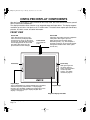
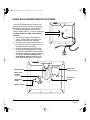
FRONT VIEW
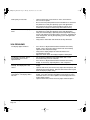
Status LED
Lights blue when the pen is in the
active area of the pen display tablet
and the pen tip, eraser, or side switch
are pressed. The USB cable connector
must be plugged into an active USB
port and a video signal must be
present before the LED will light.
Power switch
Turns power on
or off.
Touch Strip
ExpressKeys
These customizable keys simulate modifier keys, keystrokes,
and other frequently used functions. A display toggle
function is also available, enabling you to toggle the screen
cursor between the Cintiq pen display and your other
displays. See page 27.
Power LED
Lights blue when power has been supplied to
Cintiq and a video signal is present.
Glows orange when no video signal is
detected by Cintiq. (e.g., Your computer is
turned off, starting up, or has entered a power
management mode in which video signals
are not sent.)
Touch Strip
Slide your finger over
the Touch Strips to
zoom, scroll, or perform
custom keystroke
actions. See Tablet
controls on page 27.
ExpressKeys
Integrated display and tablet
Cintiq pen display components
Page 14