1
WR7
1/13/08
12:18 PM
Page 1
WR7
1/13/08
12:18 PM
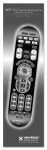
Page 2
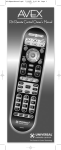
Congratulations!
Congratulations on purchasing Universal Remote Control’s
WR7 7-Component Pre--Programmed and Learning remote
control. You now have the power to control your entire home
entertainment system with one easy--to--use remote. The WR7
can be used with thousands of audio/video components
because of the extensive library of codes that have already
been programmed into the remote. So... get ready to sit back,
relax, and simplify your home entertainment experience.
This Owner’s Manual is designed to assist you in programming
your WR7 remote to work with your components by guiding you
through an easy step-by-step process. Everything you need to
know about programming the WR7 is contained in this Manual.
WR7 Owner’s Manual © 2008 Universal Remote Control, Inc.
This document is protected by the copyright laws of the United
States and internationally by the Berne Convention. No part of
this manual may be reproduced in any form without the express
written consent of Universal Remote Control, Inc. Although
reasonable care has been taken to assure the accuracy of the
information herein contained, Universal Remote Control, Inc.
is not responsible for operational, technical or editorial errors
or omissions. The specifications and information in this manual
may be subject to change without notice. MacroPower and
SimpleSound are trademarks of Universal Remote Control, Inc.
Entertainment Made Simple® is a registered trademark of
Universal Remote Control, Inc. All other brand or product
names are trademarks or registered trademarks of their
respective owners.
UNIVERSAL
remote control
The Pioneer in Control Technology
500 Mamaroneck Avenue, Harrison, NY 10528
Phone: (914) 835-4484 Fax: (914) 835-4532
Page 2
WR7
1/13/08
12:18 PM
Page 3
Table of Contents
Getting Started - Overview
• Control up to 7 Components………………….......5
• Activating Component Buttons………………….....5
• Learning Capability……………………………........5
• AUX Function………………………......................6
• Light Button......................................................6
• Battery Installation............................................6
• Low Battery Warning…………………………........6
• Couch Mode……….………….........…...............6
Special Advanced Features
• MacroPower™ & Other Macros…………….........7
• ‘My Favorites’ - Favorite Channels…………….......7
• SimpleSound™ & Other ‘Punch Throughs’...........7
Keypad Layout & Button Functions.......8
Programming WR7 Using
Pre-Programmed Codes.......................9
• Quick Set-Up Method........................................9-10
• Three-Digit Code Entry Method...........................11-13
• Auto-Search Method.........................................14-15
Programming WR7 Using the
Learning Method...............................16-18
AUX Function: Programming a 7th
Component........................................19
Finding a Component’s Set-Up
Code Number....................................19-20
Page 3
WR7
1/13/08
12:18 PM
Page 4
Programming Special Advanced Features
• MacroPower™ Total System On/Off......................21-22
• ‘My Favorites’ – Favorite Channels......................23-24
• SimpleSound™ Total System Volume Control...........25-26
• Channel Control ‘Punch Through’.........................27
• Transport Control ‘Punch Through’........................28
• OSD (On-ScreenDisplay) Control ‘Punch Through’.......29
Erasing Commands - Overview.............30
• Erasing a Single Learned Command.....................30
• Erasing All Learned Commands from
One Component................................................31
• Erasing MacroPower & Other
Macro Commands..............................................32
• Erasing SimpleSound & Other ‘Punch
Through’ Commands...........................................33
• Factory Reset......................................................34
Pre-Programmed Code Tables ..............31
• AUDIO ............................................................36
• CD .................................................................37
• VCR/DVR ........................................................38-39
• AUX ..................................................... ..........40
• TV ...................................................................41-43
• DVD ................................................................44-45
• CABLE/SAT ......................................................46
FAQs ................................................47
Warranty ..........................................48
Specifications ....................................48
Page 4
WR7
1/13/08
12:18 PM
Page 5
Getting Started - Overview
Control up to 7 Components
The WR7 remote control is designed to control up to seven
different Audio/Video components and operate virtually all
brands of AUDIO, TV, DVD, VCR/DVR, CD, SAT/CABLE and
AUX (Light, Music Server, etc.) components.
Activating Component Buttons
Once you have programmed the WR7 for all of your components,
all you need to do is press a component button and all the buttons
on the WR7 will work with that component. For example, when
you press the TV component button, all the buttons on your WR7
will operate your TV. If you press the DVD component button,
all the buttons on the WR7 will operate your DVD.
Each time you press any of the buttons on the remote,
the LED light in the component button will light up to indicate
which component you are controlling.
TV BUTTON
Learning Capability
The WR7 has the ability to ‘learn’ functions from the original
remote controls of other manufacturers, even if they are not in
the Pre-programmed database.
Page 5
WR7
1/13/08
12:18 PM
Page 6
AUX Function
The AUX (Auxillary) button is designed to operate a 7th
audio/video component that you may have in your system…
such as a TIVO, a second VCR or DVD, or an additional
audio component.
Light Button
The WR7 features a fully backlit keypad for ease of use in
low light or darkened viewing conditions. Press the LIGHT
button to backlight all the keypad buttons. Press again to turn
off (or simply wait 10 seconds for automatic shut-off).
Battery Installation
Press the tab and remove the cover of the battery compartment
located in the back of your remote. Insert the two AA Alkaline
batteries (included in the package) making sure to match the
positive (+) and negative (- ) symbols as shown in the diagram.
Place the cover back over the battery compartment.
INSERT BATTERIES
CORRECTLY
Low Battery Warning
When the batteries are low and need to be replaced the
component LED will quickly blink three times when you press
the POWER [ON] button.
Couch Mode
The WR7 is designed to automatically turn itself off if a button is
pressed for more than 30 seconds. This prevents battery power
from being depleted should the remote accidentally slip between
the couch cushions.
Page 6
WR7
1/13/08
12:18 PM
Page 7
Special Advanced Features
The WR7 also offers the following special advanced features
that can offer you many time-saving conveniences:
MacroPower™ & Other Macro Buttons
MacroPower is a unique feature that enables you to turn all
your components ON or OFF, all at the same time, simply with
the press of one button. The WR7 has 13 Macro buttons that
are designed to store up to 20 commands in each button.
Pressing any one of the Macro buttons will send out the
series of commands that are stored in that button.
‘My Favorites’ (Favorite Channels)
This is one of the most desirable features of the WR7 remote
control. Once it’s set up, you can select one of four favorite
channels with the press of one button – without the need to type
in a channel number. So, whether it’s CNN or the Food Network,
your favorite viewing spot is just one click away.
SimpleSound™ & Other ‘Punch Throughs’
SimpleSound Volume Control is a dynamic feature that gives
you total volume control over all the components in your system,
even those that do not have their own built--in volume control,
such as TIVO, DVD and VCR... saving you the hassle and
inconvenience of constantly needing to switch between
component modes on the remote. As an example, in order to
increase the volume while watching a DVD, you would typically
have to pick up the TV remote control to increase the volume.
With the WR7, you do not even have to press the TV component
button. Once you program SimpleSound in your DVD mode,
you will automatically have TV volume control in DVD mode.
SimpleSound is what is called a ‘Punch Through’ feature and is
not limited to volume control. It can also be applied to Channel
Control, Transport Control, and OSD Control.
Page 7
WR7
1/13/08
12:18 PM
Page 8
Keypad Layout &
Button Functions
Allows you to turn the
selected component on
and off.
ON
SYSTEM OFF
Designed to send Power
On/Off commands for
up to seven components
with one button press.
AUD, CD, VCR,
AUX, TV, DVD,
SAT/CABLE
FAVORITE
Used to select the component you
want to operate and signals
remote control activity.
Displays FAVORITE CHANNEL
listings through the SAT/CABLE
set top box.
INPUT
Selects the video
source from available components.
CHANNEL
Selects the next
higher or lower channel.
PREVIOUS
CHANNEL
MUTE Silences the Audio.
Press to activate. Press again to
restore sound to the previous level.
Returns to
the previously tuned channel through
the SAT/Cable Set Top Box.
Raises or lowers
the sound volume.
VOLUME
Displays the Applications
Menu through the Cable
Set Top Box.
Displays the Program
Guide Listings provided
by the Cable or Satellite
Service Provider.
Displays information about
currently
INFOplayingtheor program
highlighted in the
MENU
Program Guide (see GUIDE).
EXIT
GUIDE
Exits from current screen.
SELECT
Selects highlighted
screen options.
SKIP-/+
Skip forward or
backward a whole day
in the Program Guide.
CURSOR Used for proNAVIGATION gramming steps
PAD
and on-screen
navigation and
highlighting.
Use to enter
NUMBER code
numbers for
PAD programming
TRANSPORT
CONTROLS
components and to enter channel
numbers to tune in channels. Also used
to make numeric entries on on-screen
menus. The alpha labels on the keys
refer to Audio component functions
that can be accessed with the
respective keys.
Perform standard VCR and DVD
functions when in VCR and DVD mode,
or VOD (Video-On-Demand) and DVR
(Digital Video Recorder) functions
when in Cable mode.
LIGHT
BUTTON
Press to
back-light all
keypad buttons.
Press again to shut off (or simply wait
10 seconds for automatic shut-off).
MY
FAVORITES
Custom-programmable
Favorite Channel Buttons
Page 8
WR7
1/13/08
12:18 PM
Page 9
Programming WR7 using
Pre-Programmed Codes
There are three ways you can program your WR7 using the
component brand codes that are pre-programmed into the remote.
• Quick Set-Up Method
• Three-Digit Code Entry Method
• Auto--Search Method
The Quick Set-Up Method is a unique new feature that enables
the fastest and easiest set-up by using one-digit codes for up to
10 major brands for each component. The Three-digit Code Entry
Method allows you to set-up the WR7 using 3-digit codes for component brand names. It is also a fast and easy way to program
the remote. The Auto-Search Method scans through all the brands
in the remote control, one at a time. It should be used when either
the Quick Set-Up or Three-Digit Code Entry Methods do not work.
***
Quick Set--Up Method
STEP 1: Manually or using your old remote, turn on the
component you want to program—for example, to program your
TV, turn on your TV set.
STEP 2: Point the WR7 toward the component that you want to
program (in this case the TV set) and press and hold the component button (in this case the TV button). While holding down
the component button, begin to press numeric keys, one
number at a time, starting from 1, continuing to 2, 3…0 until the
component (in this case the TV) turns off.
Page 9
WR7
1/13/08
12:18 PM
Page 10
STEP 3: Release the component button to save the code.
The component LED light will blink three times to confirm that
the code has been stored.
Repeat the above steps for other components.
COMPONENT
BUTTONS
NUMBER
PAD
Page 10
WR7
1/13/08
12:18 PM
Page 11
Three-Digit Code Entry Method
STEP 1: Find the 3-digit code numbers assigned to your brand
from the lists in the back of this manual. The codes are listed by
component category (i.e., TV, VCR, DVD, etc.), then by brand
name. For instance, if you would like to locate a code for a
Sony television, first locate the TV category and then look for
the Sony brand.
STEP 2: Once you have located the 3-digit codes for each of
the components that you wish to operate with your WR7, write
them ALL down on a piece of paper. It’s important that you write
down all the codes listed for your brand because only one code
is going to work with your component.
STEP 3: Manually or using your old remote, turn on the
component you want to program—for example, to program your
TV turn on your TV set.
STEP 4: On the WR7, press the Component button that you
want to program (in this case the button that says TV) and the
SELECT [SEL] button at the same time. Hold down both buttons
for two seconds until the TV Component LED light turns on.
This signals that you are in programming mode.
COMPONENT
BUTTONS
SELECT
BUTTON
Page 11
WR7
1/13/08
12:18 PM
Page 12
IMPORTANT: You have 30 seconds to perform the next step
while you are in programming mode. If you do not press a button
within 30 seconds, the component LED light will turn off. The
remote will exit the programming mode and you will have to
start over.
STEP 5: Point the WR7 toward the component (in this example
the TV) and punch in the first 3-digit code that you wrote down
for that specific component. Use the Number buttons 0~9 on the
remote to punch in the code. The TV LED light will blink each time
a number is pressed.
NUMBER
BUTTONS
If the 3-digit code number you just punched in is the correct
number, the component you are trying to program will turn off.
If it did not turn off, enter the next code number from your list
until it does turn off.
STEP 6: Once you’ve entered the code number and the
component has turned off, press the POWER [ON] button on the
WR7 remote to turn the component back on.
Next test the VOLUME and CHANNEL buttons (or PLAY and
STOP buttons for VCR and DVD) to make sure they all work.
For example, perhaps your Sony TV turned off with code number
147, but the volume controls did not work properly. In this case,
try the next code number listed for that component. Repeat Step 5
using the next code number until you find a perfect match.
Page 12
WR7
1/13/08
12:18 PM
Page 13
STEP 7: Once you’ve entered a correct code, you must
save it. Press the component button you just programmed
(in this case TV) one more time to save the code number.
The component LED light will blink three times to confirm that
the code was successfully stored. Now when you press the TV
component button, all of the buttons will work with your TV.
Program the remaining components by repeating steps 3
through 7.
IMPORTANT: If you have tried all the set-up codes in the list
and the component still did not turn off after Step 5, either the
Auto-Search Method (page 14) or the Learning Method (page 16)
will help you program.
Page 13
WR7
1/13/08
12:18 PM
Page 14
Auto-Search Method
The Auto-Search Method is a way you can scan through
all of the codes in the table to find the right code for
your component.
STEP 1: Manually or using your old remote, turn on the
component you want to program—for example, to program
your TV, turn on your TV set.
STEP 2: On the WR7, press the Component button
that you want to program (in this case the button that says
TV) and the SELECT [SEL] button at the same time. Hold
down both buttons for two seconds until the TV Component
button light turns on. This signals that you are in
programming mode.
IMPORTANT: You have 30 seconds to perform the next
step while you are in programming mode. If you do not
press a button within 30 seconds, the component LED light
will turn off. The remote will exit the programming mode
and you will have to start over.
UP
ARROW
DOWN
ARROW
Page 14
WR7
1/13/08
12:18 PM
Page 15
STEP 3: Point the WR7 remote control toward the component
and press the UP [ ] arrow (or DOWN [ ] arrow) button
once. Each time the UP or DOWN arrow button is pressed,
the code will count up (or down) one code number and send a
Power OFF signal. When the correct code is sent out, the
component will turn off.
STEP 4: Once you have found the right code number and the
component has turned off, press the POWER [ON] button on the
WR7 remote to turn the component back on.
Next test the VOLUME and CHANNEL buttons (or PLAY and STOP
buttons for VCR and DVD) to make sure they all work. If any of
the buttons do not work properly, you need to find a new code.
Continue pressing the UP (or DOWN) arrow button until you find
a new code that turns off the component and makes the VOLUME
or PLAY buttons respond correctly.
STEP 5: Once you have found the right code, you must
save it. Press the component button you just programmed (in
this case TV) one more time to save the code number. The component LED light will blink three times to confirm that the code was
successfully stored. Now when you press the TV component
button, all of the buttons will work with your TV.
NOTE: Use this method for those components you cannot program with either the Quick Set-Up or 3-digit Code Entry Methods.
IMPORTANT: If you cannot find the right code after 5 minutes
of trying the Auto-Search Method, try the Learning Method (page 16).
PLEASE DO NOT RETURN
THIS PRODUCT TO THE STORE
PLEASE CONTACT OUR TECHNICAL
SUPPORT CENTER.
IF YOU NEED ASSISTANCE E-MAIL
[email protected]
or dial 1-800-901-0800
(9:00AM - 6:00PM EST)
Page 15
WR7
1/13/08
12:18 PM
Page 16
Programming WR7 using the
Learning Method
STEP 1: Line up the WR7 to the remote control you want to
‘learn’ from, head--to--head as shown below. Start with both
remotes’ IR windows touching (or nearly touching).
STEP 2: On the WR7, press the Component button that you
want to program (in this case the button that says TV) and the
ENTER [ENT] button at the same time. Hold down both buttons
for two seconds until the TV Component button light turns on.
This signals that you are in programming mode.
IMPORTANT: You have 30 seconds to perform the next step
while you are in programming mode. If you do not press a
button within 30 seconds, the component LED light will turn off.
The remote will exit the programming mode and you will have
to start over.
STEP 3: Press any button on the WR7 that you want to teach a
command to. For example, if you want to teach the [MUTE] button
on the WR7 the TV Mute command from the other remote, first
press the [MUTE] button on the WR7 and the TV component
button LED light will blink once indicating that the WR7 is ready
to learn the command.
Page 16
WR7
1/13/08
12:18 PM
Page 17
STEP 4: Press and hold the [MUTE] button on the other remote
until the component button LED on the WR7 blinks twice. Now
you can continue learning all other buttons from your old remote
by pressing the next button on the WR7 and repeating this step.
Note: The component LED will blink five times if there was an
error in the learning process. In this case, please repeat Steps 3
and 4.
STEP 5: Once the WR7 has learned all the buttons in the
selected component mode, press and hold the Component button
and ENTER [ENT] buttons at the same time to save the learned
functions. The component LED light will blink three times to confirm
the programming. Now test all the buttons to make sure they
learned correctly.
Repeat Steps 1-5 to program any other component modes.
If the Learning Method does not work, here are
a few suggestions:
• If you have a Plasma TV, move to another room
• Avoid programming under fluorescent light or direct sunlight
• Put new batteries in the old remote
• Gradually vary the distance between the two remote controls
• Adjust the angles of the remotes (i.e., keep the WR7 on a flat
surface while holding the other remote in hand and angling it
down toward the WR7)
• Tap the button on your old remote instead of pressing and
holding it during the learning process
Page 17
WR7
1/13/08
12:18 PM
Page 18
Here are some additional facts regarding the
Learning process:
• Learned functions override any existing pre-programmed
functions on the remote control
• Learned functions are automatically erased when a new
function is learned on the same button
• Learned functions are retained even after a different set-up
code number is programmed into the remote control
• To return to an original pre-programmed function, a learned
function must be erased
• Rapidly tapping the Volume Up button on the old remote will
teach the WR7 to ramp the volume instead of raising it in
increments of one
Page 18
WR7
1/13/08
12:18 PM
Page 19
AUX Function: Programming
a 7th Component
After you’ve finished programming the WR7 for six primary components and you did not use AUX, you can take advantage of the
AUX function to program a 7th component, such as a second TV,
DVD, or any other audio/video component that you may have in
your system. Simply program the [AUX] button in the same manner
as any other component using either the Quick Set-Up Method,
the 3-Digit Code Entry Method, the Auto-Search Method or the
Learning Method.
Finding a Component’s Set-up
Code Number
If you used the Auto--Search or Learning Methods to program a
component, you may not know the code number you programmed.
Here is a way for you to identify what that code number is, so you
can make a note in the back of this Manual for future reference.
STEP 1: Press the component button you would like to verify and
the SELECT [SEL] button at the same time for two seconds until the
selected component LED light turns on.
IMPORTANT: You have 30 seconds to perform the next step
while you are in programming mode. If you do not press a button
within 30 seconds, the component LED light will turn off.
The remote will exit the programming mode and you will have
to start over.
COMPONENT
BUTTONS
INFO
SELECT
Page 19
WR7
1/13/08
12:18 PM
Page 20
STEP 2: Press the [INFO] button and count the number of times
the Component LED light blinks. This number indicates the first
digit of the code. Next it will pause for about one second and
begin blinking again to indicate the number of the second digit.
Then once again it will pause, then blink, to indicate the number
of the third digit.
Example: One blink, pause, eight blinks, pause, three blinks
indicates code number 183.
Note that ten (10) blinks represent the number 0.
Page 20
WR7
1/13/08
12:18 PM
Page 21
Programming Special
Advanced Features
Programming Multi-Commands to Macro Buttons
The WR7 has 13 Macro buttons (ON, SYSTEM OFF, 7 Component
buttons, and 4 ‘My Favorites’ buttons) that are designed to store
up to 20 commands in each button. Pressing any one of the
Macro buttons will send out the series of commands that are
stored in that particular button.
MacroPower™ Total System On/Off
MacroPower makes several devices work together by pressing one
button. Imagine the convenience of turning on your TV, your DVD
player and your Surround Sound receiver by pressing a single button on your WR7. What could normally take three remotes and
three button pushes, the WR7 can accomplish with the press of
one button. We call that MacroPower. Any of the Power On or the
System Off buttons can be programmed for MacroPower control.
To set it up, follow these easy steps:
STEP 1: To program MacroPower commands for the POWER
[ON] button, press the POWER [ON] button and the [MUTE]
button at the same time for two seconds until one of the
component button LED lights turns on.
POWER
MUTE
Page 21
WR7
1/13/08
12:18 PM
Page 22
IMPORTANT: You have 30 seconds to perform the next step
while you are in programming mode. If you do not press a button
within 30 seconds, the component LED light will turn off. The remote
will exit the programming mode and you will have to start over.
STEP 2: Press the component button you want to turn on and
then the POWER [ON] button; repeat for all other components
in the order you want them to turn on. The component LED lights
will blink once each time you press the POWER [ON] button.
POWER
COMPONENT
BUTTONS
STEP 3: Once you’ve entered all the Power On commands,
press the CHANNEL Up [CH ] button to save your MacroPower
commands. The component LED lights will blink three times to
confirm that the programming has been successfully saved.
CHANNEL
UP
SUGGESTION: Most of the components have the same
signal to turn the power On and Off. You may want to program
MacroPower only in the POWER [ON] button and save the
[SYSTEM OFF] button to turn components On or Off individually.
Note: If you want to program MacroPower for the
[SYSTEM OFF] button, repeat the same steps used for
POWER [ON] programming.
Page 22
WR7
1/13/08
12:18 PM
Page 23
Programming ‘My Favorites’ - Favorite
Channel Buttons
In Cable mode, the four [MY FAVORITES] buttons are also
designed to serve as dedicated Favorite Channel buttons.
Each button will access one of your favorite channels with just
one button press. Here’s how to program Favorite Channels:
STEP 1: Press the [CABLE/SAT] button to select the
Cable/SAT mode.
STEP 2: Press one of the [MY FAVORITES] buttons and the
[MUTE] button at the same time for two seconds until the
[CABLE/SAT] component LED turns on.
IMPORTANT: You have 30 seconds to perform the next step
while you are in programming mode. If you do not press a
button within 30 seconds, the component LED light will turn off.
The remote will exit the programming mode and you will have
to start over.
MUTE
MY
FAVORITES
Page 23
WR7
1/13/08
12:18 PM
Page 24
STEP 3: Using the Number Pad, punch in the Channel
number of the Favorite Channel that you want to store in the
Macro button. The CABLE/SAT component LED light will blink
once for each button pressed.
STEP 4: Press the CHANNEL UP [CH ] button to store the
commands entered. The [CABLE/SAT] component LED will blink
three times to confirm the programming.
CHANNEL
UP
Notes regarding programming multi-commands
to Macro buttons:
• You can program up to 20 commands on each Macro button.
• You can program delays in between commands by pressing
the [PAUSE] button. Each press adds a one-half second delay.
• Also, if you add the delay time as the first step of Macro
commands, the remote will not send the Macro unless the
button is held for two seconds. (This is the Press &
Hold Function).
• You can also program macro commands in ‘layers’ by
pressing the [STOP] button in between commands.
(For example, if you press [009], [STOP], [035], [STOP],
[365], [STOP] in Step 3 of the Favorite Channel programming
process) the remote will send out 009 at the first press of the
selected [My Favorites] button, and then send out 035 at the
second press, etc.
• You cannot program the [CH
macro commands.
] or [PAUSE] buttons as
Page 24
WR7
1/13/08
12:18 PM
Page 25
SimpleSound™ Total System Volume Control
SimpleSound is one of the most exciting features of the WR7.
It gives you total volume control over ALL the components in
your system, even those that do not have built--in volume control,
such as TIVO, DVD and VCR. SimpleSound saves you the hassle
and inconvenience of constantly switching between component
modes just to control volume.
First you should identify which device in your system will be used
to deliver sound. In a basic system, the sound may come from
your TV speaker. In a more advanced system, the sound may
come from your audio components (such as a Surround Sound
Receiver or Home Theatre system).
Now, let’s set--up SimpleSound. Here’s how:
STEP 1: Press and hold the button that corresponds to the
Component you want to add volume control to (such as a DVD or
VCR) and the SELECT (SEL) button at the same time for about three
seconds until the component LED light turns on.
IMPORTANT: You have 30 seconds to perform the next step
while you are in programming mode. If you do not press a
button within 30 seconds, the component LED light will turn off.
The remote will exit the programming mode and you will have
to start over.
COMPONENT
BUTTONS
SELECT
Page 25
WR7
1/13/08
12:18 PM
Page 26
STEP 2: Press the VOLUME UP [VOL ] button and then press
either the TV or AUDIO component button that you want to use for
volume. The Component LED light will blink three times to confirm
that it is saved. This sets up three buttons (Volume Up, Volume
Down and MUTE) as a group for that component.
VOLUME
UP
Repeat Steps 1-2 for all other components.
Note: SimpleSound is what’s technically referred to as a
“Punch Through” feature and is not limited to volume control.
It can also be applied to other groups of buttons. If you find
yourself switching to a particular component mode frequently
to access a particular control, consider using Punch Through.
Page 26
WR7
1/13/08
12:18 PM
Page 27
Channel Control ‘Punch Through’
This ‘punch through’ enables you to program the WR7 so
that either the Cable or TV Channel Controls (CHANNEL UP,
DOWN, LAST, CHANNEL NUMBERS 0-9, +10 and ENTER)
will also operate in other component modes on the remote control.
STEP 1: Press and hold the component button you want to add
channel control to, such as [DVD] or [VCR], and the SELECT [SEL]
button at the same time for two seconds until the Component LED
light turns on.
IMPORTANT: You have 30 seconds to perform the next
step while you are in programming mode. If you do not press
a button within 30 seconds, the component LED light will turn off.
The remote will exit the programming mode and you will have to
start over.
STEP 2: Press the CHANNEL UP {CH
LED light will blink once.
} button. The component
COMPONENT
BUTTONS
CHANNEL
UP
SELECT
STEP 3: Press either the [TV] or [CABLE/SAT] button that you
want to use as the source of channel control. The component LED
will blink three times to confirm it is saved.
Page 27
WR7
1/13/08
12:18 PM
Page 28
Transport Control ‘Punch Through’
This ‘punch through’ enables you to program the WR7 so that
VCR or DVD Transport Controls (PLAY, STOP, FF, REW, PAUSE,
SKIP and RECORD) will also operate in other component modes
on the remote control.
STEP 1: Press and hold the component button you want to
add Transport Control to, such as [CABLE/SAT] or [TV], and the
SELECT [SEL] button at the same time for two seconds until the
Component LED light turns on.
IMPORTANT: You have 30 seconds to perform the next
step while you are in programming mode. If you do not press a
button within 30 seconds, the component LED light will turn off.
The remote will exit the programming mode and you will have
to start over.
STEP 2: Press the [PLAY] button. The component LED light will
blink once.
COMPONENT
BUTTONS
SELECT
PLAY
STEP 3: Press either the [DVD] or [VCR] button that you want
to use as the source of Transport Control. The component LED
will blink three times to confirm it is saved.
Page 28
WR7
1/13/08
12:18 PM
Page 29
OSD (On-Screen Display) Control ‘Punch Through’
This ‘punch through’ enables you to program the WR7 so that
CBL or DVD OSD Controls (MENU, GUIDE, INFO, EXIT, SEL and
4 Cursor Controls) will also operate in other component modes
on the remote control.
STEP 1: Press and hold the component button you want to
add OSD Control to, such as [TV] or [VCR], and the SELECT [SEL]
button at the same time for two seconds until the Component LED
light turns on.
IMPORTANT: You have 30 seconds to perform the next step
while you are in programming mode. If you do not press a
button within 30 seconds, the component LED light will turn off.
The remote will exit the programming mode and you will have
to start over.
STEP 2: Press the [MENU] button. The component LED will
blink once.
COMPONENT
BUTTONS
MENU
SELECT
STEP 3: Press either the [CABLE/SAT] or [DVD] button that
you want to use as the source of OSD Control. The component
LED will blink three times to confirm it is saved.
Page 29
WR7
1/13/08
12:18 PM
Page 30
Erasing Commands - Overview
You can erase a single learned command, all learned
commands in each component mode, SimpleSound programming,
MacroPower commands, or re--set the remote to original factory
default settings.
Erasing a Single Learned Command from
One Component
STEP 1: Press the component button where the learned command is stored and the [ENTER] button at the same time for two
seconds until the component LED light turns on.
IMPORTANT: You have 30 seconds to perform the next
step while you are in programming mode. If you do not press a
button within 30 seconds, the component LED light will turn off.
The remote will exit the programming mode and you will have
to start over.
COMPONENT
BUTTONS
ENTER
STEP 2: Press and hold the button you want to erase for two
seconds. The component LED light will blink twice to confirm
the erasure.
STEP 3: Repeat Step 2 to erase any other buttons in the selected
component mode.
STEP 4: To exit Erase mode, press and hold both the component
button and the [ENTER] button at the same time until the component LED light blinks three times.
Page 30
WR7
1/13/08
12:18 PM
Page 31
Erasing All Learned Commands from
One Component
This function allows you to erase all the learned commands from
one component. For example, if you want to erase all learned
commands on the TV component button because you bought a
new TV, the process is very simple.
STEP 1: Press the component button where all the learned commands are stored and the [ENTER] button at the same time for two
seconds until the component LED turns on.
IMPORTANT: You have 30 seconds to perform the next step
while you are in programming mode. If you do not press a
button within 30 seconds, the component LED light will turn off.
The remote will exit the programming mode and you will have
to start over.
STEP 2: Press and hold both the component button you want to
erase and the [PAUSE] button at the same time for two seconds,
until the component LED light blinks twice to confirm the erasure.
COMPONENT
BUTTONS
PAUSE
ENTER
STEP 3: To exit Erase mode, press and hold both the
component button and the [ENTER] button at the same time
until the component LED light blinks three times.
Page 31
WR7
1/13/08
12:18 PM
Page 32
Erasing MacroPower & Other Macro Commands
STEP 1: To erase MacroPower commands on the POWER [ON]
or [SYSTEM OFF] button, press and hold either the POWER [ON]
or [SYSTEM OFF] button and the [MUTE] button simultaneously
for two seconds until the current status component LED turns on.
IMPORTANT: If you don’t proceed to the next step within 30
seconds, the LED will turn off and exit set-up mode and you will
need to start over.
STEP 2: Press the CHANNEL UP [CH ] button to erase and
exit Erase mode. The component LED light will blink three times
to confirm the erasure.
SYSTEM
OFF
POWER
ON
CHANNEL
UP
MUTE
NOTE: To erase other Macros, simply press the appropriate
button in Step 1 in combination with the [MUTE] button.
Page 32
WR7
1/13/08
12:18 PM
Page 33
Erasing SimpleSound & Other ‘Punch Through’
Commands
STEP 1: Press and hold the Component button you want to
erase volume control from, such as DVD or VCR and the SELECT
[SEL] button at the same time for two seconds until the Component
LED light turns on.
STEP 2: Press the VOLUME UP [VOL ] button and the same
component button from Step 1. The component LED light will
blink three times to confirm the erasure.
COMPONENT
BUTTONS
VOLUME
UP
SELECT
Repeat Steps 1--2 to erase SimpleSound commands from
other components.
NOTE: To erase other ‘punch through’ commands, simply press
the following buttons in place of VOLUME UP in Step 2:
• For Channel Control, press: CHANNEL UP [CH
• For Transport Control, press: PLAY [
• For OSD Control, press: [MENU]
Page 33
]
]
WR7
1/13/08
12:18 PM
Page 34
Factory Reset
You can reset your WR7 remote to the original factory
default settings.
Press and hold both the [TV] and RECORD [REC] buttons for about
five seconds until the [CABLE/SAT] component LED light blinks five
times. All programming and set-up codes that you have entered
into the remote will be erased and the WR7 will return to the
original factory default settings.
Warning
This procedure will erase all programming and set-up codes that
you have entered into the remote.
TV
COMPONENT
BUTTON
SAT/CABLE
RECORD
Page 34
WR7
1/13/08
12:18 PM
Page 35
Pre-Programmed Code Tables
The WR7 Pre-Programmed code library is classified by category
(Audio, CD, VCR/DVR, etc.).
Within each category, the code numbers are listed in rows by
brand (Sony, Panasonic, B & K, etc.). Some brands have more
than one three-digit code.
Circle the correct row and refer to it while you perform
setup operations.
AUDIO
Amps, Preamps & A/V Receivers
36
CD
CD Players & Changers
37
VCR/DVR
VCRs, DVRs & Combo Units
38-39
AUX
iPod, Media PC, Gaming System, Lighting Controls
40
TV
TVs, Plasmas, Projectors & Monitors
41-43
DVD
DVD Players & Recorders
44-45
CABLE/SAT Cable Set Top Boxes & Satellite Receivers
Page 35
46
WR7
1/13/08
12:18 PM
Page 36
AUDIO
Brand
ADCOM
AIWA
AKAI
ANTHEM
ARCAM
Code Numbers
082 092 225 161 269 356
170 018 104 202 203 213 211 188
189
335 337
141 077
ATLANTIC TECHNOLOGY 342
AUDIO FILE
071
B&K
096 097
BOSE
070 170 224 347 409 460
BOSTON ACOUSTICS 447
CARVER
006 028 061 071 201 214 226 185 013 077
284
CITATION
148
CLARION
026
DENON
001 109 215 230 234 330
ELAN
057 290
ENLIGHTENED AUDIO 099 098
ESCIENT
451
FISHER
214 182
FLEXTRONICS
378
FOSGATE AUDIONICS 148 342
GOLDSTAR
008
HARMAN KARDON 148 233 077 154 118 318
HITACHI
020
INSIGNIA
589
INTEGRA
275 017 046 108 080 209
JAMO
398
JCPENNEY
216
JVC
163 191 114 279 291
KENWOOD
026 066 145 192 182 005 280 374
KLH
331
KOSS
216 573
KRELL
072 384
LEXICON
120 235 236 237 357 360
LINN
124 377
LUXMAN
009 139 052 165 115 004
MAGNAVOX
086 164 152 208
MARANTZ
006 028 031 040 063 185 186 265 289 492
MCINTOSH
238 286
MERIDIAN
100 012 013
MITSUBISHI
242 204
MONDIAL
157 158 042 043 081 112
MYRYAD
077
NAD
186 113
NAKAMICHI
040 244 245 172 183 287
NEC
176
NIRO
343
NILES
403
ONKYO
275 017 046 108 080 209
OPTIMUS
026 041
OUTLAW
342
PANASONIC
032 195 219 177 292
PARASOUND
129 130 132 261 294 295 333 334
PHILIPS
249 250 063
Brand
Code Numbers
PIONEER
PROCEED
RCA
REALISTIC
ROTEL
SAMSUNG
SANSUI
SANYO
SCOTT
SHARP
SHERWOOD
SONY
SOUNDESIGN
SUNFIRE
TEAC
TECHNICS
THETA DIGITAL
TOSHIBA
YAMAHA
ZENITH
014 039 044 069 168 116 035 078 198 480
144 268
010 048 117 156 067 288
019 073 075 095
074 083 085
016
040 048 110 063 065 228
214
019
026 094 175
024 102 106 447
002 018 247 248 166 101 184 218 271
036
344 345 182
005 019 049 040 212 217
122 176 193 219 178 177 200 257 262
136
060 087 198 278
026 253 169 067 173 205 264 232 089 274
143 210
SATELLITE Radios
BRAND
CODE NUMBERS
DELPHI
515
POLKAUDIO
515
SIRIUS
555
XM SATELLITE RADIO 515
Page 36
WR7
1/13/08
12:18 PM
Page 37
CD
Brand
ADCOM
AIWA
AKAI
AMC
ARCAM
AUDIO ACCESS
AUDIO EASE
AUDIO TECHNICA
CALIFORNIA AUDIO
CARVER
Code Numbers
Brand
062 042
089 170 187
202
231 232
238
119 147
165
046
103 008
185 041 044 050 107 130 134 135 138 139
203 204 167
CREEK
159
DENON
002 123
EMERSON
042
FISHER
050 185 134 008
GENEXXA
010
HARMAN KARDON 033 047 208
HITACHI
042 175
INKEL
130
JCPENNEY
141
JENSEN
158
JVC
004 022 136 163 213 214 242 243
KENWOOD
185 007 023 055 071 072 142 137 254
KRELL
241
KYOCERA
005
LUXMAN
011 028 070 249 252
MAGNAVOX
044 107
MARANTZ
041 044 051 077 107 209 246
MCINTOSH
212 247
MEMOREX
010
MISSION
044 107
MITSUBISHI
179
MONDIAL
147
MYRYAD
244 155
NAD
005 178
NAKAMICHI
217 218
NEC
062
NIKKO
046
NSM
044 107
ONKYO
030 038 039 168 169
OPTIMUS
010 050 081
PANASONIC
103 172 008 068 248
PARASOUND
233 240
PHILIPS
041 044 107 246
PIONEER
010 020 174 175 176
PROCEED
239
PROTON
044 107
QUASAR
103 008
RCA
017 042 150
REALISTIC
042 050 051 187
ROTEL
044 107 161 178 250
SAE
044 107
SANSUI
044 107 128 171 190 125
SANYO
050
SHARP
SHERWOOD
SIGNATURE
SONY
SOUNDESIGN
SUMO
SYLVANIA
SYMPHONIC
TANDY
TEAC
TECHNICS
THETA DIGITAL
VICTOR
WARDS
YAMAHA
Page 37
Code Numbers
026 031 051
019 051 096 112 115 119 166
033
048 081 097 126 133 177 225 226 164
251
155
044 107
052
010
051 052 140 079
103 172 184 008 068
234 235
004 022
185 033
024 046 054 186 183 245
WR7
1/13/08
12:18 PM
Page 38
VCR/DVR
Brand
VCRs
ADMIRAL
ADVENTURA
AIKO
AIWA
AKAI
AMERICA ACTION
AMERICAN HIGH
AMPRO
ANAM
ASHA
AUDIO DYNAMICS
AUDIOVOX
BEAUMARK
BROOKSONIC
CALIX
CANON
CAPEHART
CCE
CITIZEN
COLT
CRAIG
CURTIS MATHES
CYBERNEX
DAEWOO
DAYTRON
DBX
DYNATECH
ELECTROHOME
ELECTROPHONIC
EMERSON
Code Numbers
025 053
034
117
034 161
016 146 043 124 125
117
031
072
145
040
012 023 039 043
101
040
035 037 129
101
028 145
108
024 117
101 117
024
003 102 135
145
040
111 116 117 005 010 108 110 112
108
012 023 039 043
034 053
059
101
006 029 035 017 025 027 145 034 036 037
101 129 131 153 162 116
FISHER
003 010 008 009
FUJI
031
FUNAI
034
GARRARD
034
GE
145 072 147 144
GO VIDEO
132 136 155 102 115
GOLDSTAR
101 114 013 012 123
GRADIENTE
034
HARLEY DAVIDSON 034
HARMAN KARDON 012
HARWOOD
024
HITACHI
026 150 034 043 160 013
HQ
034
INSTANTREPLAY 145
JCL
145
JCPENNEY
012 013 015 102 101
JENSEN
043
JVC
048 043 130 150 012 145
KEC
101
KENWOOD
048 034
KLH
024
KODAK
145 101
LG
101 114 013 012 123
Brand
Code Numbers
LLOYD
LOGIK
LXI
MAGIN
MAGNAVOX
MARANTZ
MARTA
MATSUI
MATSUSHITA
MEI
MEMOREX
MGN TECHNOLOGY
MINOLTA
MITSUBISHI
MOTOROLA
MTC
MULTITECH
NEC
NIKKO
NOBLEX
NORDMENDE
OLYMPUS
OPTIMUS
OPTONICA
ORION
PANASONIC
PENTAX
PHILCO
PHILIPS
PILOT
PIONEER
PORTLAND
PROFITRONIC
PROTEC
PULSAR
QUARTZ
RADIO SHACK
RADIX
RANDEX
RCA
REALISTIC
RICO
RUNCO
SAMSUNG
SANKY
SANSUI
SANYO
SCOTT
SEARS
SHARP
SHINTOM
SHOGUN
SIGNATURE
SINGER
SONY
034
024
034 003 009 017
102
067 145 034 164
067 012 145
101
027 030
145
145
101 003 010 145 034 053 072 102 139
040
013
059 061 151 013 051
145 053
034 102
024 034
012 023 039 043 048
101
040
043
031
101
053
025
070 145 163 167
013 145
145 034 067
145 067 034 101 071
101
021 013 048
108
040
024
072
002
123
101
101
144 147 145 013 034 102
003 008 010 145 034 102 053 101
058
148
102 113 115 112 144 147 125
053
022 043 048 135
003 010 102
017 037 112 129 131
003 008 010 013 101 009 017 073 112
149 145 165
024
040
034
024
056 057 058 003 145 149 154
Page 38
WR7
1/13/08
12:18 PM
Page 39
VCR/DVR
Brand
Code Numbers
Brand
Code Numbers
SOUNDESIGN
STS
SYLVANIA
SYMPHONIC
TANDY
TATUNG
TEAC
TECHNICS
TEKNIKA
THOMAS
TMK
TOSHIBA
TOTEVISION
UNITECH
VECTOR RESEARCH
VICTOR
VIDEO CONCEPTS
VIDEOSONIC
VILLAIN
WARDS
WESTINGHOUSE
XR-1000
YAMAHA
ZENITH
034
013
145 034 059 067
034
010 034
039 043
034 039 043
145 070
145 019 034 101
034
006
112 131 008 059 013
102 101
102
012
048
012 034
102
034
003 013 017 024 145 034 102 053 131
024 025
024 145 034
012 034 039 043
072 048 101 034 058
DVR Receivers
HUGHES
HUMAX
PHILIPS
REPLAY NETWORKS
SONY
TIVO
TOSHIBA
001
001
001
775
804 805
001
001
TV/VCR Combos
AMERICA ACTION 117
DAEWOO
005 117
EMERSON
153
FUNAI
034
GOLDSTAR
101 123
HARLEY DAVIDSON 034
HITACHI
034
JCPENNEY
101
LG
101 123
LLOYD
034
MAGNAVOX
034 067
MEMOREX
101
PANASONIC
070 167
PHILIPS
034 067 145
RADIO SHACK
123
RCA
034 144
SAMSUNG
102
SEARS
101
SONY
057 154 058
SYLVANIA
067
SYMPHONIC
034
THOMAS
034
ZENITH
034
Page 39
WR7
1/13/08
12:18 PM
Page 40
AUX
Brand
Code Numbers
iPod Controls
APPLE / iPod
BOSE
GRIFFIN
KENSINGTON
TEN TECHNOLOGY
901 912
909
471
906
901
MEDIA PC Controls
DELL
001
GATEWAY
001
HP
001
KEYSPAN
797
SONY
001
TOSHIBA
001
WINBOOK
001
GAMING SYSTEM Controls
MICROSOFT/ XBOX 908 607
SONY / PS2
914
LIGHTING Controls
LITE-TOUCH
708 757
LUTRON
658 659 577
X-10
683 593
XANTECH
688 689
Page 40
WR7
1/13/08
12:18 PM
Page 41
TV
Brand
Code Numbers
Brand
ABEX
ADMIRAL
ADVENT
ADVENTURA
AIKO
ALERON
AKAI
A MARK
AMERICA ACTION
AMPRO
AMSTRAD
ANAM
AOC
APEX DIGITAL
ASTAR
AUDIOVOX
BELCOR
BELL&HOWELL
BRADFORD
BROKSONIC
BROCKWOOD
CANDLE
CAPEHART
CELEBRITY
CENTURION
CETRONIC
CITIZEN
CLARION
CLASSIC
CLP CLASSIC
COLORTYME
CONCIERGE
CONCERTO
CONTEC
CORNEA
CRAIG
CROSLEY
CROWN
CURTIS MATHES
CXC
DAEWOO
DAYTRON
DELL
DIGITAL LIFESTYLE
DIGITRON
DIMENSIA
DUKANE
DUMONT
DURABRAND
DWIN
DYNASTY
DYNEX
EIKI
ELECTROBAND
ELECTROHOME
025
072 251 333
247
002
103
028
116 146 248 281 404 405
112
043
073
052
043 054 056 080 112
116 363 112 058
006
477
076
116
333 072
043
238
116
116 002 003 363
058
001
116
043
116 002 003 363 043 258 103
043
043
333
116
073
363
043 050 051
116
043 054
164
043
116 258 363
043
363 016 043 044 076 103 114 125
363
320 164 363
528
258
333
011 025
116 073
096
257
043
399
187
001
024 076
ELECTROGRAPH
ELEKTRA
ELEMENT
EMERSON
Code Numbers
466
072
526
028 048 043 155 005 116 363 047 050 051
076 096 153
ENVISION
116
ESA
323
FISHER
007 057
FUJITSU
246 198
FUNAI
028 043 052
FUTURETECH
043
GATEWAY
242 268
GE
073 116 008 009 034 056 074 155 333 363
GEM
391
GIBRALTER
116 073
GOLDSTAR
113 116 102 004 106 112
GRUNPY
028 043
HAIER
363
HALL MARK
363
HANNSPREE
381
HARLEY DAVIDSON 028
HARSPER
466
HARVARD
043
HAVERMY
081
HELLO KITTY
076
HIMITSU
043
HISENSE
419
HITACHI
011 166 363 009 010 012 023 075 158 072
HP
378 316 327
ILO
472
INFINITY
164
INFOCUS
333 330
INTEQ
073
INSIGNIA
350 399 400 052 164 403
JANEIL
002
JBL
164
JCB
001
JCPENNEY
363 024 116 008 009 030 065 258 333
JENSEN
013
JVC
038 034 001 083 199 210
KAWASHO
116 001
KEC
043
KENWOOD
116 001
KLEGG
466
KLOSS
002 059
KREISEN
530
KTV
043 116
KURAZAI
072
LG
363 113 116 102 363 106 112
LODGENET
072
LOEWE
164
LOGIK
072
LUXMAN
363
LXI
166 007 138 052 251 333 164
Page 41
WR7
1/13/08
12:18 PM
Page 42
TV
Brand
MAGNAVOX
Code Numbers
164 059 116 003 060 061 363 022 333 094
226 390
MAJESTIC
333 072
MARANTZ
116 164
MATSUI
164
MATSUSHITA
080
MAXENT
242
MEGATRON
116 011
MEMOREX
007 072 363
MGA
116 363 024 028 042
MIDLAND
333 073
MINTEK
282 362
MINUTZ
008
MITSUBISHI
124 109 024 363 028 040 042 146
MONTGOMERY WARD 333 072
MOTOROLA
081
MTC
116 363 258
MULTITECH
043
NAD
138 025
NEC
272 132 134 116 040 016 024 056 019 262
NET TV
242
NIKEI
043
NIKKO
116
NIKO
527
NORCENT
390
NTC
103
NUVISION
351
OLEVIA
432
ONKING
043
ONWA
043
OPTIMUS
025
OPTONICA
019 251
OPTOMA
265
ORION
096
PANASONIC
080 034 056 164 208
REVOLUTION HD 466
PHILCO
116 003 059 060 164 363 024 056
PHILIPS
164 005 093 038 116 003 363 059 206
PILOT
116
PIONEER
234 025 018 023 116 272 393
POLAROID
388
PORTLAND
363
PRIMA
164
PRISM
034
PROSCAN
333
PROTON
363 112 058 171 172
PROTRON
392 398
PROVIEW
526
PULSAR
116 073
QUASAR
034 056
RADIO SHACK
019 363 043
RCA
333 065 116 363 024 056 152 023 074
REALISTIC
007 019 043 047
RUNCO
072 182 073 395 416
SAMPO
116 058 363 242
Brand
Code Numbers
SAMSUNG
SAMSUX
SANSEI
SANSUI
SANYO
SCEPTRE
SCOTCH
SCOTT
SEARS
SELECO
SHARP
SHENG CHIA
SHOGUN
SIGNATURE
SIMPSON
SONY
SOUNDESIGN
SOVA
SOYO
SPECTRICON
SPECTRONIQ
SQUAREVIEW
STARLITE
SSS
SUPRA
SUPRE MACY
SUPREME
SVA
SYLVANIA
SYNTAX OLEVIA
TANDY
TATUNG
TECHNICS
TECHNOL ACE
TECHWOOD
TEKNIKA
TELERENT
TERA
TMK
TNCI
TOSHIBA
TRUTECH
TVS
UNIVERSAL
VICTOR
VIDEO CONCEPTS
VIDIKRON
VIDTECH
VIEWSONIC
VIKING
VIORE
VISCO
VITO
VIZIO
258 050 089 105 363 333 228 229
116
076
096
166 007 020 053 057 082 187
276
116
028 043 363 048
138 030 363 007 028 057 094 333 082 166
205 011
251 019 014 028 029 363 022 175
081
116
072
003
001
028 363 003 043
363
528
112
392 398
052
043
363 043
116
002
001
328
116 003 052 059 060 164 044 333
333 363 432
251
056
034 080
028
363
002 003 363 024 028 043 072 258
072
172
363
073
138 030 007 040 258 325
529
096
008 009
038
146
174 164 188
363
242 389
002
472
526
363
386 387
Page 42
WR7
1/13/08
12:18 PM
Page 43
TV
Brand
Code Numbers
WARDS
363 008 009 019 028 060 061 072 074
164 034
015
076 276
116 363
363
043
363 073 072 095 103
112
WAYCON
WESTINGHOUSE
YAMAHA
YORK
YUPITERU
ZENITH
ZONDA
Page 43
WR7
1/13/08
12:18 PM
Page 44
DVD
Brand
AIWA
AKAI
ALLEGRO
APEX DIGITAL
BLAUPUNKT
BROKSONIC
CINEVISION
COBY
CYBERHOME
DENON
DURABRAND
DVD 2000
EMERSON
ENTERPRISE
FISHER
FUNAI
GOLDSTAR
GO VIDEO
GREENHILL
Code Numbers
146
281
091
087 111 115
111
130
091
260
271
138 173
091
017
091 143
074
147
143
091
137 091 220 221 222
111
HARMAN KARDON 084 140
HITACHI
101
HITEKER
087
ILO
268
INITIAL
111
INSIGNIA
143
JBL
084
JVC
012
KENWOOD
151
KISS
279
KLH
135
KRELL
104
LITEON
264 265
LEXICON
148
LG
091 057
MAGNAVOX
001 096 143 282
MARANTZ
001 095
MALATA
267
MERIDIAN
153
MINTEK
111 282
MITSUBISHI
017
MYRYAD
102 134
NAD
088
NAKAMICHI
103
NESA
111
ONKYO
076 035 180
OPTIMUS
023
OPPO
266
ORION
130
PANASONIC
138 144 150 285
PHILIPS
001 095
PHILIPS MAGNAVOX 035 001
PIONEER
023 131
POLAROID
233
POLK AUDIO
035 001
RIO
091
Brand
Code Numbers
RJTECH
SAMSUNG
SANSUI
SANYO
SEARS
SENSORY SCIENCE
SHARP
SHINSONIC
SONIC BLUE
SONY
SYLVANIA
SYMPHONIC
TATUNG
TEAC
TECHNICS
TECHWOOD
THETA DIGITAL
TOSHIBA
URBAN CONCEPTS
VENTURER
YAMAHA
ZENITH
269
165 170 137 159 275
154
147
130
222
094
033
091
002 033 145 191 286
143
143
102
023 270
138
088
023
035 130 141 164 188 273
035
149
138 089 001 197
057 091
BLU-RAY & HD DVDs
LG
091
PANASONIC
285
PIONEER
304
SAMSUNG
275
SONY
286
TOSHIBA
273
DVD Recorders
GO VIDEO
CYBERHOME
ILO
KISS
LITEON
PANASONIC
SENSORY SCIENCE
SONY
TOSHIBA
220 221 222
271
268
279
265
138
222
191
188
TV/DVD Combos
AKAI
281
AIWA
146
FUNAI
143
INSIGNIA
143
MAGNAVOX
282
MINTEK
282
SAMSUNG
165
SYLVANIA
143
SYMPHONIC
143
TOSHIBA
130
Page 44
WR7
1/13/08
12:18 PM
Page 45
DVD
Brand
Code Numbers
TV/DVD/VCR Combos
MAGNAVOX
143
PANASONIC
144
SYLVANIA
143
TOSHIBA
164
DVD/VCR Combos
GO VIDEO
137
PANASONIC
150
PHILIPS
001 (VCR Functions for VCR 067)
SAMSUNG
137 159
SANSUI
154
SONY
145
TOSHIBA
141
ZENITH
091 (VCR Functions for VCR101)
Page 45
WR7
1/13/08
12:18 PM
Page 46
CABLE/SAT
Brand
CABLE BOXES
ABC
ADELPHIA
Code Numbers
004 042
001 110
ADVANCED NEWHOUSE 001
ALTRIO
001
AMERICAST
099
ARMSTONG
110
AT&T BROADBAND 110
ATLANTIC BROADBAND 001 110
BELL SOUTH
099
BLUE RIDGE
001 110
BRESNAN
110
BRIGHT HOUSE 001 110
BUCKEYE COMM 110
CABLEVISION
001 110 108
CHARTER
001 110
CISCO
001 042
COGECO
110
COMCAST
001 110
COMSAT
110
COX DIGITAL
001 110
DIGEO
111
DIRECTOR
110
GCI
110
GENERAL INSTRUMENT 110 004
GNC
099
INSIGHT
110
JERROLD
110 004
MASSILLON
110
MEDIACOM
110
MIDCONTINENT 110
MOTOROLA
110 148 111
MOXI
111
NCTC
110
NEW WAVE
110
OAK
031
ONELINK
001
PACE
001 110
PANASONIC
044 047
PHILIPS
085
PIONEER
001 034 105
RCA
047
RCN
110
RODGERS
001
SCIENTIFIC ATLANTA 001 042
SEREN
001
SERVICE ELECTRIC 110
SHAW
110
SIGECOM
001
SONY
108
SPRUCER
047
STARCOM
004
SUSQUEHANNA 001 110
TIME WARNER
001 110
TORX
004
Brand
Code Numbers
UNITED CABLE
VERIZON
VIDEOTRON
VISTA III MEDIA
004
110
001
110
WAVE BROADBAND 110
WEHCO VIDEO
110
WIDE OPEN WEST 001 099
SATELLITE RECEIVERS
CABLEVISION
148
DIRECTV
173
DISH
122
ECHOSTAR
122
EXPRESSVU
122
GE
116
GENERAL INSTRUMENT 148
GOI
122
HITACHI
114
HTS
122
HUGHES
114
JVC
122
LG
170
MITSUBISHI
114
NEXT LEVEL
148
PANASONIC
142
PHILIPS
156 114
PROSCAN
116
RADIOSHACK
148
RCA
116
SAMSUNG
163 169 175
SONY
115
STAR CHOICE
148
TOSHIBA
114
VOOM
148
Page 46
WR7
1/13/08
12:18 PM
Page 47
Frequently Asked Questions
If the batteries run out, will I lose my settings?
No. The WR7 stores all of your settings in non-volatile
FLASH memory. You could remove the batteries for months,
replace them at your convenience, and the WR7 would still
remember your settings.
What is MacroPower?
MacroPower is a very useful way to make a lot of things happen
with one button push. For example, in most home theaters,
to watch television, the user must turn on the TV, then turn on
the Cable Box or the Satellite Receiver, then turn on the Surround
Sound system for sound. Instead of pressing all of those buttons
one at a time, MacroPower enables you to turn on all of these
components, in the sequence you want, with one button push.
For more information on why and how you should program
MacroPower commands, refer to page 21 in this Manual.
What if my remote control no longer works from
a distance?
Replace the batteries with new Alkaline batteries.
Who can I contact for more answers?
The Universal Remote Control technical support and customer
service staff are ready to answer any questions you might have.
E-Mail us at [email protected]
Visit our website www.universalremote.com
Call us at (914) 835-4484
Monday - Friday, 9AM to 6PM (EST)
Page 47
WR7
1/13/08
12:18 PM
Page 48
USA Limited Warranty
UNIVERSAL REMOTE CONTROL, INC. warrants this product
against defects in material or workmanship for a period of one
(1) year and as set forth below. Universal Remote Control will,
at its sole option, repair the product using new or comparable
rebuilt parts, or exchange the product for a comparable new or
rebuilt product.
This warranty not does apply to the following:
• Units purchased from unauthorized resellers.
• Units purchased second-hand (used).
• Units installed or deployed for rental or commercial use.
• Damage caused by misuse, neglect, or acts of nature.
• Products that have been modified or incorporated into
other products.
• Products purchased more than 12 months ago.
Specifications
Learning Capability.............80 buttons for any component
Macro Capability............13 Macros of up to 20 steps each
Non-Volatile Flash Memory...........................64 KByte
IR Range (Line of Sight via Infrared) .......30--50 feet,
depending on operational environmental conditions
Weight ..............................................6.9 oz. (with batteries)
Size .....................................2 1/8”W x 8 3/4”H x 1 1/8”D
Batteries .......................Two AA Alkaline batteries (included)
Page 48
WR7
1/13/08
12:18 PM
Page 49
UNIVERSAL
remote control
The Pioneer in Control Technology
500 Mamaroneck Avenue, Harrison, NY 10528
Phone: (914) 835-4484 Fax: (914) 835-4532
www.universalremote.com