1
TEW-812DRU
TRENDnet User’s Guide
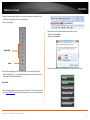
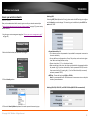
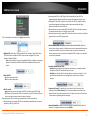
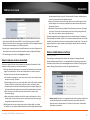
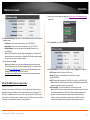
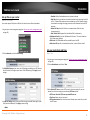
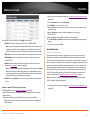
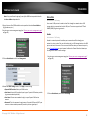
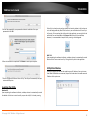
5. Review the Outbound Class Setting section. These fields would automatically
populate when Inbound Class is configured, but setting allows you make any fine
adjustments. Click Apply to save settings.
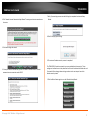
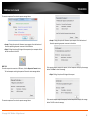
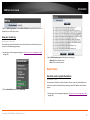
3. Select the traffic class you would like to configure for your QoS rule.
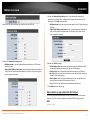
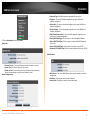
4. Review the Inbound Class Setting section.
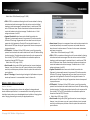
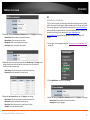
• BW Max Inbound: Enter the maximum download speed of your ISP (Internet
Service Provider).
• Highest/High/Medium/Low/Lowest: Enter the download speeds you would like
to apply on each state of download speeds. This setting is similar to setting the
priority speeds of each class
• BW Max Inbound: Enter the maximum upload speed of your ISP (Internet Service
Provider).
• Highest/High/Medium/Low/Lowest: Enter the upload speeds you would like to
apply on each state of download speeds. This setting is similar to setting the
priority speeds of each class
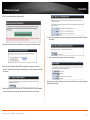
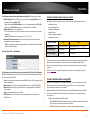
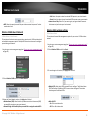
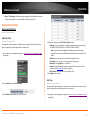
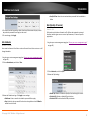
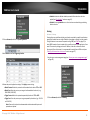
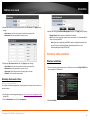
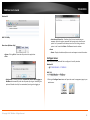
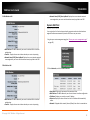
6. Review the QoS Rule settings.
• IP/MAC Address Filter: Select from the pull down menu the IP address or MAC
you would like to apply and enter the IP address of MAC address.
• Protocol Filter: Select the protocol you would like to apply on the QoS Rule.
• Port Filter: Select the port from the pull down menu you would like to assign on
the QoS rule and enter the port.
• Class Assigned: Select from the pull down menu the class you applied on the
previous section you would like to assign the QoS rule.
• Description: Enter the QoS description that best describes the rule.
7. Click Add Rule to save the settings.
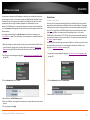
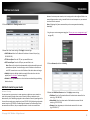
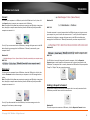
Open a device on your network to the Internet
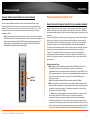
This router can provide access to devices on your local area network to the Internet
using the Virtual Server, Special Application, method (DMZ NOT recommended).
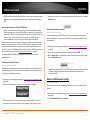
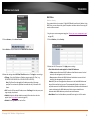
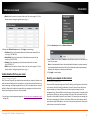
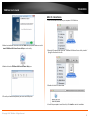
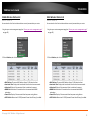
DMZ
Advanced > DMZ
© Copyright 2013 TRENDnet. All Rights Reserved.
32