1
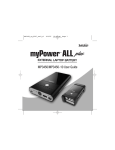
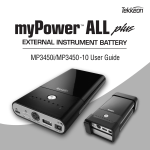
MP3700/MP3450-10 User Guide
USER GUIDE
Contents
Overview..............................................................................................................................2
Getting Started ....................................................................................................................2
Unpacking myPower ALL Plus........................................................................................2
Getting to Know myPower ALL Plus ..............................................................................3
Storing myPower ALL Plus ............................................................................................3
Charging myPower ALL Plus ..............................................................................................4
Charging with a Laptop Power Adapter ..........................................................................4
Charging with a Solar Panel............................................................................................5
Using myPower ALL Plus....................................................................................................7
Select/Connect the Adapter Tip ......................................................................................7
Connect the Power Output Cord ....................................................................................8
Connect the Portable Device ..........................................................................................8
Connect the 5V Device Using an Adapter........................................................................9
Connect the 5V Device Using the Device USB Cable ......................................................9
View myPower ALL Plus Battery Capacity ....................................................................10
Adapters ............................................................................................................................11
Accessories ......................................................................................................................13
Using the Extended Battery (MP3450-10) ........................................................................14
Adding the Extended Battery ........................................................................................14
Charging the Extended Battery......................................................................................14
Troubleshooting ................................................................................................................15
Limited Warranty ..............................................................................................................16
Overview
With myPower™ ALL Plus —the universal rechargeable battery featuring automatic voltage
detection, you can power your laptop or other portable devices that require from 9.5V to 20V, plus
power and charge just about any 5V portable device from the USB port. Simply connect myPower ALL
to your portable device to extend the battery life.
myPower ALL Plus automatically detects and sets the voltage for the connected device. And this
lightweight device can power your laptop and a second device at the same time. This rechargeable
lithium polymer battery can be used alone, or with the optional extended battery (MP3450-10) to
double the capacity. The extended battery with mounting brackets is sold separately.
Getting Started
Unpacking myPower ALL Plus
Your myPower ALL Plus package includes the following:
User guide (not shown)
myPower ALL Plus
lithium polymer
rechargeable battery
Retractable USB
cable
Power output cord
Mini USB tip
2
Adapter tip kit with drawstring bag
(8 output adapter tips and 5 input adapter tips)
Getting to Know myPower ALL Plus
MP3450-10
MP3700
Capacity Display Button
USB Port for connection
to 5V device
Charging/Power Indicator
Capacity Display
Indicators
Power
Battery Connection Port/
3-Pin Input Port
DC IN
For connection to
power adapter
Battery Connection Port
DC OUT
For connection to device
(9.5V-20V auto select)
Storing myPower ALL Plus
myPower ALL Plus can be used in the environmental temperature range between 32° to 104° F
(0° and 40°C). While not in use, store myPower ALL Plus in a dry area where the temperature is
between 50° and 86° F (10 and 30°C). With higher temperatures or in a moist environment, the
battery life will decrease. Extreme temperatures can damage the battery.
USER GUIDE
3
Charging myPower ALL Plus
myPower ALL Plus does not come with its own power adapter as it uses your laptop power adapter to
eliminate the need to carry multiple power adapters. To charge MP3700, you can use either your laptop
power adapter or a solar panel. The steps to charge with either of these devices are described in this
section.
myPower ALL Plus will charge in four hours when completely empty. The charging indicator will change
from red to green after the battery is 80% charged. Therefore, you should view the actual battery
capacity before disconnecting the power adapter to stop charging. (Before using myPower ALL Plus for
the first time, you must charge the device for four hours.)
Charging with a Laptop Power Adapter
If your laptop power adapter tip does not fit the MP3700 DC IN jack, you must use the input adapter tip
that is compatible with your laptop (provided in the package) to connect the power adapter to MP3700.
See Adapters on page 11 for detailed information about the adapter tips.
WARNING: If the power adapter is not the original supplied with the laptop, you must use a power
adapter with the same output voltage and output current as the original. This is very important as
MP3700 passes through the voltage to the laptop when both MP3700 and the laptop are being charged
using the power adapter.
NOTE: Before connecting the laptop power adapter to myPower ALL Plus, please confirm that the power
adapter does not provide more than 5A as myPower ALL Plus will shut down and may be damaged if
more than 5A is provided. The output voltage is shown on the power adapter label.
4
1. Slide the ON/OFF switch to OFF.
2. Connect the laptop power adapter to the DC IN jack on MP3700. If your power
adapter tip does not fit the DC IN jack, connect the input adapter tip that fits
your laptop power adapter to the plug on the laptop power adapter, and
plug the other end into the DC IN jack on the end of MP3700.
3. Plug the power adapter into a wall outlet. The red charging indicator will
turn on to indicate the battery is charging and is less than 80% charged.
4. When the charging indicator turns to green, press the Capacity Display button
to view the battery capacity. If the capacity does not indicate full (all green
LEDs on), continue to charge the battery until the battery capacity
indicates full.
NOTE: myPower ALL Plus will automatically shut down the power input when fully charged, so you can
charge it overnight.
Charging with a Solar Panel
You can charge myPower ALL Plus using a compatible solar panel. The solar panel can connect to the
DC IN port, or the 3-Pin Input Port, depending upon the type of solar panel. The DC IN port is designed
for use with a DC power adapter with constant current input. Charging myPower ALL Plus efficiently
requires a minimum of 1A current output from the solar panel. In general, a 25W or higher
solar panel should provide sufficient power to charge myPower ALL Plus.
The 3-Pin Input port is designed to allow charging by smaller solar panels (lower than 25W), and
requires an optional Smart 3-Pin Adapter available from Tekkeon. To use the solar panel with this port,
the solar panel must have a minimum open circuit voltage of 15V. However, there is no minimum output
current requirement from the solar panel.
USER GUIDE
5
To Charge through the DC IN Port
1. Connect the solar panel output cable into the DC IN port on myPower ALL Plus.
2. Verify that the red charging indicator turns on to indicate the battery is charging and is less than 80%
charged.
3. When the charging indicator turns to green, press the Capacity Display button to view the battery
capacity. If the capacity does not indicate full (all green LEDs on), continue to charge the battery until
the battery capacity indicates full.
4. When the battery capacity indicates full, unplug the connected charging cable.
To Charge through the 3-Pin Input Port
1. Connect the 3-Pin end of the optional Smart 3-Pin Adapter
into the 3-Pin Input port on the MP3700 (shown) and the
other end into the solar panel output port.
2. Verify that the charging indicator next to the input jack on the
Smart 3-Pin Adapter (shown) will turn on to indicate the
battery is charging.
3. After approximately four hours, press the Capacity Display button
to view the battery capacity. If the capacity does not indicate full
(all green LEDs on), continue to charge the battery until the
battery capacity indicates full.
4. When the battery capacity indicates full, unplug the
connected charging cable.
LED turns on when solar panel is
charging myPower ALL Plus
6
Using myPower ALL Plus
The main output port (DC OUT) on myPower ALL Plus can be used to power and/or charge any portable
device that requires between 9.5V and 20V (and some power devices that require slightly more voltage).
At the same time or separately, the USB output port can be used to power and charge smaller devices
requiring 5V.
To use myPower ALL Plus to power and/or charge your device, take these steps which are described in
detail in the following sections.
• Select an output adapter tip for your main device and connect the plug to the output cord.
• Connect the power output cord to myPower ALL Plus.
• Connect the power output cord/output adapter tip to your laptop. See Adapters on page 11
for detailed information about the adapter tips.
• Connect a second 5V device using an adapter, or with the device USB cable.
You also can charge your laptop and myPower ALL Plus at the same time by plugging the laptop power
adapter into myPower ALL Plus. In this case, the output current should be less than 5A to power and/or
charge your device.
Select/Connect the Adapter Tip
1. Locate the polarity symbol on your device in the area around the power
connector jack:
Center Positive
Center Negative
WARNING: myPower ALL Plus supports Center Positive polarity only. If your device has a Center
Negative polarity, do not power the device with myPower ALL Plus; contact [email protected]
for assistance.
USER GUIDE
7
2. Select the output adapter tip that fits securely into the power jack on your portable device. See
Adapters on page 11 for detailed information about the adapter tips.
3. Connect the output adapter tip to the power output cord (but not the device).
Connect the Power Output Cord
1. Plug the large end of the power output cord into the DC OUT jack on the end of myPower ALL Plus.
Connect the Portable Device
1. Connect the output adapter tip into the power jack on the portable device.
2. If the internal battery is installed in the connected device, turn on the device.
3. Slide the power switch to ON. The MP3700 will automatically detect and set the required output
voltage.
4. If the portable device is not already turned on (step #2), turn on the portable device. While connected,
myPower ALL Plus will power (or power and charge in some cases) your device.
5. When finished, unplug the power output cord from your device and slide the power switch to OFF to
turn off the battery when not in use.
TIP: For most portable devices, myPower ALL Plus can be used to power the device even when the
device battery is not installed.
8
Connect the 5V Device Using an Adapter
1.
2.
3.
4.
Connect the compatible output adapter tip to the retractable USB cable.
Connect the retractable USB cable into the USB port on myPower ALL Plus.
Connect the adapter tip to your 5V device.
Slide the power switch to ON to turn on the battery. While connected, myPower ALL Plus will power
and charge your device.
5. Slide the power switch to OFF to turn off the battery when not in use.
Connect the 5V Device Using the Device USB Cable
1.
2.
3.
4.
Insert the USB plug on the device cable into the USB port on myPower ALL Plus.
Connect the USB cable into the power jack on your portable device.
Slide the power switch to ON to turn on the battery.
Turn on the portable device and use it as you would normally. While connected, myPower ALL Plus
will power and/or charge your device.
5. When finished, unplug the USB cable from myPower ALL Plus and your device, and slide the power
switch to OFF to turn off the battery when not in use.
NOTE: The USB port provides only 5V 1A of power and cannot be used to charge devices that require
greater voltage or higher than 1A current.
USER GUIDE
9
View myPower ALL Plus Battery Capacity
The capacity in myPower ALL Plus will decrease as the battery powers and/or charges your devices. The
remaining capacity is displayed on the capacity indicator, which is accessed as described below. As the
remaining capacity decreases, the lights will turn off in sequence from right to left. When the myPower
ALL Plus battery capacity is low, only the red light will be on. You should recharge myPower ALL Plus at
this time. When myPower ALL Plus is completely out of battery, all lights will be off. At this point, you must
charge myPower ALL Plus.
1. Press the Capacity Display button to view the capacity as shown in the table below.
CAPACITY INDICATOR
Red Indicator
10
1-5% (Recharge before using)
1st Green Indicator
5-15%
2nd Green Indicator
15-25%
3rd Green Indicator
25-40%
4th Green Indicator
40-55%
5th Green Indicator
55-70%
6th Green Indicator
70-85%
7th Green Indicator
85-100%
Adapters
Eight adapter plugs that fit most DC adapter jacks on a variety of laptops and a mini USB tip are included with
myPower ALL Plus. The following table shows each adapter tip model number, marking, and compatible
manufacturers.
Output Adapter Tip
Connect MP3700 to Notebook
Input Adapter Tip
Connect Laptop Power to MP3700
Marking
PA-L47
A
PA-L47F
BM-AF
Acer, Averatec, HP/Compaq
PA-L5D
B
Not needed
Not needed
Acer, Averatec, IBM/Lenovo
PA-L5F
C
PA-L5FF
BM-CF
Acer, Asus, Averatec, Dell, Fujitsu,
Gateway, HP/Compaq, IBM/Lenovo,
NEC, Panasonic, Toshiba, Winbook
PA-L63
D
PA-L65
E
PA-L65F
BM-DF/EF
PA-N09
16
PA-N09F
BM-16F
PA-N11F
BM-KF
PA-N10
K
PA-N11
K1
USER GUIDE
Model No.
Laptop Manufacturers
Model No.
Marking
Toshiba
Fujitsu, Panasonic, Sony
IBM/Lenovo
HP/Compaq
Dell
11
Sample markings for each type of adapter are shown here:
Output Adapter Marking
Input Adapter Marking
If none of these plugs fits snugly into your portable device power jack, please go to our web site at
www.tekkeon.com/mpadapters to determine which adapter plug you need for your device. You can
obtain most adapters, including the Smart 3-Pin Adapter, through the web site, or by contacting Tekkeon
by phone at 888-787-5888 or 1-714-832-1266. If available through Tekkeon, the adapter
will be sent to you for a nominal fee.
12
Accessories
In addition to the adapters, several accessories are available for myPower ALL Plus, including:
MP3300-10
Optional 3' straight output cable to extend reach between myPower ALL Plus and your device.
MP3450-10
Extended battery that doubles the capacity of myPower ALL Plus (see next section).
MP3450-30
Car charger to charge myPower ALL Plus.
PA-CLA
Female car charge that connects to myPower ALL Plus to charge your mobile device with your
mobile device car charger.
PA-SCC1
Smart 3-Pin Adapter to charge myPower ALL Plus with a solar panel.
These can be ordered from our web site at www.tekkeon.com or by contacting Tekkeon by phone at
888-787-5888 or 1-714-832-1266.
USER GUIDE
13
Using the Extended Battery (MP3450-10)
You can double the capacity of myPower ALL Plus by adding the extra battery unit MP3450-10. When
MP3450-10 is added to MP3700, the battery capacity shown on the indicators includes the capacity
available with MP3450-10.
Adding the Extended Battery
1. Place MP3700 on top of MP3450-10 with both flat silver
ends facing the same direction.
2. Connect the bracket with the 3-Pin plugs inside to the
silver ends of the devices. The 3-Pin plugs will mate with
the battery port on each of the devices, and the controls
on the end of MP3700 will show through the bracket
opening.
3. Connect the second bracket on the opposite end of the
devices to hold the units together securely.
4. Use MP3700 as you would normally.
Charging the Extended Battery
1. With MP3450-10 connected, charge MP3700 as described earlier. Both batteries will be charged
at the same time (in parallel).
14
Troubleshooting
If myPower ALL Plus does not power the portable device or charge the device battery, take these steps:
1. Verify that the battery is turned on by sliding the power switch to ON. Please note that with some
laptop models, the laptop may shut down if the laptop is connected to MP3700 with the power switch
in the ON position. Remove and replace the laptop battery to reset the laptop charging circuitry, and
connect MP3700 again with the power switch in the OFF position. Slide the power switch to ON after
the laptop is connected.
2. Verify that the current consumption of the portable device is not more than 5
Amp. If the device consumes more than the maximum provided by myPower ALL
Plus, the device will shut down when turned on and cannot be powered and/or
Center Positive
Symbol
charged by myPower ALL Plus.
3. Verify that the device does not require more than 20V or 90W (=voltage x current,
which is shown on the power adapter).
4. Verify that the laptop power adapter does not provide more than 5A. The output
Center Negative
voltage can be found on the power adapter label.
Symbol
5. View the remaining battery capacity. If it is below 25%, recharge myPower ALL Plus.
6. Check that the output cord is connected to both myPower ALL Plus and the portable device, and that
the adapter tip fits snugly into the power jack on your portable device. If not, try another adapter.
7. Verify that the polarity of the device power jack is Center Positive. If the polarity is Center Negative,
please contact [email protected] for assistance.
8. Verify that a battery is installed in the portable device as some devices will not function without a
battery installed.
USER GUIDE
15
Limited Warranty
The product enclosed herein is warranted to be free of operational defects for a period of one year from
the date of purchase. In the event of a defect in operation during the warranty period Tekkeon, Inc. will
replace the defective product when the owner returns all product contents. The limited warranty will be
considered void if the unit is tampered with, subject to misuse, negligence or accidental damage, has
been improperly serviced, or if the security seal is removed. This warranty is limited to replacement only
and shall not cover any other damages. Any product returned to Tekkeon, Inc. with no fault found will be
returned to the owner at the owner’s expense.
To obtain warranty coverage, please complete and submit the enclosed registration card.
Disclaimer of Warranties
Any user of this product does so at the user’s own risk. To the maximum extent permitted by applicable
law, Tekkeon, Inc. and its suppliers provide the hardware and any support services related thereto “as is”
and with all faults; and hereby disclaim all warranties and conditions, whether express, implied or
statutory, including, but not limited to implied warranties of merchantability, fitness for a particular
purpose, non-infringement, lack of negligence or correspondence to description, except for those
warranties specifically and expressly provided in the Limited Warranty.
With respect to the use of this product, in no event shall the company be liable for any loss of profit or
any other commercial damage, including but not limited to special, incidental, consequential and other
damages.
16
Customer Support
Customer support for myPower ALL Plus is available at:
Tekkeon, Inc.
c/o myPower ALL Plus
3002 Dow Avenue, #134
Tustin, CA 92780
888-787-5888 / 714-832-1266
www.tekkeon.com
Tekkeon, Inc. must issue a Return Merchandise Authorization (RMA) number for all exchanges
or refunds.
www.tekkeon.com
© 2008 Tekkeon, Inc.
Rev A
All Rights Reserved
myPower™ is a trademark
of Tekkeon, Inc.
Cut loose. Stay loose.