1
4 Getting the Most Out of Your Thomson Gateway
4.5
Dynamic DNS
Introduction
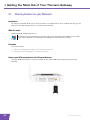
The Dynamic DNS service allows you to assign a dynamic DNS host name (for example john.dyndns.org) to
a broadband connection even if it is using a dynamic IP address. As soon as the device gets a new IP address,
the dynamic DNS server updates its entry to the new IP address.
What you need
Before we can configure Dynamic DNS, you first have to create an account at one of the following Dynamic
DNS service providers:
www.dyndns.org
www.no-ip.com
www.dtdns.com
Procedure
Proceed as follows:
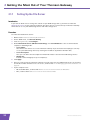
1
Browse to the Thomson Gateway Web Interface.
2
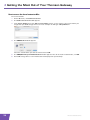
On the Toolbox menu, click Dynamic DNS.
3
On the Navigation Bar, click Configure.
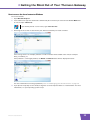
4
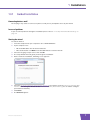
Select the Enabled check box.
5
If necessary, select the broadband connection to which you want to assign the Dynamic DNS host name
in the Interface list.
6
Type the user name and password of your Dynamic DNS service account in the corresponding fields.
7
In the Service list, click the name of your Dynamic DNS service provider.
8
In the Host box, type the host name that you got from the Dynamic DNS service provider (for example
mywebpage.dyndns.org).
9
Click Apply.
E-DOC-CTC-20080118-0051 v2.0
55