1
Meet your VGN-FZ Series personal computer
Voici votre ordinateur personnel de la Série VGN-FZ
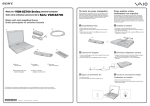
Main unit and supplied items
Unité principale et articles fournis
B
A
C
To turn on your computer
Before starting your computer for the first time, do not connect any other
hardware that did not originally come with your computer. Make sure to start
up your computer with only the supplied accessories connected and set up
your system. Upon completion, connect one device (for example, a printer,
an external hard disk drive, a scanner, and so on) at a time, following the
manufacturers’ instructions.
Pour mettre votre
ordinateur en marche
Avant de démarrer votre ordinateur pour la première fois, ne branchez
aucun autre matériel qui n'a pas été originalement livré avec l'ordinateur.
Assurez-vous de ne démarrer votre ordinateur qu'avec les accessoires
fournis, puis procédez à la configuration de votre système. Une fois cette
opération terminée, branchez un seul périphérique à la fois (par exemple,
une imprimante, un disque dur externe, un scanneur, etc.) en respectant les
instructions du fabricant.
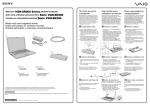
1 Install Battery Pack
1 Installez la batterie
1
2
1
2
3
4
Slide the battery LOCK/UNLOCK switch 1 to the UNLOCK position.
Slide the battery pack diagonally into the battery compartment until the
projections 2 on either side of the battery compartment fit into the
U-shaped cuts 3 on either side of the battery pack.
Rotate the battery pack in the direction of the arrow, and push the battery
pack down into the compartment until it clicks into place.
Slide the battery LOCK/UNLOCK switch to the LOCK position to secure
the battery pack on the computer.
3
4
Faites glisser le LOCK/UNLOCK de batterie 1 à la position UNLOCK.
Faites glisser la batterie en diagonale dans le compartiment de la
batterie jusqu'à ce que les 3 encoches en forme de U sur chaque côté
de la batterie s'enclenchent bien chaque côté du compartiment de la
batterie 2.
Faites pivoter la batterie dans la même direction que la flèche, puis
poussez la batterie dans le compartiment jusqu'à ce qu'il s'enclenche
bien en place.
Faites glisser le LOCK/UNLOCK de batterie à la position LOCK pour
bien fixer la batterie à l'ordinateur.
1
3
2
D
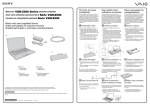
2 Connect AC Adapter
2 Branchez l'adaptateur secteur.
1
1
2
Plug one end of the power cord 1 into the AC adapter 2 and the other
end into an AC outlet 3.
Plug the AC adapter cable into the DC IN port 4 on the computer.
2
Branchez une extrémité du cordon d'alimentation 1 dans l'adaptateur
c.a. 2, puis l'autre extrémité dans une prise secteur 3.
Branchez le câble de l’adaptateur secteur dans le port DC IN 4 de
l'ordinateur.
4
2
A Main unit
B AC adapter
Unité principale
3
Adaptateur c.a.
C Power cord
D Rechargeable battery pack
Cordon d'alimentation
Batterie rechargeable
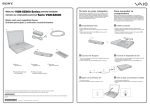
3 Open Lid and Power On
3 Ouvrez le couvercle et mettez
1
2
l'ordinateur en marche
Lift the LCD screen lid.
Press the power button until the power indicator turns on.
1
2
The illustrations in this document may appear different from your model, depending on the country or area of your purchase.
Les illustrations du présent document peuvent différer de votre modèle, selon le pays ou la région où vous avez fait votre achat.
3-290-451-11 (1) © 2008 Sony Corporation
1
Printed in USA
Soulevez le couvercle avec écran ACL.
Appuyez sur le bouton de mise en marche jusqu'à ce que le témoin de
mise en marche s'allume.
To locate the User Guide
1
2
3
Click Start
> Help and Support.
Click Manuals & Specifications.
Click VAIO User Guide.
Pour repérer le Guide de
l'utilisateur
To register your
computer
Pour enregistrer votre
ordinateur
1
2
3
You can register your computer online at the following URLs:
http://www.sony.com/vaioregistration/ for customers in USA
http://www.sonystyle.ca/registration/ for customers in Canada
http://vaio.sony-latin.com/ for customers in Latin American countries or
areas
Vous pouvez enregistrer votre ordinateur en ligne en visitant les adresses
suivantes : Pour les clients des États-Unis :
http://www.sony.com/vaioregistration/;
pour les clients du Canada : http://www.sonystyle.ca/registration/;
pour les clients des pays ou régions de l'Amérique latine :
http://vaio.sony-latin.com/
Cliquez sur Démarrer
> Aide et Support.
Cliquez sur Manuels & fiches techniques.
Cliquez sur Guide d'utilisation VAIO.
Sony product registration is voluntary. Failure to register will not diminish
your limited warranty rights.
HDD recovery
®
Your computer is equipped with the VAIO Recovery Center, a
utility program that recovers your computer’s operating system
and preinstalled software to their original factory-installed
settings.
System and/or application recovery media are not delivered
with your computer.
Récupération du
disque dur
Votre ordinateur est équipé de l'utilitaire VAIO® Recovery
Center, un programme qui récupère le système d'exploitation
de votre ordinateur et les logiciels préinstallés en fonction des
réglages effectués en usine.
Les supports de récupération du système d'exploitation ou des
applications ne sont pas fournis avec votre ordinateur.
For on-screen information about hard
disk recovery:
1 Click Start > Help and Support.
2 Click Manuals & Specifications.
3 Click VAIO Recovery Center User Guide.
Pour afficher plus de renseignements
à l'écran sur la récupération des
fichiers du disque dur :
1 Cliquez sur Démarrer > Aide et Support.
2 Cliquez sur Manuels & fiches techniques.
3 Cliquez sur VAIO Recovery Center Guide d'utilisation.
To access
the VAIO Recovery Center utility
from the Windows Vista® operating
system:
1 Click Start > Help and Support.
2 Click Backup & Recovery.
3 Click VAIO Recovery Center.
Pour accéder à l'utilitaire VAIO
Recovery Center dans le système
d'exploitation Windows Vista® :
1 Cliquez sur Démarrer > Aide et Support.
2 Cliquez sur Sauvegarde & réinstallation.
3 Cliquez sur VAIO Recovery Center.
L'enregistrement des produits de Sony n'est pas obligatoire. Votre garantie
limitée ne sera pas compromise si vous n'enregistrez pas votre produit.
Troubleshooting
Dépannage
What should I do if my computer
does not start?
Que dois-je faire si mon ordinateur
ne démarre pas?
The power indicator on your computer is off when the computer
is not securely attached to a source of power. Make sure the
computer is plugged into the AC adapter and the adapter is
plugged into an outlet. If you are using battery power, make
sure the battery pack is installed properly and charged. You
may check the power source by disconnecting the AC adapter
and removing the battery pack. Wait three to five minutes
before reattaching the AC adapter and reinstalling the battery
pack.
Additional suggestions include:
■ If your computer is plugged into a power strip or an
uninterruptible power supply (UPS), make sure the power
strip or UPS is turned on and working.
■ If your computer is connected to an external display, such
as a multimedia monitor, make sure the display is plugged
into a power source and turned on. The brightness and
contrast controls may need to be adjusted. See the manual
that came with your display for more information.
■ If your computer is booting from a floppy disk, eject the disk
from the floppy disk drive (if applicable).
■ If you notice condensation on your computer, do not use the
computer for at least one hour. Condensation may cause
the computer to malfunction.
Le témoin, sur votre ordinateur, est éteint quand l'ordinateur est mal
raccordé à une alimentation électrique. Assurez-vous que
l'ordinateur est branché à l'adaptateur secteur et l'adaptateur à
une prise secteur. Si votre ordinateur est alimenté par batterie,
assurez-vous que la batterie est correctement installée et chargée.
Vous pouvez vérifier l'alimentation électrique en débranchant
l'adaptateur secteur et en retirant la batterie. Attendez de trois
à cinq minutes avant de rebrancher l'adaptateur secteur et de
réinstaller la batterie.
Autres suggestions :
■ Si votre ordinateur est branché à une barre d'alimentation
ou à un système d'alimentation sans coupure, assurez-vous
qu'ils soient sous tension et fonctionnels.
■ Si votre ordinateur est branché à un écran externe, comme un
écran multimédia, assurez-vous que cet écran est branché à
une source d'alimentation et qu'il est sous tension. Il faudra
peut-être ajuster les commandes de luminosité et de contraste.
Pour de plus amples renseignements, veuillez consulter le
manuel de l'écran.
■ Si votre ordinateur démarre avec une disquette insérée,
éjectez la disquette de son lecteur (le cas échéant).
■ Si vous constatez la présence de condensation sur votre
ordinateur, ne l'utilisez pas pendant au moins une
How do I keep my computer
updated?
Comment garder mon ordinateur à
jour?
Download and install the latest updates regularly using the
preinstalled software applications, such as Windows Update
and VAIO Update 3 so that the computer can run more
efficiently.
Téléchargez et installez les dernières mises à jour régulièrement
à l'aide des applications logicielles préinstallées, comme
Windows Update et VAIO Update 3 afin d'améliorer l'efficacité
de votre ordinateur.
To download and install the updates, your computer must be
connected to the Internet.
Pour télécharger et installer les mises à jour, vous devez
disposer d'une connexion Internet.