1
Quick Start Guide
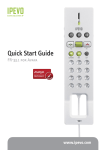
Skype USB Handset
with LCD
FR-33.2
www.ipevo.com
Table of Contents
1 Introduction
1 Introduction3
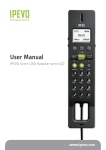
1.1 IPEVO FR-33.2 Skype USB Handset LCD Overview
3
1.2 IPEVO FR-33.2 Handset Buttons
4
2 Talking with Skype
5
2.1 Getting Set Up
5
2.2 IPEVO FR-33.2 Handset Shortcuts to Skype
7
2.3 Recording a Skype Conversation
8
3 New to Skype?
9
3.1 The Basic Idea
9
3.2 Making Skype-to-Skype Calls
10
3.3 Making SkypeOut Calls
10
4 Advanced Display Screen Options
11
4.1 Calling a Recently Dialed Contact
11
4.2 Searching through Contacts
11
4.3 Customizing your IPEVO FR-33.2 Ringtone
12
4.4 Setting and Using the Speed Dial Function
13
5 Tips, Tutorials, FAQs, Customer Service
15
5.1 Tips, Tutorials, and FAQs
15
5.3 Questions? Talk to Customer Service
15
6 Warranty Information
16
6.1 Warranty Coverage Information
16
6.2 What the Warranty Does Not Cover
16
6.3 Limitation of Implied Warranties
17
6.4 Return and Exchange Policy and Procedure
18
7 Product Specifications & System Requirements
19
7.1 Package Contents
19
7.2 Specifications
19
7.3 System Requirements
19
Congratulations on purchasing your IPEVO FR-33.2 handset. Your IPEVO FR-33.2
handset enables you to make free phone calls to other Skype users, as well as
affordable phone calls to landlines. The IPEVO FR-33.2 handset delivers wideband
signal for optimal voice quality and advanced noise cancellation for crystal clear
conversation.
1.1 IPEVO FR-33.2 Skype USB Handset with LCD Overview
7
1
2
8
9
3
4
5
6
10
11
12
1. Volume Control Pad
2. Mute button
3. Answer/Call button
4. Contact Scroll-thru button
5. Skype Activation Key
6. “+” Key
7. Display Screen
8. Function Keys
9. Record button
10. End Call/ Cancel button
11. List Key
12. Number Pad
Introduction
Table of Contents
1.2 IPEVO FR-33.2 Handset Buttons
1. Volume Control Pad
Press the upper soft-key to increase the volume; press the lower soft-key to reduce
the volume.
2. Mute button
Press this button once to mute. Press the Mute button again to continue your conversation.
3. Answer/Call button
When receiving an incoming call, press this button to accept calls; or after selecting
the caller from your Skype list, press this button to call the selected contact.
4. Contact Scroll-thru button
Toggle the button up or down to scroll through your Skype contact list.
5. Skype Activation Key
When Skype is minimized, press and hold this button to launch Skype.
6. “+” Key
Press the “+” key to make a SkypeOut call* (calling traditional landlines and cellphones from your FR-33.2 handset through Skype).
*Requires Skype phone credits
7. Display Screen
Use this screen to navigate through Skype options, such as searching through contact lists, dialing recent contacts or setting your ring tone.
8. Function Keys
Use these buttons to navigate through the Display Screen’s options.
9. Record button
Press this button to record your Skype conversation using the included freeRec
software. Press this button during a recording to pause the recording, and once
more to resume the recording.
10. End Call/Cancel button
Press this button to hang up or cancel the selection in the Skype menu
11. List Key
Press this button to view your contact list; press multiple times to scroll through
contact groups.
12. Number Pad
Press numbers to make SkypeOut calls (requires Skype credits) or to search through
contact lists alphabetically.
2 Talking with Skype
2.1 Getting Set Up
To benefit from the IPEVO FR-33.2 handset’s shortcut buttons for Skype, you will
need to install the IPEVO Control Center. Here’s how:
1. Install the driver
Insert the installation CD or download the latest IPEVO driver from
www.ipevo.com/support/ to ensure that your driver works in sync with your
computer’s latest operating system update.
Talking with Skype
Introduction
The IPEVO FR-33.2 handset installation program will launch automatically. Simply
follow the prompts to complete the installation process.
Note: If the installation does not start automatically, start the program manually by
launching the installation file from your CD-ROM drive or download site.
2. Connect the IPEVO FR-33.2 Handset
If the IPEVO FR-33.2 handset is not already connected to your computer, a screen
will prompt you to do so as part of the installation process. In certain cases, the
following screen may appear:
3. You’re done!
A screen prompt will appear to notify you once installation is complete and the
IPEVO Control Center icon shortcut will appear on your desktop. The IPEVO Control
Center allows you to conveniently access and customize preferences for your IPEVO
FR-33.2 handset.
TIP: For advanced settings and tips, watch our tutorial videos at www.ipevo.com
The IPEVO Control Center for Skype will automatically run. Restarting your computer
after installation is recommended to ensure all the functions are working.
You’re ready to start chatting!
When Skype prompts you that another program wants to access Skype. Select Allow
this program to use Skype and Click OK.
2.2 IPEVO FR-33.2 Handset Shortcuts to Skype
Sign in to your Skype account. If you do not have one, create one at www.skype.com.
The IPEVO FR-33.2 handset offers the following one-touch shortcuts to Skype
functions when the IPEVO Control Center is running:
1. Activating Skype
Did you minimize Skype? Click on the Skype Activation key to launch Skype on your
desktop.
2. Accepting or declining an incoming call
When you receive an incoming call, press the Answer/Call button to accept, or the
End Call/Cancel button to decline.
3. Calling a Skype contact
Toggle the Contact Scroll-Thru button to scroll through your contact list. Your Skype
Talking with Skype
Talking with Skype
contacts will be displayed on the Display Screen. When the desired contact is
selected, press the Answer/Call button to call your contact.
TIP: you can use the Number Pad to locate contacts alphabetically
4. Calling a landline or cell phone (placing a SkypeOut call)
If you have Skype credits, you can place SkypeOut calls. Press the “+” key before
dialing the number you are trying to reach. Then use the Number Pad to dial the
number. Finally, press the Answer/Call button to place the call.
For example, dial “+” 1 408 324 0158 to reach the IPEVO customer service hotline in
San Jose, CA.
5. Hanging up
At the end of a Skype conversation, press the End Call/Cancel button to hang up.
6. Muting a conversation
Press the Mute button to mute a Skype conversation. Press it again to unmute.
2.3 Recording a Skype Conversation
The included freeRec software enables you to record conversations made with Skype
at the touch of a button. FreeRec also allows you to record your voice directly from
your IPEVO FR-33.2 handset for audio note taking, speaking text for powerpoints, or
voice over for movies made with other software. To record a conversation in Skype,
you must be running the IPEVO Control Center.
1. Starting a recording
Launch freeREC by pressing the Record button.
2. Pausing and resuming a recording
Press the Record button during a recording to pause it. Press it once more to
resume.
3. Ending a recording
Press the End Recording button during a recording to end it.
TIP: freeRec options let you change the recording quality, file name and destination
folder. For more tips and tutorials, visit www.ipevo.com
3 New to Skype?
3.1 The Basic Idea
With the IPEVO FR-33.2 handset, you can chat with your contacts using Skype-toSkype or using SkypeOut to call landlines and cell phones. Skype-to-Skype calls
require both users to have the free Skype software running on their computer.
Skype-to-Skype calls can be voice calls or videochatting.
SkypeOut enables users to call landlines and cellphones across the world. These
calls can be made by purchasing credits. Once you’ve set up your account with
Skype, you can log on to any computer in the world that has internet access, and
use your credits! To check on rates and availability, visit www.skype.com
Did you know? You can use the IPEVO Point of View webcam to enhance your Skype
experience. Buy it today at www.ipevo.com
New to Skype?
Talking with Skype
3.2 Making Skype-to-Skype Calls
Making Skype-to-Skype calls to contact your friends, family or business contacts is
easy. Here’s how:
Step 1. Press the Skype Activation key to launch Skype.
Step 2. Toggle the Contact Scroll-thru button to select the person you want to call in
your contact list.
Step 3. Press the Answer/Call button.
Start your conversation!
3.3 Making SkypeOut Calls
SkypeOut calls are phone calls placed from Skype to landlines and cell phones. They
require purchasing Skype credits. Please visit www.skype.com for more detailed
information.
Step 1. Press the “+” key before dialing the number you are trying to reach.
For example, dial “+” 1 408 324 0158 to reach the IPEVO customer service hotline in
San Jose, CA.
Step 2. Press the Answer/Call button to call.
Start talking!
Want more information? Check out www.ipevo.com for tips and tutorials.
4 Advanced Display Screen Options
The IPEVO FR-33.2 handset Display Screen gives you access to advanced Skype
options. This section will show you advanced customization tips and shortcuts
available on your IPEVO FR-33.2 handset.
4.1 Calling a Recently Dialed Contact
Your IPEVO FR-33.2 handset takes the hassle out of dialing numbers on your
keyboard. Thanks to the Display Screen options, you can easily redial any of your 15
most recently dialed contacts and numbers. Here’s how:
Step 1. When on the main Display Screen, select Dialed using the Function Keys.
Step 2. Toggle the Contact Scroll-Thru button to browse through your contact list.
Your Skype contacts will be displayed on the Display Screen.
Step 3. When the desired contact is selected, press the Answer/Call button to call
your contact. Start talking!
4.2 Searching through Contacts
With your IPEVO FR-33.2 handset, you can select any contact from your list without
touching your computer. There are 2 options:
1. Accessing all contacts
You can access all your contacts by toggling the Contact Scroll-thru button when the
Display Screen is in the main menu.
2. Accessing contacts in a group
If you have created groups in your Skype contacts, use the List key to quickly access
the contacts in your groups. Press the List key multiple times to view the groups
11
Advanced Display Screen Options
New to Skype?
10
you have created. Once you can see the desired Group listed in the Display Screen,
toggle the Contact Scroll-thru button to scroll through the list of names and select
the person you wish to call.
Once you have selected the desired contact, press the Answer/Call button. You’re
done! Start talking!
4.3 Customizing your IPEVO FR-33.2 Ringtone
You can select from 10 ringtones or set the ringtone to silent.
4.4 Setting and Using the Speed Dial Function
With your IPEVO FR-33.2 handset, you can call your contacts using the speed dial.
Here’s how:
Step 1. Setting a speed dial number in Skype
In your Skype Contacts tab, right-click on the contact you wish to edit. Select the
“Set Speed-dial”option¹ from the drop-down menu as shown below. Choose the
speed dialing number² you wish to assign (between 1 and 99).
Step 1. When on the main Display Screen, select Menu
Step 2. Toggle the Scroll-thru button to Setting
Step 3. Select Tone Setting
Step 4. Under the Ring Tone menu, you will be able to toggle the Scroll-thru button
to preview from 10 ringtones or silence, and select the ringtone of your choice!
¹
²
13
Advanced Display Screen Options
Advanced Display Screen Options
12
Done! The speed dialing number assigned to the selected contact will appear by the
selected contact name in your contact list³.
5 Tips, Tutorials, FAQs, Customer Service
5.1 Tips, Tutorials, and FAQs
For the latest tips, tutorials and Frequently Asked Questions on how to use your
IPEVO FR-33.2 handset, visit www.ipevo.com
5.2 Questions? Talk to Customer Service
Our Customer Service center is located at the heart of San Jose, CA.
We try to constantly update our FAQ library in www.ipevo.com, so we recommend
you start there. However, if you have any answered questions, feel free to email us
at [email protected], or call us at 1 877 269 4738 Mon-Fri, 10:00am-5:00pm PST.
³
Step 2. Calling a speed dial contact
Dial the speed dial number of the contact you wish to call, then press the Answer/
Call button. That’s it! Start talking!
15
Tips, Tutorials, FAQs, Customer Service
Advanced Display Screen Options
14
6 Warranty Information
6.1 Warranty Coverage information
IPEVO products come with a one year parts and labor limited warranty from the
date of purchase as described below. Note that shipping and handling fees are not
covered by this warranty.
This warranty is valid only for the first consumer purchaser. IPEVO warrants its
products to be free from defects in material and workmanship during the warranty
period. If a product proves to be defective in material or workmanship during the
warranty period, IPEVO will, at its sole option, repair or replace the product with a
similar product. Replacement Product or parts may include remanufactured or
refurbished parts or components. The replacement unit will be covered by the
balance of the time remaining on the customer’s original limited warranty. IPEVO
provides no warranty for the third-party software included with the product or
installed by the customer.
6.2 What the warranty does not cover
IPEVO retains the right to refuse warranty repair or exchange for reasons such as
but not limited to those listed below:
Any product on which the serial number has been defaced, modified or removed.
Damage, deterioration or malfunction resulting from:
• Misuse, neglect, fire, water, lightning, or other acts of nature
• Unauthorized product modification, or failure to follow instructions supplied with
the product, including use of the product with non authorized programs.
• Attempted repair by anyone not authorized by IPEVO.
• Damage to or loss of any programs, data or removable storage media.
• Software or data loss occurring during repair or replacement.
• Any damage of the product due to shipment.
• Removal or installation of the product.
• Causes external to the product, such as electric power fluctuations or failure.
• Use of supplies or parts not meeting IPEVO’s specifications.
• Normal wear and tear.
• Any other cause which does not relate to a product defect (unclear voice quality
due to network and not hardware).
6.3 Limitation of Implied Warranties
THERE ARE NO WARRANTIES, EXPRESS OR IMPLIED, WHICH EXTEND BEYOND THE DESCRIPTION
CONTAINED HEREIN INCLUDING THE IMPLIED WARRANTY OF MERCHANTABILITY AND FITNESS
FOR A PARTICULAR PURPOSE.
EXCLUSION OF DAMAGES
IPEVO’S LIABILITY IS LIMITED TO THE COST OF REPAIR OR REPLACEMENT OF THE PRODUCT.
IPEVO SHALL NOT BE LIABLE FOR:
DAMAGE TO OTHER PROPERTY CAUSED BY ANY DEFECTS IN THE PRODUCT, DAMAGES BASED
UPON INCONVENIENCE, LOSS OF USE OF THE PRODUCT, LOSS OF TIME, LOSS OF PROFITS, LOSS
OF BUSINESS OPPORTUNITY, LOSS OF GOODWILL, INTERFERENCE WITH BUSINESS RELATIONSHIPS, OR OTHER COMMERCIAL LOSS, EVEN IF ADVISED OF THE POSSIBILITY OF SUCH DAMAGES.
ANY OTHER DAMAGES, WHETHER INCIDENTAL, CONSEQUENTIAL OR OTHERWISE.
ANY CLAIM AGAINST THE CUSTOMER BY ANY OTHER PARTY.
EFFECT OF LOCAL LAW:
This warranty gives you specific legal rights, and you may also have other rights
17
Warranty Information
Warranty Information
16
which vary from locality to locality. Some localities do not allow limitations on
implied warranties and/or do not allow the exclusion of incidental or consequential
damages, so the above limitations and exclusions may not apply to you.
6.4 Return and Exchange Policy and Procedure
Within one year of the purchase date, IPEVO will repair the defective unit, or if the
unit is not repairable, issue a working replacement for free. You may also return the
product within the terms of the above described warranty. Note that shipping and
handling fees are not covered by this offer.
In order to obtain warranty service:
Step. 1
Contact IPEVO Customer Support at 1 877 269 4738 or email us at [email protected] for
a Return Material Authorization number (RMA). You will be required to provide:
1. A copy of the dated sales slip or transaction ID# from our online store.
2. Your name.
3. Your ship to address, email address and phone number.
4. The serial number of the product.
5. A description of the problem.
Step 2.
Bring or ship the product prepaid in the original container, with the associated
accessories, to IPEVO at 2860 Zanker Rd Suite 104, Attn: Return and Exchange
Department, San Jose, CA 95134. Insurance of the returning product is recommended
should you experience any transportation claim from the carrier you select.
7 Product Specifications & System Requirements
7.1 Package Contents
• IPEVO FR-33.2 handset
• IPEVO FR33.2 cradle
• IPEVO Control Center driver CD
• Quick start guide
7.2 Specifications
• Supports Skype
• USB 1.1 or 2.0
• LED blink indicator
• 10 ring tones
• 151X38X25 mm / 5.94x1.49x0.98 inches (LxWxH)
• 65g / 2.29 ounces
7.3 System Requirements
• Window XP or Vista, Mac OSX 10.4 OR UP
• 400MHz CPU or up, 128 MB RAM or up, 50MB free hard-disk space
• Broadband internet connection
• Available USB port on your computer
• CD-ROM DRIVE
Further questions? Comments? Contact IPEVO at Tel 1 877 269 4738 or email us at [email protected]
Copyright © IPEVO Inc, 2008. All rights reserved.
19
Product Specifications & System Requirements
Warranty Information
18
USA, Canada
International
IPEVO Inc.
2860 Zanker Road, Suite 104,
San Jose, CA 95134, USA
Tel: 1-877-269-4738
Service mail: [email protected]
http://www.ipevo.com
IPEVO corp
3F, No.53, Bo-ai Rd.,
Taipei 100, Taiwan
Tel: +886-2-5550-8686
Service mail: [email protected]
http://www.ipevo.com.tw