1
Hicom 300
Set T24/T25 Operating Instructions
TU
22.11.
10:45
Call Forward
Rep Secretary
Programme
Save Number
Block Intercom
Call Back
Delete
Alternating
Call Queue
Conference
Message Retrieve
Message Waiting
Pickup Exec 1
Ring Transfer 1
Pickup Exec 2
Ring Transfer 2
1
2
3
Dial
Exec 1
2nd
Call
Rlse
4
5
6
Dial
Exec 2
Trsfer
Return
+
7
8
9
Call
Pickup
Trsfer
-
*
0
#
Park
Loud
Spkr
Dial
Hicom 300 Digital User Guide
Index
Introduction ............................................................................................ 4
Executive / Secretary Features
Dial Executive / Dial Secretary ............................................................... 5
Answering Calls for Executive/s ............................................................. 6
Intercom ................................................................................................. 7
Ring Transfer .......................................................................................... 8
Representative Secretary ....................................................................... 9
Call Forwarding Preset ......................................................................... 11
Call Forwarding Variable ....................................................................... 13
Standard Features
Internal and External Dialling ............................................................... 14
Dialling the Switchboard ....................................................................... 14
Call Pick Up .......................................................................................... 15
Call Park ............................................................................................... 16
Call Transfer ......................................................................................... 17
Enquiry Call .......................................................................................... 19
Call Queuing......................................................................................... 20
Alternating between Calls ..................................................................... 21
Transfer a Second Caller ...................................................................... 22
3 Way Conference ................................................................................ 23
Call Back .............................................................................................. 24
External Line Reservation .................................................................... 26
Call Diversion Features
Call Forwarding Preset ......................................................................... 27
Call Forwarding Variable ....................................................................... 29
2
Index - cont’d
PIN Features
Follow Me ............................................................................................. 30
Electronic Telephone Lock .................................................................... 31
Mobile Class of Service ........................................................................ 32
Optional Features
System Abbreviated Dialling ................................................................. 33
Individual Abbreviated Dialling .............................................................. 34
Speed Dialling ...................................................................................... 35
Stored Number Redial .......................................................................... 37
Do Not Disturb...................................................................................... 38
Executive Override ............................................................................... 39
Call Trace ............................................................................................. 39
Timed Reminder ................................................................................... 40
Night Service ........................................................................................ 41
Key Settings (+/–)................................................................................. 41
3
Introduction
This guide is designed to assist extension users on a Siemens Hicom 300
Communications System to use all authorised features.
Your extension may not be authorised ∗ to use all features. The Siemens
representative can confirm features that are available to you.
Your extension may also be subject to trunk barring thus restricting where you
may dial.
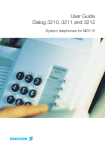
A variety of instruments are available for use on the Hicom 300. e.g.Siemens Set T25 - Digital Loudspeaking feature telephones
Siemens Set T24 - Digital Open Listening feature telephones
Siemens Set T8 - Digital Open Listening feature telephones
Siemens euroset - Multi-frequency Loudspeaking telephones
Venus - Analogue telephones
Please refer to the separate instruction manuals for the Set T8, Analogue and
euroset instruments.
∗ - authorised features are those features that your company has designated
for your use and may vary from extension to extension.
The Set T24 is a Digital feature telephone instrument with on-hook dialling and
loudspeaker facilities but no microphone.
The Set T25 is a Digital feature telephone instrument with Hands-Free
operation allowing for on-hook dialling and bothway speech.
4
Dial Executive / Dial Secretary
The Dial Exec / Dial Sec keys have multiple functions
These keys provide direct access to the executive or secretary without using
the Trsfer key.
The LED indicates when the executive or secretary is busy on a call.
Transfer a call to the Executive or Secretary.
- press Dial Exec / Dial Sec key
- announce call
- replace handset
Dial Executive or Secretary
- press Dial Exec / Dial Sec key
5
Answering Calls for Executive/s
When the secretary is free, calls for the executive/s will ring on her extension.
Answer call for executive/s
- display shows
- SOURCE OF CALL
FOR EXEC 1/2/3/4
- lift handset or press loudspeaker key
Transfer the call
- press Dial Exec key
- announce the call
- replace handset or press loudspeaker key
When the secretary is busy, calls for her executive/s will flash on Pickup Exec
key/s and a ping ring will warn her of holding call.
Answer call for executive when busy
- ask your current caller to hold on
- press Pickup Exec key
You are now connected to your executive’s call and your original call is on hold.
Transfer the second call
- press Dial Exec key
- announce the call
- press 2nd Call Release key
1st caller is now on the line.
6
Intercom
This feature allows the Executive to operate the Set T24/25 as a loudspeaking
intercom to the Secretary.
The Secretary also has the option to disable this feature by pressing the Block
Intercom key
Intercom Call from Executive
-
press Dial Sec key
Secretary T24/25 rings
press Intercom key
the Secretary T24/25 loudspeaker is activated
or
- press Intercom key
- press Dial Sec key
- the Secretary T24/25 loudspeaker is activated
Block Intercom Call at Secretary T24/25
- press Block Intercom key
If the Executive presses the Intercom key at this stage then the Secretary
T24/25 will ring but the loudspeaker will not be activated.
The display will also show - PROTECTED.
7
Ring Transfer
Incoming calls for the Executive can be forwarded from the Secretary to the
Executive for answering.
This feature can be activated from either extension.
Activate Ring Transfer
- press Ring Transfer key
- Ring Transfer LED is on
- display shows - RING TRANSFER TO EXEC
ACTIVATED
Incoming calls for the Executive which normally ring on the Secretary’s
extension will now be diverted to the Executive’s extension.
Cancel Ring Transfer
- press Ring Transfer key
- Ring Transfer LED goes off
- display shows - RING TRANSFER TO EXEC
DEACTIVATED
8
Representative Secretary
When a Secretary is temporarily absent a 2nd (Representative) Secretary,
who has a Set T24/25, may be nominated to receive incoming calls for the
Executive/s.
Incoming calls for the Secretary will not be forwarded.
Programme Representative Secretary number
- press Programme key
- display shows - PRESS FEATURE KEY
OR DIAL CODE
- press Rep Secretary key when display shows NEW NUMBER
- dial nominated Secretary’s extension number
- press Programme key
- display shows - STORED
- Rep Secretary LED is on
Deactivate Representative Secretary
- press Rep Secretary key
- Rep Secretary LED goes off
Reactivate Representative Secretary
- press Rep Secretary key
- Rep Secretary LED is on
When the Executive presses the Dial Sec key the call is routed to the
Representative Secretary.
9
Representative Secretary - cont’d
Change Representative Secretary number
- press Programme key
- display shows - PRESS FEATURE KEY
OR DIAL CODE
- press Rep Secretary key
- display shows - CURRENT DESTINATION
- wait until display changes to - NEW NUMBER?
- dial new Secretary’s extension number
- press Programme key
- display shows - STORED
- Rep Secretary LED is on
10
Call Forwarding Preset
Calls for the secretary can be forwarded to a predetermined extension for
answering.
This can be to either a Digital or analogue extension.
Program Preset Extension Number
- press Programme key
- display shows - PRESS FEATURE KEY
OR DIAL CODE
- press Call Forward key twice
- display shows - NOTHING STORED
NEW NUMBER?
- dial required extension number
- press Programme key
- display shows - FORWARDING STORED
- Call Forward LED is on (i.e. feature is activated automatically)
- display shows - FORWARDING TO
EXT NO
NAME
The predetermined extension number has now been permanently programmed.
Calls will now go to the Preset destination immediately.
Deactivate Call Forwarding
- press Call Forward key
- Call Forward LED goes off
- display shows - FORWARDING
DEACTIVATED
When Preset Call Forward destination has been programmed but deactivated
it will serve as Call Forward No Answer i.e. If your extension rings for longer
than +/- 25 seconds it will automatically divert to the Preset extension number.
11
Call Forwarding Preset - cont’d
Activate Call Forwarding
- press Call Forward key
- Call Forward LED is on
- display shows - FORWARDING TO
EXT NO
NAME
Calls will now go to the Preset destination immediately.
Change Preset Extension Number
- press Programme key
- display shows - PRESS FEATURE KEY
OR DIAL CODE
- press Call Forward key twice
- display shows FORWARDING
CURRENT DESTINATION
- wait until display shows - FORWARDING
NEW NUMBER?
- dial required extension number
- press Programme key
- display shows - FORWARDING STORED
- Call Forward LED is on (i.e. feature is activated automatically)
- display shows - FORWARDING TO
EXT NO
NAME
12
Call Forwarding Variable
This feature allows you to divert all your calls to an extension of your choice
and will override your Call Forward Preset destination.
Activate Call Forwarding
- press Programme key
- display shows - PRESS FEATURE KEY
OR DIAL CODE
- press Call Forward key once only
- dial required extension number
- press Programme key
- display shows - FORWARDING
STORED
- Call Forward LED is on
- display shows - FORWARDING TO
EXT NO
NAME
When you lift your handset, special dial tone will also be heard to remind you
that the feature is activated.
Cancel Call Forwarding
- Call Forward LED is on
- press Call Forward key
- Call Forward LED goes off
Calls will now ring as normal on your extension.
Your Call Forward Preset destination will now be restored.
13
Internal and External Dialling
Handset operation
- lift handset, listen for internal dial tone
- dial the required internal or external number (preceded by "0") for
outside line
Handsfree operation
- do not lift your handset
- dial the required internal or external number (preceded by "0") for
outside line
NB
Your telephone may have restricted dialling facilities, e.g. trunk calls
may not be permitted.
Dialling the Switchboard
Handset operation
- lift handset, listen for internal dial tone
- dial 9
Handsfree operation
- do not lift your handset
- dial 9
14
Call Pick Up
The call pick up feature allows you to answer any ringing extension in your
pickup group from your extension.
Activate Call Pick Up
An extension within your pickup group is ringing
- Call Pickup LED light flashes
- a ping ring will also alert you to incoming call
- display shows - SOURCE OF CALL
DESTINATION OF CALL
- lift your handset, listen for internal dial tone
- press Call Pickup key
- incoming call is answered
or- Call Pickup LED light flashes
- a ping ring alerts you to incoming call
- display shows - SOURCE OF CALL
DESTINATION OF CALL
- press Call Pickup key
- incoming call is answered for handsfree operation
15
Call Park
Calls may be parked on your Set T24/25 for retrieval from your instrument, or
any other digital telephone in your Call Pickup group which is equipped with a
Park key.
Only 1 call per pickup group may be parked at a time.
Park a Call
-
press Park key
Park LED flashes
replace your handset or press Loudspeaker key
Park LED remains flashing
Retrieve a Parked Call
-
Park LED is flashing
lift your handset, listen for internal dial tone
press Park key
Park LED is off
caller is now on line
or- press Park key
- Park LED is off
- caller is now on line for handsfree operation
16
Call Transfer
You may transfer an internal or external call from your extension to any other
extension or to the switchboard.
Transfer to a Free Extension (Announcing the Call)
- press Trsfer key, listen for internal dial tone
- dial the required extension or switchboard
- when the extension or the switchboard answers, announce
the call and replace the handset
Transfer to a Free Extension (Call not Announced)
- press Trsfer key, listen for internal dial tone
- dial the required extension or switchboard
- when you hear ring tone, replace your handset
The call has now been transferred. If the ringing extension does not answer
within a predetermined time the call will automatically be transferred back to
your extension.
Transfer to a Busy Extension
- press Trsfer key, listen for internal dial tone
- dial the required extension number
- when you hear busy tone, replace your handset
The call has now been transferred to the busy extension. If the busy extension
terminates the call within a predetermined time and replaces the handset the
transferred call will ring the extension. If the extension remains busy the call
will automatically be transferred to your extension.
17
Call Transfer - cont’d
Transfer using the Dial keys
- press the required Dial (DSS) key (internal only)
- when the extension answers, announce the call and replace the
handset
or- when you hear ring tone, replace your handset
or- when you hear busy tone, replace your handset
Return to Caller
If no reply or busy tone is received then you may return to the original caller
without attempting to transfer the call.
- press Trsfer Return key
- you are now connected to the caller
18
Enquiry Call
This feature allows you to hold an existing call, dial another extension or even
an external number, conduct a conversation without the original caller overhearing, and then return to the original caller.
Activate Enquiry Call
- press Trsfer key, listen for internal dial tone
- dial the required extension number or dial “0” and then
the required external number
- conduct your conversation
- press Trsfer Return key to return to the original call
Activate Enquiry Call using the Dial keys
- press the required Dial (DSS) key
- conduct your conversation
- press Trsfer Return key to return to the original call
You may use the Alternating key to switch between the original and 3rd party
calls. In each case the other party is automatically placed on hold.
19
Call Queuing
This feature allows a 2nd call to camp on your extension when you are busy
on a call. The caller will receive ringing tone instead of busy tone.
Activate Call Queuing
- press Call Queue key
- Call Queue LED is on
When you are busy on a call and a 2nd call arrives it will be signalled by the
flashing of your Call Pickup LED, and on all other digital instruments in your
Pickup Group. A ping ring will also alert you to the 2nd call.
If you do not use the Call Pickup feature to answer the 2nd call then the call
will be routed to your Call Forward Preset destination which could be your
Voice Mail.
NB
20
Please ensure that the Call Queue key is also activated on the
Executive’s extension so that the Executive’s 2nd call can be
answered by the Secretary.
Alternating between Calls
You have a call on the line and wish tomake a second call and want to alternate
between both calls.
- press Trsfer key
- dial the required extension or external number
or
- press the Dial / DSS key
or
You have a call on the line and wish to answer a second call and want to
alternate between both calls.
- press Call Pickup key
or
- press Pickup Exec key
You may use the Alternating key to switch between the original and 3rd party
calls. In each case the other party is automatically placed on hold.
21
Transfer a Second Caller
Answer 2nd Caller
If you are busy on a call when theCall Pickup LED starts flashing and you wish
to answer the waiting call.
-
ask 1st caller to hold
press Call Pickup key
1st caller is placed on hold
2nd caller is now on line
Transfer 2nd Caller
-
press Trsfer key
dial required extension number
press 2nd Call Release key
1st caller is now on line
Return to Caller
If no reply or busy tone is received then you can return to the second caller
without attempting to transfer the call.
- press Trsfer Return key
- 2nd caller is now on line
You can now either alternate between the 2 remaining calls or return to 1st
caller.
- press Trsfer Return key
- 1st caller is now on line
22
3 Way Conference
This feature allows you to bring a third party into an existing conversation on
your extension.
The options allowed are:
1. 3 extensions
2. 2 extensions and one external party
3. 1 extension and two external parties.
Activate a 3 Way Conference
-
you are engaged on a call
press Trsfer key, listen for internal dial tone
dial the required extension or “0” and the external number
when the called party answers press Conference key
conference tone is heard and all 3 parties are connected.
display shows - CONF 1 - 2 - 3
Activate a 3 Way Conference using the Speed Dial keys
-
you are engaged on a call
press the required Speed Dial key
when the called party answers press Conference key
conference tone is heard and all 3 parties are connected
display shows - CONF 1 - 2 - 3
If the third party is no longer required, press the Trsfer Return key to
disconnect.
23
Call Back
Call Back requests can be left on extensions which have been rung and not
answered or are busy.
Activate Call Back - Busy
-
called extension is busy
press Call Back key
display shows - WILL CALL BACK
replace your handset or press Loudspeaker key
The system will automatically call you back when both your extension and the
called extension are free.
- display shows
- NAME and NUMBER
FREE
- lift handset or press Loudspeaker key
- ring tone is heard as the required extension is rung
Activate Call Back - No answer
-
called extension does not answer
press Call Back key
display shows - WILL CALL BACK
replace your handset or press Loudspeaker key
When the called party returns to the office and has used the telephone the
system will ring your telephone.
- lift handset or press Loudspeaker key
- ring tone is heard as the required extension is rung
24
Call Back - cont’d
If the called extension is a Set T24/25 digital instrument, with a mailbox facility,
then a message will be left in the user’s mailbox to call your extension.
Should you fail to answer a Call Back that you have activated, the system will
automatically cancel the feature after ringing your extension for a predetermined time.
Cancel Call Back
- press Call Back key
- display shows - EXT NO and NAME
DATE and TIME
- press Delete key
- display shows - AUTO CALLBACK
DELETED
- if required press Call Back key again to scroll
- press Programme key
Call Back Message Request
In your absence a caller has left a Call Back request on your extension.
- Message Waiting LED is on
- press Message Waiting key
- display shows - NAME
CALL N
DATE and TIME
- if required press Call Back key again to scroll
- press Message Retrieve key
- caller appearing on display will be rung
25
External Line Reservation
Should you dial “0” for a line and receive busy tone, i.e. all lines are busy, you
may reserve the first line to become free for your use.
Activate External Line Reservation
You have dialled “0” for an external line and receive a busy tone, do not replace
your handset.
-
display shows - PLEASE TRY LATER
press Call Back key
display shows - WILL CALL BACK
replace your handset or press Loudspeaker key
When an external line becomes free your extension will ring.
- display shows -
0
FREE
- lift handset or press Loudspeaker key
- internal dial tone is heard
- Dial “0” for the line and required external number.
26
Call Forwarding Preset
Your line can be forwarded to a predetermined extension for answering.
This can be to either a Digital or analogue extension.
Program Preset Extension Number
- press Programme key
- display shows - PRESS FEATURE KEY
OR DIAL CODE
- press Call Forward key twice
- display shows - NOTHING STORED
NEW NUMBER?
- dial required extension number
- press Programme key
- display shows - FORWARDING STORED
- Call Forward LED is on
- display shows - FORWARDING TO
EXT NO
NAME
The predetermined extension number has now been permanently programmed.
Calls will now go to the Preset destination immediately.
Deactivate Call Forwarding
- press Call Forward key
- Call Forward LED goes off
- display shows - FORWARDING
DEACTIVATED
When Preset Call Forward destination has been programmed but deactivated
it will serve as Call Forward No Answer i.e. If your extension rings for longer
than +/- 25 seconds it will automatically divert to the Preset extension number.
27
Call Forwarding Preset - cont’d
Reactivate Call Forwarding
- press Call Forward key
- Call Forward LED is on
- display shows - FORWARDING TO
EXT NO
NAME
Calls will now go to the Preset destination immediately.
Change Preset Extension Number
- press Programme key
- display shows - PRESS FEATURE KEY
OR DIAL CODE
- press Call Forward key twice
- display shows FORWARDING
CURRENT DESTINATION
- wait until display shows - FORWARDING
NEW NUMBER?
- dial required extension number
- press Programme key
- display shows - FORWARDING STORED
- Call Forward LED is on (i.e. feature is activated automatically)
- display shows - FORWARDING TO
EXT NO
NAME
28
Call Forwarding Variable
This feature allows you to divert all your calls to an extension of your choice
and will override your Call Forward Preset destination.
Activate Call Forwarding
- press Programme key
- display shows - PRESS FEATURE KEY
OR DIAL CODE
- press Call Forward key once only
- dial required extension number
- press Programme key
- display shows - FORWARDING
STORED
- Call Forward LED is on
- display shows - FORWARDING TO
EXT NO
NAME
When you lift your handset, special dial tone will also be heard to remind you
that the feature is activated.
Cancel Call Forwarding
- Call Forward LED is on
- press Call Forward key
- Call Forward LED goes off
Calls will now ring as normal on your extension.
Your Call Forward Preset destination will now be restored.
29
Follow Me
This feature allows you to activate call forwarding at a remote extension to
enable calls to follow you from extension to extension.
Activate Follow Me
When you arrive at the remote extension where you wish to receive calls made
to your extension.
-
dial ∗25 and your PIN number
display shows - ID ENTERED FOR XXXX
dial ∗10
Call Forward LED on
display shows - FORWARDING
ACTIVATED
Incoming calls to your extension will now be diverted to this extension. When
you activate this feature it transfers various facilities to this extension e.g.
Barring Restrictions, Stored No. Redial etc.
Cancel Follow Me
At the remote extension
NB
30
first dial #10 (this cancels your Call Forwarding)
Call Forward LED goes off
dial #25 (this cancels your facilities)
display shows - IDENTIFICATION DELETED
Should you forget to cancel your PIN at the remote extension,
contact the extension and ask them to dial #25. The ID will however be
automatically cancelled if the extension is not used for 5 minutes.
The Call Forward can be cancelled from your own extension.
Electronic Telephone Lock
This feature allows you to lock your extension, by dialling your PIN number,
which prevents unauthorised use of your extension. The PIN number assigned
to your extension will be provided by your System Administrator.
Lock your Extension
- dial ∗21 and your PIN number
- display shows - CARRIED OUT
Your extension will now be restricted to local or internal calls only
Special dial tone will be heard to remind you that the feature is activated.
Unlock your Extension
- dial #21 and your PIN number
- display shows - CARRIED OUT
31
Mobile Class of Service
This feature allows you to activate your own Class of Service on an extension
that has a lower Class of Service.
Activate Mobile Class of Service
- dial ∗ 25 and your PIN number
- display shows - ID OF EXTENSION NUMBER ENTERED
Call will now register against your name
Cancel Mobile Class of Service
- dial # 25
- display shows - IDENTIFICATION DELETED
NB
32
Should you forget to cancel your PIN at the remote extension,
contact the extension and ask them to dial #25. The ID will however be
automatically cancelled if the extension is not used for 5 minutes.
The Call Forward can be cancelled from your own extension.
System Abbreviated Dialling
The system allows for the storage of 16000 external telephone numbers
divided into 16 groups, each containing 1000 numbers. You can have access
to any 2 groups i.e. 2000 numbers. By utilising the system abbreviated dialling
you will be permitted to dial specific numbers that would be outside your normal
trunk barring limits.
Use the System Abbreviated Dialling
- select the relevant access code from your Abbreviated Dialling
Directory
- dial the relevant code xxxxx
- display shows - DIALLED NUMBER
- wait whilst system dials the number
The system will now dial the required external number, the time taken will vary
according to the type of main exchange to which your Hicom 300 is connected.
No tones will be heard whilst dialling is in progress.
33
Individual Abbreviated Dialling
In addition to the System Abbreviated dialling lists you may programme 10
additional numbers, under the dial keypad digits 0-9, for your exclusive use.
These numbers will, however, be subject to any trunk barring limits which apply
to your extension.
Programme numbers
- press Programme key
- display shows - PRESS FEATURE KEY
OR DIAL CODE
- dial ∗81
- display shows - SPEED DIAL
- enter digit (0-9) under which to store new number
- display shows - NOTHING STORED
- wait until display changes to - NEW NUMBER?
- enter required external number (preceded by 0 for outside line)
- press Programme key
- display shows - STORED
Dial numbers
- dial #81
- enter digit (0-9) under which required number is stored
- display shows - DIALLED NUMBER
- wait whilst system dials the number
34
Speed Dialling
Spare keys on the Set T24/25 and all the keys on the add-on Set T29 are
available for programming of direct dialling numbers, external or internal.
There are 2 types of direct dialling keys available:1. Speed Dial keys (Dial)
These keys are programmable by yourself for any external or
internal numbers, subject to your trunk barring limits.
2. Direct Station Select (DSS)
These keys are available for the programming of internal numbers.
Each DSS key must have an associated LED to indicate the status
of the extension i.e. busy or free. These keys can be used to pickup
calls that flash on them if your phone is free.
Programme Speed Dial and DSS numbers
- press Programme key
- display shows - PRESS FEATURE KEY
OR DIAL CODE
- press required Speed Dial key
- display shows - SPEED DIAL
NOTHING STORED
- enter required number
- press Programme key
- display shows - STORED
Dial numbers
- press required Dial or DSS key
- display shows - NUMBER DIALLED
35
Speed Dialling - cont’d
The Set T29 add-on Dialler
The Set T29 is equipped with 29 keys of which 28 are programmable, the 29th
being a Shift key.
The Shift key is used for the programming of the 28 keys on the lower level
giving a total of 56 programmable numbers.
The LED’s are used to indicate the status of the extensions i.e. busy or free.
Speed Dial numbers can be programmed on the upper and lower levels.
If a DSS key is programmed then the lower level function is lost.
When programming or using the lower level keys the Shift key must first be
pressed to activate this level.
The Shift key LED will be on to indicate use of the lower level.
36
Stored Number Redial
This feature allows you to store any desired number for later re-dialling. The
number may be stored for as long as required.
Store a Number
You have dialled a number and have not been answered or the number is busy,
do not replace your handset.
- press Save Number key
- display shows - STORED
- replace your handset or press Loudspeaker key
Redial the Number
-
press Save Number key
display shows - DIALLED NUMBER
the number is now automatically dialled by the system
lift handset when called party answers
The number will remain stored until another number is stored, thus erasing the
previous number.
37
Do Not Disturb
If authorised you can use this feature to prevent incoming calls on your
extension. Outgoing calls can be made in the normal manner.
A Secretary Set T24/25 and the switchboard are able to override the feature
if required.
Activate Do Not Disturb
- press Do Not Disturb key or dial ∗20
- display shows - DO NOT DISTURB
ACTIVATED
- Do Not Disturb LED is on
When you lift your handset, special dial tone will also be heard to remind you
that the feature is activated.
Cancel Do Not Disturb
- press Do Not Disturb key or dial #20
- display shows - DO NOT DISTURB
DEACTIVATED
- Do Not Disturb LED goes off
38
Executive Override
This feature allows authorised extensions to interrupt a call in progress.
Activate Executive Override
-
dial required internal number
busy tone is heard
dial ∗26 or press Override key
you will be connected to the call in progress.
a periodic warning tone is heard to warn all parties that Override
is in operation
Call Trace
This feature allows you to trace the origin of the call on which you are busy.
Activate Call Trace
-
call is in progress
dial ∗24
display shows - CARRIED OUT
you are still connected to the call.
When the call is terminated contact the System Administrator for the source
of the call.
39
Timed Reminder
Timed reminders or alarms can be programmed to remind you of meetings or
appointments.
Set Timed Reminder (e.g. 3:30 pm)
- press Remind or Programme key + ∗23
- display shows - REMINDER
NOTHING STORED
- or time of current alarm/s
if Remind LED is on
- enter 1530
- press Programme key
- display shows - STORED
- Remind LED is on
Alarm will sound for 30 seconds at 15:30, or stop if Remind key is pressed.
If Remind key is not pressed then alarm will be repeated after 5 minutes and
then automatically cancelled.
Display Timed Reminders
- Remind LED is on
- press Remind key to scroll for alarms
- display shows - REMINDER
15:30
Cancel Timed Reminder
40
press Remind key until required alarm is displayed or Prog + ∗23
press Delete key
display shows - DELETED
Remind LED goes off if this is the last remaining alarm
Night Service
When the night bell rings
- dial ∗88
- you are now connected to the caller
Check with System Administrator if any other type of Night Service is
operational.
Key Settings (+/–)
The Plus and Minus keys allow for the individual setting of the levels of speech,
ringing, ring tones and display contrast.
Change Speech Volume
- whilst busy on a call
- press + or – keys to adjust Speech volume
- press + and – keys simultaneously to store setting
Change Ringing volume, Ring Tone frequency or Display contrast
- Do not lift handset
- press + and – keys simultaneously
- display shows selection for keys 1,2,3 and 4
- press
- or
- or
- or
1
2
3
4
and then + or – keys to adjust Ringing volume
and then + or – keys to adjust Ping Ring volume
and then + or – keys to adjust Ring Tone frequency
and then + or – keys to adjust Display contrast
- press + and – keys simultaneously to store setting
41