1
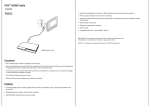
Cord Set Up Bluetooth® Setup & Use
Setup
пел чт
1. Press MENU (soft key). "E
3
If you have one (1) 2-line phone cord: 2. Scroll down to BLUETOOTH® SETTINGS and IETS RI „й 8%
. ress - + y
One cord should have your 2 lines. Р =
у 3. Select ADD NEW DEVICE and press SELECT. 9 000
Note: Refer to the instruction manual for your cell phone device
on the proper procedure to add and pair a new device. ltis
important that your phone have the Bluetooth” feature enabled
and be in “discoverable” mode while attempting to pair it for the
first time with the RCA 25216.
If you have two (2) 1-line phone cords:
You will need to get a splitter. Take
this diagram to your local electronics
store and they will help you choose
the correct one.
OR
4. The base will display "Add New Device - Searching”.
5. The phone will display a list of all Bluetooth® devices within range.
Select your Bluetooth® cell phone and press ADD.
6. Your cell phone will ask you for a PIN or password. Use the number keys on
your cell phone keypad to enter the default PIN, which is 0000. When
the devices are paired successfully, the display on your 25216 should read
<Name or model number of your cell phone> CONNECTED.
A single line phone cord for line 1 can go
into the line 1+2 port. Another single line phone
cord for line 2 can go into the line 2 port.
Use
“ To place calls over Bluetooth®, simply treat the Cell button as if it were an
( № Dial Tone? ) additional landline button. You may place cell calls on hold, use speed dial
buttons and even conference cell calls together with landline calls.
If your phone has a single line cord with 3 or more lines on it, this system will not work. You will need to contact .
www.rca4business.com
either your local service provider or the manufacturer of your previous non-RCA telephones.
\_ For Customer Assistance RCA is a trademark of RCA Trademark
call 1-800-511-3180 Management S.A., used under license.
Note: Due to limitations inherent to cell phones, long pauses while dialing may cause the number to
J Ne dialed prior to completing the dialing sequence. Please dial the complete number without pauses. J
U
©
=
D)
ju
(0
fd
7
Ne
=
=
op
Button Layout Easy to Navigate Menus Storing Phone Numbers
1. To navigate around the menus use the volume up and down buttons and |. To make a one touch dial press STORE.
Volume +: the soft keys just below the screen.
Display Message 2. Press the one touch button to be programmed.
3 Soft Keys Waiting д | ~
rev Key nea | чо) 3. Use the keypad to enter the name for this contact. This is done the
gne-Toue 7 > Hating same way names can be entered into cell phones.
4. Press SAVE to enter the phone number and press SAVE to store.
Delete, Bluetooth®
|| DND, Exit
/
,
RGA wal) One touch buttons
Vol + 9
1139 5:15PM98 - >)
E SUPPORT mm [ \. © OS
Store 1-800-511-3180 . O 4 A
e Vol - ©
000 ©
y JP TT ee a
©
Keypad a ==
re НН НОНО НОНО ООН Note: To choose a soft key option, press the button directly under A a 9
that part of the screen.
Tone Headset, Hold, Pause Cell Linel, Speakerphone ©
Mute ; Line 2
Link == o
Note: The Prev and Next buttons on the left and right are also used A =
in menus to switch between some options. =D | --@ == ©
N y N NX y
| Redial, Flash US