1
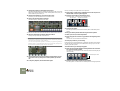
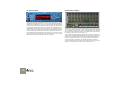
You may also want to add some effects to the music. In this song, there are two
effect devices connected: a delay and a chorus/flanger. These are connected as
send effects from the mixer, allowing you to specify how much of each mixer
channel signal should be sent to each effect.
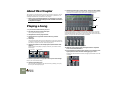
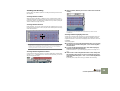
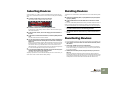
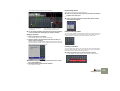
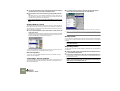
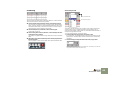
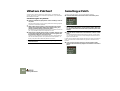
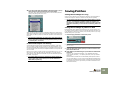
13. Raise the Aux send level knobs at the top of a mixer channel.
Send 1 is connected to the delay, while send 2 goes to the chorus/flanger.
Creating a new song
In this tutorial we will start with an empty rack, to let you add your own devices
“from scratch”.
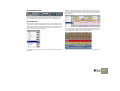
1. If you like, close the current song by selecting Close from the File
menu.
You can have several song documents open in Reason at the same time, but
each song uses some memory and computing power, so it’s good practice
to close songs you don’t need.
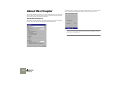
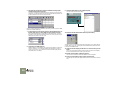
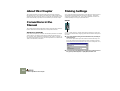
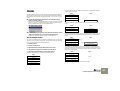
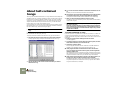
2. Pull down the File menu and select Open.
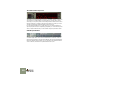
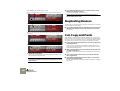
The Aux sends.
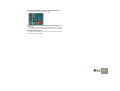
Finally, let’s try tweaking some controls on an actual instrument device, to
change the sound. In this example we will use the Subtractor synthesizer device,
but all devices have parameters that can be adjusted on the device panels in the
same way.
Unless you have a very large screen, the Subtractor device isn’t visible right
now. You could use the scrollbar to scroll the rack down, but here’s a quicker
way:
3. Navigate to the Reason program folder and open the Template
Songs folder.
4. Select the file “Empty Rack.rns” and click Open.
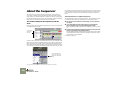
A song document window appears. This consists of an (almost) empty rack
and there are no tracks in the sequencer.
!
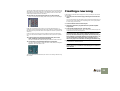
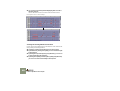
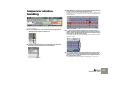
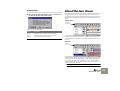
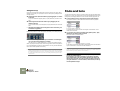
14. In the sequencer area (above the transport panel), click on the
name “Subtractor” in the track list to the left.
The rack is automatically scrolled to bring the Subtractor device into view.
15. Try adjusting some parameters while the song is playing.
You may for example want to tweak the “Filter 1 Freq” slider, to change the
brightness of the synth bass sound.
Normally when you create a new song, you would select “New”
from the File menu. This command opens the default song (see
page 91). The built-in default song contains a few devices, but if you
have set things up so that the default song is “Empty Rack.rns”, you
can just select “New” from the File menu, and ignore step 1 - 4
above. See page 91 for instructions on setting up the default song.
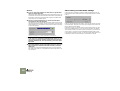
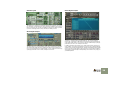
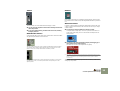
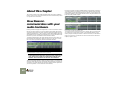
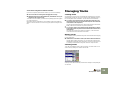
5. Pull down the Create menu and select Mixer 14:2.
A mixer device is created in the rack.
!
The reason why you should start with a mixer device, is that all subsequent devices you add will then automatically be connected to a
mixer channel.
That concludes the first tutorial! Now, let’s move on to creating a Reason song
from scratch.
Quick Tutorial
21