1
Example MIDI Setups
If you only have one MIDI Device
There are several possible variables when it comes to what type of MIDI
setup you are using. Please read on.
If you only have one MIDI Device that you plan to use both for playing/recording and for remote control, there are severe restrictions. Actually there ‘s only
one sensible way to avoid conflicts.
“Ideal” Setup
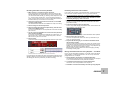
1. Open the “MIDI Implementation Charts.pdf” document.
This can be found in your program folder.
The ideal setup is a computer with two MIDI interfaces or one MIDI interface
with multiple, separate inputs, a MIDI keyboard used for playing/recording
and a separate MIDI Controller device (“fader box”) used for remote control.
1. Connect your MIDI keyboard to one MIDI Input.
2. Connect your MIDI remote device to the other MIDI Input.
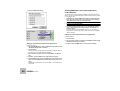
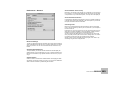
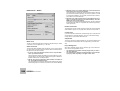
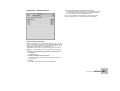
3. Open the Preferences – MIDI dialog and set things up so that the
MIDI keyboard is used for playing and the fader box is used for MIDI
Remote control.
If You are Using a Single MIDI Interface with one MIDI Input
only
In this scenario we assume you have your MIDI keyboard and external MIDI
controller connected to the same MIDI Input on your computer. In this case
it’s a little bit trickier to get things to work correctly. Here’s the problem:
2. Make a note of the controller numbers that are not used for direct
control of any device at all.
3. Set up your MIDI remote control so that it only uses these unused
MIDI Controller numbers.
!
Please note that you can only assign a MIDI Controller number for
remote control of one parameter at a time. If you try to assign a second parameter to a MIDI Controller number already used, the previously assigned parameter is overridden by the new one.
Enabling MIDI Remote
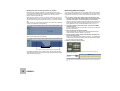
To enable MIDI Remote, select “Enable MIDI Remote Mapping” from the Options menu.
If you are using the sequencer input for playing a device, the device will react
to MIDI controller messages via this input, since all devices are always set up
to react to MIDI controller messages (see page 197 for details).
Now, if you happen to set things up so that a control on a device reacts to the
same MIDI Controller message as is used for remote control of another control (maybe even on another device) both controls will move simultaneously
on screen!
The solution is to separate things via MIDI Channel messages. Proceed as
follows:
1. If you are using the MIDI sequencer input to play your devices, open
the Preferences - MIDI dialog and make a note of which MIDI Channel is used for sequencer input.
2. If you are instead using one of the direct MIDI buses A to D, check
the Hardware Interface to find out which MIDI Channels are already
taken by devices in the rack.
3. Set up your MIDI Controller (that you plan to use for MIDI Remote
control) to transmit on any MIDI channel that is not already occupied (as described above).
4. When you then set up MIDI remote Control, only use the MIDI Channel on which your MIDI Controller is now set to transmit on.
This will ensure that remote control doesn’t conflict with other MIDI.
MIDI AND KEYBOARD REMOTE CONTROL
55