1
User Guide for Polycom® RMX™ 500 and Polycom® RMX™1000 Systems
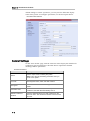
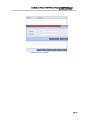
(Conference on Ports)
5
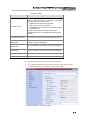
Click Back.
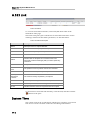
When uploading an address book file, the participants in the current address book will
be overwritten. If contacts email addressed in the .csv file incorrect, even the address
book successfully imported, the contact won’t appear in new conference reservation
participant list or will not receive conference notices from the system.
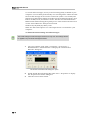
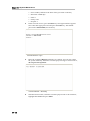
You may get the following message: “contacts_profile.csv may contain features that
are not compatible with Unicode Text. Do you want to keep the workbook in this
format? Click yes.
When closing .csv file, click no at the prompt.
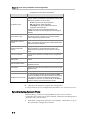
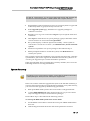
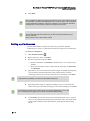
Setting up Conferences
You can either hold an instant one-time-only conference (Instant
Conference) or reserve a conference for future use (Reserved Conference)
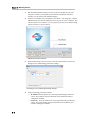
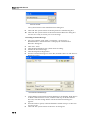
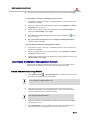
To reserve a conference:
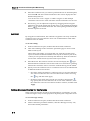
1
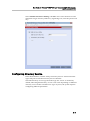
Click New Reservation
.
2
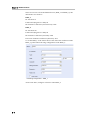
Enter conference name, click Next.
3
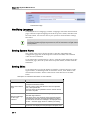
Set reservation time and click Next:
― Instant conference: Set Duration, current time is set as start time by
default.
― Reserved conference: select a date from the calendar, set Start Time
and Duration.
4
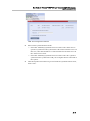
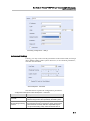
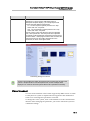
(Optional for reserved conferences) Select single or multiple participants,
you can either enter the full name of the participant for accurate
searching or the keyword in this name for fuzzy searching. Click Next.
If participant list unavailable, you need to create address book firstly.
5
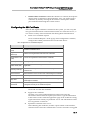
(Optional) Select single or multiple meeting rooms, you can enter full
name or the keyword of the meeting room to start searching. Click Next.
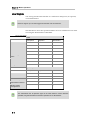
If no meeting room list shows up, please contact your system administrator, you can add
up to 12 meeting rooms (support up to 6 video and 6 audio simultaneously)
6
21-4
Click Finish. System will send out an auto-Email titled Video Conference
Notice to all participants including the conference name, dia-in ID of the
participant, conference start and end time, participants and meeting
room.