1
4. While IP Address lost or forgotten
admin password –
To reset the IP address to the default IP Address
“192.168.0.100” and the use name / password to factory
default mode (default user name and password is admin).
Press the hardware reset button at the front panel about
10 seconds. After the device is rebooted, you can login
the management Web interface within the same subnet of
192.168.0.xx and default use name / password.
5. Customer Support
Thank you for purchase PLANET products. You can browse
our online FAQ resource at the PLANET web site first to
check if it could solve you issue. If you need more support
information, please contact PLANET switch support team.
PLANET online FAQ :
http://www.planet.com.tw/en/support/faq.php?type=1
Switch support team mail address :
[email protected]
Copyright © PLANET Technology Corp. 2008.
Contents subject to revision without prior notice.
PLANET is a registered trademark of PLANET Technology
Corp. All other trademarks belong to their respective owners.
Hardware Reset
1. Package Content
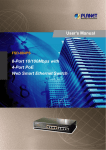
Thank you for purchasing PLANET 8-Port 10/100Mbps with
4-Port PoE Web Smart Switch, FSD-804PS. Terms of “PoE
Switch” in following section of this Quick installation guide
means the FSD-804PS.
Default IP address: 192.168.0.100
Default Username: admin
Default Password: admin
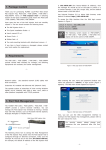
To access the Web interface then the Web login screen
appears in Figure 1
Upon open the box of the PoE Switch and carefully unpack
it. The box should contain the following items:
• The PoE Switch x 1
• User’s manual CD x 1
• This Quick Installation Guide x 1
• Power Cord x 1
• Rubber feet x 4
If any item is found missing or damaged, please contact
your local reseller for replacement.
Figure 1 Log in Screen of FSD-804PS
2. Requirements
The FSD-804PS provide remote Web interface for manage;
the following equipments are necessary for further
management.
After entering the username and password (default user
name and password is “admin”) in login screen (Figure 1
appears). The Web main screen appears as Figure 2.
• Network cables: Use standard network (UTP) cables with
RJ45 connectors.
• Subscriber PC installed with Ethernet NIC (Network Card)
• The operate system of subscriber PC that running Windows
98/ME, NT4.0, 2000/XP, MAC OS9 or later, Linux, UNIX or
other platform compatible with TCP/IP protocols.
Figure 2 Web Main Screen of FSD-804PS
3. Start Web Management
The PLANET FSD-804PS provide a built-in browser interface.
You can manage the Switch remotely by having a remote
host with Web browser, such as Microsoft Internet Explorer,
Netscape Navigator or Mozilla Firefox.
Now, you can use the Web management interface to
continue the Switch management, please refer to the user
manual for more.
Note
For security reason, please change and
memorize the new password after this first
setup.
Make sure the manager PC must be set on the same IP
subnet address, for example, the default IP address of
the PoE Switch is 192.168.0.100 (the factory-default IP
address), then the manager PC should be set at 192.168.0.x
(where x is a number between 1 and 254, except 100), and
the default subnet mask is 255.255.255.0.
Use Internet Explorer 5.0 or above Web browser, enter
default IP address http://192.168.0.100
–1–
–2–
4. While IP Address lost or forgotten
admin password –
To reset the IP address to the default IP Address
“192.168.0.100” and the use name / password to factory
default mode (default user name and password is admin).
Press the hardware reset button at the front panel about
10 seconds. After the device is rebooted, you can login
the management Web interface within the same subnet of
192.168.0.xx and default use name / password.
5. Customer Support
Thank you for purchase PLANET products. You can browse
our online FAQ resource at the PLANET web site first to
check if it could solve you issue. If you need more support
information, please contact PLANET switch support team.
PLANET online FAQ :
http://www.planet.com.tw/en/support/faq.php?type=1
Switch support team mail address :
[email protected]
Copyright © PLANET Technology Corp. 2008.
Contents subject to revision without prior notice.
PLANET is a registered trademark of PLANET Technology
Corp. All other trademarks belong to their respective owners.
Hardware Reset