1
Wifi Wireless Multimedia Link
Instructions for use
English 4
SL400i
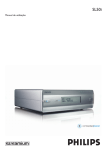
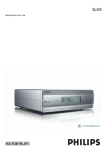
A) Front view
1
6
8
2
3
4
5
7
B) Rear view
11
9
10
12
13
14
☎
Helpline
België/Belgique/Belgien/
02 275 0701
Cyprus
800 92256
Luxemburg/Luxembourg
26 84 3000
Nederland
053 482 9800
Danmark
35 25 87 61
Norge
22 70 82 50
Deutschland
0696 698 4712
Österreich
01 546 575 603
España
9 17 45 62 46
Portugal
800 831 363
France
03 8717 0033
Schweiz/ Suisse/ Svizzera
02 23 10 21 16
00800 3122 1223
Suomi
09 2290 1908
Ireland
01 601 1161
Sverige
08 632 0016
Italia
02 48 27 11 53
UK (United Kingdom)
0207 949 0069
www.philips.com/streamium
European Regulations
This product has been designed, tested and manufactured according to the European R&TTE Directive
1999/5/EC.
Under this Directive, this product can be put into service in the following states:
SL 400i/00
B
✔
DK
IRL ✘
I
P
✔
SU
D
✔
CH
✔
✔
✔
✔
E
L
S
✔
✔
✔
GR ✔
NL ✔
UK ✘
F
A
N
✘
✔
✔
SL 400i/05
B
✘
DK
IRL ✔
I
P
✘
SU
D
✘
CH
✘
✘
✘
✘
E
L
S
✘
✘
✘
GR ✘
NL ✘
UK ✔
F
A
N
✘
✘
✘
SL 400i/19
B
✘
DK
IRL ✘
I
P
✘
SU
D
✘
CH
✘
✘
✘
✘
E
L
S
✘
✘
✘
GR ✘
NL ✘
UK ✘
F
A
N
✔
✘
✘
4
ENGLISH
Introduction
SL400i
Your SL400i gives you wireless access to multimedia content stored on PCs and brings live
streaming Internet entertainment to your existing TV set and/or audio system.
This is what this manual will help you to do:
•
•
•
Install the Philips Media Manager software.
Connect your SL400i and prepare it for use.
Learn how to use the basic functions of your SL400i.
The most recent information on this product will be available through our website
www.philips.com/streamium
Packaging contents
Please check whether the following items are present in the box of the WiFi Wireless
Multimedia Link.
They are provided to help you set up and use your SL400i.
SL400i
Remote control
(including batteries)
Wireless USB Adapter
SCART cable
(Audio/Video)
USB cable
al
anu
M
ser
U
User Manual
How
to use
...
I n s t a ll a t i o n C D
Philips Media Manager
Installation CD
Stereo audio cable
Wireless USB Adapter User Manual
I n s t a ll a t i o n C D
Mains cable
Wireless USB Adapter
Installation CD
Please contact your Philips retailer if any items are missing from the box.
ENGLISH
5
Legend of illustration (inside flap)
A) Front view
1
Power/standby button
Switches the SL400i off (to standby) and on.
– The indicator in the Power button lights up red if the SL400i is on standby.
2
Left menu button
Selects or activates the menu option in the lower left corner of the integrated display or
shown in red on the TV screen.
3
Display
For controlling the SL400i through its user menus.Very useful if you have no TV
connected or switched on (e.g. if you want to listen to Internet radio or PC Audio only).
4
Right menu button
Selects or activates the menu option in the lower right corner of the integrated display or
shown in green on the TV screen
5
PC Link source button
Select PC(s) connected to your home network as source for streaming music, photos,
and movies.
6
Internet source button
Selects the Internet as your source of multimedia entertainment.
– Requires broadband Internet access 256 kbps minimum (downstream).
7
Menu navigation buttons:left/right/up/down/OK
Used for navigating through menus (1 2 3 4) and confirming your choices (OK).
8
Playback control buttons: Play/Pause, Previous/Next and Stop
Playback control functions for multimedia content.
B) Rear view
9
AC Mains
For connecting the SL400i to the mains.
– The indicator in the Power button lights up red when the SL400i is connected to the
mains.
10
Digital audio output
Optional digital audio connection (coaxial) to connect the SL400i to the input of your
TV set or Audio system.
If PCM coded signals are available for the media content being played, this output will
provide them.
11
Audio L/R output (stereo)
To connect the SL400i to the left and right audio inputs of your Audio system.
12
SCART (EURO) audio/video input from VCR/DVD
Optional AV-input connection for connecting the SL400i to an existing AV source
for your TV like a VCR/DVD unit.
13
SCART (EURO) audio/video output to TV
Connects the SL400i to your TV set.
14
Ethernet connector RJ-45
Optional Ethernet connection for a wired home network.
Use a CAT.5 shielded Ethernet cable (STP).
6
ENGLISH
Index
Introduction .........................................................................................................4-7
WiFi Wireless Multimedia Link....................................................................................................................................4
Legend of illustration.........................................................................................................................................................5
Index...........................................................................................................................................................................................6
Important information......................................................................................................................................................7
Chapter 1 – Installing the software ......................................................................................................8
Chapter 2 – Connecting the SL400i...............................................................................................9-17
2.1 If you do not have a wireless computer network. .....................................................................10-11
2.2 If you already have a wireless computer network......................................................................12-14
2.3 If you want to make a wired connection.........................................................................................15-17
Chapter 3 – Enabling broadband Internet entertainment.......................................................18-20
3.1 How does your computer connect to the Internet?........................................................................18
3.2 Pressing the INTERNET button for the first time..............................................................................19
3.3 Registration. .......................................................................................................................................................19-20
Chapter 4 – Using the SL400i..............................................................................................................21
4.1 INTERNET.................................................................................................................................................................21
4.2 PC LINK ......................................................................................................................................................................21
Chapter 5 – Basic navigation................................................................................................................22
Additional information...................................................................................................................................................23
Chapter 6 – Problem solving. ........................................................................................................24-26
The next chapters are only available in the extended User Manual version
on the CD-ROM.
Chapter
Chapter
Chapter
Chapter
Chapter
Chapter
Chapter
Chapter
Chapter
Chapter
Chapter
Chapter
Chapter
7
8
9
10
11
12
13
14
15
16
17
18
19
– Remote Control ..........................................................................................................................27-28
– Entering and editing numeric and text information ..................................................29
– Advanced navigation and advanced SL400i functions .......................................30-32
– Advanced Philips Media Manager uses ................................................................................33
– Overview of SL400i connections ............................................................................................34
– Options menu................................................................................................................................35-39
– What you need to know about networks ................................................................40-41
– Advanced wireless network information ...................................................................42-43
– Entering an encryption key ..................................................................................................44-45
– Internet Connection Sharing ..............................................................................................46-50
– Advanced (network) problemsolving............................................................................51-52
– Glossary .....................................................................................................................................................53
– Technical specifications....................................................................................................................54
ENGLISH
7
Important information
•
•
•
•
•
•
Please install and connect the product in the order as described in this manual only.
This assures best installation results with the least technical hassles.
Please read this guide carefully before using the SL400i; and keep it for future reference.
The most recent downloads and information on this product will be available through our
website www.philips.com/streamium.
Broadband Internet access (min. 256 kbps) is required if you want to use the Internet
functions of the SL400i.
Please check whether your Internet service provider charges extra fees for exceeding a
certain limit of transferred data.
When using Internet media services on a daily basis, you may exceed such a limit.
For example: When you listen to Internet radio (at 64 kbps) for about 36 hours,
1 GB (gigabyte) of data will be transferred to your streamium system.
Watching Internet video at 700 kbps exceeds a 1 GB limit in 3 hours.
During set-up and installation, it may be helpful to have the instructions for your TV set,
audio system and wireless base station or other wireless network components
(if appropriate) at hand.
Safety Precautions
•
•
•
•
•
•
•
•
•
NEVER MAKE OR CHANGE CONNECTIONS WITH THE POWER SWITCHED ON.
Before operating the system, check that the operating voltage indicated on the nameplate
(or the voltage indication beside the voltage selector) of your system is identical with the
voltage of your local power supply. If not, please consult your dealer.
Radio equipment for wireless applications is not protected against disturbance from other
radio services.
The product should not be exposed to dripping or splashing.
No object filled with liquids, such as vases, should be placed on the product.
Do not expose the system to excessive moisture, rain, sand or heat sources caused by
heating equipment or direct sunlight.
Allow a sufficient amount of free space all around the SL400i for adequate ventilation.
Do not open this product. Contact your Philips retailer if you experience technical
difficulties.
Place the system on a flat, hard and stable surface. When the system is switched to
standby mode, it is still consuming some power. To disconnect the system from the power
supply completely, remove the AC power plug from the wall socket.
Make sure the air around the SL400i can circulate to prevent the SL400i from overheating
internally. Also, avoid putting any heat sources (e.g. a power amplifier) underneath.
The SL400i has a thermal shutdown that shuts down the set when the internal
temperature exceeds a certain threshold. If this happens, the set switches to standby with
the Power-LED flashing on and off.To remedy this situation: disconnect the mains, let the
set cool down, improve ventilation, and reconnect the set to the mains.
8
ENGLISH
Chapter 1 - Installing the software
Start by installing Philips Media Manager
This software makes the music, photo, and movie files on your computer available for transfer
from your computer to your television.
1
Place the Philips Media Manager CD in your CD or DVD’s drive and install the Philips
Media Manager software.
The CD starts automatically. If it does not, double-click ‘My Computer’,
then the CD-ROM drive icon and finally ‘Setup.exe’ to start the CD.
2
In the menu that appears on your computer screen, click on ‘Install Philips Media Manager’,
and follow the on-screen instructions.
Start the program by clicking Start > Programs > Philips Media Manager.
When opening the Philips Media Manager for the first time, you will be asked if you want
to add a folder and scan for media files. Open a drive or a folder with music, photos, or
movies in it. (For example: the My Documents folder, if you have stored media files there.)
– You can always add more files and folders at a later time.
3
Adding files to the Media Manager.
Only the files that you see in the Media Manager will be accessible from the SL400i.
A) Click one of the media categories: Music, Photos, or Movies.
In this example, click 'Music'.
B) First, click the 'Add Music' button below the media categories,
then click 'Add Files or Folders...'.
C) Select a folder or one or more media files and click the 'Open' button to add the
selected folder or files to the Media Manager window.
> From now on, the media files you added may be accessed from the SL400i.
4
Opening and closing the Media Manager window.
You can close the Media Manager window, but its icon will remain active in the lower right
corner of your computer monitor.This icon needs to remain visible, otherwise the SL400i
will not be able to access the media files on that computer.
Double-clicking the icon opens the Media Manager window.
ENGLISH
9
Chapter 2 – Connecting the SL400i
Choose the scenario that best fits your situation for installing the SL400i.
Option A: If you do not have a wireless computer network:
In this configuration you only have a computer and a TV.
• You will install the Wireless USB Adapter on your
computer.
• You will connect the SL400i to the TV.
➜ Go to chapter 2.1 on page 10-11.
or
Option B: If you already have a wireless computer network:
In this configuration you already have a wireless computer
network, and a TV.
• You will check the settings of your existing wireless
computer network.
• You will connect the SL400i to the TV and adapt its
settings to match your network.
INTERNET
➜ Go to chapter 2.2 on page 12-14.
or
Option C: If you want to connect a network cable between the SL400i and
your PC or wired network:
In this configuration you already have a TV, and a computer
with a free ethernet connector (or a wired network with a
free ethernet connector).
• You will be connecting an Ethernet network cable
between the SL400i and your computer or wired network.
• You will connect the SL400i to the TV.
➜ Go to chapter 2.3 on page 15-17.
10
ENGLISH
Installing
2.1 If you do not have a wireless computer network
Option A
•
•
o
wt
Ho
use
...
1
In this configuration you only have a computer and a TV.
You will install the Wireless USB Adapter on your computer.
You will connect the SL400i to the TV.
At the end, you will be able to send music, movies, and pictures from your computer to
your TV or stereo.
Install the Wireless USB Adapter included in the box.
See the separate instructions and CD-ROM of the Wireless USB Adapter
included in the box on how to install the adapter on your PC.
Note: Choose ‘Ad-Hoc’ as your network type during installation.
I n s t a ll a t i o n C D
After the Wireless USB Adapter has been installed successfully, continue below.
2
Make sure the Philips Media Manager you installed in chapter 1 is active.
Double-click the Media Manager icon in the lower right corner of your monitor.
Or click Start / Programs / Philips Media Manager.
Leave the Media Manager window open to be sure it is active.
3
Put the batteries into the remote control.
See ‘Remote Control - Placing batteries’ on page 28 in the extended User Manual on
CD-ROM if you need more information on how to do this.
4
Connect the SCART (EURO) cable between the lower SCART AV-output # of the
SL400i and your TV.
> This will enable you to view the user menus and multimedia content on the television
screen.
Option: connect the SL400i to an audio set using the audio outputs ! or the digital audio
output 0.
5
Connect the mains cable between the AC mains input 9 of the SL400i and a mains
socket.
> The indicator in the Power button lights up red when the SL400i is connected to the
mains.
ENGLISH
6
11
Switch on the SL400i by pressing the PC LINK button on the remote control.
Do not press the INTERNET button at this time, only the PC LINK button.
> After about five seconds, a ‘Streamium’ welcoming message appears on the television
screen.
If you do not see any messages on the TV screen:
– make sure the SCART connectors are firmly connected, and
– that you have selected the correct external input on your TV.
7
If asked, select ‘philips’ from the list of wireless network names (SSID) presented to you
on the TV screen.
Use the navigation buttons (3 4) on the remote control to select ‘philips’ as the network
name to use and press OK to confirm.
Note: If there is only one wireless network available, it will be selected for you and you will not
be asked to select one.
> After about 30 seconds, you will see the PC Link menu appear on your TV screen.
If you see the text ‘Philips Media Manager’ appear on your TV screen, the installation has
succeeded. Should the PC Link menu stay empty, see the ‘Problem solving’ section on page
24-26.
8
Explore the PC Link menu on the TV screen.
Use the navigation buttons (3 4 1 2) and the OK button on the remote control to
explore the multimedia content you made available on your PC.
For example: press the 2 button on the remote control several times until you have selected a
music track, a photo or a movie, and press OK to play it on your television...
Have fun!
9
INTERNET
How to enable INTERNET for the SL400i.
(For playing Internet Radio, Movie Trailers, etc., on your TV.)
See the section on ‘Enabling broadband Internet entertainment’ on page 18-20 for
information on how to make your broadband Internet connection (provided you have
one) available to the SL400i.
If you encounter problems during installation or should you need additional help, then:
a) see Problem solving on page 24-26, or
b) visit our website www.philips.com/streamium, and click on Support and FAQs, or
c) contact our help-line.
Tip: Enable the encryption key to secure your wireless computer network from intruders.
Philips advises you to set an encryption key to secure your wireless network.
Please, read the text on ‘Securing your wireless network’ on page 42 in the extended
version of the User Manual on the CD-ROM.
12
ENGLISH
Installing
2.2 If you already have a wireless computer network
Option B
In this configuration you already have a wireless computer network, and a TV.
• You will check the settings of your existing wireless computer network.
• You will connect the SL400i to the TV and adapt its settings to match your network.
At the end, you will be able to send music, photos, and movies from your computer to your TV
INTERNET
Check the:
NETWORK NAME (SSID)
...............
and
ENCRYPTION KEY
...............
of your wireless network
1
Check your existing wireless network settings so you are able to enter them in STEP 7
of this procedure.
Find out the wireless network name (SSID) and the encryption key you used for securing
your wireless network.
Wireless Network Name (SSID):
Usually, you can find the wireless network name in the options menu of your Wireless
Network Adapter or Wireless Base Station.To check this, open the program that came
with your network adapter.
Encryption key:
The wireless encryption key is a 64 or 128 bit WEP code that secures your wireless
network communications.
– 64-bit: 5 characters ASCII, or 10 characters HEX, or
– 128 bit: 13 characters ASCII, or 26 characters HEX.
Note:The encryption key is case sensitive, meaning that ‘ABC’ is not the same as ‘aBc’. Always
input characters in the correct case to avoid problems.
Basically, you will have to try and remember what you set it to. If you cannot remember
the encryption key, you will either have to disable it completely for your entire wireless
network, or set a new one that you can remember.
2
Make sure the Philips Media Manager you installed in chapter 1 is active.
Double-click the Media Manager icon in the lower right corner of your monitor or click
Start / Programs / Philips Media Manager.
Leave the Media Manager window open to be sure it is active.
3
Put the batteries into the remote control.
See ‘Remote Control - Placing batteries’ on page 28 in the extended User Manual on
CD-ROM if you need more information on how to do this.
ENGLISH
4
13
Connect the SCART (EURO) cable between the lower SCART AV-output # of the
SL400i and your TV.
> This will enable you to view the user menus and multimedia content on the television
screen.
Option: connect the SL400i to an audio set using the audio outputs ! or the digital audio
output 0.
5
Connect the mains cable between the AC Mains input 9 of the SL400i and a mains
socket.
> The indicator in the Power button lights up red after connecting the SL400i to the
mains.
6
Switch on the SL400i by pressing the PC LINK button on the remote control.
Do not press the INTERNET button at this time, only the PC LINK button.
> After about five seconds, a ‘Streamium’ welcoming message appears on the television
screen.
If you do not see any messages on the TV screen:
– make sure the SCART connectors are firmly connected, and
– that you have selected the correct external input on your TV.
7 Select your wireless network name, and input the encryption key you found in step 1.
A) If asked, select the wireless network name from the list of wireless network names (SSID)
presented to you on the TV screen.
Use the navigation buttons (3 4) on the remote control to select the correct network
name and press OK to confirm.
Note: If there is only one wireless network, it will be selected for you and you will not be asked
to select one.
B)
If asked, also input the encryption key.
Use the navigation buttons (3 4 1 2) on the remote control to choose your type of
encryption and to input the key itself. Press OK to confirm.
Please remember that the encryption key is case sensitive, meaning that ‘ABC’ is not the
same as ‘aBc’. Always input characters in the correct case to avoid problems.
Note: If the wireless network is not encrypted, you will not be asked to input an encryption key.
> After about 30 seconds, you will see the PC Link menu appear on your TV screen.
If you see the text ‘Philips Media Manager’ appear on your TV screen, the installation has
succeeded.
14
ENGLISH
8
Explore the PC Link menu on the TV screen.
Use the navigation buttons (3 4 1 2) and the OK button on the remote control to
explore the multimedia content you made available on your PC.
For example: press the 2 button on the remote control several times until you have selected a
music track, a photo or a movie, and press OK to play it on your television...
Have fun!
9
INTERNET
How to enable INTERNET for the SL400i.
(For playing Internet Radio, Movie Trailers, etc., on your TV.)
See the section on ‘Enabling broadband Internet entertainment’ on page 18-20 for
information on how to make your broadband Internet connection (provided you have
one) available to the SL400i.
If you encounter problems during installation or should you need additional help, then:
a) see Problem solving on page 24-26, or
b) visit our website www.philips.com/streamium, and click on Support and FAQs, or
c) contact our help-line.
ENGLISH
15
Installing
2.3 If you want to make a wired connection
Option C
In this configuration you already have a TV, and a computer with a free ethernet connector (or
a wired network with a free ethernet connector).
• You will be connecting an Ethernet network cable between the SL400i and your computer
or network.
• You will connect the SL400i to the TV.
At the end, you will be able to send music, photos, and movies from your computer to your TV.
Ethernet ports and cables look just like telephone connections and lines, but are thicker and
wider. Ethernet (RJ-45) connectors have eight contacts, whereas standard telephone line (RJ-11)
connectors have four or six.
Important: only use CAT.5 shielded Ethernet cable (STP).
Ethernet port required
OR
1a
Use a crossover Ethernet cable if you want to connect the SL400i directly to your
computer.
In a crossover Ethernet cable, the arrangement of the coloured wires changes between
the two ends.
– Push one end of the Ethernet cable into the connector marked 'Ethernet' on the back
of the SL400i.
– Push the other end into the Ethernet connector of your computer.
Note:Your computer needs to have an Ethernet connector available.
OR
1b Use a straight-through Ethernet cable if you want to connect the SL400i to an existing
computer network.
Network hub
In a straight-through Ethernet cable, both ends have the same arrangement of coloured
wires.
– Push one end of the Ethernet cable into the connector marked 'Ethernet' on the back
of the SL400i.
– Push the other end into a free Ethernet connector on your central network device,
like a hub, switch or router.
Note:Your network needs to have an Ethernet connector available.
16
ENGLISH
2
Make sure the Philips Media Manager you installed in chapter 1 is active.
Double-click the Media Manager icon in the lower right corner of your screen.
Or click Start / Programs / Philips Media Manager.
Leave the Media Manager window open to be sure it is active.
3
Put the batteries into the remote control.
See ‘Remote Control - Placing batteries’ on page 28 in the extended User Manual on
CD-ROM if you need more information on how to do this.
4
Connect the SCART (EURO) cable between the lower SCART AV-output # of the
SL400i and your TV.
> This will enable you to view the user menus and multimedia content on the television
screen.
Option: connect the SL400i to an audio set using the audio outputs ! or the digital audio
output 0.
5
Connect the mains cable between the AC Mains input 9 of the SL400i and a mains
socket.
> The indicator in the Power button lights up red when the SL400i is connected to the
mains.
6
Switch on the SL400i by pressing the PC LINK button on the remote control.
Please, do not press the INTERNET button at this time,
only the PC LINK button.
> After about five seconds, a ‘Streamium’ welcoming message appears on the television
screen.
If you do not see any messages on the TV screen:
– make sure the SCART connectors are firmly connected, and
– that you have selected the correct external input on your TV.
> After about 30 seconds, you will see the PC Link menu appear on your
TV screen.
If you see the text ‘Philips Media Manager’ appear on your TV screen,
the installation has succeeded.
ENGLISH
INTERNET
17
7
Explore the PC Link menu on the TV screen.
Use the navigation buttons (1 2 3 4) and the OK button on the
remote control to explore the multimedia content you made available on your PC.
For example: press the 2 button on the remote control several times until you have selected a
music track, a photo or a movie, and press OK to play it on your television...
Have fun!
8
How to enable INTERNET for the SL400i.
(For playing Internet Radio, Movie Trailers, etc., on your TV.)
See the section on ‘Enabling broadband Internet entertainment’ on page 18-20 for
information on how to make your broadband Internet connection (if you have one)
available to the SL400i.
If you encounter problems during installation or should you need additional help, then:
a) see Problem solving on page 24-26, or
b) visit our website www.philips.com/streamium, and click on Support and FAQs, or
c) contact our help-line.
18
ENGLISH
Chapter 3 - Enabling broadband Internet entertainment
If you have a broadband Internet connection (min. 256 kbps), you can stream Internet radio stations and movie trailers live from the Internet to the
SL400i for free. Broadband internet also provides the on-line upgrades for the SL400i.
The Internet entertainment offering is constantly being improved and new functions are added.
Visit www.philips.com/streamium for the latest possibilities.
3.1 How does your computer connect to the Internet?
Option A: With a wired broadband Internet connection:
If you have a PC with a wired broadband Internet
connection, you will have to make that Internet connection
available to the wireless (or wired) network that connects to
the SL400i.
To do this, install router/gateway software on the PC for
bridging the broadband Internet connection to the wireless or
wired network.
INTERNET
As an example we have included a chapter on page 46-50 of
the extended User Manual on the Philips Media Manager CD
on how to enable Internet Connection Sharing from your
Microsoft®Windows® operating system. For Microsoft® and
other operating systems, third party router/gateway software is
readily available on the market.
This applies to both a
wired and a wireless
connection between
your PC and the SL400i.
or
For more information on sharing an Internet connection, read
the documentation that came with the software or with your
operating system.
> After bridging the internet connection to your wireless (or
wired) network, you will be able to use the SL400i to access
the Internet just like your computer.
Option B: Through a wireless base station:
Wireless base stations (and wired internet gateway routers)
share their broadband Internet access automatically within the
network.
> The SL400i will be able to access the Internet just like your
other wireless or wired network computer(s).
INTERNET
This also applies to a wired
connection between your
internet gateway router
and the SL400i.
ENGLISH
19
3.2 Pressing the INTERNET button for the first time
1
2
3
First, check whether PC LINK functions correctly. Start the Philips Media Manager
program on your computer, and press the PC LINK button on the remote control.
See if the text ‘Philips Media Manager’ appears on your television screen.
Then, check whether the PC on which you are running Philips Media Manager has
Internet access by opening a website on the Internet with your Internet browser
program (e.g. www.philips.com).
Next, press the INTERNET button to start streaming audio and video from the
Internet to your SL400i.
> You will be asked to register for the free Internet services. See next chapter on how to
register.
Note: Internet services will only be available if you register.
3.3 Registration (for free Internet services)
When the SL400i connects to the Internet for the first time, or after you have reset all menu
settings, the SL400i will ask you to register your email address.
Also, each new user you add will have to register an email address.
1
Use the 3, 4 and 2 keys on your remote control to enter your email address.
If you mistyped, press 1 to delete the character you have entered.
Next, press OK to send your email address to My.Philips. (See also: Chapter 8 Entering or editing information in the extended user manual on the CD-ROM.)
Alternatively, use SMS TEXT-style keys for inputting your email address. SMS TEXT-style entry
can be used to enter alphanumeric information. In this mode, text is entered by a method
similar to that used for entering text messages on a cellular telephone.
For example: pressing the ‘2’ key several times will cycle through the following characters:
a – b – c – A – B – C – 2... etc
RC Key
1
2
3
4
5
6
7
8
9
0
SMS-style alphanumeric entry order
_-1_-1
(etc.)
a b cA B C 2 a b c
(etc.)
defDEF3def
(etc.)
ghiGHI4ghi
(etc.)
jklJKL5jkl
(etc.)
mnoMNO6mno
(etc.)
pqrsPQRS7pqrs
(etc.)
t u vT UV 8 t u v
(etc.)
w x y zW XY Z 9 w x y z
(etc.)
.@ 0 .@ 0
(etc.)
Tip:The dot, and the @ sign, are under the 0 key.
The space, hyphen, and underscore, are under the 1 key.
> Within a short time, you will receive an email with instructions on how to create an
account at my.philips.com.
20
ENGLISH
2
3
4
Double-click the website address that is in the email.
Fill in the requested data to create an account.
After registration you can access the INTERNET service of the SL400i, and you can
manage your user account at ‘my.philips.com’ by opening this website in your Internet
browser program or by clicking the My.Philips button in Philips Media Manager.
Please make note of your password, as you will need it if you want to re-register after resetting
the SL400i.
5
After creating a My.Philips account, press the INTERNET button again.
> The SL400i will now have access to the Internet services of your My.Philips account. ...
Have fun!
ENGLISH
21
Chapter 4 - Using the SL400i
This SL400i either connects to your wireless home network (PC LINK) and plays music,
photos, and movies stored on your PC(s), or to the Internet (INTERNET) for accessing various
Internet Entertainment services (e.g. internet radio, movie trailers…).
Note: Install the Philips Media Manager software, the Wireless USB Adapter (or wired connection),
and the SL400i before you attempt to use the SL400i. Also, make sure the Philips Media
Manager icon is present in the lower right corner of your computer screen. Internet services
require a broadband Internet connection.
4.1 Internet
With INTERNET you can make the SL400i play media files (music, photos, movies…) and start
other services from the Internet.
1
Press the INTERNET button* on the remote control to open the Navigation View on
your TV screen.
*)
When the SL400i connects to the Internet for the first time, and after resetting, the SL400i
will ask you to register. See the chapter ‘Enabling broadband Internet entertainment’ on
pages 18-20.
Press the PC LINK button on the remote control to open the Navigation View on your
TV screen.
Use the navigation buttons (3 4 1 2) and the OK button on the remote control to
explore the available Internet services.
For example: press the 2 button on the remote control several times until you have selected a music
track, a photo or a movie, and press OK to play it on your television.
Please, see Basic navigation on page 22 for an explanation of the navigation and control
functions.
4.2 PC Link
With PC LINK you can make the SL400i play media files (music, photos, movies…) that are
stored on your PC(s).
1
Press the PC LINK button on the remote control to open the Navigation View on your
TV screen.
Use the navigation buttons (3 4 1 2) and the OK button on the remote control to
explore the multimedia content you made available on your PC.
For example: press the 2 button on the remote control several times until you have selected a music
track, a photo or a movie, and press OK to play it on your television...
Please, see Basic navigation on page 22 for an explanation of the navigation and control
functions.
22
ENGLISH
Chapter 5 - Basic navigation
> This is the basic way of navigating through all the menus.
2
3
The little yellow arrows around the
highlighted bar indicate which arrow
buttons you can press to navigate
through the menus on the television
screen.
1
Press INTERNET or PC LINK on the
remote control.
4
Press 3 or 4 to make a selection.
Next, press 2 or OK to confirm.
5
If colour coded user options appear on
the TV screen, press the matching
colour button to use that option.
The available media sources and
services will appear on the TV screen.
Option: If menu choices are displayed in the lower left and lower right corner of the LCD, use the buttons on the SL400i on either side of the LCD to enter your choice.
The left button corresponds to the red button on the remote control, the right button corresponds to the green button.You may also use the remote
control colour buttons instead of the buttons on either side of the SL400i LCD display.
To go back to a previous menu, press 1.
–
–
If you did not connect the SL400i to a TV (e.g. to an audio system only) or if the TV is off,
observe the LCD display on the SL400i. It gives you the same information, and navigating
the menus still works in the same way.
After a set time, a screen saver will become active to prevent images being burnt into the
TV screen.
ENGLISH
23
Additional information
Environmental information
All redundant packing material has been omitted. We have done our utmost to make the
packaging easily separable into three mono materials: cardboard (box), polystyrene foam
(buffer) and polyethylene (bags, protective foam sheet).
Your set consists of materials that can be recycled if disassembled by a specialised company.
Please observe the local regulations regarding the disposal of packing materials, exhausted
batteries and old equipment.
Disclaimer
This product is provided by Philips ‘as is’ and without any express or implied warranty of any
kind of warranties, including, but not limited to, the implied warranties of merchantability and
fitness for a particular purpose are disclaimed.
In no event shall Philips be liable for any direct, indirect, incidental, special, exemplary,
or consequential damages (including, but not limited to, procurement of substitute goods or
services; loss of information, data, or profits; or business interruption) howsoever caused and on
any theory of liability, whether in contract, strict liability, or tort (including negligence or otherwise)
arising in any way out of the use or inability to use this product, even if the possibility of such
damages has been mentioned.
Philips further does not warrant the accuracy or completeness of the information, text,
graphics, links or other items transmitted by this product.
Upgradeability
Both the SL400i and the Philips Media Manager software are upgradeable through your
broadband Internet connection. From time to time, new features will be available and the
functionality of this system will change.Therefore, this manual can only offer a rough overview
of the internet and PC Link functionality. Please visit www.philips.com/streamium for the latest
information on the availability of services and new functions.
Trademarks
All trademarks acknowledged. Microsoft and Windows are trademarks, or registered trademarks
of Microsoft Corporation in the United States and/or other countries. Mac OS is a trademark
of Apple Computer, Inc., registered in the U.S. and other countries. DivX® is a registered
trademark of DivXNetworks, Inc.
All other brands and product names are registered trademarks of their respective owners.
24
ENGLISH
Chapter 6 - Problem solving
6.1 Audio/video problems
Check the Support section on www.philips.com/streamium for the latest information on
problem solving.
Problem
Possible cause
Solution
Power light does not light up and/or the
SL400i cannot be switched on.
No connection to mains power.
Connect the AC mains cable to the SL400i and to a
mains outlet that provides electrical power.
No display on the TV screen.
TV is switched off.
Switch on your TV.
Wrong cable connections.
Check your cable connections, see the ‘Overview..’ on
page 34 in the extended User Manual on the CD.
Wrong external audio/video channel
selected.
On your TV, select the external (AV) channel
you connected the SL400i to.
Audio system is switched off.
Switch on your audio system.
Volume too low.
Increase volume or switch off mute of your audio set.
Wrong cable connections.
Check your cable connections, see the ‘Overview..’ on
page 34 in the extended User Manual on the CD.
Wrong audio input (digital) or digital
format selected.
On your audio system, select the (digital) audio input
you connected the SL400i to. Select PCM digital audio.
The digital audio output does not
provide a digital audio signal for all
media types.
Switch to analogue audio.
Intermittent video play.
Not enough bandwidth available
for the requested video quality
Select a lower video quality by pressing the green
button on the remote control one or more times.
Lower video quality requires less bandwidth and should
play without interruptions.
No photo, music, or video play or in poor
quality only.
Incompatible codec (media format).
Comply with the supported codecs. Go to
www.philips.com/streamium to see which codecs are
currently supported.
Correct codec, but still low quality
video/audio.
Most PC media formats use heavy data compression
techniques that lower the video/audio quality, e.g.
compared to DVD/CD. Lower quality display is normal.
Firewall software blocks streaming.
Disable firewall software to test whether it interferes
with streaming video and audio. Go to
www.philips.com/streamium to see what ports you
need to open for streaming (42951 TCP and
42591 UDP)
Digital recording may be
copy protected.
You are still able to do analogue recording. Recording
is permissible insofar as copyright or other rights of
third parties are not infringed upon.
The menu displayed on the television screen
disappears after a few minutes.
After a set amount of time, a screen
saver will become active to prevent
TV screens from burning in.
Press the MENU button on the remote control, select
Preferences > Screen Saver, and set a longer time-out
for the screen saver.
The remote control does not function properly.
Out of range.
Move closer to the SL400i and point the remote
control directly at the IR sensor on the front of the
SL400i.
Batteries low.
Replace the batteries.
No sound from the audio system.
ENGLISH
25
Problem
Possible cause
Solution
The SL400i does not respond to any of the
buttons including the standby button.
Internal error.
Unplug the mains and wait at least 10 seconds
before reconnecting it.
The Sl400i switches to standby with the
Power-LED flashing on and off.
The SL400i has a thermal shutdown
that shuts down the set when
the internal temperature
exceeds a certain threshold.
Disconnect the mains, let the set cool down, improve
ventilation, and reconnect the set to the mains.
6.2 PC / Network problems
Check the Support section on www.philips.com/streamium for the latest information on
problem solving.
Problem
Possible cause
Solution
The Installation CD will not start.
Autorun disabled for your drive.
Double-click ‘My Computer’, then the CD-ROM
drive icon and finally ‘Setup.exe’ to start the CD.
The software will not install.
Wrong operating system.
Go to www.philips.com/streamium to see which
operating systems are supported.
No wireless connection or intermittent drop-out
of the wireless connection.
Wireless signal range, speed, and
strength can be affected by
interference from neighbouring
wireless networks and devices.
Electro-magnetic devices such as
televisions, radios, microwave ovens,
and cordless telephones, especially
those with frequencies in the
2.4 GHz range, may also interfere
with wireless transmission.
Switch off wireless devices that interfere with your
wireless network connection.
Pressing the PC LINK button produces an empty
content screen on your television.
PC is switched off.
Switch on your PC.
The Media Manager software is not
running.
Start the Media Manager software.
No wireless network adapter
connected or range too long
(weak radio signal).
Connect the wireless network adapter to your PC or
reposition your Wireless USB adapter.You may check
the link quality by pressing the MENU button and
selecting Network > Wireless Info > Signal Level.
Network host (PC) or wireless base
station is switched off.
Make sure your home network is operational before you
try to contact a networked computer with the SL400i.
Your Wireless Base Station/network
router employs MAC filtering and
prevents the SL400i from connecting
to your network.
Add the SL400i MAC address to the list of devices that
may connect to your Base Station/Gateway router. (See
its user manual for how to do this.) Press the MENU
button and select: Network > Wireless Info > NIC
MAC Address to see the wireless MAC address.
Not enough USB bandwidth available If you share the USB bandwidth with other heavy
for your wireless USB adapter.
USB bandwidth users (like USB cameras, scanners or
ReWritable drives, etc.), the remaining bandwidth may
not be enough.
Radio interference from other
(wireless) devices.
Check whether a wireless connection can be
established with other devices switched off.
(e.g. microwave ovens, other wireless devices, etc.)
(Wireless) network problems.
See advanced network problem solving on page
51-52 of the extended User Manual on CD-ROM.
26
ENGLISH
Problem
Possible cause
Solution
Pressing the INTERNET button produces an
empty content screen on your television.
Check whether the SL400i can
connect to your PC.
First, please check whether the SL400i can connect
to a PC by pressing the PC LINK button.
If not, see above.
No broadband Internet connection
available.
Broadband Internet means at least a 256 kbps always-on
Internet connection. Dial-up ISDN/ telephone
connections will not work.
Not enough broadband Internet
bandwidth available.
If you share the broadband bandwidth with other users,
it may fall below the minimum requirements.
Network host (PC) or wireless base
station is switched off.
Make sure your home network is operational before
you try to contact a networked computer with the
SL400i.
Internet access not working.
Make sure you can access the Internet from your
computer.
Internet Connection Sharing (ICS) is
not working.
In this manual, read the chapters on networking.
Go to Windows Help. Alternatively, visit
www.microsoft.com, click Support, and search on ‘ICS’.
Internet or network problems.
See advanced network problem solving on page 50-51
of the extended User Manual on CD-ROM.
New features as advertised on the Internet
are not available.
You are using an older software
version that does not have those
features.
Upgrade the SL400i and the software.
Upgrade the SL400i by pressing the MENU button.
Then select Online Upgrade.
Go to www.philips.com/streamium for the latest
version of the Media Manager software.
Internet radio/video services are slow or do
not respond.
Your Internet bandwidth might be
(temporarily) too low.
Check for Internet congestion. Do not download
large files while listening to Internet radio or viewing
movies.
Firewall software and Anti-Virus software may diminish
the bandwidth effectively available to your PC.You may
test whether this is the case by disabling the software
temporarily.
It says ‘System Recovery’ on the LCD display
and on the content screen on my TV screen,
and I am asked to press 'Continue'.
What's wrong?
The internal memory of the SL400i
has been corrupted e.g. during
dowloading new software from
the Internet and it needs to start
the emergency bootloader program
that connects to the Internet
to restore the SL400i to a
working state automatically.
Press the red button on the remote control to
start the emergency bootloader.
1. It will try to recover as many of the existing settings
as possible for to your wireless network and the
Internet.
2. If it cannot recover any wireless settings, you will
be asked to connect the SL400i with an Ethernet
cable to your Internet gateway router or PC with
Internet access.
3. It will ask you for any additional settings it needs to
connect to the Internet. See the chapter about the
Options menu on page 35-39 for reference.
4. Once the emergency bootloader has been able to
connect to the Internet and has downloaded a valid
software version, it will display ‘Restarting system...’.
The SL400i should be working again.
If not, check your settings by pressing the MENU
button.