1
Use smart picture
Use smart picture to apply pre-defined
picture settings.
English
6 Use more of
your product
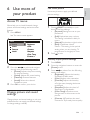
Access TV menus
Menus help you to install channels, change
picture and sound settings and access other
features.
1
1
Press MENU.
» The menu screen appears.
MAIN
Picture
Sound
Brightness
Color
Features
Contrast
Install
Sharpness
Color Temp
Contrast +
2
Press SMART repeatedly to cycle
through the four settings.
• [Personal] Settings are set to your
preference.
• [Soft] Emphasizes warm colours.
This setting is suitable for dimly lit
rooms.
• [Natural] Emphasizes original colors.
• [Rich] Emphasizes vibrant
colours. This setting is the optimal
setting when you are viewing TV
programmes in a brightly lit room.
Press
to exit.
Manually adjust picture settings
2
3
Press the
to select and navigate
through one of the following menus.
• [Picture] Adjusts the picture setting
for optimal viewing.
• [Sound] Adjusts the sound setting.
• [Features] Accesses features.
• [Install] Selects the channel
installation menu.
Press OK to confirm your choice.
Change picture and sound
settings
Change picture and sound settings to suit your
preferences. You can apply pre-defined settings
or change settings manually.
1
2
3
Press MENU.
Press the navigation buttons to enter the
[Picture] menu.
Press
to select from the following
settings and adjust:
• [Brightness] Adjusts the intensity
and details of dark areas.
• [Color] Adjusts color saturation.
• [Contrast] Adjusts the intensity
of bright areas, keeping dark areas
unchanged.
• [Sharpness] Adjusts the level of
sharpness in image details.
• [Color Temp] Introduces more
orange tones or blue tones to the
picture.
• [Contrast +] Optimizes the total
contrast for improved picture quality.
EN
9