1
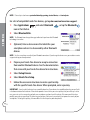
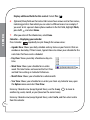
Messages appear on both your smartphone and on your computer indicating that
synchronization is in progress.
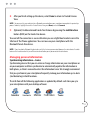
3: Wait until you see the message on your smartphone that the HotSync operation is
complete; then disconnect the sync cable.
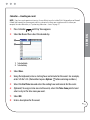
Contacts—Adding a contact
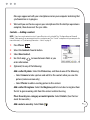
1: Press Phone
.
THE BASICS
NOTE: If you have several contacts to enter, it’s more efficient to use the included Palm® Desktop software or Microsoft
Outlook® (sold separately) on your computer and then synchronize your Palm® Centro™ smartphone with your computer. For
more information, see “Synchronizing information—basics” on page 19.
2: Select the Contacts favorite button.
3: Select New Contact.
4: Use the 5-way
to move between fields as you
enter information.
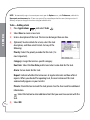
5: (Optional) Do any of the following:
Add a caller ID photo: Select the Picture box, and then do one of the following:
• Select Camera to take a picture and add it to this contact when you save the
picture (camera version only).
• Select Photos to add an existing picture to this contact.
Add a caller ID ringtone: Select the Ringtone pick list and select a ringtone from
the list to give incoming calls from this contact a distinctive ring.
Place the entry in a category or mark it private: Select Details. (See the User
Guide for more info.)
Add a note to an entry: Select Note
.
pg 21