1
Note
When moving a path, remember to also move the object on that path;
otherwise the animation will start with a jump. Currently it is not
possible to rotate a path.
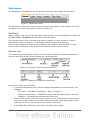
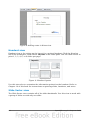
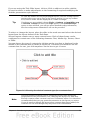
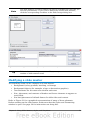
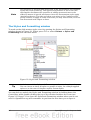
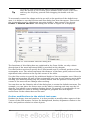
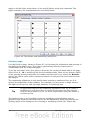
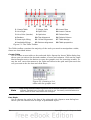
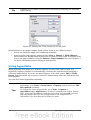
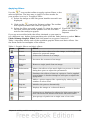
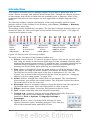
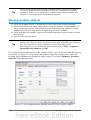
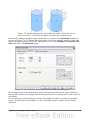
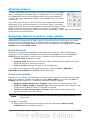
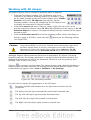
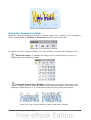
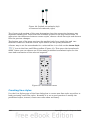
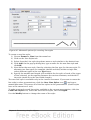
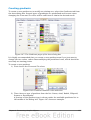
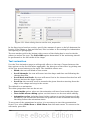
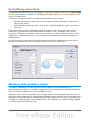
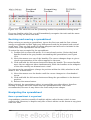
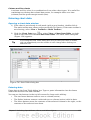
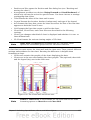
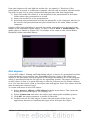
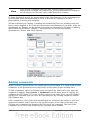
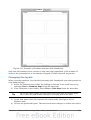
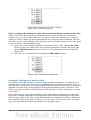
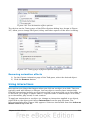
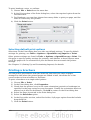
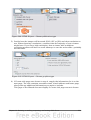
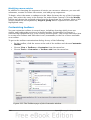
If instead you want to modify the individual points on the line, select the Points tool
from the Drawing toolbar while the path is selected. The Edit Points toolbar of
Figure 182 should be displayed; if not, select it from View > Toolbars > Edit
Points.
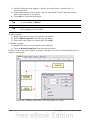
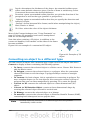
Figure 182: The Edit Points toolbar
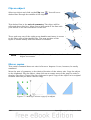
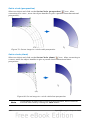
Once a point is selected, you can add an additional point, delete it, move it and so on.
For a detailed explanation on how to manipulate the points on a curve, see the Draw
Guide. Once you are satisfied with the shape of the curve and its speed, click
anywhere on the screen to deselect the object and continue normal editing.
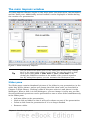
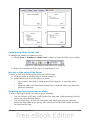
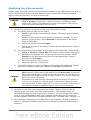
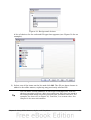
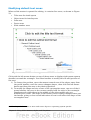
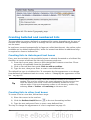
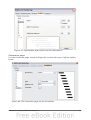
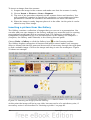
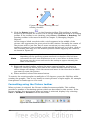
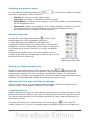
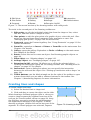
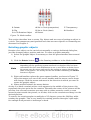
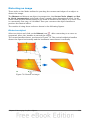
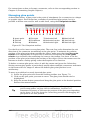
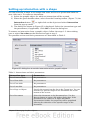
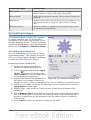
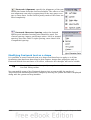
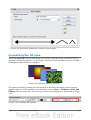
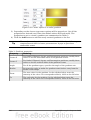
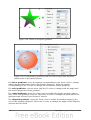
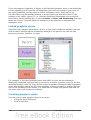
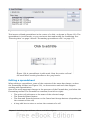
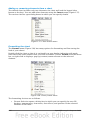
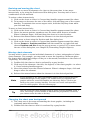
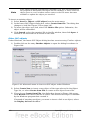
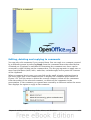
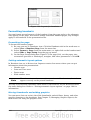
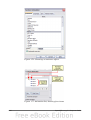
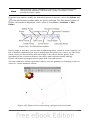
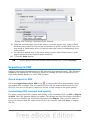
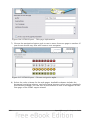
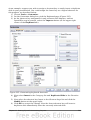
Figure 183 shows a polygon motion path with a curved section.
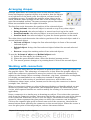
You can combine a motion with other effects such as spinning or changing of size or
colors to create dramatic effects.
Figure 183: Object set to move along a polygon and curve path
Chapter 9 Slide Shows
201