1
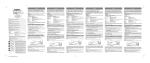
Window Names/ Noms des fenêtres/
Fensterbezeichnungen/
English
Denominazioni delle finestre/ Nombres de la ventana/ Заголовки окон
12 3
Digital Wave Player
EN
FR
DE
IT
ES
RU
564
7
8 9
0
!
@ #
INSTRUCTIONS
MODE D’EMPLOI
BEDIENUNGSANLEITUNG
ISTRUZIONI
INSTRUCCIONES
PУКОВОДСТВО
Shinjuku Monolith, 3-1 Nishi-Shinjuku 2-chome, Shinjuku-ku, Tokyo 163-0914, Japan. Tel. 03-3340-2111
Two Corporate Center Drive, Melville, NY 11747-3157, U.S.A. Tel. 1-800-622-6372
*
(Premises/Goods delivery) Wendenstrasse 14-18, 20097 Hamburg, Germany. Tel. 040-237730
(Letters) Postfach 10 49 08. 20034 Hamburg. Germany.
%$
2-8 Honduras Street, London EC1Y 0TX, United Kingdom, Tel. 020-7253-2772
http://www.olympus.com
(
&
)
Notes
•
•
•
•
^
Recording window/ Fenêtre
d’enregistrement/ Aufnahmefenster/
Finestra di registrazione/ Ventana de
grabación/ Окно записи
You cannot send files from the PC to the recorder and cannot overwrite files in the recorder with Olympus Digital Wave Player.
Olympus Digital Wave Player does not support speech-recognition software.
Olympus Digital Wave Player does not support Apple Macintosh computers.
In this manual the user is assumed to be familiar with Microsoft Windows software. For details on operation of the
PC, refer to the operating instructions for your PC.
-
Remarques
• Vous ne pouvez pas envoyer de fichiers de votre PC à l’enregistreur ni écraser des fichiers dans l’enregistreur
avec l’Olympus Digital Wave Player.
• L’Olympus Digital Wave Player n’assiste pas les logiciels de reconnaissance vocale.
• L’Olympus Digital Wave Player n’assiste pas les ordinateurs Apple Macintosh.
• Dans ce mode d’emploi, l’utilisateur est supposé familiarisé avec le logiciel Microsoft Windows. Consultez le
mode d’emploi de votre PC pour les détails sur son fonctionnement.
English
1 Stop button
Français
Deutsch
Bouton d’arrêt Stopp
Hinweise
• Die Übertragung von Dateien vom PC zum Recorder und das Überschreiben von Dateien im Recorder mit Olympus
Digital Wave Player ist nicht möglich.
• Spracherkennungs-Software wird von Olympus Digital Wave Player nicht unterstützt.
• Apple Macintosh-Rechner werden von Olympus Digital Wave Player nicht unterstützt.
• In dieser Bedienungsanleitung wird vorausgesetzt, dass der Benutzer mit der Windows-Software von Microsoft
vertraut ist. Näheres zur Handhabung Ihres PC finden Sie in der zugehörigen Bedienungsanleitung.
Notas
• No puede transferir los archivos del ordenador personal a la grabadora ni puede escribir encima los archivos en
la grabadora con el Digital Wave Player de Olympus.
• El Digital Wave Player de Olympus no acepta el software de reconocimiento de palabras.
• El Digital Wave Player de Olympus no funciona en ordenadores Apple Macintosh.
• Este manual presupone que el usuario conoce el software Microsoft Windows. Para más detalles sobre el
funcionamiento del ordenador personal, consulte el manual de instrucciones de su ordenador personal.
Пpимечание
• Вы не можете пеpеносить файлы из компьютеpа в диктофон или записывать файлы повеpх файлов в
диктофоне с помощью пpогpаммы Olympus Digital Wave Player.
• Olympus Digital Wave Player не поддеpживает пpогpаммы pаспознавания pечи.
• Olympus Digital Wave Player не поддеpживается компьютеpами Apple Macintosh.
• Данное pуководство пpедполагает, что пользователь знаком с пpогpаммным обеспечением Microsoft
Windows. Подpобная инфоpмация по pаботе компьютеpа содеpжится в инстpукции к компьютеpу.
Español
Botón de
parada
Pycckий
Кнопка Stop
2 Rewind button Bouton de
retour rapide
Rücklauf
Tasto di
Botón de
riavvolgimento rebobinado
Кнопка
Rewind
3 Tool bar
Barre d’outils
Befehlsleiste
Barra degli
strumenti
Barra de
herramientas
Линейка
инстpументов
4 Recording
window
button
Bouton de
Taste für
fenêtre
Aufnahmed’enregistrement Fenster
Tasto della
finestra di
registrazione
Botón de la
ventana de
grabación
Кнопка окна
записи
5 Play button
Bouton de
lecture
Wiedergabe
Tasto di
riproduzione
Botón de
reproducción
Кнопка Play
6 Fast Forward
button
Bouton
d’avance
rapide
Schnellvorlauf
Tasto di
avanzamento
rapido
Botón de
Кнопка Fast
avance rápido Forward
7 Index skip
button
Bouton Sauter
l’index
Index Taste
Tasto ricerca
indice
Botón Salto
de Indice
8 Time axis
Axe temporel
Zeitachse
Asse dei
tempi
Eje del tiempo Вpеменная
шкала
9 Position
Position
Position
Posizione
Posición
Позиция
0 Length
Durée
Länge
Lunghezza
Tiempo
Длительность
! Adjust time
axis
Réglage de
l’axe temporel
Einstellen der
Zeitachse
Regolazione
asse dei
tempi
Ajuste el eje
del tiempo
Шкала
pегулиpовки
вpемени
@ Volume
control
Commande
de volume
Lautstärkeregelung Controllo del
volume
Control de
volumen
Pегулятоp
Volume
# Playback
controller
Fonctions de
lecture
Wiedergaberegler Funzioni di
riproduzione
Controlador de Панель
reproducción
воспpоизведения
$ Recording
folder
Dossier
Aufnahmed’enregistrement Ordner
Cartella di
registrazione
Carpeta de
grabación
Папка записи
% Audio folder
window
Fenêtre du
dossier audio
Fenster für
Audio-Ordner
Finestra
cartella Audio
Ventana de la
carpeta de
audio
Окно
аудиопапки
^ Recorder
folder window
Fenêtre du
dossier de
l’enregistreur
Fenster für
RecorderOrdner
Finestra
cartella
Registratore
Ventana de la
carpeta de la
grabadora
Окно папки
записи
& Sound file list
Liste des
fichiers son
Verzeichnis
der
Audiodateien
Elenco dei file
audio
Lista de
archivos de
sonido
Список
голосовых
файлов
* Close button
Bouton de
fermeture
SchließenSchaltfläche
Tasto di
chiusura
Botón de
cierre
Кнопка Close
( Record button Bouton
Aufnahme
d’enregistrement
Tasto di
registrazione
Botón de
grabación
Кнопка
Record
) Stop button
Bouton d’arrêt Stopp
Tasto di
arresto
Botón de
parada
Кнопка Stop
- Pause button
Bouton de
pause
Tasto pausa
Botón de
pausa
Кнопка
Pause
Note
• Il software Olympus Digital Wave Player non permette di inviare file dal PC al registratore né di sovrascrivere file
presenti in quest’ultimo.
• Il software Olympus Digital Wave Player non supporta i software di riconoscimento vocale.
• Il software Olympus Digital Wave Player non supporta i computer Apple di Macintosh.
• Nel presente manuale si assume che gli utenti abbiano una conoscenza sufficiente di Microsoft Windows. Per
ulteriori dettagli sul funzionamento dei PC, fare riferimento ai relativi manuali di istruzioni.
Italiano
Tasto di
arresto
Кнопкаколпачок Index
Declaration of Conformity
Model Number:
Trade Name:
Responsible Party:
Address:
Telephone Number:
VN-120PC, VN-240PC, VN-480PC
DIGITAL VOICE RECORDER
OLYMPUS AMERICA INC.
2 Corporate Center Drive, Melville, NY 11747-3157, U.S.A.
800-622-6372
This device Complies with Part 15 of the FCC Rules. Operation is subject to the following two conditions: (1)
This device may not cause harmful interference, and (2) this device must accept any interference received,
including interference that may cause undesired operation.
Tested To Comply
With FCC Standards
FOR HOME OR OFFICE USE
USA RFI
This equipment has been tested and found to comply with the limits for a Class B digital device, pursuant to part 15 of the
FCC Rules. These limits are designed to provide reasonable protection against harmful interference in a residential
installation. This equipment generates, uses and can radiate radio frequency energy and, if not installed and used in
accordance with the instructions, may cause harmful interference to radio communications. However, there is no guarantee
that interference will not occur in a particular installation. If this equipment does cause harmful interference to radio or
television reception, which can be determined by turning the equipment off and on, the user is encouraged to try to correct
the interference by one or more of the following measures:
• Reorient or relocate the receiving antenna.
• Increase the separation between the equipment and receiver.
• Connect the equipment into an outlet on a circuit different from that to which the receiver is connected.
• Consult the dealer or an experienced radio/TV technician for help.
Canadian RFI
This digital apparatus does not exceed the Class B limits for radio noise emissions from digital apparatus as set out in the
Radio Interference Regulations of the Canadian Department of Communications.
Cet apparail numerique ne depasse pas les limites de Categorie B pour les emissions de bruit radio emanant d’appareils
numeriques, tel que prevu dans les Reglements sur l’Interference Radio du Department Canadian des Communications.
“CE” mark indicates that this product complies
with the European requirements for safety,
health, environment and customer protection.
L’indication “CE” signfie que ce produit est
conforme aux exigences concemant la
sécurité, la santé, l’environnement et la
protection du consommateur.
Das „CE“ Zeichen bestätigt die übereinstimmug
mit den Europäischen Bestimmungen für
Betriebssicherheit und Umweltschutz.
Il marchio “CE” indica che questo prodotto è
conforme alle norme della comunità europea
per quanto riguarda la sicurezza, la salute,
l’ambiente e la protezione del consumatore.
La marca “CE” indica que este producto se
encuentra de conformidad con las exigencias
europeas sobre seguridad, salud, medio
ambiente y protección al consumidor.
E1-8003-01
AP0402
Pause
English
English
The feature of the Digital Wave Player
With the supplied Olympus Digital Wave Player software, you can download files to your
computer.
Functions provided by Olympus Digital Wave Player are summarized
below:
• PC storage and management of voice recordings made with the recorder.
• Playback of files.
• Recording of sound files directly on a PC using the recorder with a USB terminal
connector.
Y Operating Environment
Operating system:
Microsoft Windows 98/Me/2000Professional (hereinafter referred to as
Windows 2000)/XP Professional, Home Edition
IBM PC/AT-compatible machine
Intel Pentium 166 MHz or more
32MB or more
25MB (additional space required to store sound files)
Creative Labs Sound Blaster 16 or any 100% compatible sound card
800 × 600 pixels min., 256 colors min.
2× CD-ROM
At least one free port
Earphone or speaker output(s)
PC:
CPU:
RAM:
Hard-disk space:
Sound card:
Display:
CD-ROM drive:
USB port:
Audio output jack:
Note
USB support is not available under the following environments, even for PCs equipped with a
USB port: Windows 98/Me/2000/XP Professional, Home Edition upgraded from Windows 95
Installing Olympus Digital Wave Player
Before you connect the USB cable to the recorder and your PC, you must first install the
software.
1
2
Using Online Help
This manual explains how to install Olympus Digital Wave Player and connect the hardware.
For more detailed instructions, view the Online Help after the software
has been installed.
Y To open Online Help
Click [Help] in Olympus Digital Wave Player’s main window, then click [Open Help]. You can
also press the [F1] key to open the Help window.
Using Olympus Digital Wave Player
For more detailed instructions, refer to Online Help.
Y Transferring Recorded Files to the PC
Before transferring recorded files to the PC, make sure the recorder is connected to the PC properly.
Olympus Digital Wave Player provides the following two methods for transferring files to the PC.
Transferring all folders
Click the
.
, All files in the recorder are transferred to the PC’s folders whose names are the same
as the folder names in the recorder. The date subfolders for each date are automatically
created together with the schedule folder transfer.
Transferring a selected folder
Click the
,
,
, or .
, All files in the selected folder in the recorder are transferred to the PC’s folder whose
name is the same as the folder name in the recorder.
When you transfer files, the filenames change as follows.
Set the Olympus Digital Wave Player CD-ROM in the CD-ROM drive.
The Installation program will start automatically.*
* If the setup program does not start automatically, double-click the CD-ROM icon in the
Explorer window and double-click on the “setup.exe” icon.
Install Olympus Digital Wave Player by following the instructions displayed in the
setup windows.
icon appears in the task tray on the desktop.
The
On the PC
A001
DW A0001
Folder name
File number
File number*
Prefix added to
the file in the PC
Folder name
* The file number of the transferred file is renumbered automatically and will differ from the original file on
the recorder.
Notes
Y Uninstalling Olympus Digital Wave Player
To uninstall Olympus Digital Wave Player, follow the procedure below.
1
2
Click the Windows [start] button.
3
Follow the on-screen instructions to uninstall Olympus Digital Wave Player.
Point to [All Programs], select [Olympus Digital Wave Player], and then click [Uninstall
Digital Wave Player].
Starting Olympus Digital Wave Player
When you connect the recorder to your PC with the supplied USB cable, Olympus Digital
Wave Player starts, and the main window appears automatically.
In such a case, batteries are not necessary for the recorder, because power is
supplied to the recorder from the connected PC via the USB cable.
Note
Release the hold switch of the recorder before connecting the USB cable to a PC.
• Transfer time may vary depending on the recording mode of a file and PC’s performance.
• You cannot upload files from the PC to the recorder.
• You cannot transfer a file that has the same recording time and date as a file already in the corresponding
folder on the PC.
• To transfer files, 20MB or more of the hard-disk space is necessary to assure stable performance of the PC.
Y Playing the Files on the PC
Any file transferred from the recorder or recorded directly to the PC can be played back on the PC.
1
2
3
PC
USB cable
To the PC’s (USB) port
To use Olympus Digital Wave Player without connecting the recorder to the PC, or if Olympus
Digital Wave Player does not start automatically when you connect the recorder to the PC,
click the [start] button, point to [All Programs], select [Olympus Digital Wave Player] then click
[Digital Wave Player].
To exit Olympus Digital Wave Player, click the
button on the window, or click [File], and
then click [Exit Digital Wave Player].
Choose the desired folder in the audio folder window.
Click the desired file on the file list.
Click the
(Play) button to play back the file.
You can also perform other operations, such as fast forwarding, rewinding, etc., with the buttons and
controls on the playback controller panel.
Note
You cannot play back the files stored on the recorder by Olympus Digital Wave Player on the PC.
Y Recording on a PC with the recorder as the microphone (Direct recording)
Before recording, make sure the recorder is connected to the PC properly.
1
2
3
PC (USB) terminal
In the recorder
Click the
button in the main window to display the recording window.
Click the
(Record) button to start recording.
Click the
(Stop) button to stop recording.
If you click the
button, the recording window changes to the main window.
The recorded files are stored in the recording folder in the audio folder window.
(Pause) button during recording.
To pause recording, click the
Notes
• The files are recorded directly on the PC and not on the recorder.
• To perform direct recording, 20MB or more of the hard-disk space is necessary to assure stable performance
of the PC.
• The recorded files are stored as .wav files. Before recording, make sure that the free memory of the PC
is sufficient for recording a .wav file.
File Format
The files transferred to the PC or recorded directly on a PC are stored as .wav files. Such filenames use the .wav extension.
Measure of size of file and time for transfer
(5 minutes of recording with the recorder)
Size of file
Notes
• When you start Olympus Digital Wave Player for the first time by connecting the recorder to
the PC after installation, it may take a few minutes to start.
• Do not use any USB cable other than the one supplied.
• Do not disconnect the USB cable before file transfer or recording is completed.
• When the recorder is connected to a PC, the power will be supplied from the USB cable.
Time for transfer
HQ mode
Approx. 3.2MB
Approx. 1 minute
SP mode
Approx. 1.6MB
Approx. 30 seconds
LP mode
Approx. 1.2MB
Approx. 15 seconds
.......................................................................................................................................................................................................
•
•
•
•
Microsoft and Windows are registered trademarks of Microsoft Corporation.
Intel and Pentium are registered trademarks of Intel Corporation.
Macintosh and Apple are registered trademarks of Apple Computer, Inc.
Other product and brand names mentioned herein may be the trademarks or registered trademarks of their
respective owners.
Español
Italiano
Español
Español
Características del Digital Wave Player
Con el software del Digital Wave Player de Olympus, puede transferir los archivos a su ordenador.
Las funciones del Digital Wave Player de Olympus se resumen a
continuación:
• Memorización en el ordenador personal y administración de grabaciones de voz con
la grabadora.
• Reproducción de archivos.
• Grabación de archivos de sonido directamente en el ordenador personal utilizando
la grabadora con un conector de terminal USB.
Y Ambiente de operación
Sistema operativo:
Microsoft Windows98/Me/2000 Profesional (de aquí en lo adelante
referido como “Windows 2000”)/XP Professional, Home Edition
PC:
IBM PC/AT o máquina compatible
CPU:
Intel Pentium 166 MHz o superior
RAM:
32 MB o más
Espacio de disco duro: 25 MB (más espacio adicional necesario para memorizar los
archivos de sonido)
Tarjeta de sonido:
Creative Labs Sound Blaster 16 o cualquier tarjeta de sonido
compatible 100%
Pantalla:
Mínimo 800 × 600 pixeles, mínimo 256 colores
Unidad de CD-ROM:
CD-ROM de doble velocidad
Puerto USB:
Por lo menos un puerto libre
Toma de salida de audio: Salida(s) de auricular o altavoz
Nota
Aunque el ordenador disponga de puerto USB, éste no soporta los siguientes entornos:
Windows 98/Me/2000/XP Professional, Home Edition actualizado a partir de Windows 95
Instalación del DigitalWave Player de Olympus
Antes de conectar el cable USB a la grabadora y a su ordenador, primero tiene que instalar
el software.
1
2
Ajuste el CD-ROM del Digital Wave Player de Olympus en el equipo CD-ROM.
El programa de instalación empieza automáticamente.*
* Si el programa de instalación no empieza automáticamente, pulse dos veces el icono
CD-ROM en la ventana del Explorer y pulse dos veces el icono “setup.exe”.
Instale el Digital Wave Player de Olympus siguiendo las instrucciones que aparecen
en las ventanas de ajustes.
en la bandeja de tareas de la pantalla inicial.
Aparece el icono
Y Desinstalación del Digital Wave Player de Olympus
Para desinstalar el Digital Wave Player de Olympus, siga el procedimiento indicado a continuación.
1
2
3
Pulse el botón Windows [Inicio].
Apunte a [Todos los Programas], seleccione [Olympus Digital Wave Player] y pulse el
[Desinstalar Digital Wave Player].
Siga las instrucciones en la pantalla para desinstalar el Digital Wave Player de Olympus.
Activación del DigitalWave Player de Olympus
Cuando conecte la grabadora a su ordenador personal con el cable USB suministrado,
empieza el Digital Wave Player de Olympus y aparece automáticamente la ventana principal.
En este caso, la grabadora no necesita pilas, ya que la energía es suministrada desde el PC
conectado mediante el cable USB.
Nota
Libere el interruptor HOLD de la grabadora, antes de conectar el cable USB a un ordenador.
Erdenador
personal
Cable USB
Terminal PC (USB)
Al terminal USB del
ordenador personal
Para utilizar el Digital Wave Player de Olympus sin conectar la grabadora al ordenador o si el
Digital Wave Player de Olympus no se activa automáticamente al conectar la grabadora al
ordenador personal, pulse el botón [Inicio], apunte a [Todos los Programas], seleccione [Olympus
Digital Wave Player] y pulse [Digital Wave Player]. Para salir del reproductor Digital Wave de
en la ventana o pulse [Archivo] y pulse [Salir de Digital Wave Player].
Olympus, pulse el botón
Notas
• Cuando active el Digital Wave Player de Olympus por primera vez conectando la grabadora al
ordenador personal después de la instalación, puede demorar varios minutos para activarse.
• NO utilice ningún otro cable USB que el suministrado.
• NO desconecte el cable USB antes de completar la transferencia de archivo o grabación.
• Cuando la grabadora esté conectada al ordenador, la corriente será suministrada desde el
cable USB.
Usando Ayuda en línea
Este manual explica cómo instalar el Digital Wave Player de Olympus y hacer las conexiones
de los equipos.
Para instrucciones más detalladas, vea la Ayuda en línea después de
que el programa haya sido instalado.
Y Para abrir la Ayuda en línea
Pulse [Ayuda] en la ventana principal del reproductor Digital Wave de Olympus y pulse [Abrir
la Ayuda]. También puede pulsar la tecla [F1] para abrir la ventana de Ayuda.
Utilización del DigitalWave Player de Olympus
Para más detalles, consulte la Ayuda en línea.
Y Transferencia de archivos grabados al ordenador personal
Antes de transferir los archivos grabados al ordenador personal asegúrese de que la
grabadora está conectada correctamente al ordenador personal. El Digital Wave Player de
Olympus ofrece los siguientes dos métodos para transferir archivos al ordenador personal.
Transferencia de todas las carpetas
Pulse el botón
.
, Todos los archivos en la grabadora se transfieren a las carpetas del ordenador personal
cuyos nombres son los mismos que los nombres de las carpetas en la grabadora. Las
subcarpetas de fecha para cada fecha se crean automáticamente junto con la
transferencia a la carpeta de programa.
Transferencia de una carpeta seleccionada
Pulse el botón
,
,
,o
.
, Todos los archivos en la carpeta seleccionada en la grabadora se transfieren a la carpeta en el
ordenador personal cuyo nombre sea el mismo que el nombre de la carpeta en la grabadora.
Cuando transfiera archivos, los nombres de archivos cambian de la siguiente forma.
En la grabadora
En el ordenador personal
A001
DW A0001
Nombre de la carpeta
Número de archivo
Número del archivo*
Prefijo agregado al
archivo en el
ordenador personal
Nombre de la carpeta
* El número del archivo del archivo transferido cambia de número automáticamente y será diferente del
archivo original en la grabadora.
Notas
• El tiempo de transferencia puede cambiar según el modo de grabación de un archivo y las prestaciones del ordenador personal.
• No puede transferir archivos del ordenador personal a la grabadora.
• No puede transferir un archivo que tenga el mismo tiempo de grabación y fecha que un archivo que ya
está en la correspondiente carpeta en el ordenador personal.
• Para transferir archivos, es necesario que haya 20 MB o más espacio en el disco duro para que funcione
establemente en el ordenador personal.
Y Reproducción de archivos en el ordenador personal
Todos los archivos transferidos de la grabadora o grabados directamente en el ordenador personal
pueden reproducirse en el ordenador personal.
1 Elija la carpeta deseada en la ventana de la carpeta audio.
2 Pulse el archivo deseado en la lista de archivos.
(reproducción) para reproducir el archivo.
3 Pulse el botón
También puede hacer otras operaciones tales como el avance rápido, rebobinado, etc., con
los botones y controles en el panel de control de reproducción.
Nota
No puede reproducir los archivos memorizados en la grabadora con el Olympus Digital Wave Player en el ordenador personal.
Y Grabación en un ordenador personal con la grabadora
actuando como micrófono (grabación directa)
Antes de grabar, asegúrese de que la grabadora está conectada correctamente al ordenador personal.
1 Pulse el botón en la ventana principal para que aparezca la ventana de grabación.
2 Pulse el botón
(grabación) para empezar a grabar.
3 Pulse el botón
(parada) para parar la grabación.
, la ventana de grabación cambia a la ventana principal.
Si pulsa el botón
Los archivos grabados se memorizan en la carpeta de grabación en la ventana de la carpeta de
(pausa) durante la grabación.
audio. Para hacer una pausa de grabación, pulse el botón
Notas
• Los archivos se graban directamente en el ordenador personal y no en la grabadora.
• Para hacer una grabación directa, es necesario que haya 20 MB o más espacio en el disco duro para que
funcione establemente en el ordenador personal.
• Los archivos grabados se memorizan como archivos .wav. Antes de grabar, asegúrese de que la memoria libre
en el ordenador personal es suficiente para grabar un archivo .wav.
Formato de archivo
Los archivos transferidos al ordenador personal o grabados directamente en el ordenador personal se
memorizan como archivos .wav. Estos nombres de archivos utilizan la extensión .wav.
Tamaño del archivo y tiempo de transferencia del archivo
(5 minutos de grabación con la grabadora)
Tamaño del archivo
Tiempo de transferencia
Modo HQ
Aprox. 3,2MB
Aprox. 1 minuto
Modo SP
Aprox. 1,6MB
Aprox. 30 segundos
Modo LP
Aprox. 1,2MB
Aprox. 15 segundos
.......................................................................................................................................................................................................
• Microsoft y Windows son marcas registradas de Microsoft Corporation.
• Intel y Pentium son marcas registradas de Intel Corporation.
• Macintosh y Apple son marcas registradas de Apple Computer, Inc.
• Otros nombres de producto o marcas mencionados en este manual pueden ser marcas comerciales o marcas registradas
de sus respectivos propietarios.
Français
Deutsch
Français
Caractéristiques du Digital Wave Player
Utilisation de l’Aide en ligne
Le logiciel Olympus Digital Wave Player fourni vous permet de télécharger des fichiers dans
votre ordinateur.
Ce mode d’emploi explique comment installer l’Olympus Digital Wave Player et raccorder le
matériel.
Les fonctions fournies par l’Olympus Digital Wave Player sont résumées
ci-dessous:
Pour des instructions plus détaillées, se reporter à l’Aide en ligne après
l’installation du logiciel.
• Stockage et gestion avec le PC des enregistrements vocaux faits avec l’enregistreur.
• Lecture de fichiers.
• Enregistrement de fichiers son directement dans le PC en utilisant l’enregistreur
avec un connecteur USB.
Y Environnement de fonctionnement
Système d’exploitation:
PC utilisable:
Unité centrale:
Capacité mémoire vive:
Espace disponible
sur le disque dur:
Carte son:
Microsoft Windows98/Me/2000 Professional (référé ci-après
sous “Windows 2000”)/XP Professional, Edition Familiale
Machine compatible IBM PC/AT
Intel Pentium 166 MHz ou plus
32 Mo ou plus
25 Mo (avec un espace supplémentaire pour la mémorisation
des fichiers son)
Creative Labs Sound Blaster 16 ou toute autre carte son
100% compatible
800 × 600 dpi minimum, 256 couleurs minimum
Lecteur de CD-ROM double vitesse
Au moins un port libre
Sorties d’écouteur ou d’enceinte
Affichage:
Lecteur de CD-ROM:
Port USB:
Prise de sortie audio:
Remarque
Même lorsque le PC est équipé d’un port USB, le support USB n’est pas disponlble pour les
environnements suivants: Windows 98/Me/2000/XP Professional, Edition Familiale mis à jour
à partir de Windows 95
Y Pour ouvrir l’Aide en ligne
Cliquez sur [Aide] dans la fenêtre principale de l’Olympus Digital Wave Player, puis sur [Ouvrir
l’Aide]. Vous pouvez aussi appuyer sur la touche [F1] pour ouvrir la fenêtre Help.
Utilisation de l’Olympus Digital Wave Player
Voir l’Aide en ligne pour les instructions plus détaillées.
Y Transfert de fichiers enregistrés dans le PC
Vérifiez que l’enregistreur est correctement raccordé au PC avant de transférer les fichiers enregistrés au PC.
L’Olympus Digital Wave Player permet l’utilisation des deux méthodes suivantes de transfert de fichiers dans le PC.
Transfert de tous les dossiers
Cliquez sur le bouton
Transfert d’un dossier sélectionné
,
,
, ou
.
Cliquez sur le bouton
, Tous les fichiers dans le dossier sélectionné de l’enregistreur sont transférés dans le dossier
du PC de même nom que celui dans l’enregistreur.
Les noms de fichier changent comme suit à leur transfert.
Dans l’enregistreur
Installation de l’Olympus Digital Wave Player
A001
Avant de relier le câble USB entre l’enregistreur et le PC, vous devrez tout d’abord installer
le logiciel.
1
2
Introduisez le CD-ROM Olympus Digital Wave Player dans le lecteur de CD-ROM.
Le programme d’installation démarrera automatiquement*.
* Si le programme d’implantation ne démarre pas automatiquement, double-cliquez sur
l’icône CD-ROM dans la fenêtre Explorer, puis sur l’icône “setup.exe”.
Installez l’Olympus Digital Wave Player en suivant les instructions apparaissant
dans les fenêtres d’implantation.
apparaît sur le plateau des tâches de l’ordinateur de bureau.
L’icône
Y Désinstallation de l’Olympus Digital Wave Player
.
, Tous les fichiers dans l’enregistreur sont transférés dans les dossiers du PC de même nom
que ceux dans l’enregistreur. Les sous-dossiers de date pour chaque date sont
automatiquement créés au transfert du dossier de planification.
Dans le PC
DW A0001
Nom du dossier
Numéro de fichier*
Numéro de
fichier
Préfixe ajouté au
fichier dans le PC
Nom du dossier
* Le fichier transféré est automatiquement renuméroté et son numéro sera différent de celui du fichier
original dans l’enregistreur.
Remarques
• Le temps du transfert peut varier selon le mode d’enregistrement d’un fichier et les performances du PC.
• Vous ne pouvez pas télécharger des fichiers du PC dans l’enregistreur.
• Vous ne pouvez pas transférer un fichier ayant les mêmes heure et date d’enregistrement qu’un fichier
déjà existant dans le dossier correspondant dans le PC.
• Pour transférer des fichiers, un espace libre d’au moins 20 Mo est requis sur le disque dur pour assurer
le fonctionnement stable du PC.
Procédez comme suit pour désinstaller l’Olympus Digital Wave Player.
Y Lecture de fichiers dans le PC
1
2
Cliquez sur le bouton Windows [démarrer].
Tout fichier transféré de l’enregistreur ou enregistré directement dans le PC peut être lu sur le PC.
3
Suivez les instructions sur l’écran pour désinstaller l’Olympus Digital Wave Player.
Désignez [Tous les programmes], sélectionnez [Olympus Digital Wave Player], puis
cliquez sur [Désinstallation de Digital Wave Player].
Démarrage de l’Olympus Digital Wave Player
Quand vous connectez l’enregistreur à votre PC avec le câble USB fourni, l’Olympus Digital
Wave Player démarre, et la fenêtre principale apparaît automatiquement.
Dans ce cas, les piles ne sont pas nécessaires pour l'enregistreur, puisque l'enregistreur est
alimenté par le PC raccordé via le câble USB.
Remarque
Relâchez le bouton d'attente de l’enregistreur avant de brancher le câble USB sur un
ordinateur.
PC
Câble USB
Terminal PC (USB)
Au port USB du PC
Pour utiliser l’Olympus Digital Wave Player sans raccorder l’enregistreur au PC, ou si l’Olympus
Digital Wave Player ne doit pas démarrer automatiquement au raccordement de l’enregistreur
au PC, cliquez sur le bouton [démarrer], désignez [Tous les programmes], sélectionnez
[Olympus Digital Wave Player], puis cliquez sur [Digital Wave Player]. Pour quitter l’Olympus
dans la fenêtre, ou sur [Fichier], puis sur [Quitter
Digital Wave Player, cliquez sur le bouton
Digital Wave Player].
Remarques
• Le premier démarrage de l’Olympus Digital Wave Player en raccordant l’enregistreur au
PC après l’installation peut prendre quelques minutes.
• N’utilisez PAS d’autre câble USB que celui fourni.
• Ne déconnectez PAS le câble USB avant la fin du transfert ou de l’enregistrement du fichier.
• Lorsque l’enregistreur est connecté à un ordinateur, le courant est fourni par le câble USB.
1
2
3
Choisissez le dossier souhaité dans la fenêtre du dossier audio.
Cliquez sur le fichier souhaité dans la liste des fichiers.
Cliquez sur le bouton
(lecture) pour lire le fichier.
Vous pouvez également effectuer d’autres opérations, telles qu’avance rapide, retour rapide etc. avec les
touches et commandes sur le panneau des fonctions de la lecture.
Remarque
Vous ne pouvez pas lire les fichiers sauvegardés dans l’enregistreur avec l’Olympus Digital Wave Player sur le PC.
Y Enregistrement sur un PC avec l’enregistreur servant de microphone
(enregistrement direct)
Avant l’enregistrement, vérifiez que l’enregistreur est correctement raccordé au PC.
1 Cliquez sur le bouton dans la fenêtre principale pour afficher la fenêtre d’enregistrement.
2
3
Cliquez sur le bouton
(enregistrement) pour démarrer la lecture.
Cliquez sur le bouton
(arrêt) pour arrêter l’enregistrement.
Si vous cliquez sur le bouton
, la fenêtre d’enregistrement passe à la fenêtre principale.
Les fichiers enregistrés sont stockés dans le dossier d’enregistrement dans la fenêtre du dossier audio.
Pour faire une pause d’enregistrement, cliquez sur le bouton
(pause) pendant l’enregistrement.
Remarques
• Les fichiers sont enregistrés directement dans le PC et non dans l’enregistreur.
• Pour effectuer un enregistrement direct, un espace libre d’au moins 20 Mo est requis sur le disque dur pour
assurer le fonctionnement stable du PC.
• Les fichiers enregistrés sont stockés en tant que fichiers .wav. Avant l’enregistrement, vérifiez que l’espace de
mémoire libre est suffisant pour l’enregistrement d’un fichier .wav.
Format des fichiers
Les
fichiers transférés au PC ou enregistrés directement sur un PC sont stockés en tant que fichiers
.wav.
De tels noms de fichiers utilisent l’extension .wav.
Mesure
de la taille du fichier et du temps de transfert
(5
minutes
d’enregistrement avec l’enregistreur)
Taille du fichier
Temps de transfert
Mode HQ
Env. 3,2 Mo
Env. 1 minute
Mode SP
Env. 1,6 Mo
Env. 30 secondes
Mode LP
Env. 1,2 Mo
Env. 15 secondes
.......................................................................................................................................................................................................
• Microsoft
et Windows sont des marques de fabrique déposées par Microsoft Corporation.
• Intel et Pentium sont des marques de fabrique déposées par Intel Corporation.
• Macintosh et Apple sont des marques de fabrique déposées par Apple Computer, Inc.
• Les autres noms de produits et de marques indiqués ici peuvent être des marques de fabrique ou des marques de fabrique
déposées de leurs propriétaires respectifs.