1
x191_qsge_quick_6.fm Page 1 Tuesday, August 26, 2003 10:55 AM
1AG6P1P1756--
VT620901
QuickStart Guide
OLYMPUS AMERICA INC.
Two Corporate Center Drive, Melville,
NY 11747-3157, U.S.A.
http://www.olympusamerica.com/support
C-5060 Wide Zoom
OLYMPUS OPTICAL CO. (EUROPA) GMBH.
Wendenstrasse 14-18,
20097 Hamburg, Germany
http://www.olympus-europa.com
http://www.olympus.com/
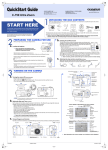
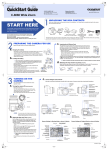
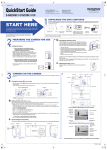
UNPACKING THE BOX CONTENTS
Gather your Digital camera and the parts as shown in the illustration. You’ll need these to complete the steps for the camera
set-up procedures that follow.
START HERE
It is strongly recommended that you follow these step-by-step
numbered instructions to set up and quickly begin using your
new Digital camera.
For more detailed instructions on advanced features, please refer to
the printed Basic Manual included in your package, or the Reference
Manual on the CD-ROM.
Digital camera
Strap
Notch
• Open the card cover.
• Face the card the correct way and insert it into the rear card slot as
shown in the illustration. Push the card fully into the slot. The card will
lock into place when fully inserted.
• Close the card cover securely.
• The battery is not fully charged when purchased. Before use, be sure to
charge the battery with the specified provided charger (BCM-2).
Hold the battery with its terminals facing the charger and align the battery
with the guideline
on the charger as shown in the illustration. Slide the
battery into the charger.
Contact area
Confirm you have installed the battery and xD-Picture Card properly by setting the mode dial
to q and turning the power switch to ON. The “No Picture” message should be displayed in
the monitor. Turn the camera off by turning the power switch to OFF position.
b. Loading the battery
Note: To remove, push the card all the way in to unlock it, then let it return slowly.
Battery
compartment
lock
d. Attaching the strap and lens cap string
Battery
compartment
cover
(OPTIONAL)
Attach the lens cap string and strap to the strap eyelets on each side of the camera as
illustrated. Attaching the strap to the camera makes it easier to handle.
Ring
Stopper
c. Camera Diagram and Controls
Now take a moment to familiarize yourself with the key areas of camera controls by reviewing the illustrations.
The camera Mode dial is used to select the various
operation modes.
a. Turning the camera ON
xD-Picture
Card
The xD-Picture Card is where the camera stores your pictures and is
available in a variety of memory capacities. The pictures you take with
the camera remain on the xD-Picture Card even when the camera is
turned off and/or the battery is removed.
a. Charging the battery
TURNING ON THE
CAMERA
USB cable
(gray color)
c. Inserting the xD-Picture Card
Before you begin using your Olympus Digital camera…
• Slide the battery compartment lock from = to ).
• Lift open the cover.
• Insert the BLM-1 lithium ion battery into the compartment as indicated
in the illustration here.
• Close the battery compartment cover and slide the battery
compartment lock from ) to =.
• To remove the battery, make sure that the power switch is aligned to
the OFF position and the camera is turned off (the monitor is off and
the lens is not extended).
• The lock secures the battery when correctly loaded.
CAMEDIA Master
CD-ROM
The following items are also included in the Digital camera package: Basic Manual, AV cable, RM-2 remote control, lens cap & string,
warranty card, registration card (not provided in some areas), and safety precautions booklet.
PREPARING THE CAMERA FOR USE
Note: The battery and xD-Picture Card compartments are
accessed by opening the respective compartment covers.
BLM-1 Lithium ion battery
BCM-2 Lithium ion battery charger
Self-timer/
Remote control lamp
Strap eyelet
Flash
(SHOOTING MODE)
AF illuminator
• Remove the lens cap.
• Pull the monitor out and rotate it.
• Align P with the red line. Turn the power switch to ON.
The lens extends and the monitor turns on.
• To turn the camera off, turn the power switch to OFF.
Remote control receiver
A/V OUT jack
Red line
Microphone
USB connector
AF sensor
DC-IN jack
Lens
Power switch
Speaker
Card cover
Mode dial
Battery compartment cover
Self-timer/Remote control button
Battery compartment lock
Exposure compensation button
Orange lamp
Viewfinder
Diopter adjustment dial
AEL button
Rotation button
Metering button
Protect button
Erase button
Power switch
Mode dial
Control dial
QUICK VIEW button
Monitor button
TIP :To maximize battery life, the Digital camera features a
power saving mode in which the camera enters a sleep
mode after approximately three (3) minutes of non-use.
b. Setting the Date and Time
AF/Macro/
MF button
Card cover
Hot shoe
Control panel
(OPTIONAL)
Set the date and time before using the camera for the
first time. This affects the way image file names are
created, and will conveniently include this information
with each picture.
•
•
•
•
•
•
•
Card access lamp
Set the mode dial to P and turn the power switch to ON.
Press e. The top menu is displayed.
Press d on the arrow pad to select MODE MENU.
Press ac to select the SETUP tab, then press d.
Press ac to select X, then press d.
Use ac to select the date format.
Adjust the date and time in the appropriate fields by using
d to select the field, and ac to set the proper value.
Repeat this step until all date/time fields have been set.
Note: Time is entered using the 24-hour
format.
• Press e twice to set the date and time and exit the
menu.
OK/Menu button
Tripod socket
Card button
Shutter button
Arrow Pad
Zoom lever
Monitor
Green lamp
Custom button
Print button
Flash mode button
Camera Settings In Shooting Mode as shown in Monitor
Shutter speed
Shooting mode
Camera Settings In Playback Mode as shown in Monitor
Exposure compensation
Exposure differential
Print reservation
Number of prints (Still picture)
Movie (Movie mode)
Aperture value
Card
AE lock
AE memory
Battery check
Metering mode
Green lamp
Flash stand-by
Macro mode
Noise reduction
Flash mode
ISO
White balance
White balance
adjustment
Saturation
Sharpness
Flash intensity control
Contrast
Scene modes
Drive
Self-timer/Remote control
Sound record
Memory gauge
Card
Record mode
Number of storable
still pictures
Resolution
Battery check
Sound record
Protect
Record mode
Resolution
Aperture
Shutter speed
Exposure compensation
White balance
ISO
Date and time
File number (Still picture)
Playing time/
Total recording time
(Movie mode)
AF target mark
Metering target mark
Printed in Japan
x191_qsge_quick_6.fm Page 2 Tuesday, August 26, 2003 10:55 AM
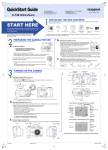
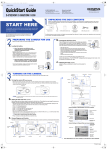
TAKING PICTURES
There are two ways to compose your subject: using the
monitor or with the viewfinder. Depending upon the shooting
situation, there may be advantages to each method. Please
refer to the printed Basic Manual for more information.
This Digital camera features multiple flash modes.
Please note that not all flash modes are available
depending on the shooting mode selected.
b. Taking a Picture with the Viewfinder
a. Taking a Picture with the Monitor
• Set the mode dial to P and turn the power switch to ON.
• Compose your subject on the Viewfinder.
• Pull the monitor out and rotate it.
• Set the mode dial to P and turn the power switch to ON.
The monitor turns on.
• Compose your subject on the monitor.
TIP :When you take a picture with the viewfinder, press f to turn
the monitor off.
Set the flash mode by turning the control dial while
holding down #:
Icon
No
indication
• Press the shutter button gently (halfway) to adjust the
focus.
• Press the shutter button completely to take the picture.
A short beep confirms your picture has been taken.
Green lamp
# Flash stand-by
d. Flash Modes
• Press the shutter button completely to take the picture.
A short beep confirms your picture has been taken.
c. Zooming
!
#
Push to Zoom out
Pull to Zoom in
When you are finished reviewing your pictures:
• Turn the power switch to OFF to turn the monitor off.
With a Digital camera, you can easily view the photos you
want—and delete the ones you don’t.
There are two ways to access the Playback mode:
• Set the mode dial to q and turn the power switch to ON.
Fill-in Flash
The flash always fires with every picture.
Your digital camera can handle xD-Picture Card from
16 MB to 512 MB. The number of storable pictures
depends on the image quality selected.
See the Reference Manual for complete descriptions of
each recording mode and the storable frame capacity for
the various resolution modes and xD-Picture Card
capacities.
TIP :To find out how many frames you have left, look for the number
in the lower right corner. Remember, you can always delete
unwanted pictures to make room for more. (See Step 5.)
VIEWING AND
ERASING PICTURES
a. Viewing Pictures
Red-eye
Reduces incidence of red-eye by emitting pre-flashes
Reduction Flash to shrink pupil size before firing the main flash. The
strobe effect is normal operation for this mode.
e. Number of Storable Pictures
• Push the zoom lever toward W to zoom out and get
everything into the picture.
• Pull the zoom lever toward T to choose telephoto shooting
and get closer to the action.
The Digital camera confirms the focus and exposure are
properly set when the green lamp lights steadily. The #
indicator informs you that the flash is recommended and/
or recharging (when blinking); or ready to fire (when
steady).
The camera automatically decides if the flash is
needed.
With the shutter button depressed halfway, the flash is
ready to fire when the # in the monitor or the orange
lamp next to the viewfinder lights steadily. When # or
the orange lamp blinks, the flash is charging.
• Press the shutter button halfway.
Shutter button
Auto-flash
Description
#SLOW1, Slow
Adjusts the flash for special situations requiring slow
#SLOW2, Synchronization shutter speeds.
HSLOW
This Digital camera features a zoom lens, allowing you
to get closer to the action, or for taking wide-angle shots
that get everything into the picture.
Icons representing camera settings appear on the
monitor, telling you important information such as the
flash and record modes, battery check, and the number
of storable still pictures.
Flash Mode
OR
• To return to the shooting mode, press the QUICK VIEW
button again.
b. Erasing Pictures
OR
• If the camera is in the shooting mode with the lens barrel
extended, press the QUICK VIEW button.
The last picture taken appears in the monitor. Use
bdac to scroll through all the images saved on your
xD-Picture Card.
CONNECTING THE CAMERA
TO A COMPUTER
TIP :Olympus recommends using the optional AC adapter to ensure a consistent
power supply when downloading images.
Make sure that the camera is turned off before connecting it to
your computer.
The beauty of digital photography is your ability to keep
the photos you want, delete the rest, and reuse empty
memory space to take new pictures. This Digital camera
offers two ways to permanently erase unwanted digital
photos:
Single-Frame Erase: Deletes only the picture currently
displayed in the monitor.
Once erased, pictures cannot be restored.
•
•
•
•
Set the mode dial to q and turn the power switch to ON.
Use the arrow pad to display the picture you want to erase.
Press S.
Press ac to select YES, then press e.
TIP :Images can also be erased while in the “QUICK VIEW”
mode described in step 5a. This makes it easy to quickly
erase a picture that you just took.
All-Frame Erase: Deletes all pictures on the xD-Picture
Card in one operation, except for pictures you have
protected.
Once erased, pictures cannot be restored.
• Set the mode dial to q and turn the power switch to ON.
• Press e, then press d to select MODE MENU.
• Use ac to select the CARD tab, then press d twice to
access the CARD SETUP screen.
• R ALL ERASE should be highlighted. Press e.
• As a safeguard, the Digital camera will ask you to select
YES or NO to confirm erasing, as this process permanently
deletes all unprotected pictures. Select YES and press e.
• Make sure that “PC” is selected in the camera setting menus
(factory default setting).
• Turn the camera off.
• Plug the supplied USB cable into the USB connector on your
camera and computer as illustrated at right.
• Set the mode dial to q and turn the power switch to ON. The
camera starts communicating with the PC.
Windows 98 users must install the “USB Driver for Windows 98”
software before connecting the Digital camera to the computer.
Refer to the Software Installation Guide for complete information.
Olympus makes it simple to connect the Digital camera to your computer.
INSTALLING THE CAMERA
SOFTWARE
You’ve now mastered the basic functionality of your new Olympus
Digital Camera! You are now ready to begin exploring the possibilities
that digital photography brings to your computer. Activities such as
photo editing, printing, and much more are only steps away!
About the Olympus CAMEDIA Master CD-ROM
Your Olympus Digital Camera comes bundled with a suite of software and documentation.
The CD includes:
•CAMEDIA Master: To download pictures from the camera, view, organize, retouch and print
your digital photos and movies.
•USB Driver for Windows 98: This utility must be installed to allow the camera to communicate
with your computer if it uses the Microsoft Windows 98 operating system.
•Olympus Digital Camera Reference Manual: A complete reference guide in digital form,
saved on the CD in PDF format.
You are now ready to install the computer software.
•Open the CAMEDIA Master CD-ROM package and locate the Software Installation Guide in
the language you wish to use.
•Continue to follow the step-by-step instructions for installing the software, and enjoy your new
digital photo processing capabilities!
Additional Camera Features
This Digital camera offers a host of advanced features to expand your creativity. Here’s just a small sampling.
See the Basic Manual for details on these capabilities, and more!
• Advanced photographic control: Aperture Priority, Shutter Priority, and full Manual modes are
available to give you complete control of your photography.
• 5 Scene Program Shooting Modes: This camera has 5 shooting modes to choose from depending on
the shooting conditions and the effect you want to achieve.
• Macro Mode and Super Macro Mode: For taking extremely tight close-up pictures.
• Sequential Shooting: Take a rapid succession of still pictures.
• Still Picture Editing: Edit still pictures and store them as new pictures.
• Movie Recording: Yes, this Digital camera records movies with sound!
• Two-in-one Pictures: Combine two separate images taken in succession and store them as a single picture.
• Close-up Playback: Enlarge the pictures in the monitor to check details of the selected image.
• Index Display: View several thumbnail pictures on the monitor at once.
• Protecting Pictures: Prevents you from accidentally erasing photos.
• Video Playback: View your pictures and movies on a television monitor.
• Panorama Shooting: Connect overlapping images into a single picture using the panorama mode and
Olympus CAMEDIA Master software.
• Direct Printing: Connect directly to your PictBridge-compatible printer with the USB cable to print your
favorite images easily.
TIP :Remember to complete and return your Registration Card (not provided in some areas), and keep all camera
documentation handy.
Technical Support (USA)
1-888-553-4448 (Toll-free)
8:00 AM - 10:00 PM ET
Monday - Friday
European Technical Customer Support
00800-67 10 83 00 (Toll-free)
+49 180 5 - 67 10 83 or +49 40 - 237 73 899
(Charged)
9:00 AM - 6:00 PM MET
Monday - Friday
©2003 OLYMPUS CORPORATION