1
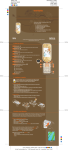
Quick Start Guide Thank you for purchasing the Nokia 7370 phone! Use this guide to: Get familiar with your phone Insert the SIM card and battery Make a call Take pictures Create a video ringtone Customize your phone For other important safety and operational information consult the User Guide. 9245643. Issue 001. Printed in China. 1 Check it out! 1 Power key Press and hold to power on the phone. Press and release to switch between profiles. 2 Camera key Press to access camera mode and take pictures. 3 Call key Answers an incoming call or dials the selected phone number. 4 End key Press to end or decline a call. Returns you to standby mode from any menu. 5 Left selection key Press to activate the menu option shown above the key. 6 Right selection key Press to activate the menu option shown above the key. 7 Middle selection key Activates the highlighted menu item. (on back) (on side) 8 5-way scroll key From the standby mode, press: Launch the camera Access contacts Send a text message Access the calendar Select the Menu (on side) 9 Camera lens 2 Get started. Your Nokia 7370 phone uses a convenient SIM card that provides access to your wireless service. A SIM card allows you to switch between phones and keep your phone number and your phone book with you. Insert the SIM card 1. Press the back cover of the phone away from the camera lens until it unlocks (fig. 2.1a). 2. Lift off the back cover (fig. 2.1b). 3. Slide the SIM card slot holder down to unlock the latch (fig. 2.2a). 4. Lift the SIM card holder away from the phone (fig. 2.2b). 5. Insert the SIM card into the holder, flat edge first, with the gold-colored contacts facing the phone (fig. 2.3). 6. Close the SIM card slot and slide to lock in place. Install the battery 1. Align contacts and slide battery into place, contact side first (fig. 2.4). 2. Replace back cover and lock into place. fig. 2.1 fig. 2.3 fig. 2.2 fig. 2.4 3 Make a call. Offering a touch of the unexpected, your Nokia 7370 phone swivels open to reveal the elegantly hidden keypad. To reveal the keypad, rotate the top portion of the phone right or left (fig. 3.1). Push it back in the same direction to close the phone. Make a call from contacts 1. Open the phone to access the keypad. 2. Press Names (fig. 3.2). ( ) 3. Scroll to highlight a contact. ( ) 4. Press the Call key. ( ) 5. To end the call, press the End key ( ) or close the phone. Note: To answer a call, simply press the Call key ( ) or open the phone. To decline the call, press the End key ( ) or close the phone. If your phone is closed when it rings, press the Power key ( ) to decline the call. fig. 3.1 Tips! During a call, select Options to: Turn on the speakerphone Conference up to 5 persons And more! › › › fig. 3.2 4 Take a picture. Your Nokia 7370 phone is equipped with a 1.3 megapixel camera (240 x 320). You can take pictures with your phone in the open or closed position. Send your pictures or video to friends instantly via multimedia messaging or Bluetooth. Take a picture—with your phone closed 1. Press the dedicated camera key ( (fig. 4.1). 2. Press the camera key ( ). The outside screen becomes the viewfinder ) again to take your photo. fig. 4.1 3. The photo is automatically saved in Gallery > Images. Take a picture—with your phone open 1. Press the dedicated camera key ( (fig. 4.2). 2. Press Capture ( ). The inside screen becomes the viewfinder ) to take your photo. 3. The photo is saved in Gallery > Images. Tip! You can do these things with the phone open: Zoom in/out – Press the scroll key left/right ( ) Take a video – Press the scroll key up/down to toggle between camera and video modes ( ) fig. 4.2 Add effects – Press the left selection key ( ) to use special options, such as night mode, self-timer, and effects (color, black and white, and sepia) Note: Multimedia messaging service (MMS) is a network-dependent feature. Contact your service provider for details. 5 Create video ringtones. Your Nokia 7370 phone’s digital camera also lets you record video clips to share with friends or set as your video ringtone. With video ringtones, your phone will play a full-motion video with sound when someone calls you. You can create your own video or download video ringtones from the mobile web. Create a video ringtone for a contact 1. Open the phone. 2. Press the scroll key up. ( ) 3. Once camera mode launches, press the scroll key to toggle to video record mode . ( ) 4. Press Record. ( ) 5. Press Stop. ( ) 6. Press Options. ( ) 7. Scroll to and select Use video clip (fig. 5.1). ( )( ) 8. Scroll to and select Set as contact video. ( )( ) 9. Scroll to highlight contact name and press Attach (fig. 5.2). ( )( ) fig. 5.1 Tip! You can also use your videos as screen savers or set as your video ringtone for all incoming calls. Go to Gallery > Video clips > select a video, then press Options > Use video clip > select your option. fig. 5.2 6 Customize your phone. The Nokia 7370 phone’s unique design is sure to dazzle onlookers, but there’s more than meets the eye. You can make it an expression of yourself with customization features such as: Themes Wallpapers Graphics Download them from the mobile web or select from the Gallery menu on your phone. Change the theme 1. Open the phone. 2. Select Menu. ( ) 3. Select Gallery (fig. 6.1). ( ) 4. Scroll to and select Themes. ( )( ) 5. Scroll to and select a theme (fig. 6.2). ( 6. Select Options. ( ) 7. Select Apply theme. ( ) fig. 6.1 )( ) fig. 6.2 7 Get support. Nokia offers a variety of support options to help you learn more about your Nokia 7370 phone. Nokia 7370 User Guide The User Guide offers the most comprehensive details on how to use your new product. Nokia Support on the Web Check www.nokia.com/support for the latest information and to help you get more from your new product. Service Provider Contact your service provider for questions regarding your wireless service. Copyright © 2005 Nokia. All rights reserved. Nokia, Nokia Connecting People, and Nokia 7370 are trademarks or registered trademarks of Nokia Corporation. Other company and product names may be trademarks or trade names of their respective owners. Many features and mobile services are network dependent and require network support. Some networks have limitations that affect how you can use phone features. Contact your service provider about features supported and availability. All screen images are simulated. N2775