1
Getting Started with the Motion® R12 Tablet PC
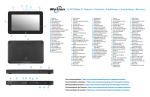
Power on and off
Using the pen
You can shut down your R12 from Windows®. Open the Start
menu and then tap Shut down. If Windows doesn’t respond,
you can force the Tablet PC to shut down by pressing the
power button
for about five seconds.
An important difference between traditional PCs and Tablet
PCs is that you frequently use a digitizer pen instead of a
mouse and keyboard. The R12 pen has a pressure-sensitive
tip and a function button. Pressing the function
button is equivalent to right-clicking a mouse.
Sleep
Place your Tablet PC in Sleep mode when you go away for a
short period of time to conserve battery power. When you
return, the Tablet PC quickly resumes activity and your desktop is the same as you left it.
To put the Tablet PC in Sleep mode, press and release the
power button
. To wake up the tablet from Sleep mode,
press the power button again.
Note The power button blinks when the tablet is in Sleep mode.
Locking and unlocking
pen tip
Using touch
Your R12 is equipped with touch, which means you can use
your fingers to select items and open files, zoom in and out,
scroll through browser windows and documents, and more.
To lock and unlock your R12, press the Security
button
on the left side of the Tablet PC.
Using the fingerprint reader
The R12 is equipped with a fingerprint reader so that you can
log on to your Tablet PC by scanning your fingerprint instead
of entering a password. This provides an added level of security and is a fast and convenient way to log on to your tablet.
R12 Getting Started
function button
(right-click)
Touch works like a mouse. Tap to select an item and doubletap to open it.
Tip
To open a right-click menu using touch, press your finger on the display until a swirl appears, then lift your finger and the shortcut menu appears.
Calibrate the pen and your finger so that they can be detected more accurately on the touchscreen display. You should
do so when you first start using the Tablet PC and whenever
the pointer doesn’t align with your pen or finger. To start the
application, open the Motion Dashboard Pen & Tablet
category (see page 4).
Model R001
1
Using the LED function buttons on the front of the R12
The LED function buttons on the front of the Tablet PC enable you to perform many functions without having to use the pen.
Press a function button to perform certain actions. To perform a different set of actions, press and hold the function button.
These actions are listed in the table below. You can also customize the buttons to perform actions that suit your needs.
Press
Press and hold
Button 1
Motion Dashboard
Windows® Journal™
Button 2
Motion SnapWorks
Pictures directory
Button 3
Tablet PC Settings
or Barcode reader
(if equipped with
SlateMate™)
On-screen keyboard
Button 1
Button 2
Button 3
Checking battery power
You can check the remaining battery power by:
•• Opening the Motion Dashboard Power category and
viewing the value under Remaining charge.
•• From the Windows Notification area, tapping the
power indicator, which changes appearance depending
on whether the Tablet PC is plugged in or running
on battery.
– If the Tablet PC is plugged in, tap the plug icon.
– If it is on battery power, tap the battery icon.
The five lights on the back of the Tablet PC’s battery also
indicate the battery’s current level of charge—from one
green light (20% charged) to five green lights (fully
charged). Press the button to the right of the lights to
view the remaining charge level.
R12 Getting Started
Battery charge
indicator lights
Model R001
Press to view charge
indicator lights
2
Using the documentation camera
Your R12 is equipped with an integrated 8-megapixel autofocus camera. You can use the camera to take pictures and
save them on the Tablet PC. The camera lens is on the back of
the unit and includes a light to illuminate the subject.
To take a photograph:
Documentation
Camera
1.Hold the camera steady and point the lens at the object.
2.Press the LED function button 2 once to activate Motion
SnapWorks.
3.Press the camera icon
to take the picture.
Web camera
Using the web camera
Your R12 also has a 2-megapixel web camera that
supports color images and streaming video. The web
camera is located on the front of the Tablet PC in the
top center area.
To start the web camera:
Follow the instructions of the software you’re using.
R12 Getting Started
Model R001
3
Motion Dashboard
Motion Dashboard
The Motion Dashboard provides a convenient way to change
common tablet-related settings.
To open Motion Dashboard:
•• Press button 1, which is located on the front of the
Tablet PC.
Tap the Dashboard icon
to open the Motion Dash
board application. Use the Motion Dashboard to change
common tablet settings.
OR
•• From the Windows® taskbar, tap the Motion
Dashboard icon
.
The following table lists some of the tasks you can perform
using the Motion Dashboard.
Category
Task
Display
Rotate the display orientation
Adjust the brightness of the display
Set up an external display
Audio
Adjust speaker and microphone volume
Suppress background noise
Pen & Tablet
Configure touch to use your finger only, pen only,
or both your finger and a pen
Motion Dashboard
help icon
Configure front panel buttons
Adjust touch to left-handed setting
Wireless
Enable and disable Wi-Fi® , Bluetooth®, and
mobile broadband
Choose to have wireless disabled when the
system starts up
Power
Change what the power button does when
pressed: Sleep, Hibernate, or shut down
Security
Set up the fingerprint reader and other security
options
R12 Getting Started
Model R001
4
Set up wireless
The R12 comes with built-in Wi-Fi and Bluetooth. Your Tablet
PC may also be equipped with mobile broadband. To set up
available wireless networks, follow these steps:
Step 1. Enable wireless from Motion Dashboard
1. From the taskbar, tap the Dashboard icon
.
2. Tap Wireless.
3. Enable the desired available wireless networks:
•• Bluetooth Internal Wireless
•• 802.11 Internal Wireless
•• Mobile Broadband with GPS
Tip
To set up mobile broadband:
1. Start AirCard Watcher. From the Start menu, select
All Programs > Sierra Wireless > AirCard Watcher.
2. Tap the Connect button to connect to your wireless
networks.
Note If you purchased the optional mobile broadband module or the optional GPS with Augmentation module, your R12 has GPS capabilities. You can use GPS with your preferred mapping
applications to find your current and destination locations.
If mobile broadband isn’t listed, your R12 isn’t
equipped with a mobile broadband module.
Step 4. Set up Bluetooth
Step 2. Set up Wi-Fi
1. From the Windows notification area, tap the wireless
network icon
.
2. Select a wireless network from the list of available
networks.
Step 3. Set up Mobile Broadband with GPS (optional)
®
If you purchased your R12 with the optional mobile broadband module, you can connect to high-speed cellular networks worldwide. With the mobile broadband module and a
data plan from one of several cellular network providers, you
have full Internet access.
Note
Before you can connect to a mobile broadband network, you must have an active account with a cellular network provider and obtain a SIM card for mobile broadband access.
R12 Getting Started
The R12 has a built-in Bluetooth adapter to connect to other
Bluetooth-enabled devices.
To add a Bluetooth device:
1. From the notification area, tap the Bluetooth icon
and select Add a Device.
2. Make sure the Bluetooth device is discoverable
according to the device manufacturer’s instructions.
When a Bluetooth device is discoverable, it’s visible to
other Bluetooth devices within range.
3. Select the desired Bluetooth device from the list of
devices.
4. Follow the on-screen instructions.
Tip To make the R12 visible to other devices, tap the Bluetooth icon then select Open settings. On the Options tab, select Allow Bluetooth devices to connect to this computer.
Model R001
5
Enter text with the input panel or on-screen keyboard
You can enter text either by writing on a virtual note pad (called the writing pad) or by tapping characters
on the on-screen keyboard.
Tap the keyboard icon on the input panel to open the
on-screen keyboard.
To open the input panel, either:
•• Tap in the place where you want to enter text,
such as in a text box. Then tap the input pane
icon.
OR
•• Tap the input panel tab on the left edge of the
screen.
writing
pad icon
keyboard
icon
Video demonstrations
of writing tips
Tip
writing
pad
Tip
You can resize the keyboard panel by dragging the handle at the bottom right of the keyboard.
Use the handwriting recognition application to train the R12 to recognize your handwriting style.
To start the application, open the Motion Dashboard Pen & Tablet category (see page 4). Tap Pen & Input Devices then tap the Handwriting tab.
R12 Getting Started
Model R001
6
Tips
Make the most of your R12 by following these tips.
Pen and Touch tips
•• You can change from right- to left-handed use. From the
Motion Dashboard Pen & Tablet category, tap Tablet PC
Settings, tap the Other tab, then tap Left-handed.
•• You can open items with one tap and select an item by
pointing to it. From the Control Panel, tap Appearance
and Personalization, Folder Options, then tap Specify
single- or double-click to open. Tap Single-click to open
an item (point to select).
Battery tips
•• Use AC power when available. When the R12 is plugged
in, the battery charges while in use.
•• Put your Tablet PC in Sleep mode when you’re not using it.
•• Stop unnecessary background applications and processes.
•• When not in use, disable wireless adapters using the
Motion Dashboard Wireless category.
•• Set the brightness of the display to automatically dim
after a selected number of minutes of inactivity using the
Motion Dashboard Display category.
•• When using mobile broadband, reduce how often the R12
updates email and other Internet applications to once
every half hour or longer.
•• Disable mobile broadband where you know a signal is
unavailable.
•• Condition your battery once a month. To condition it, run
the Tablet PC on battery power until the battery’s charge
level drops below 20%.
•• For long-term storage, ensure that the battery’s charge
level is between 20% and 40% then remove it from the
Tablet PC.
General tips
•• Use only the R12 digitizer pen or your finger on the
display. The Tablet PC doesn’t respond to any other type
of pen or stylus.
•• When attaching the pen tether, slip one end of the tether
through the hole at the end of the pen and pull the pen
through the loop until it’s tight. Then slip the other end
of the tether through the attach point and pull the pen
through the loop until it’s tight.
•• Store the pen in the pen holder when not in use. To store
the pen, insert it into the pen holder and press until you
hear a click. To remove the pen, press it until it pops out. If
the tether is attached, press the pen before pulling it out
to ensure that you don’t pull it out by the tether.
•• Clean fingerprints and smudges from the display surface
by wiping it with the display cloth provided. If needed,
use a cleaning solution recommended by Motion
Computing to clean the display. Spray the solution on the
cloth then wipe the display. See the recommended list of
tested solutions on our website.
•• You can find the serial number of the R12 in the battery
bay.
Learn more
To get more detailed information about your Tablet PC,
please see the R12 User’s Guide available on the User
Documentation page on our website. You can also find the
following information on our website:
•• Motion Support
•• Motion Knowledge Base
•• Free online training videos
•• R12 accessories
•• Software for the R12 Tablet PC
Motion Computing and Motion are registered trademarks of Motion Computing, Inc. in the United States and other countries. All other trademarks are properties of
their respective owners. Microsoft, Windows, and Windows Journal are trademarks or registered trademarks of Microsoft Corporation in the United States and/or other
countries. Copyright © 2014 Motion Computing, Inc. All rights reserved.
PN 024-02-0431-A00
R12 Getting Started
Model R001
7