1
galoo.bk : galoo-fc.fb4 Page 1 Monday, November 9, 1998 4:32 PM
*
HP D2837A
17-inch Color Monitor
15.7 inch Viewable Image
User’s Guide
17-Zoll-Farbbildschirme
15.7 Zoll Bildanzeige
Benutzerhandbuch
Moniteur couleur 17 pouces
Affichage 15,7 pouces
Guide de l’utilisateur
Pantalla de color de 17 pulgadas
15.7 pulgadas de imagen visualizada
Manual del Usuario Léase esto primero
Video a colori da 17 pollici
15.7 effettivi per l’immagine
Manuale utente
Monitor Colorido de 17 polegadas
Imagem Visível de 15.7 polegadas
Guia do Usuário
galoo.bk : galoo-fc.fb4 Page 2 Monday, November 9, 1998 4:32 PM
Notice
The information contained in this document is subject to change without notice.
Hewlett-Packard makes no warranty of any kind with regard to this material, including, but not limited to, the implied warranties of
merchantability and fitness for a particular purpose.
Hewlett-Packard shall not be liable for errors contained herein or for incidental or consequential damages in connection with the
furnishing, performance, or use of this material.
Hewlett-Packard assumes no responsibility for the use or reliability of its software on equipment that is not furnished by HewlettPackard.
This document contains proprietary information that is protected by copyright. All rights are reserved. No part of this document
may be photocopied, reproduced, or translated to another language without the prior written consent of Hewlett-Packard Company.
Hinweis
Inhaltliche Änderungen vorbehalten.
Hewlett-Packard übernimmt keine Garantie welcher Art auch immer für diese Ausrüstung, einschließlich der (doch nicht begrenzt
auf die) Qualitätsgarantie und die Garantie bezüglich Eignung für einen bestimmten Zweck.
Hewlett-Packard haftet nicht für in dieser Dokumentation enthaltene Fehler oder für unbeabsichtigte oder indirekte Schäden in
Verbindung mit der Lieferung, der Leistung oder der Benutzung der Ausrüstung.
Hewlett-Packard übernimmt keine Haftung fur den Betrieb oder die Zuverlässigkeit seiner Software, wenn diese auf Hardware
benutzt wird, die nicht von Hewlett-Packard geliefert wurde.
Dieses Dokument enthalt proprietäre Informationen, die durch das Copyright geschützt sind. Alle Rechte vorbehalten. Dieses
Dokument darf ohne vorherige schriftliche Genehmigung der Hewlett-Packard Company weder ganz noch teilweise fotokopiert,
reproduziert oder übersetzt werden.
Avertissement
Les informations contenues dans ce document peuvent être modifiées sans préavis.
Hewlett-Packard ne donne aucune garantie de quelque sorte que ce soit concernant, sans que ce soit limitatif, les garanties
implicites de qualité commerciale de ce matériel, ou la bonne adaptation de celui-ci à un usage particulier.
Hewlett-Packard n’est pas responsable des erreurs pouvant apparaître dans ce manuel et n’est pas non plus responsable des
dommages directs ou indirects résultant de l’équipement, des performances et de l’utilisation de ce matériel.
Hewlett-Packard ne saurait être tenu pour responsable de l’utilisation et de la fiabilité de son logiciel sur des matériels non fournis
par Hewlett-Packard.
Les informations contenues dans ce document sont originales et protégées par copyright. Tous droits réservés. L’acheteur s’interdit
en conséquence de les photocopier, de les reproduire ou de les traduire dans toute autre langue, sauf accord préalable et écrit de
Hewlett-Packard.
Aviso
La información contenida en este documento está sujeta a cambios sin previo aviso.
Hewlett-Packard no ofrece ningún tipo de garantía con respecto a este material, incluyendo, pero sin limitarse a, las garantías
implícitas de comerciabilidad e idoneidad para un fin determinado.
Hewlett-Packard no asume responsabilidad alguna por los posibles errores contenidos o por los daños casuales o emergentes
relacionados con el suministro, funcionamiento o uso de este material.
Hewlett-Packard no asume responsabilidad alguna por el uso o fiabilidad de su software en equipos que no hayan sido fabricados
por Hewlett-Packard.
Este documento contiene información patentada, protegida por las leyes del copyright. Reservados todos los derechos. Ninguna
parte de este documento puede ser fotocopiada, reproducida o traducida a otro idioma sin la autorización previa y por escrito de
Hewlett-Packard Company.
Avviso
Le informazioni contenute in questo documento sono soggette a cambiamento senza preavviso.
Hewlett-Packard non rilascia garanzie di alcun tipo riguardo a questo materiale, comprese le garanzie implicite di commerciabilità
e di idoneità per uno scopo particolare.
Hewlett-Packard non sarà ritenuta responsabile per errori contenuti in questo documento, né per danni accidentali o conseguenti
alla fornitura, alle prestazioni o all’uso di questo materiale.
Hewlett-Packard non si assume alcuna responsabilità riguardo all’uso o all’affidabilità del proprio software su apparecchiature di
altri produttori.
Questo documento contiene informazioni di proprietà protette da copyright. Tutti i diritti sono riservati. Nessuna parte di questo
documento può essere fotocopiata, riprodotta o tradotta in un’altra lingua senza un precedente consenso scritto di Hewlett-Packard
Company.
Nota
As informações contidas neste documento estão sujeitas a alteração sem notificação prévia.
A Hewlett-Packard não oferece nenhum tipo de garantia com relação a este material, incluindo, mas não limitada às, garantias
implícitas de comercialização e conveniência para um propósito específico.
A Hewlett-Packard não será responsável por erros aqui contidos ou por danos incidentais ou conseqüenciais relacionados ao
fornecimento, desempenho ou utilização deste material.
A Hewlett-Packard não se responsabiliza pelo uso ou confiabilidade se seu software em equipamentos que não sejam fornecidos
pela Hewlett-Packard.
Este documento contém informações proprietárias protegidas por direitos autorais. Todos os direitos são reservados. Nenhuma
parte deste documento pode ser fotocopiada, reproduzida ou traduzida para outro idioma sem o consentimento prévio por escrito
da Hewlett-Packard Company
Hewlett-Packard France 38053 Grenoble Cedex 9 France© 1998 Hewlett-Packard
Company
Francais
galoo.bk : galoo-us.fb4 Page 1 Monday, November 9, 1998 11:23 AM
1
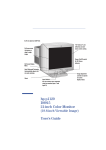
0.28 mm dot pitch for
excellent graphics
Anti-glare, anti-static,
multilayer screen coating
Full scan screen that gives
an edge to edge image
On/Off switch
Image adjustment controls to
operate on-screen display menus.
Status indicator
HP D2837A
17-inch Color Monitor
15.7-inch Viewable Image
User’s Guide
galoo.bk : galoo-us.fb4 Page 2 Monday, November 9, 1998 11:23 AM
HP 17” Color Monitor User’s Guide
Important Safety Instructions
Important Safety Instructions
Before you plug in your new monitor, read these important safety
instructions.
WARNING
Connect the monitor only to a grounded power outlet. Use the power
cord supplied with the monitor or one with a properly grounded plug.
Ensure the cable meets your country’s standards for safety.
This monitor operates on all power systems, including “IT” power
systems. To completely disconnect power at the monitor, remove the
power cord from the power outlet. Ensure that the power outlet is
easily accessible.
The monitor is quite heavy (the weight is shown in the technical
specifications). We recommend you ask the assistance of a second
person when lifting or moving it.
CAUTION
To reduce the risk of electric shock, do not remove cover (or back). No
user serviceable parts inside. Refer servicing to qualified service
personnel.
The lightning flash with arrowhead symbol, within an equilateral
triangle, is intended to alert the user to the presence of uninsulated
“dangerous voltage” within the product’s enclosure that may be of
sufficient magnitude to constitute a risk of electric shock.
!
The exclamation point within an equilateral triangle is intended to alert
the user to the presence of important operating and servicing
instructions in the literature accompanying the appliance.
2 English
galoo.bk : galoo-us.fb4 Page 3 Monday, November 9, 1998 11:23 AM
HP 17” Color Monitor User’s Guide
What Your New Monitor Offers
What Your New Monitor Offers
Your HP monitor is a 17-inch (15.7-inch viewable image), high resolution,
multi-synchronous color monitor. Multi-synchronous means that the
monitor supports a range of video modes. It is optimized to be used with all
Hewlett-Packard PCs.
Your HP color monitor has the following features:
•
•
•
•
•
•
•
1.
2.
A 17-inch flat square tube, with a 15.7-inch viewable image, and
0.28 mm dot pitch for excellent graphics. Anti-glare, multilayer coating
to minimize reflection.
Support of video modes up to Ultra VGA 1024 at 85 Hz refresh rates, and
up to Ultra VGA 1280 using a 60 Hz refresh rate.
Image adjustment using on-screen display menus. Includes color
adjustment and image manipulation controls to optimize the quality and
position of the image.
Monitor power management system (VESA1 standard) controlled from
suitably equipped HP PCs to automatically reduce the power
consumption of the monitor. Complies with the Energy Star Computers
Program initiated by the US EPA2 specification for energy efficient
monitors.
Monitor Plug and Play capability (VESA DDC1/2B standard) that enables
the monitor to identify itself to suitably equipped HP PCs.
Compliance with ISO 9241-3/8 and ZH-1/618 ergonomic standards.
Your HP D2837A complies with MPRII guidelines for upper limits of
electrical and electrostatic emissions, from the Swedish National Board
for Measurement and Testing.
VESA is the Video Electronics Standards Association
The US EPA is the United States Environmental Protection Agency
English 3
galoo.bk : galoo-us.fb4 Page 4 Monday, November 9, 1998 11:23 AM
HP 17” Color Monitor User’s Guide
Setting Up Your Monitor
Setting Up Your Monitor
Where to Place the Monitor
Place your monitor on a flat sturdy surface.
Ensure the operating site is free from excessive heat, moisture, and
sources of electromagnetic fields. Sources of electromagnetic fields
include transformers, motors, and other monitors.
Connecting the Cables
1 Before you connect any cables, refer to the safety instructions at the
beginning of this manual and make sure your PC and monitor are
switched off.
2 Connect the video cable (it has a 15-pin plug) to the video outlet on
your PC. Tighten the thumbscrews on the plug.
3 Connect the power cord to the monitor.
4 Plug the power cord into the power outlet.
Video cable
Power cords
NOTE
The location of your PC’s video outlet may be different to the one shown
in the diagram. Refer to the manual that came with your PC, if
necessary.
4 English
galoo.bk : galoo-us.fb4 Page 5 Monday, November 9, 1998 11:23 AM
HP 17” Color Monitor User’s Guide
Using Your Monitor
Using Your Monitor
The on/off switch
is on the front of the monitor.
You can adjust the quality, position, size and shape of the displayed
image using the controls on the front of the monitor to operate the
on-screen menus.
Control buttons.
On/Off Switch
Brightness
Access Function
Exit Menu
Pressing the
button activates the monitor’s on-screen main menu.
This menu contains the monitor’s various adjustment features.
You can select a feature using the
and
controls to scroll to
the adjustment feature you require and pressing
to access its
menu.
To adjust the required feature, use the
desired changes are complete.
and
controls until the
English 5
galoo.bk : galoo-us.fb4 Page 6 Monday, November 9, 1998 11:23 AM
HP 17” Color Monitor User’s Guide
Using Your Monitor
Adjusting the Quality of the Displayed Image
CONTRAST
To adjust the contrast (image white level), select this feature. Contrast
is the difference in brightness between the dark and light parts of the
displayed image.
BRIGHTNESS
To adjust the overall picture brightness (image black level), use this
feature. Set so that the dark areas of the displayed image remain black.
NOTE
You can access the contrast and brightness features directly using the
and
controls respectively, and adjusting as required.
DEGAUSS
To degauss the monitor, select the DEGAUSS icon
and press the
enter key
. Degaussing keeps the monitor free from unwanted
magnetism that can result in color impurity. It is recommended that you
degauss at least every week. Degaussing is accompanied by brief
instability of the displayed image and a slight humming sound.
Adjusting the Size, Position and Shape of the Displayed Image
RECALL
To revert to the original position, shape and size settings of the
displayed image, select the RECALL icon
and use the
and
adjustment controls.
H-SIZE
To adjust the horizontal size of the displayed image, select the H-SIZE
icon
from the menu, and use the
and
adjustment controls
to resize.
V-SIZE
To adjust the vertical size of the displayed image, select the V-SIZE
icon
from the menu, and use the
and
adjustment controls
to resize.
H-POSITION
To adjust the horizontal position of the displayed image, select the
H-POSITION icon
from the menu, and use the
and
adjustment controls to locate the image.
6 English
galoo.bk : galoo-us.fb4 Page 7 Monday, November 9, 1998 11:23 AM
HP 17” Color Monitor User’s Guide
Using Your Monitor
V-POSITION
To adjust the vertical position of the displayed image, select the
V-POSITION icon
from the menu, and use the
and
adjustment controls to locate the image.
PINCUSHION
To adjust the displayed image if its vertical edges appear to bow in or
out, select the PINCUSHION icon
from the menu, and reshape
using the
and
adjustment controls.
TRAPEZOID
To adjust the displayed image if its vertical edges do not appear parallel,
select the TRAPEZOID icon
from the menu, and use the
and
adjustment controls to correct the distortion.
MOIRE
To correct for the effects of moire (screen ripple), select the MOIRE
icon
from the menu then either
V-MOIRE for vertical moire or
H-MOIRE for horizontal moire. Finally, use the
and
adjustment controls to reduce screen ripple.
GEOMETRY
Adjusting the Geometry of the Displayed Image
Adjustments to the shape of the displayed image are performed from
the secondary geometry menu. To access this secondary menu, select
the GEOMETRY icon
from the main menu.
Geometry
Access Function
Exit Menu
PINBALANCE
To adjust the displayed image if its vertical edges appear to bow to the
right or left, select the PINBALANCE icon
from the menu, and
reshape using the
and
adjustment controls.
English 7
galoo.bk : galoo-us.fb4 Page 8 Monday, November 9, 1998 11:23 AM
HP 17” Color Monitor User’s Guide
Using Your Monitor
PARALLELOGRAM To adjust the displayed image if its vertical edges appear to be tilted to
the left or right, select the PARALLELOGRAM icon
from the menu,
and use the
and
adjustment controls to correct the distortion.
ROTATION
Depending on the orientation of your monitor, for example, whether it
faces north or south, you may experience some rotation of the image.
This effect is due to the influence of the earth’s magnetic field and is
normal for all monitors. To adjust the displayed image if it appears to be
rotated, select the ROTATION icon
from the menu, and use the
and
adjustment controls to re-orient the image.
V-LINEARITY
To adjust the displayed image if it appears to be compressed at the top
or the bottom, select the V-LINEARITY icon
from the menu, and use
the
and
adjustment controls to correct this effect.
ADVANCED
Advanced Menu
To access the advanced settings, select the ADVANCED icon
from the main menu.
Advanced
Access Function
Exit Menu
COLOR TEMP.
To adjust the tint of your monitor, select the COLOR TEMPERATURE
icon
from the advanced menu, and use the
and
adjustment controls to achieve the required color temperature.
LANGUAGE
To adjust the language of the monitor’s on-screen menu, select the
LANGUAGE icon
from the advanced menu, and use the
and
adjustment controls to select the required language.
8 English
galoo.bk : galoo-us.fb4 Page 9 Monday, November 9, 1998 11:23 AM
HP 17” Color Monitor User’s Guide
Using Your Monitor
HALF TONE
To set the monitor’s on-screen menu to half tone (semi-transparent),
select the HALF TONE icon
from the advanced menu and then
press
for ON. For a solid on-screen menu, switch the half tone off
by pressing
for OFF.
Setting the Amount of Displayed Information
To set the amount of displayed information, change the screen
resolution of your PC. The higher the screen resolution, the more
information you can see on the screen. It is recommended that you use
a resolution of 1024 × 768 at 85 Hz or 1280×1024 at 60 Hz. This gives
easy-to-read characters, a large amount of displayed information, and a
flicker-free image.
You can make adjustments to the displayed image and they are
automatically saved for the resolution you are using. For example, if
you adjust your monitor when working in SVGA those settings are
saved for SVGA. If you then work in VGA and change the image
settings, they are saved for VGA. The next time you switch back to
SVGA, your previous settings are used automatically.
DISPLAY TIMING
To find out which resolution and refresh rate your monitor is currently
running at, highlight the DISPLAY TIMING icon
in the main menu.
The current resolution is displayed.
To find out which resolutions and refresh rates are supported by your
monitor, highlight
in the main menu then press
to access the
list of available resolutions. Use the
and
adjustment controls to
scroll through the list. Alternatively, you can also refer to “What Video
Modes are Supported” on page 11. To change the screen resolution,
please refer to the manual that came with your PC or your operating
system documentation, if necessary. To set the image refresh rate (also
known as the vertical frequency), refer to the manual that came with
your PC or your operating system.
Your monitor has a Plug and Play capability (VESA DDC1/2B+
standard) that enables it to identify itself to suitably equipped HP PCs.
This will automatically give you the best refresh rate for the resolution
that you have set. Also, by using the appropriate software (when
available), you can adjust the monitor’s settings directly from your PC.
English 9
galoo.bk : galoo-us.fb4 Page 10 Monday, November 9, 1998 11:23 AM
HP 17” Color Monitor User’s Guide
Using Your Monitor
Minimizing Eye Strain
To avoid screen flicker and minimize eye strain, use the highest
supported image refresh rate for the chosen resolution. It is
recommended that you use a refresh rate of 85 Hz. The image refresh
rate is the number of times per second that the image is refreshed.
Minimizing Energy Consumption
If your PC supports VESA monitor power management (available on
many HP PCs), you can minimize the power consumed by the monitor.
There are two power saving modes:
Suspend mode1 (uses less than 10 W). In this mode, the monitor’s
front panel indicator light blinks rapidly in green.
• Sleep mode2 (uses less than 5 W). In this mode, the monitor’s front
panel indicator light blinks slowly in green.
•
To set these power saving modes, refer to the manual that came with
your PC. If your screen is not displaying an image, check the front
panel indicator light first — your monitor may be in a power saving
mode.
1.
2.
Suspend mode is activated when horizontal sync is cut by the video controller.
Sleep mode is activated when both vertical and horizontal sync are cut by the video
controller.
10 English
galoo.bk : galoo-us.fb4 Page 11 Monday, November 9, 1998 11:23 AM
HP 17” Color Monitor User’s Guide
What Video Modes are Supported
What Video Modes are Supported
Your monitor comes with the preset modes shown in the table below. It
also supports intermediate video modes. With the intermediate modes,
the displayed image may need to be optimized using the adjustment
controls. All modes are non-interlaced.
CAUTION
Screen Resolution
Image Refresh Rate
Video Solution
640×400
70 Hz
VGA/DOS
640×480
75 Hz
Ergonomic VGA
640×480
85 Hz
Ergonomic VGA
800×600
75 Hz
Ergonomic Super VGA
800×600
85 Hz
Ergonomic Super VGA
1024×768
75 Hz
Ergonomic Ultra VGA 1024
1024×768
85 Hz
Ergonomic Ultra VGA 1024
1280×1024
60 Hz
Ultra VGA 1280
Selecting a screen resolution/image refresh rate combination higher
than 1280×1024 at 60Hz can damage your monitor.
English 11
galoo.bk : galoo-us.fb4 Page 12 Monday, November 9, 1998 11:23 AM
HP 17” Color Monitor User’s Guide
Technical Specifications
Technical Specifications
Size
17-inch flat screen/ 15.7-inch viewable image
Phosphorous
Red, Green, Blue short persistence
Dot pitch
0.28 mm
Face Plate
Anti-glare, multilayer coating
Video
0.7 Vp p analog RGB, no setup.
Synchronization
Separated H/V (TTL level), H/V mixed (TTL level)
Input Connector
15-pin mini D-SUB
Horizontal
30 to 70 kHz
Vertical
50 to 120 Hz
PICTURE TUBE
INPUT SIGNAL
INTERFACE
SCANNING FREQUENCY
MAX. RESOLUTION (H × V)
1280 ×1024 (60 Hz)
30 minutes to reach optimum performance level
WARM-UP TIME
110 MHz
PIXEL CLOCK
Standard size1:306(H) x 230(V) mm
IMAGE SIZE
Maximum size: 320(H) x 240(V) mm
AC 90 to 264 V, 47 to 63 Hz, 100W (max), less than 10 W in Suspend mode, less than 5 W in Sleep mode,
less than 1 W in Off mode
POWER SOURCE
Temperature
0 °C to 40 °C (operating)
- 40 °C to +65 °C (storage)
Humidity
10% RH through 80% RH (without condensation)
OPERATING ENVIRONMENT
CABINET DIMENSIONS
WEIGHT
422(H) × 420(W) × 426(D) mm (with stand)
17 kg
Tilt Angle
- 5° to +13°
Swivel Angle
±45°
TILT/SWIVEL STAND
1.
Use the standard image sizes to avoid distortion of the displayed image.
12 English
galoo.bk : galoo-us.fb4 Page 13 Monday, November 9, 1998 11:23 AM
HP 17” Color Monitor User’s Guide
Care and Cleaning
Care and Cleaning
Do not place anything on top of the monitor. Doing so may block the
monitor vents and cause damage to the monitor due to overheating.
Do not let liquid get on or into the monitor.
To maximize screen life and prevent damage to the picture tube (such
as burned phosphor due to leaving the same image on the screen for a
long time), it is recommended that you:
•
Use the monitor power management system (on HP PCs) or a screen
saver program.
•
Avoid setting contrast and brightness to their maximum levels for
prolonged periods.
•
If you do not have a power management system or a screen saver
program, switch the monitor off or reduce the brightness and
contrast to minimum levels when the monitor is not in use.
Your monitor has an anti-glare, anti-static screen coating. To prevent
damage to the monitor screen’s coating, use a regular household glass
cleaner when cleaning the screen. To clean the screen:
1 Switch the monitor off and remove the power plug (pull the plug, not
the cable).
2 Wet a soft cotton cloth with the cleaning solution and gently wipe the
screen. Do not spray cleaner onto the screen because the cleaner
may drip inside the monitor.
3 Dry with a clean, soft cotton cloth.
Do not use cleaning solutions containing fluoride, acids, or alkalis.
English 13
galoo.bk : galoo-us.fb4 Page 14 Monday, November 9, 1998 11:23 AM
HP 17” Color Monitor User’s Guide
Environmental Information
Environmental Information
HP has a strong commitment toward the environment. Your HP
monitor has been designed to respect the environment as much as
possible.
HP can also take back your old monitor for recycling when it reaches
the end of its useful life.
In fact, HP has a product take-back program in several countries. The
collected equipment is sent to one of HP’s recycling facilities in Europe
or the USA. As many parts as possible are reused. The remainder is
recycled. Special care is taken for batteries and other potentially toxic
substances, which are reduced to non-harmful components through a
special chemical process. If you require more details about HP’s
product take-back program, contact your dealer or your nearest HP
Sales Office.
The cathode ray tube used in this monitor does not contain cadmium.
14 English
galoo.bk : galoo-us.fb4 Page 15 Monday, November 9, 1998 11:23 AM
HP 17” Color Monitor User’s Guide
Hardware Warranty
Hardware Warranty
This is your HP Monitor Hardware Warranty Statement. Warranty terms may be
different in your country. If so, your Authorized HP Dealer or Hewlett-Packard Sales
and Service Office can give you details.
For Consumer Transactions in Australia and New Zealand: The warranty terms
contained in this statement, except to the extent lawfully permitted, do not exclude,
restrict or modify and are in addition to the mandatory statutory rights applicable to
the sale of this product to you.
Limited Monitor Hardware Warranty
Model
Model D2837A
Warranty Period
Service provided
3 years—unless original end-user
customer has otherwise agreed to
a shorter period of warranty at
the time of purchase.
On-site service for first year, and
return to an HP or
repair-authorized reseller
service-center for the following
two years.
Hewlett-Packard (HP) warrants this monitor hardware product against defects in
materials and workmanship for the applicable warranty period stated above,
commencing from the date of purchase by you, the original end-user customer. If you
return this monitor hardware product with a defect as defined above, during the
warranty period, to an HP-authorized reseller or service center, HP will either, at its
option, repair or replace the defective product with a new or equivalent-to-new unit of
the same or equivalent model. Should HP be unable to repair or replace the product
within a reasonable amount of time, your alternate exclusive remedy shall be a refund
of the purchase price upon return of the product.
If you purchased this monitor hardware product for use with an HP personal computer
(Vectra, Brio or Kayak), please refer to the terms and conditions of the HP Hardware
Warranty statement provided with your HP personal computer (Vectra, Brio or Kayak),
including limitations, your responsibilities and method for obtaining warranty service.
English 15
galoo.bk : galoo-us.fb4 Page 16 Monday, November 9, 1998 11:23 AM
HP 17” Color Monitor User’s Guide
Hardware Warranty
Limitation of Warranty
The above warranty shall not apply to defects resulting from: misuse (including
"burned" screens); unauthorized modification; operation or storage outside the
environmental specifications for this monitor product; in-transit damage; improper
maintenance; or defects resulting from use of non-HP software, accessories, media,
supplies, consumables, or such items not designed for use with this product.
HP MAKES NO OTHER EXPRESS WARRANTY, WHETHER WRITTEN OR ORAL,
WITH RESPECT TO THIS PRODUCT. ANY IMPLIED WARRANTY OF
MERCHANTABILITY OR FITNESS FOR A PARTICULAR PURPOSE IS LIMITED TO
THE DURATION OF THE EXPRESS WARRANTY SET FORTH ABOVE.
Some states or provinces do not allow limitations on warranty, so the above limitation
or exclusion may not apply to you. This warranty gives you specific legal rights, and
you may also have other rights which vary from state to state, or province to province.
Limitation of Liability and Remedies
THE REMEDIES PROVIDED ABOVE ARE YOUR SOLE AND EXCLUSIVE REMEDIES.
IN NO EVENT SHALL HP BE LIABLE FOR ANY OTHER DIRECT, INDIRECT,
SPECIAL, INCIDENTAL, OR CONSEQUENTIAL DAMAGES, WHETHER BASED ON
WARRANTY, CONTRACT, TORT, OR ANY OTHER LEGAL THEORY.
The foregoing limitation of liability shall not apply in the event that any HP product
sold hereunder is determined by a court of competent jurisdiction to be defective and
to have directly caused bodily injury, death, or property damage; provided, that in no
event shall HP's liability for property damage exceed the greater of $50,000 or the
purchase price of the specific product that caused such damage.
Some states or provinces do not allow the exclusion or limitation of incidental or
consequential damages, so the above limitation or exclusion may not apply to you.
16 English
galoo.bk : galoo-us.fb4 Page 17 Monday, November 9, 1998 11:23 AM
HP 17” Color Monitor User’s Guide
Regulatory Information
Regulatory Information
DECLARATION OF CONFORMITY
according to ISO/IEC Guide 22 and EN 45014
Manufacturer’s Name:
Manufacturer’s Address:
declares, that the product:
Product Name:
Model Number:
HEWLETT-PACKARD
5, Avenue Raymond Chanas - EYBENS
38053 GRENOBLE CEDEX 09
FRANCE
D2837A - HP 70 17-inch Color Monitor
D2837-60*1*
conforms to the following Product Specifications:
SAFETY
EMC
International: IEC 60950:1991 + A1 + A2 +A3 +A4
Europe:
EN 60950:1992 + A1 + A2 +A3 +A4
CISPR 22:1993+A1 / EN 55022:1994 - Class B 1)
EN 50082-1:1992
IEC 801-2:1992 / prEN 55024-2:1992 - 4kV CD, 8 kV AD
IEC 801-3:1984 - 3V/m
IEC 801-4:1988 / prEN 55024-4:1992 - 1 kV Power Lines
IEC 555-2:1982 + A1:1985 / EN 60555-2:1987
IEC 1000-3-3:1994 / EN 61000-3-3:1995
FCC Title 47 CFR, Part 15 class B 2) / ICES-003, Issue 2
Supplementary information: The product herewith complies with the requirements of the following Directives and carries the CE
mark accordingly:
the EMC Directive 89/336/EEC, the Low Voltage Directive 73/23/EEC both amended by the Directive 93/68/EEC.
1) The product was tested in a typical configuration with Hewlett-Packard Personal Computer systems.
2) This device complies with part 15 of the FCC rules. Operation is subject to the following two conditions:
(1) this device may not cause harmful interference, and (2) this device must accept any interference received, including interference
that may cause undesired operation.
Grenoble, October 1998.
Jean Marc JULIA
Quality Manager
For Compliance Information ONLY, contact:
USA contact: Hewlett-Packard Company, Corporate Product Regulations Manager, 3000 Hanover Street, Palo Alto, CA 94304.
(Phone (415) 857-1501).
English 17
galoo.bk : galoo-us.fb4 Page 18 Monday, November 9, 1998 11:23 AM
HP 17” Color Monitor User’s Guide
Regulatory Information
X-Ray Radiation Notice
When operating, this product emits x-rays; however, it is well shielded and meets the safety and health
requirements of various countries, such as the Radiation Act of Germany and the Radiation Control for Health
and Safety Act of the United States.
Radiation emitted by this product is less than 0.1 mR/hr (1uSv/hr) at a distance of 10 centimeters from the
surface of the cathode ray tube. The x-ray radiation primarily depends on the characteristics of the cathode ray
tube and its associated low voltage and high voltage circuitry. Internal controls have been adjusted to ensure
safe operation. Only qualified personnel should perform any internal adjustments as specified in the service
manual for this product.
Replace the cathode ray tube with an identical CRT only.
General Notice
The HP D2837A 17-inch Color Monitor has been tested according to MPR 1990:8 for Emission properties and
meets the guidelines as given by MPR 1990:10 (2.01 - 2.04).
18 English
galoo.bk : galoo-bc.fb4 Page xix Monday, November 9, 1998 4:32 PM
galoo.bk : galoo-bc.fb4 Page xx Monday, November 9, 1998 4:32 PM
*
Paper not bleached with chlorine
* HP. Et tout devient possible.
Part Number 5967-7296
Printed 11/98