1
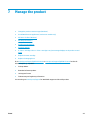
Lock the product ............................................................................................................................... 57
Economy settings ................................................................................................................................................ 58
Print with EconoMode ....................................................................................................................... 58
Configure the Sleep/Auto Off After setting ...................................................................................... 58
A <Color> cartridge is low or <Color> cartridge is very low message displays on the product control panel .. 60
Enable or disable the Very Low settings .......................................................................................... 60
Replace the toner cartridge ................................................................................................................................. 62
Replace the imaging drum .................................................................................................................................. 66
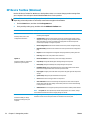
8 Solve problems ........................................................................................................................................... 71
Control panel help system (touchscreen models only) ...................................................................................... 72
Restore the factory-set defaults ........................................................................................................................ 73
Solve paper feed or jam problems ...................................................................................................................... 74
The product does not pick up paper ................................................................................................. 74
The product picks up multiple sheets of paper ................................................................................ 74
Frequent or recurring paper jams ..................................................................................................... 74
Prevent paper jams ........................................................................................................................... 75
Clear jams from the input tray ............................................................................................................................ 76
Clear jams in the output bin ................................................................................................................................ 78
Clear jams in the document feeder ..................................................................................................................... 80
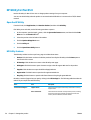
Improve print quality ........................................................................................................................................... 82
Print from a different software program ......................................................................................... 82
Set the paper-type setting for the print job ..................................................................................... 82
Check the paper-type setting (Windows) ....................................................................... 82
Check the paper-type setting (Mac OS X) ....................................................................... 83
Check the toner-cartridge status ...................................................................................................... 83
Calibrate the product to align the colors .......................................................................................... 84
Print a cleaning page ......................................................................................................................... 84
Perform additional print quality troubleshooting ............................................................................ 85
Print the print quality page ............................................................................................ 85
Interpret the print quality page ...................................................................................... 85
Inspect the toner cartridge for damage ........................................................................................... 86
Check the paper and printing environment ...................................................................................... 86
Use paper that meets HP specifications ........................................................................ 86
Check the product environment ..................................................................................... 87
Check the EconoMode settings ......................................................................................................... 87
Adjust color settings (Windows) ....................................................................................................... 87
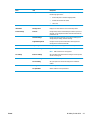
Improve copy and scan quality ............................................................................................................................ 89
Check the scanner glass for dirt and smudges ................................................................................. 89
Check the paper settings .................................................................................................................. 89
Check the image adjustment settings .............................................................................................. 90
ENWW
v