1
6620 Cypresswood Drive
Suite 120
Spring, TX 77379
832.717.4331
Color Side 1:
BLACK + PMS 2925
Flat size:
12.75 x 5.5 in.
Color Side 2:
BLACK + PMS 2925
Finished size:
4.25 x 5.5 in.
Fold 1:
3-panel
accordion
More HP resources
Resource
HP support
• Online chat with an HP technician.
• Find telephone numbers.
• Locate HP service center locations.
Location
Go to http://welcome.hp.com/support
Product Notices, Warranty, and User Guide
• Safety and regulatory information
• The expressly provided HP Limited Warranty
applicable to your tablet
• Product documentation
On the Home screen, touch the HP User
Guides app, touch , select your Region and
Language, and then select HP Worldwide
Limited Warranty and Technical Support,
Product Notices, or User Guide.
Serial number, product number,
model number, and IMEI number
On the back of the tablet
Product description
Regulatory information
This product is a lightweight tablet and features
a thin-panel display, processor, RAM, integrated
battery pack, and an external AC adapter. This
printed Quick Start guide identifies the hardware
components of your tablet. The AC adapter has a
rating of 100-240 V ac, 50/60 Hz, 0.3-1.0 A. You
can access the latest user guide from the HP User
Guides app.
Specification
The tablet operates on DC power, which can be
supplied by an AC or a DC power source. The AC
power source must be rated 100-240 V, 50/60 Hz.
Note: The tablet can operate on DC power using an industrystandard micro-B USB cable. The HP adapter included with
your tablet is recommended for charging the tablet.
Temperature Operating: Metric, 0°C to 40°C; U.S.,
32°F to 104°F
Relative humidity (noncondensing) Operating:
10% to 90%
MOB_QSB_Deschutes_786903-001.indd 1
For regulatory identification purposes, your product is assigned a Regulatory Model Number (RMN),
HSTNH-B407D. The RMN is located on the back of
the tablet, and should not be confused with the
marketing name (if any, etc.) or product numbers
(HP P/N, etc.).
If required, regulatory markings for your country
or region are located on the back of the unit,
under the removable battery (if equipped), on the
packaging, or elsewhere in this document. For
more safety and regulatory information, refer
to the Product Notices included with your tablet,
accessible via the HP User Guides app.
Product notices
Limited Warranty
You can find the expressly provided HP Limited Warranty applicable to your product using the HP User
Guides app. In some countries or regions, HP may provide a printed HP Limited Warranty in the box. For
some countries or regions where the warranty is not provided in printed format, you may request a printed
copy from http://www.hp.com/go/orderdocuments or write to:
North America:
Europe, Middle East, Africa:
Asia Pacific:
Hewlett-Packard, MS POD,
Hewlett-Packard, POD,
Hewlett-Packard, POD, P.O. Box 200
11311 Chinden Blvd.
Via G. Di Vittorio, 9
Alexandra Post Office,
Boise, ID 83714, USA
20063 Cernusco s/Naviglio (MI), Italy Singapore 911507
When you request a printed copy of your warranty, please include your product number, name, and
postal address.
IMPORTANT: Do NOT return your HP product to the addresses above. For U.S. support, go to
http://www.hp.com/go/contactHP. For worldwide support, go to
http://welcome.hp.com/country/us/en/wwcontact_us.html.
WARNING: To reduce the risk of electric shock or damage to the equipment, plug the AC adapter into an AC
outlet that is easily accessible at all times.
Quick
Start
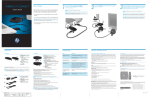
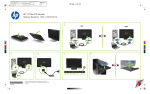
Setting up your tablet
1 If a SIM card is not
preinstalled in the tablet
(select models only), install a
SIM card (purchased
separately) in the SIM slot.
WARNING: To reduce the risk of fire or burns, do not disassemble, crush, or puncture; do not short external
contacts; do not dispose of in fire or water.
WARNING:
To prevent possible hearing damage, do not listen at high volume levels for long periods.
IMPORTANT: The battery(ies) in this product cannot be easily replaced by users themselves. Removing or
replacing the battery could affect your warranty coverage. If a battery is no longer holding a charge, contact
support. When a battery has reached the end of its useful life, do not dispose of the battery in general
household waste. Follow the local laws and regulations in your area for battery disposal.
After charging the battery, press
and hold the power button for
about 2 seconds until the HP logo
is displayed.
1
2
3
2
WARNING: To reduce potential safety issues, only the AC adapter provided with the product, a replacement AC
adapter provided by HP, or an AC adapter purchased as an accessory from HP should be used with the product.
WARNING: To reduce the possibility of heat-related injuries or of overheating the tablet, do not place the tablet
directly on your lap. Do not allow a soft surface, such as pillows or rugs or clothing, to block airflow. Also, do
not allow the AC adapter to contact the skin or a soft surface, such as pillows or rugs or clothing, during
operation. The tablet and the AC adapter comply with the user-accessible surface temperature limits defined
by the International Standard for Safety of Information Technology Equipment (IEC 60950-1).
2 1
3
4
IMPORTANT: If the battery image is not displayed on the screen, press the
power button briefly to display the image, and then press and hold the
power button until the logo is displayed.
3 Follow the on-screen instructions to select a language and a
wireless network.
Some notices may not apply to your product.
One or more integrated wireless devices are
installed in this device. In some environments, the
use of wireless devices may be restricted. Such
restrictions may apply on-board airplanes, in hospitals, near explosives, in hazardous locations, and
so on. If you are uncertain of the policy that applies
to the use of this product, ask for authorization to
use it before you turn it on.
8/5/2014 2:46:32 PM
6620 Cypresswood Drive
Suite 120
Spring, TX 77379
832.717.4331
Color Side 1:
BLACK + PMS 2925
Flat size:
12.75 x 5.5 in.
Color Side 2:
BLACK + PMS 2925
Finished size:
4.25 x 5.5 in.
Fold 1:
3-panel
accordion
Using the Home screen
All apps—Displays a list of all
apps installed. To configure your
preferences, touch
, and then
touch .
Back—Opens the previous
screen.
Home—Opens or returns to
the Home screen.
Recent apps—Opens a list of
apps used recently.
NOTE: The icons on the Home screen and the
appearance of the Home screen may vary.
Change your tablet’s view
The Auto-rotate feature allows you to
change your tablet’s view. For landscape
view, hold the tablet horizontally. For
portrait view, hold the tablet vertically.
NOTE: Some apps do not rotate automatically.
To change the Auto-rotate setting, swipe
down from the top right, and then touch
to lock or unlock the screen rotation.
Use gestures
The following gestures can be used with
your tablet:
Display apps, widgets, and
notifications
Apps—Touch
, and then
touch the Apps tab to see a list
of all apps.
, and then touch the
Widgets—Touch
Widgets tab to see a list of all widgets.
Notifications—Swipe down from the top
left of the screen to see your notifications.
Use a micro SD card
Insert a micro SD card (purchased
separately) in the micro SD slot.
3
1
SD
Search*
Search—Allows you to type
one or more keywords to search
with the installed search app.
SIM
Voice search—Allows you to
speak one or more keywords to
search with the installed search
app.
Note: Features may vary by model and country.
*The search feature varies by model and
country.
Use GPS
To access the GPS feature, touch , touch
Location, touch Mode, and then select the
Location mode you want.
Turn off the tablet
Press and hold the power button ,
touch Power off, and then touch OK. If
your tablet becomes unresponsive, press
and hold the power button for several
seconds to turn off the tablet.
© Copyright 2014 Hewlett-Packard Development Company, L.P. Google and Google Play are trademarks of
Google, Inc. SD Logo is a trademark of its proprietor. The information contained herein is subject to change
without notice. The only warranties for HP products and services are set forth in the express warranty statements accompanying such products and services. Nothing herein should be construed as constituting an
additional warranty. HP shall not be liable for technical and editorial errors or omissions contained herein.
First Edition: September 2014
MOB_QSB_Deschutes_786903-001.indd 2
2
Lock and unlock
Lock—Press the power button.
Unlock—Press the power button to turn
on the tablet, then place your finger on
and slide the icon to the unlock
position.
Back up your data
HP strongly encourages you to periodically
back up your personal data and media
on your tablet to another computer,
a dedicated storage device, or to the
cloud using one of several commercially
available solutions.
For more information, you can access the
user guide from the HP User Guides app.
Download apps from the
Google Play™ Store*
You must be connected to a wireless
network and signed into a Google account
before you can access the Play Store to
download apps.
, and
1. On the Home screen, touch
then touch the Play Store app.
2. To search for an app, touch the Search
icon and then type a keyword, or touch
a category.
3. Scroll down to see the available apps,
and then touch an app to select it.
4. Touch Install, and the app begins to
download and install.
*Select models only.
*786903-001*
786903-001
Printed in China
Imprimé en Chine
Stampato in Cina
Impreso en China
Impresso na China
中国印刷
중국에서 인쇄
8/5/2014 2:46:36 PM