1
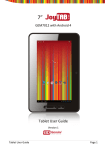
Duo 7 3G
GEM7032G
Tablet User Guide (English: Page 2)
Guía de usuario para tableta (Español: Página 20)
Version 1
Tablet User Guide
Page 1
Contents
Recommendations ........................................................................................... 3
Getting Started ................................................................................................ 3
Buttons and Connections ....................................................................................... 3
Charging the Battery .............................................................................................. 4
Unlocking and Powering On and Off ....................................................................... 4
Using the Touch Screen .......................................................................................... 5
Connecting to the Internet (WiFi) ........................................................................... 5
Connecting to the Internet (3G) ............................................................................. 5
Using Android .................................................................................................. 6
The Home Screen ................................................................................................... 6
Changing the Wallpaper ......................................................................................... 7
Camera .................................................................................................................. 8
Using the Keyboard ................................................................................................ 9
Settings ................................................................................................................ 11
Storage ................................................................................................................ 12
Connecting to a PC ............................................................................................... 12
Managing Applications .................................................................................. 13
Arrange & work with Apps ................................................................................... 13
Adding & Removing Applications ......................................................................... 14
Using Folders ....................................................................................................... 14
Included Applications .................................................................................... 15
Browser ............................................................................................................... 15
Email .................................................................................................................... 17
Video Player ......................................................................................................... 18
Clock .................................................................................................................... 18
Music ................................................................................................................... 18
Troubleshooting ............................................................................................ 19
Resetting your device to Factory Defaults ............................................................ 19
Getting further help and support ......................................................................... 19
Tablet User Guide
Page 2
Recommendations
-
Remove the protective film from the screen before use. This is for protection
during transit only and will affect performance of the touch screen.
To avoid touch screen interference do not use the device whilst charging via
the mains charger.
Please keep the device away from moisture, dust and high temperatures.
Do not drop or strike the device.
To reduce the risks of Electric Shock do not open the outer casing.
Getting Started
Buttons and Connections
Tablet User Guide
Page 3
Front Buttons
Your tablet has 4 buttons across the bottom of the screen which act as
shortcuts in Android. The buttons function as below:
Home
Returns you to the home screen if tapped. Hold down to see a list of recently
viewed apps.
Menu
Shows settings for whichever app or screen you are currently looking at.
Back
Takes you back to the previous web page or screen you were looking at.
Search
Enter the Search screen.
Charging the Battery
You can charge your tablet by using the included mains charger or via a USB
port on your PC. We recommend charging for a good 8 hours before first use.
Unlocking and Powering On and Off
To Power On press and hold the power button until the screen lights up. To
power off hold down the power button until a menu appears asking what you
would like to do. To wake the tablet from sleep or put it back to sleep click the
power button once.
Unlocking the Screen
You will need to unlock the screen before using your Tablet. To do this, place
your finger on the padlock icon and drag towards the other side of the screen.
Locking the Screen
By default the tablet locks itself automatically after 1 minute if unused. To
manually lock the screen, press the power button. The screen will go blank and
your device will be locked.
Tablet User Guide
Page 4
Using the Touch Screen
The capacitive touch screen gives a fluid and responsive touch experience
without the need to apply pressure to the screen.
•
•
•
Touch and slide your finger up and down the screen to scroll web
pages.
Tap an icon to start apps or visit web page links.
Multi Touch technology allows you to use more than one finger at a
time, for example in the web browser you can pinch to zoom in.
Connecting to the Internet (WiFi)
Your tablet can connect to any router that supports the 802.11b/g standard.
To connect to your wireless network:
1.
2.
3.
4.
Touch Settings, Wireless & Networks then Wi-Fi.
Touch the Wi-Fi Off/On toggle.
Touch your network name from the list.
Input your password.
If you are not sure what your password is it can normally be found on the
side/underneath of your router. This is normally case sensitive so please enter it
exactly as shown. If you are unsure please call your ISP who should be able to
remind you of your password. If you have problems connecting to your Wi-Fi try
changing the router security settings to WPA/WPA2.
Connecting to the Internet (3G)
Your tablet can connect to any network that supports 2G or 3G data:
1. Make sure your device is powered off.
2. Open the flap and insert your Sim card chip down, as shown on page 3.
Push it in until it clicks into place. You may need to use a paperclip or
pen to help.
3. Turn on the tablet.
4. Your tablet should connect to the internet automatically.
Tablet User Guide
Page 5
Using Android
The Home Screen
The home screen is the first screen you see after unlocking your device. You
can use up to 5 screens to store shortcuts to your favourite apps or widgets.
At the bottom left corner of the screen you will find 3 navigation buttons.
Icon
Name
Description
Back
Opens the previous screen you were working
in, even if it was in a different app. Once you
back up to the Home screen, you can't go
back any further in your history.
Opens Home. If you’re viewing a left or right
Home screen, opens the central Home
screen.
Home
Recent Apps
Opens a list of thumbnail images of apps
you’ve worked with recently. To open an
app, touch it. To remove a thumbnail from
the list, swipe it left or right.
After a short time without being used, these buttons may shrink to dots or
fade away. To bring them back, touch their location.
At the top right corner of the screen, notice the All Apps icon.
Touch it to see all your apps and widgets.
The middle of your Home screen can hold app and widget icons, plus folders.
•
•
To open an app, folder, or widget, touch its icon.
To see additional Home screens, swipe your finger quickly left or right.
At the bottom right corner of the screen, you'll see something like this:
Tablet User Guide
Page 6
Status icons to the left of the clock tell you which apps have sent you
notifications—for example, that a message has arrived, or it's time for a
meeting.
•
To see your notifications, touch the clock or the icons on either side of
it.
System icons to the right of the clock display the current wireless and network
connection strength, battery level, and sometimes more.
At the top left corner of the screen you'll find Google Search, which lets you
search your tablet or the Internet. Touch Google to type your search terms,
or
to speak them.
Changing the Wallpaper
Wallpapers are images from Gallery (pictures you shot with Camera, synced
from Picasa, and so on), still images included with the system, and live images
(such as an animation or a map that centres on your location). They take the
place of the default background for your Home screens.
1. Touch & hold anywhere on a Home screen that's not occupied.
A list of options appears.
2. Touch a wallpaper source:
Gallery. Choose from pictures that you've taken with Camera or
downloaded to your device.
Live Wallpapers. Choose from a scrolling list of animated wallpapers.
Wallpapers. Choose from thumbnails of default images, or touch a
thumbnail for a larger version.
You can download additional wallpapers on Google Play.
3. To set a wallpaper image, touch Set wallpaper or, for Gallery images,
determine the cropping and touch Crop.
Tablet User Guide
Page 7
Camera
The Camera app is a combination camera and camcorder.
You can view photos and videos you take with Camera in the Gallery app.
To take pictures and videos, first touch the Camera icon
All Apps screen.
on a Home or
When Camera opens, you can
•
•
Take a picture: Touch the blue button.
View the most recently taken picture: Touch the thumbnail near the
blue button.
You can now share the picture by touching the Gmail or other icons
displayed along one side of the image.
To view this picture and others in the Gallery app, touch the picture.
While Camera is open, you can also touch these icons to adjust its settings:
Icon
Name
Description
Mode
Switch among camera & video modes.
Zoom
Touch & hold, then slide to zoom in or out.
Settings
Reveals settings.
Tablet User Guide
Page 8
Using the Keyboard
You can enter text using the onscreen keyboard. Some apps open it
automatically. In others, you open it by touching where you want to type.
As you type, the keyboard displays suggestions above the top row of keys. To
accept a suggestion, touch it.
Basic Editing
•
•
•
•
Move the insertion point: Touch where you want to type.
The cursor blinks in the new position, and a green tab appears below
it. Drag the tab to move the cursor.
Select text: Touch & hold or double-tap within the text.
The nearest word highlights, with a tab at each end of the selection.
Drag the tabs to change the selection.
The tab disappears after a few moments, to get out of your way. To
make it reappear, touch the text again.
Delete text: Touch
to delete selected text or the characters
before the cursor.
Cut, copy, paste: Select the text you want to manipulate. Then touch
the Paste
Tablet User Guide
, Cut
, or Copy
button:
Page 9
To make the keyboard go away, touch Done.
Tips and Shortcuts
•
Type capital letters: Touch the Shift key
letters for one letter.
once to switch to capital
Or touch & hold the Shift key
while you type. When you release
the key, the lowercase letters reappear.
•
•
•
•
•
Turn caps lock on: Double-tap or touch & hold the Shift key
, so it
changes to
. Touch the Shift key
again to return to lowercase.
Show numbers or symbols: Touch the ?123 key. To see more choices,
touch the = \ < key.
Quickly access common punctuation and symbols: Touch & hold the
key to the right of the space bar (period key).
Type special characters: Touch & hold the Shift key
while you
touch a key with a small grey character in its corner to enter the grey
character.
Touch & hold any key to see alternative letters, symbols, or numbers,
which you can then touch to type.
Change input language or keyboard: Touch & hold the key to the left
of the space bar (with ... in the lower-right corner), and then release it.
The Input options menu appears. Choose the option you want to
adjust.
Tablet User Guide
Page 10
Settings
The settings screen can be accessed by touching the settings icon under
applications or on the status bar at the bottom right of the home screen.
These options allow you to configure your device to your requirements.
The following options are available:
Please note that you can get to application specific settings by touching the
settings icon in the status bar whilst you are in an application.
Tablet User Guide
Page 11
Storage
Built in Storage
Your tablet comes complete with either 4GB, 8GB or 16GB of built in storage.
However the Android operating system divides this space up into 2 sections,
internal storage and internal flash storage.
The Internal storage is reserved for use by applications and the operating
system. You may not see all of the space available for use as the rest is used by
Android. You cannot access this area from your computer. The Internal flash
storage shows the rest of the free space. This is the storage that you see when
you plug your tablet into your computer and should be used to hold your
movies and music etc.
Using a Micro SD Card
Available storage can be expanded using a Micro SD card of up to 32GB in
capacity.
To use a Micro SD Card:
1. Insert the Micro SD card into the slot shown in the front of this guide.
You may need to use a pen or similar implement to push the card fully
into place.
2. The tablet will automatically prepare the card for use.
To eject the card:
1. Push the end of the card inwards again until it clicks then release. The
card will pop out from the slot.
Connecting to a PC
To copy files to and from your device via your PC:
1. Connect the device to the computer using the supplied USB cable. You
will see a notification in the status bar that USB is connected.
2. Touch the USB icon.
3. Touch the “USB Connected” option.
4. Touch “Turn on USB storage”
Tablet User Guide
Page 12
5. You should see a pop up on your computer asking you if you want to
browse the device. You can also see the device under “My Computer”.
6. To copy files you can now drag and drop files to and from your device.
7. To disconnect from your computer repeat step 2 above then touch
“Turn off USB storage”.
Managing Applications
Arrange & work with Apps
To see all your apps, touch the All Apps icon on any Home screen.
The main All Apps screen opens. This is where you can see all your apps,
including those downloaded on Google Play. You can move app icons to any of
your Home screens.
From All Apps, you can
•
•
•
•
•
Move between screens: Swipe left or right.
Launch an app: Touch its icon.
Place an app icon on a Home screen: Touch & hold the app icon, slide
your finger, and lift your finger to drop the icon in place.
Explore your widgets: Touch the Widgets tab at the top of any All
Apps screen.
Get more apps. Touch the Google Play icon in the list of app icons, or
the Shop icon at the upper right.
Tablet User Guide
Page 13
Adding & Removing Applications
Adding Applications
To download apps you need a Google account. You can login or setup a new
account after you have started the Google Play application. A simple wizard
guides you through this process.
Uninstalling Applications
To remove an app icon from the Home screen, touch and hold it, slide your
finger toward the top of the screen, and drop the app over the Remove
icon.
Using Folders
You can combine several app icons in a folder. Drop one app icon over another
on a Home screen, and the two icons will be combined.
From any Home screen, you can
•
Open a folder: Touch it.
The folder opens:
•
•
Rename a folder: Touch its name.
Move icons around your Home screens: Touch, hold, and slide.
Tablet User Guide
Page 14
Included Applications
There are many applications included with your tablet. Below you will find
information on how to use the main applications.
Browser
From a Home or All Apps screen, touch the Browser icon.
Browser opens to the last webpage you were viewing. If you haven't used it
recently, it opens to your homepage.
Browser also opens when you touch a web link—for example, in an email or
chat.
The web address (URL) of the current page is displayed at the top of the
screen, unless the address box (also called omnibox) scrolls off the top. If this
happens, swipe down to show it again.
Open a webpage or search the web
1. Touch the omnibox at the top of the page.
2. Type the address of a webpage or terms to search for.
As you type, a list of matching suggestions appears. Icons in the list
help identify the type of match:
The Favorites icon
The Search icon
identifies items from your bookmarks.
identifies related searches.
The History icon
identifies items from your search history.
To add a suggestion to the omnibox, touch the arrow to its right. You
can then keep on typing or choose further suggestions.
3. To search for the contents of the omnibox or open a specific web
address it contains, touch the Gokey in the lower right corner of the
keyboard.
OR
To search for a suggestion or go to a suggested web page, touch it.
Tablet User Guide
Page 15
The Browser opens either the specified webpage or a list of search results.
To set which search engine you want to use for searches from the Omnibox, go
to Menu > Settings > Advanced > Set search engine.
Navigate within a webpage
Webpages that aren’t optimized for mobile devices typically open with the page
zoomed out, to give you the big picture.
To change this behaviour, go to Menu > Settings > Advanced > Open pages in
overview. Uncheck the option to zoom in on new webpages automatically.
While viewing most webpages, you can:
•
•
•
Scroll. Swipe the screen in any direction.
Zoom: To zoom out, touch the screen with two fingers and pinch them
together. To zoom in, spread them apart.
OR
Double-tap the place where you want to zoom in. To return to the original
zoom level, double-tap again. You can control the way double-tap works with
the Auto-fit setting, described below.
Find text. Touch Menu > Find on page and type.
As you type, the first word on the page with matching characters highlights,
and subsequent matches are boxed. To move between matches, touch the up
and down arrows at the top right.
Auto-fit behaviour for double-tap is controlled by the option Menu > Settings >
Advanced > Auto-fit pages:
•
•
With Auto-fit checked, double-tapping a column of text causes Browser to fit
the text to the screen; and double-tapping again returns to the original view.
With Auto-fit unchecked, double-tapping just zooms in and out without
regard for the text layout.
When a page doesn't zoom: Websites that are optimized for mobile devices
typically open to a size appropriate for the device, and may not permit zooming and
scrolling. In some cases you may prefer to view the desktop (non-mobile) version of a
site. Most mobile-optimized sites provide a link that allows you to switch to the
desktop version.
Tablet User Guide
Page 16
Bookmark a webpage
4. Open the webpage.
5. Touch
6. Edit the bookmark label and address if necessary, or choose a different
account.
7. To specify a different place to store the bookmark, touch the name
displayed beside Add to, and choose a Bookmarks folder, the top-level
list of bookmarks, or the Home screen.
8. When you're done, touch OK.
The bookmark is added to your list of bookmarks.
Open a bookmark
1. Touch the Bookmarks icon .
A set of three tabs appears, with Bookmarks on the left.
To show or hide an account's bookmarks, touch the email address for
the account.
2. To open a bookmark in the current tab, touch it.
OR
To open a bookmark in a new tab, touch & hold it, then choose Open
in new tab.
The bookmarked page opens.
Email
You can enter one or several email accounts to your tablet.
Adding an email account
1.
2.
3.
4.
5.
6.
Touch the email icon.
In the account interface touch Next.
In the e-mail address box enter your email address.
Enter your password in the password box.
Touch OK.
Manual settings (optional) – The device should detect your other
settings automatically, however should you need to enter them
manually click Manual settings to make any required changes.
7. Touch Next.
Tablet User Guide
Page 17
8. Enter an account name.
If you have problems connecting to the account please check all of your
settings with your email service provider.
Video Player
You can view photos and videos with the Gallery app.
The Gallery app finds all of your media and arranges it in a thumbnail view. It
shows folders on the first screen. Touch the folder you would like to open to
go into it and the app will show all of the files in that folder.
Touch the file you would like to play.
Clock
Touch the Clock icon to view the current date and time.
Setting an Alarm
You can set several alarms at the same time.
1. From the clock app press menu – Add alarm clock.
2. Set the time you would like the Alarm to go off (if you do not select
repeat the alarm will delete automatically after the time of the alarm).
3. Touch enable alarm clock.
4. Touch OK.
Music
1. Touch the Music icon.
2. Select your desired music to play from the music/album/artist/playing
list.
3. Use the Previous – Pause – Next icons to control the playback.
4. To return to the previous screen press the back icon in the navigation
area or to return to the home screen press the home icon.
Tablet User Guide
Page 18
Troubleshooting
Resetting your device to Factory Defaults
If you need to reset your device to the factory default settings for any reason
please follow the process below:
WARNING!!!
Please be aware any information currently on the device
will be permanently erased by following this procedure.
1.
2.
3.
4.
5.
6.
Go to applications screen and touch the settings button.
Touch the Backup & reset option.
Select Factory data reset.
Leave the erase SD card option unticked & touch “Reset tablet”.
Touch “erase everything”.
The unit will now reset itself back to factory reset and any previous
information/data will have been permanently erased.
Getting further help and support
Please see our support site below for further help and support with your
device including how to install software updates if available and much more:
http://getsatisfaction.com/geminidevices
Tablet User Guide
Page 19
Duo 7 3G
GEM7032G
Guía de usuario para tableta
Tablet User Guide
Page 20
Contenidos
Contenidos..................................................................................................... 21
Introducción .................................................................................................. 22
Botones y conexiones........................................................................................... 22
Cargar la batería ................................................................................................... 23
Desbloquear, Encender y Apagar ......................................................................... 23
Utilizar la pantalla táctil ........................................................................................ 24
Conectar a internet (WiFi) .................................................................................... 24
Conexión a Internet (3G) ...................................................................................... 24
Utilizar Android.............................................................................................. 25
Pantalla de Inicio .................................................................................................. 25
Cambiar el fondo de escritorio ............................................................................. 26
Cámara ................................................................................................................ 28
Utilizar el teclado ................................................................................................. 29
Ajustes ................................................................................................................. 31
Almacenamiento .................................................................................................. 33
Conectar a un PC .................................................................................................. 33
Gestionar aplicaciones ................................................................................... 34
Organizar y trabajar con aplicaciones ................................................................... 34
Añadir y eliminar aplicaciones .............................................................................. 35
Utilizar carpetas ................................................................................................... 35
Aplicaciones incluidas .................................................................................... 36
Navegador ........................................................................................................... 36
Correo electrónico ............................................................................................... 38
Reproductor de vídeo .......................................................................................... 39
Reloj ..................................................................................................................... 39
Música ................................................................................................................. 40
Resolución de problemas............................................................................... 41
Resetear tu dispositivo a valores por defecto de fábrica....................................... 41
Obtener más información y asistencia.................................................................. 41
Tablet User Guide
Page 21
Recomendaciones
-
-
Retire la película protectora de la pantalla antes de comenzara a usar el
dispositivo. La película debe ser utilizada solo para la proteccion de la
pantalla durante su transporte ya que puede afectar al correcto
funcionamiento de la funcionalidad táctil de la misma.
Para evitar interferencia en la pantalla táctil no utilice el dispositivo mientras
lo esta cargando con el adaptador de corriente.
Por favor mantenga el dispositivo alejado de la humedad, polvo y altas
temperaturas.
No deje caer ni golpee el dispositivo.
Para reducir el riesgo de descarga eléctrica
no abra la carcasa del dispositivo.
Introducción
Botones y conexiones
Tablet User Guide
Page 22
Botones en parte frontal
Su Tablet tiene 4 botones en la zona inferior de la pantalla que actúan como
acceso directo a Android. La funcionalidad de los botones es la siguiente:
Home
Regresa a la pantalla de incio. manténgalo pulsado para ver la lista de
aplicaciones que ha visitado.
Menu
Muestra la información de cualquier aplicación o pantalla que este visionando
Atrás
Vuelve a la pantalla anterior a la que esta visionando.
Búsqueda
Entra en la pantalla de Búsqueda.
Cargar la batería
Recomendamos cargarlo durante unas 8 horas antes del primer uso.
Desbloquear, Encender y Apagar
Para encender, mantén pulsado el botón de Encendido hasta que la pantalla se
ilumine, Para apagar, mantén pulsado el botón de Encendido hasta que
aparezca una pantalla preguntándote qué quieres hacer. Para despertar la
tableta de suspensión o ponerla en suspensión, pulsa el botón Encendido una
vez.
Desbloquear la pantalla
Tendrás que desbloquear la pantalla antes de usar tu tableta. Para hacerlo,
coloca tu dedo sobre el candado y arrástralo hasta el otro lado de la pantalla.
Bloquear la pantalla
Por defecto, la tableta se bloquea automáticamente tras un minuto sin uso.
Para bloquear la pantalla manualmente, pulsa el botón de encendido. La
pantalla quedará en blanco y tu dispositivo quedará bloqueado.
Tablet User Guide
Page 23
Utilizar la pantalla táctil
La pantalla táctil capacitiva ofrece una experiencia táctil fluida y sensible sin la
necesidad de aplicar presión a la pantalla.
•
•
•
Toca y desliza tu dedo arriba y abajo en la pantalla para visualizar las
páginas web.
Toque un icono para iniciar aplicaciones o visitar los enlaces de páginas
web.
La tecnología multitáctil te permite utilizar más de un dedo a la vez,
por ejemplo, en el navegador para hacer zoom.
Conectar a internet (WiFi)
Tu tableta puede conectarse a cualquier router con un estándar 802.11b/g.
Para conectarte a tu red inalámbrica:
5.
6.
7.
8.
Toca Ajustes, Inalámbricas y Redes y luego en Wi-Fi.
Toca la casilla Wi-Fi Encendido/Apagado.
Toca el nombre de tu red de la lista.
Introduce tu contraseña.
Si no estás seguro de tu contraseña, ésta puede encontrarse en la parte inferior o
lateral de tu router. Esta información suele ser sensible, por lo que introdúcelo tal
y como se indica. Si no estás seguro, ponte en contacto con tu proveedor de
internet para que te recuerde tu contraseña. Si tienes problemas para conectarte
a tu Wi-Fi intenta cambiar los ajustes de seguridad del router a WPA/WPA2.
Conexión a Internet (3G)
Su Tablet puede conectarse a cualquier red de datos 2G o 3G:
5. Asegúrese de que su dispositivo está apagado.
6. Abra la pestaña e inserte su tarjeta SIM con el chip hacia abajo, tal y
como se muestra en la pagina 3. Introdúzcala hasta que escuche un
click. Para hacerlo es posible que pueda necesitar un clip o un
bolígrafo.
7. Encienda el Tablet.
8. Su Tablet debe conectarse a internet automáticamente.
Tablet User Guide
Page 24
Utilizar Android
Pantalla de Inicio
La pantalla de inicio es la primera pantalla que verás tras desbloquear tu
dispositivo. Puedes utilizar hasta 5 pantallas para almacenar accesos directos a
tus aplicaciones o widgets favoritos.
En la esquina inferior izquierda de la pantalla encontrarás tres botones de
navegación.
Icono
Nombre
Descripción
Retroceso
Abre la pantalla anterior en la que
trabajabas, incluso si se trataba de otra
aplicación distinta. Una vez que vuelvas a la
pantalla de Inicio, no puedes retroceder más
en tu historial.
Abre Inicio. Si estás viendo una pantalla de
Inicio izquierda o derecha, abre la pantalla de
Inicio central.pens Home.
Inicio
Aplicaciones
recientes
Abre una lista de imágenes en miniatura con
las aplicaciones en las que has trabajado
recientemente. Para abrir una aplicación,
tócala. Para quitar una miniatura de la lista,
llévatela a la izquierda o a la derecha.
Tras un breve período de tiempo en el que no se usen, estos botones pueden
verse reducidos o desaparecer. Para volverlos a poner, toca su ubicación.
Observa el iciono Todas las aplicaciones en la esquina superior derecha.
Tócalo para ver todas tus aplicaciones y widgets.
El centro de tu Pantalla de Inicio puede incluir iconos de aplicaciones y
widgets, además de carpetas.
•
•
Para abrir una aplicación, carpeta o widget, toca su icono.
Para visualizar pantallas de inicio adicionales, arrastra tu dedo
rápidamente hacia la izquierda o la derecha.
Tablet User Guide
Page 25
En la esquina inferior derecha de la pantalla observarás algo como esto:
Los iconos de estado a la izquierda del reloj te informa de qué aplicaciones te
han enviado notificaciones – por ejemplo, que ha llegado un mensaje o que es
la hora de una reunión.
•
Para ver tus notificaciones, toca el reloj o los iconos a cada uno de sus
lados.
Los iconos de sistema a la derecha del reloj muestran la potencia de la
conexión de red e inalámbrica, el nivel de la batería y muchos otros.
En la esquina superior izquierda de la pantalla podrás ver Búsqueda de Google,
que te permite buscar en tu tableta o en internet. Toca Google o escribe tus
términos de búsqueda, o
dilos.
Cambiar el fondo de escritorio
Los Fondos de escritorio son imágenes de la Galería (fotos que has tomado
con la Cámara, sincronizados de Picasa, etc.), imágenes fijas incluídas en el
sistema, e imágenes en movimiento (como una animación o un mapa que te
muestra tu ubicación). Ocupan el lugar del fondo por defecto de tus pantallas
de Inicio.
4. Toca y mantén pulsado cualquier punto de una pantalla de Inicio que
no esté ocupada.
Aparecerá una lista de opciones.
5. Toca una ubicación del fondo de escritorio:
Galería. Elige entre fotografías que hayas tomado con la Cámara o
descargado a tu dispositivo.
Fondos de escritorio en movimiento. Elige de entre una lista
desplegable de fondos de escritorio animados.
Fondos de escritorio. Elige de entre miniaturas de imágenes por
defecto, o toca una miniatura para obtener una versión más grande.
Puedes descargar más fondos de escritorios de Google Play.
Tablet User Guide
Page 26
6. Para establecer una imagen como fondo de escritorio, toca Establecer
fondo de escritorio o, en el caso de imágenes de la Galería, determinar
el recorte y tocar Recortar.
Tablet User Guide
Page 27
Cámara
La aplicación Cámara es una combinación de cámara y videocámara.
Puedes ver fotos y vídeos que realices en la aplicación Galería.
Para realizar fotos y vídeos, primero toca el icono de la Cámara en una pantalla
de Inicio o en una pantalla de Todas las Aplicaciones.
Cuando la Cámara está activa puedes
•
•
Tomar una fotografía: Toca el botón azul.
Visualizar la fotografía tomada más reciente: Toca la miniatura cerca
del botón azul.
Ahora puedes compartir la fotografía tocando el icono de Gmail o
cualquier otro que se muestre junto con la imagen.
Para ver ésta y otras fotografías en la aplicación Galería, toca la
fotografía.
Mientras que la Cámara está activa también puedes tocar estos iconos para
ajustar su configuración:
Icono
Nombre
Descripción
Modo
Cambia entre modo cámara y videocámara.
Zoom
Toca y mantén pulsado, luego acerca o aleja.
Ajustes
Revela iconos adicionales que puedas utilizar
para fijar la exposición, el flash, el foco, el
modo escena, los balances de blancos y otros
ajustes.
Tablet User Guide
Page 28
Utilizar el teclado
Puedes introducir texto utilizando el teclado en pantalla. Algunas aplicaciones
lo abren automáticamente. En otras, lo abres tocando donde quieres escribir.
Done: Hecho
Mientras escribes, el teclado muestra sugerencias sobre la hilera de teclas
superior. Para aceptar una sugerencia, tócala.
Edición básica
•
•
•
•
Mover el punto de inserción: Toca donde quieras escribir.
El cursor parpadea en la nueva posición, y una pestaña verde aparece
encima. Arrástrala para mover el cursor.
Seleccionar texto: Toca y mantén pulsado o toca dos veces el texto.
La plabra más cercana se resalta con una pestaña en cada extremo de
la selección. Arrastra las pestañas para cambiar la selección.
La pestaña desaparece tras unos instantes, para dejarnos seguir. Para
hacer que reaparezca, toca el texto de nuevo.
Borrar texto: Toca
para borrar el texto seleccionado o los
caracteres antes del cursor.
Cortar, copiar, pegar: Selecciona el texto que quieres manipular.
Luego toca el botón de Pegar
Tablet User Guide
, Cortar
, o Copiar
:
Page 29
My local profile: Mi perfil local. Add organisation: Añadir organización.
Para hacer desaparecer el teclado, toca Hecho.
Consejos y accesos directos
•
•
Escribir mayúsculas: Toca la tecla Mayúsculas
las mayúsculas para una letra.
O toca y mantén pulsada la tecla Mayúsculas
mientras escribes.
Cuando sueltas la tecla, las minúsculas reaparecen.
Bloquear mayúsculas: Tocar dos veces o tocar y mantener pulsada la
tecla Mayúsculas
•
•
•
•
una vez para activar
, para que cambie a
. Tocar la tecla
Mayúsculas
de nuevo vuelve a las minúsculas.
Mostrar números o símbolos: Toca la tecla ?123. Para ver más
posibilidades, toca la tecla = \ <.
Acceso rápido a puntuación y símbolos habituales: Toca y mantén
pulsada la tecla a la derecha de la barra espaciadora (tecla del punto).
Escribir caracteres especiales: Toca y mantén pulsada la tecla
Mayúsculas
mientras tocas una tecla con un pequeño carácter gris
en su esquina para introducir el carácter gris.
Tocar y mantener pulsada cualquier tecla para ver letras, símbolos o
números alternativos que pueden tocarse para escribir.
Cambiar el idioma de entrada o el teclado: Toca y mantén pulsada la
tecla a la izquierda de la barra espaciadora (con... en la esquina inferior
derecha), y luego suéltala.
Tablet User Guide
Page 30
Aparecerá el menú de opciones de entrada. Selecciona la opción que
quieras ajustar.
Ajustes
Se puede acceder a la pantalla de ajustes tocando el icono ajustes bajo las
aplicaciones o en la barra de estatus en la parte inferior derecha de la pantalla
de inicio.
Estas opciones te permiten configurar tu dispositivo a tu gusto.
Están dispnibles las siguientes opciones:
Artículo del menú
Wi-Fi
Detalles
Configurar y conectarse a redes inalámbricas
Sonido
Cambiar el volumen, los sonidos de
notificación y el feedback
Brillo, ajustes de rotación, pantalla de espera
y opciones del Sensor G
Información sobre el espacio disponible y
usado
Información sobre el uso de la batería
Gestionar aplicaciones instaladas
(desinstalarlas, forzar cierre, etc.)
Gestionar los ajustes de tus cuentas y de
sincronización
Cambiar las opciones del servicio de
localización
Establecer los ajustes de bloqueo de
pantalla, contraseñas, etc.
Seleccionar idioma, diccionario y opciones de
teclado
Hacer copia de seguridad de tus datos y
resetear tu dispositivo (ver página 4)
Establecer la fecha y la hora y opciones
relacionadas
Gestionar opciones de accesibilidad como
talk back.
Pantalla
Almacenamiento
Batería
Aplicaciones
Cuentas y sincronización
Servicios de localización
Seguridad
Idioma y entrada
Copia de seguridad y reseteo
Fecha y hora
Accesibilidad
Tablet User Guide
Page 31
Ten en cuenta que puedes acceder a los ajustes específicos de las aplicaciones
tocando el icono de ajustes en la barra de estado mientras estás en una
aplicación.
Tablet User Guide
Page 32
Almacenamiento
Almacenamiento de serie
Tu tableta viene con 4GB, 8GB o 16GB de almacenamiento de serie. No
obstante, el sistema operativo Android divide este espacio en 2 secciones,
almacenamiento flash interno y externo.
El almacenamiento interno se reserva para el uso de aplicaciones y el sistema
operativo. Puede que no visualices todo el espacio disponible para uso ya que
el resto lo utiliza Android. No puedes acceder a esta área desde tu ordenador.
El almacenamiento flash interno muestra el resto del espacio libre. Éste es el
almacenamiento que ves cuando conectas tu tableta a tu ordenador y que se
puede usar para contener tus películas y música, etc.
Utilizar una tarjeta Micro SD
Se puede ampliar el almacenamiento disponible utilizando una tarjeta Micro
SD de hasta 32 GB de capacidad.
Para utilizar una tarjeta Micro SD:
3. Inserta la tarjeta Micro SD en la ranura mostrada al principio de esta
guía. Puedes utilizar un bolígrafo o algún objeto similar para colocar la
tarjeta a su lugar.
4. La tableta preparará automáticamente la tarjeta para su uso.
Para expulsar la tarjeta:
2. Pulsa el extremo de la tarjeta hacia dentro hasta que haga clic y luego
suéltala. La tarjeta saldrá de la ranura.
Conectar a un PC
Para copiar archivos a y desde tu dispositivo a través de tu PC:
8. Conectar el dispositivo al ordenador utilizando el cable USB
suministrado. Verás una notificación en la barra de estado indicándote
que el USB se ha conectado.
9. Toca el icono USB.
10. Toca la opción “USB conectado”.
Tablet User Guide
Page 33
11. Toca “Activar almacenamiento USB”
12. Verás un mensaje en tu ordenador preguntándote si quieres explorar
el dispositivo. También puedes ver el dispositivo desde “Mi PC”.
13. Para copiar archivos ahora puedes soltarlos a y desde tu dispositivo.
14. Para desconectar de tu ordenador, repite el paso 2 y toca “Desactivar
almacenamiento USB”.
Gestionar aplicaciones
Organizar y trabajar con aplicaciones
Para ver todas tus aplicaciones, toca el icono Todas las Aplicaciones o en
cualquier pantalla de Inicio.
Se abrirá la pantalla Todas las Aplicaciones. Aquí puedes ver todas tus
aplicaciones, incluyendo las descargadas de Google Play. Puedes mover los
iconos de las aplicaciones a cualquiera de tus pantallas de Inicio.
Desde Todas las Aplicaciones puedes
•
•
•
•
•
Moverte entre pantallas: Desliza a izquierda o derecha.
Iniciar una aplicación: Toca su icono.
Colocar un icono de aplicación en una pantalla de Inicio: Toca y
mantén pulsado el icono de aplicación, desliza tu dedo y súbelo hasta
soltar el icono en su lugar.
Explorar tus widgets: Toca la pestaña Widgets en la parte superior de
cualquier pantalla Todas las Aplicaciones.
Obtener más aplicaciones. Toca el icono de Google Play en la lista de
iconos de las aplicaciones, o el icono Comprar en la parte superior
derecha.
Tablet User Guide
Page 34
Añadir y eliminar aplicaciones
Añadir aplicaciones
Para descargar aplicaciones necesitas una cuenta Google. Puedes identificarte
o registrar una nueva cuenta una vez que hayas iniciado la aplicación Google
Play. Un sencillo tutorial te guiará a través de este proceso.
Desinstalar aplicaciones
Para quitar el icono de una aplicación de la pantalla de Inicio, tócalo y
manténlo pulsado, desliza tu dedo hacia la parte superior de la pantalla y
suelta la aplicación sobre el icono Eliminar.
Utilizar carpetas
Puedes combinar varios iconos de aplicaciones en una carpeta. Suelta el icono
de una aplicación sobre otro en una pantalla de Inicio y los dos iconos se
combinarán.
Desde cualquier pantalla de Inicio puedes
•
Abrir una carpeta: Tócala.
La carpeta se abre:
People: Gente. Gmail: Gmail. Unnamed Folder: Carpeta sin nombre
•
•
Renombrar una carpeta: Toca su nombre.
Mover iconos de tus pantallas de Inicio: Tócalos, mantenlos pulsados
y deslízalos.
Tablet User Guide
Page 35
Aplicaciones incluidas
Hay muchas aplicaciones incluidas en tu tableta. A continuación encontrarás
información sobre cómo usar las principales aplicaciones.
Navegador
Desde una pantalla de Inicio o una de Todas las Aplicaciones, toca el icono del
Navegador.
El Navegador se abre por la última página web que hubieras visto. Si no lo has
utilizado recientemente, se abre desde tu página de inicio.
El Navegador también se abre cuando tocas un enlace web –por ejemplo, en
un correo electrónico o un chat.
La dirección web (URL) de la página actual se muestra en la parte superior de
la pantalla, a menos que la caja de dirección (también llamada omnibox)
desaparezca de la parte superior. Si esto sucede, desliza hacia abajo para
mostrarla de nuevo.
Abrir una página web o buscar en la web
9. Toca la omnibox en la parte superior de la página.
10. Escribe la dirección de una página web o los términos de búsqueda.
Mientras escribes aparecerá una lista de sugerencias que concuerden.
Los iconos de la lista ayudarán a identificar el tipo de concordancia:
El icono Favoritos
identifica artículos de tus marcadores.
El icono Búsqueda
identifica búsquedas relacionadas.
El icono Historial
identifica artículos de tu historial de búsqueda.
Para añadir una sugerencia a la omnibox, toca la flecha a su derecha.
Luego puedes seguir escribiendo o elegir más sugerencias.
11. Para buscar en el contenido de la omnibox o abrir una dirección web
específica que contenga, toca la tecla Ir en la esquina inferior derecha
del teclado.
O
Tablet User Guide
Page 36
Para buscar una sugerencia o ir a una página web sugerida, tócala.
El Navegador abre la página web especificada o una lista de resultados de
búsqueda.
Para establecer el motor de búsqueda que quieres usar en la Omnibox, accede
a Menú > Ajustes > Avanzados > Establecer motor de búsqueda.
Navegar en una página web
Las páginas web no optimizadas para dispositivos móviles se abren con la página
alejada, para ofrecerte una visión general.
Para cambiar este comportamiento, accede a Menú > Ajustes > Avanzados > Abrir
páginas en perspectiva. Desmarca la opción de acercar nuevas páginas web de
forma automática.
Mientras visualizas la mayoría de las páginas web puedes:
•
•
•
Desplazarte. Desliza la pantalla en cualquier dirección.
Hacer zoom: Para alejarte, toca la pantalla con dos dedos y pellizca. Para
acercarte, aléjalos.
O
Toca dos veces el lugar que quieres acercar. Para volver al nivel de zoom
anterior, vuelve a tocar dos veces. Puedes controlar cómo funciona el doble
toque con la configuración Autoajuste, descrita más adelante.
Encontrar texto. Toca Menú > Encontrar en la página y escribe.
Mientras escribes, la primera palabra de la página que contenga concordancia
de caracteres se resaltará, y las concordancias siguientes se encuadrarán.
Para moverte entre concordancias, toca las flechas de arriba y abajo en la
parte superior derecha.
El comportamiento del Autoajuste para el doble toque se controla mediante la
opción Menú > Ajustes > Avanzados > Autoajustar páginas:
•
•
Con Autoajuste activado, el tocar dos veces una columna de texto hace que el
Navegador ajuste el texto a la pantalla, y volver a tocar dos veces lo devuelve
a su vista original.
Con Autoajsute desactivado, el tocar dos veces sólo acerca y aleja
independientemente del diseño del texto..
Cuando una página no permite el zoom: Los sitios web optimizados para
dispositivos móviles suelen abrirse en un tamaño apropiado para el dispositivo, y
Tablet User Guide
Page 37
puede que no permitan hacer zoom o desplazarse. Puede que en algunos casos
prefieras la vista versión de escritorio (no móviles). La mayoría de los sitios
optimizados ofrecen un enlace que te permite acceder a la versión de escritorio.
Marcar una página web
1. Abre la página web.
2. Toca
3. Edita la etiqueta del marcador y la dirección si es necesario, o elige
una cuenta distinta.
4. Para especificar un lugar distinto donde almacenar el marcador,
toca el nombre mostrado junto a Añadir a, y elige una carpeta de
Marcadores, o la pantalla de Inicio.
5. Cuando hayas terminado, toca Listo.
El marcador queda añadido a tu lista de marcadores.
Abrir un marcador
3. Toca el botón de Marcadores .
Aparecerá un conjunto de tres pestañas, con los Marcadores a la
izquierda.
Para mostrar o esconcer los mcarcadores de una cuenta, toca la
dirección de correo electrónico de la cuenta.
4. Para abrir un marcador en la pestaña actual, tócalo.
O
Para abrir un marcador en una pestaña nueva, tócalo y mantenlo
pulsado, luego selecciona Abrir en pestaña nueva.
La página marcada se abrirá.
Correo electrónico
Puedes introducir una o varias cuentas de correo electrónico en tu tableta.
Añadir una cuenta de correo electrónico
9. Toca el icono del correo electrónico.
10. En la interfaz de cuentas, toca Siguiente.
11. En la caja de dirección de correo electrónico, introduce tu dirección de
correo electrónico.
Tablet User Guide
Page 38
12. Introduce tu contraseña en el cuadro de contraseña.
13. Toca Listo.
14. Ajustes manuales (opcional) – El dispositivo detecta tus otros ajustes
de forma automática, aunque, si quieres introducirlos de forma
manual, cliquea Ajustes manuales para realizar cualquier cambio.
15. Toca Siguiente.
16. Introduce un nombre de cuenta.
Si tienes problemas conectándote a la cuenta de correo comprueba todos tus
ajustes con tu proveedor de servicios de correo electrónico.
Reproductor de vídeo
Puedes visualizar fotos y vídeos con la aplicación Galería.
La aplicación Galería encuentra todos tus archivos multimedia y los organiza
con vistas en miniatura. Muestra las carpetas en la primera pantalla. Toca la
carpeta que quieras abrir y la aplicación mostrará todos los archivos que
contenga.
Toca el archivo que quieras reproducir.
Reproducción a través de tu TV HD
1. Conecta tu tableta a tu TV utilizando un cable de Mini HDMI a HDMI.
2. Conéctalo a la clavija apropiada en tu TV.
3. Tu tableta empezará a mostrar automáticamente su contenido en tu
TV.
Reloj
Toca el icono del Reloj para visualizar la fecha y hora actuales.
Fijar una alarma
Puedes fijar varias alarmas a la vez.
5. Desde la aplicación del reloj, pulsa menú – Añadir alarma.
6. Establece la hora a la que quieras que se apague la alarma (si no
seleccionas repetir la alarma, se borrará automáticamente después de
su hora fijada).
7. Toca activar alarma.
8. Toca Listo.
Tablet User Guide
Page 39
Música
5. Toca el icono Música.
6. Selecciona la música que quieras reproducir de la lista de
música/álbum/artista/reproducción.
7. Utiliza los iconos Anterior – Pausa – Siguiente para controlar la
reproducción.
8. Para volver a la pantalla anterior, pulsa el icono Atrás en el área de
navegación o para volver a la pantalla de Inicio, pulsa el icono de
Inicio.
Tablet User Guide
Page 40
Resolución de problemas
Resetear tu dispositivo a valores por defecto de fábrica
Si necesitas resetear tu dispositivo a los valores por defecto de fábrica por
cualquier motivo, sigue el siguiente proceso:
¡¡¡ADVERTENCIA!!!
Por favor, ten en cuenta que cualquier información actual contenida en el
dispositivo se borrará de forma permanente durante este proceso.
7.
8.
9.
10.
11.
12.
Accede a la pantalla de aplicaciones y toca el botón ajustes.
Toca la opción Copia de seguridad y reseteo.
Selecciona Reseteo a valores de fábrica.
Deja la opción borrar tarjeta SD desmarcada y toca “Resetear tableta”.
Toca “borrar todo”.
La unidad se reseteará a los valores por defecto de fábrica y cualquier
información/datos se borrarán de forma permanente.
Obtener más información y asistencia
Consulta nuestro sitio de asistencia indicado a continuación para más
información y asistencia con tu dispositivo incluyendo cómo instalar
actualizaciones de software cuando estén disponibles y mucho más:
http://getsatisfaction.com/geminidevices
Tablet User Guide
Page 41