1
Finding a Marine Service and Navigating to It
To mark your current location as a waypoint or as an MOB:
1. From any screen, press MARK.
2. Select Back to save the waypoint, or select Man Overboard to designate the waypoint as
an MOB point.
To begin navigating:
1. From the Home screen, select Where To?.
2. Select a category.
3. Select a destination.
4. Select Navigate To.
To create a new waypoint:
1. From the Home screen, select Charts > Navigation Chart.
2. Use the map pointer ( ) to select the location you want to
designate as a waypoint.
3. Press SELECT.
4. Select Create Waypoint.
5. Select Go To. OR Select Guide To when using a
preprogrammed BlueChart® g2 Vision® card
to use Automatic Guidance.
6. Follow the colored line on the screen to the
destination.
To move the waypoint on the Navigation chart:
1. Use the map pointer ( ) to highlight the waypoint on the
Navigation chart and press SELECT.
2. Select Review. (The Review button is only shown when more than
one waypoint is in the vicinity.)
3. Select the button for the waypoint you want to edit > Move.
4. Press SELECT to save the new location.
To stop navigating:
From the navigation chart, press MENU,
and select Stop Navigating.
Searching for a Destination by Name
1. From the Home screen, select Where To? > Search by Name.
2. Use the Rocker to select characters and spell at least a portion of the name of your
destination.
3. Press SELECT to view the 50 nearest destinations that contain your search criteria.
To go to the location, select the location > Navigate To > Go To.
Enter the Name
Marking a Waypoint or Man Overboard (MOB)
View the Search
Results
Create a Waypoint
Editing or Deleting a Waypoint
To edit an existing waypoint:
1. From the Home screen, select Information > User Data > Waypoints.
2. Select the waypoint you want to edit.
3. Select Edit Waypoint.
4. Select the waypoint attribute you want to change (Name, Symbol, Depth, Water Temp,
Comment, or Position).
To delete a waypoint or an MOB:
1. From the Navigation chart, use the map pointer ( ) to highlight the waypoint or the MOB
on the Navigation chart.
OR
From the Home screen, select Information > User Data > Waypoints.
2. Select the waypoint or the MOB you want to delete.
3. Select Review > Delete (The Review button is only shown when more than one waypoint
is in the vicinity.)
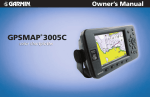
GPSMAP 400/500 series
®
quick reference guide
Turning the Unit On and Acquiring a Signal
S ee the Important Safety and Product Information guide in the product box for product warnings and other
important information.
Turning the Unit On or Off
To turn on the unit, press and release the Power key. When the Warning
screen appears, select I Agree to view the Home screen. To turn off the
unit, press and hold the Power key.
When you turn on the unit, the GPS receiver must collect satellite data and
establish the current location. When the unit acquires satellite signals, the
signal strength bars at the top of the Home screen are green
. When the
unit loses satellite signals, the green bars disappear
and the position
icon displays a flashing question mark.
POWER/BACKLIGHT—Press and hold to turn the unit
on or off; press and release to adjust the backlight and the
day and night modes.
POWER/
BACKLIGHT
RANGE
RANGE (-/+)—Press to adjust the range of the sonar, to
zoom in or out on a chart, to page up or down on lists, or to
adjust the backlight level.
ROCKER
ROCKER—Press up, down, left, or right to move through
menus, highlight fields, and enter data.
Acquiring GPS Satellite Signals
MARK
SELECT
MENU
HOME
MARK—Press to mark a waypoint.
Home Screen
Using Routes and Tracks
Using the Keypad
SELECT—Press to select highlighted items.
HOME—Press to return to the Home screen.
MENU—Press to access additional settings and configuration options; press to return to the
previous screen when indicated.
Please visit www.garmin.com for additional documentation and information.
Adjusting the Display Settings
Panning and Zooming on the Navigation Chart
To adjust the backlight:
1. Press and release the Power key.
2. Select Backlight.
3. Press left or right on the Rocker to manually adjust the backlight.
Use the Rocker to move the map pointer ( ) away from your current location and to scroll
to other areas on the Navigation chart. As you pan past the edge of the current map display,
the screen scrolls forward to provide continuous map coverage.
Note: Press the Power key repeatedly to cycle between
maximum backlight, minimum backlight, and your manual setting.
Map pointer
As you move the map pointer, you can view the
distance and bearing from your current location and
the map pointer location coordinates in the lowerright corner of the map.
To pan the map, press up, down, right, or left on the
Rocker.
To switch between day mode and night
mode:
1. Press and release the Power key.
2. Select Color Mode.
3. Press left or right on the Rocker to switch
between modes.
To create a route from your present location:
1. From the Navigation chart, use the map pointer ( ) to highlight your
destination and press SELECT.
2. Select Navigate To > Route To.
3. Use the map pointer ( ) to select the location at which you want to
make the last turn toward your destination.
4. Press SELECT. Repeat this step to add additional turns.
5. Press MENU to cancel, to undo the last turn, or to begin navigating the
route.
To create a route in another location:
1. From the Home screen, select Information > User Data > Routes > New Route.
2. Select Use Chart or Use Waypoint List.
3. If you select Use Chart, use the map pointer ( ) to select the initial location at which you
want to start the new route. If you select Use Waypoint List, select the first waypoint on the
route and press SELECT.
4. Choose the location of the first turn and press SELECT. Repeat until the route is complete.
5. Select MENU to save the route.
6. Select the route to edit the route, delete the route, or navigate to the route.
To edit a route:
1. From the Home screen, select Information > User Data > Routes.
2. Select the route to edit.
3. Select Edit Route. You can edit the route name or use the chart or turn list to edit the route
turns.
To turn on the track log:
From any chart except the Fish Eye 3D, select MENU > Waypoints & Tracks > Tracks > On.
A trailing line on the chart indicates your track.
To clear the active track:
From any chart except the Fish Eye 3D, select MENU > Waypoints & Tracks > Active Tracks
> Clear Active Track. The track memory is cleared; the current track continues to be recorded.
Zooming In and Out on the Map
The Range (-/+) keys control the zoom level, indicated by the scale at the bottom of the
Navigation chart (
). The bar under the number represents that distance on the map.
© 2009 Garmin Ltd. or its subsidiaries
Day Mode
Night Mode
May 2009
190-01074-01 Rev. A
Printed in Taiwan