1
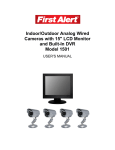
Indoor/Outdoor Analog Wired Cameras with 15" LCD Monitor and Built-In DVR Model 1501 USER'S MANUAL WELCOME Welcome Thank you for choosing First Alert for your security needs! For more than half a century, First Alert has made the home-safety and security products that make your job easier. Our products are built to the highest standard which has earned us a leadership role in the home-safety and security product categories. We are committed to serving our customers, from the professionals who install our products, to the families and businesses who count on them. First Alert has been helping families and businesses stay safe for over 50 years. By having a First Alert Security System, you’re taking the first step in protecting your home or business from damage or theft. We’re watching, even when you’re not. This manual is written for the 1501 15” LCD Monitor with Built-In DVR. It was accurate at the time it was completed. However, because of our ongoing effort to constantly improve our products, additional features and functions may have been added since that time and on-screen displays may change. We encourage you to visit our website at www.firstalert.com to check for the latest manuals (English and Spanish), firmware updates, downloads, other security camera products and announcements. You’ll find this product line under Products >> Security Cameras >> Wired Cameras. ©2012 BRK Brands, Inc. All rights reserved. Distributed by BRK Brands, Inc., Aurora, IL 60504. BRK Brands, Inc. is a subsidiary of Jarden Corporation (NYSE: JAH). First Alert ® is a registered trademark of the First Alert Trust. Due to continuing product development, the product inside the packaging may look slightly different than the one on the package. To obtain warranty service, contact the Consumer Affairs Division at 1-800-323-9005, Monday through Friday, 7:30 a.m. - 5:00 p.m., Central Standard Time. Made in China M08-0245-004 Table of Contents Safety ............................................................................................................................. 1 Safety Precautions ........................................................................................................................... 1 FCC Compliance ............................................................................................................................. 1 Disposal ........................................................................................................................................... 1 Getting to Know Your Model 1501 System .................................................................. 3 Check Package Contents.................................................................................................................. 3 Features ............................................................................................................................................ 4 About the Monitor-DVR .................................................................................................................. 4 Front Panel ............................................................................................................................... 4 Rear Panel ................................................................................................................................ 5 About the Remote Control ............................................................................................................... 6 About the Cameras and Mounting Kits ........................................................................................... 7 Setting Up Your Model 1501 System ............................................................................ 8 General Precautions ......................................................................................................................... 8 Assembling and Connecting the Monitor-DVR .............................................................................. 8 Installing and Connecting the Cameras ........................................................................................... 9 Connecting the Monitor-DVR to an External Connection............................................................. 10 External HDD ........................................................................................................................ 10 Internet ................................................................................................................................... 10 Alarm Input and Output ......................................................................................................... 10 Mouse Operations ....................................................................................................... 12 Surveillance Interface .................................................................................................................... 12 Mouse Menus................................................................................................................................. 13 Shortcut Menu........................................................................................................................ 13 Menu Lock ............................................................................................................................. 13 PTZ Control (option) ............................................................................................................. 14 Manual Recording.................................................................................................................. 14 Stop Recording....................................................................................................................... 14 Operating Menus ......................................................................................................... 15 Main Menu..................................................................................................................................... 15 Search ............................................................................................................................................ 16 Record Search ........................................................................................................................ 16 File List .................................................................................................................................. 17 Log Search ............................................................................................................................. 19 Record ............................................................................................................................................ 19 HDD Management ......................................................................................................................... 21 Table of Contents Model 1501 User's Manual Basic .............................................................................................................................................. 23 Language ................................................................................................................................ 24 Date/Time .............................................................................................................................. 24 Password ................................................................................................................................ 25 Display ................................................................................................................................... 25 Video/Audio ........................................................................................................................... 26 Advance ......................................................................................................................................... 27 Alarm ..................................................................................................................................... 28 System Information................................................................................................................ 29 Motion Detect ........................................................................................................................ 30 Mobile .................................................................................................................................... 31 System Maintenance .............................................................................................................. 31 PTZ Setup (option) ................................................................................................................ 32 Network Setup ....................................................................................................................... 33 IE Operation ................................................................................................................. 35 Download and Install ActiveX....................................................................................................... 35 User login....................................................................................................................................... 35 Login ...................................................................................................................................... 35 Live ........................................................................................................................................ 36 Playback ................................................................................................................................. 37 Setup ...................................................................................................................................... 37 Technical Information ................................................................................................. 41 Warranty ....................................................................................................................... 43 Product Limited Warranty.............................................................................................................. 43 Warranty Exclusions ...................................................................................................................... 43 Obtaining Service .......................................................................................................................... 44 Safety SAFETY PRECAUTIONS Do not drop, puncture, or disassemble the camera. Never tug on the power adapter. Use the plug to remove it from the wall. Do not expose the camera to high temperatures. For your own safety, avoid using the camera when there is a storm or lightning. Use the device with care. Avoid pressing hard on the camera body. Do not crush or damage the power cable. FCC COMPLIANCE FCC Compliance Class B Digital Device This equipment has been tested and found to comply with the limits for a Class B digi tal device, pursuant to Part 15 of the FCC Rules. These limits are designed to provide reasonable protection against harmful interference in a residential installation. This equipment generates, uses and can radiate radio frequency energy and, if not installed and used in accordance with the instructions, may cause harmful interference to radio communications. However, there is no guarantee that the interference will not occur in a particular installation. If this equipment does cause harmful interference to radio or television reception, which can be determined by turning the equipment off and on, the user is encouraged to try to correct the interference by one or more of the following measures: Reorient or relocate the receiving antenna. Increase the separation between the equipment and receiver. Connect the equipment into an outlet on a circuit different from that of the receiver. Consult the dealer or an experienced radio or TV technician for help. Notice: Only peripherals complying with FCC limits may be attached to this equipment. Operation with non-compliant peripherals or peripherals not recommended by First Alert / BRK Brands, Inc. is likely to result in interference to radio and TV reception. Changes or modifications to the product, not expressly approved by First Alert / BRK Brands, Inc., could void the user’s authority to operate the equipment. Important: The information shown in the FCC Declaration of Conformity paragraph below is a requirement of the FCC and is intended to supply you with information regarding the FCC approval of this device. The phone number listed below is for FCC related questions only and not intended for questions regarding the connection or operation for this device. FCC Declaration of Conformity for devices with the FCC logo Responsible Party: First Alert / BRK Brands, Inc. Address: 3901 Liberty Street Rd. Aurora, IL 60504-8122 Telephone: (630) 851-7330 Product / Model: 1501 We, First Alert / BRK Brands, Inc. declare under our sole responsibility that the device to which this declaration relates: Complies with Part 15 of the FCC Rules. Operation is subject to the following two conditions: (1) this device may not cause harmful interference, and (2) this device must accept any interference received, including interference that may cause undesired operation. FCC Certification (if applicable) This device contains a radio transmitter. Accordingly, it has been certified as compliant with 47 CFR Part 15 of the FCC Rules for intentional radiators. Products that contain a radio transmitter are labeled with an FCC ID. 1 Safety Model 1501 User's Manual DISPOSAL These symbols indicate that it is prohibited to dispose of these bat teries in the household waste. You can take spent batteries that can no longer be charged to the designated collection points in your community. 2 Getting to Know Your Model 1501 System Congratulations on purchasing your First Alert Security Camera product. First Alert has been helping families and businesses stay safe for over 50 years. By having a First Alert Security Camera, you’re taking the first step in protecting your home or business from damage or theft. We’re watching, even when you’re not. CHECK PACKAGE CONTENTS After unpacking the carton, check the contents for damage. Contact the manufacturer immediately if any part is missing or damaged. 500GB H.264 web-ready DVR system with 15” LCD monitor (1) Wired indoor/outdoor cameras (4) Camera stands (4) Mounting kits (4) 60 ft BNC cables (4) Remote control (1) Mouse (1) DC power splitter (1) Power supply (2) Installation CD (1) User's Manual (1) 3 Getting to Know Your 1501 System Model 1501 User's Manual FEATURES 15” LCD monitor with built-in DVR Equipped with 500GB hard drive H.264 compression format Mobile phone / web-ready system Includes 12 infrared LEDs for night vision Indoor/outdoor cameras Includes 60 ft BNC cables ABOUT THE MONITOR-DVR FRONT PANEL 15" high-definition, digital LCD (1027x768, RGB) LCD panel power indicator base 4 Getting to Know Your 1501 System Model 1501 User's Manual REAR PANEL 5 ① Audio Output ② Video Output ③ Audio Input (1–4) ④ Video Input (1–4) ⑤ DC 12V Power Socket ⑥ USB Ports ⑦ Alarm Input (1-4) GND: Ground NO/COM: Alarm Output 485A/B: PTZ Control +/232TX/RR: RS232 connector to PC +12V, 100 mA connectors to DC power relays ⑧ RJ45, Ethernet 10/100Base-T 5 4 3 2 1 6 7 8 Getting to Know Your 1501 System Model 1501 User's Manual ABOUT THE REMOTE CONTROL Open PTZ control window* Keyboard 0-9 Input numbers and letters; in preview mode select channels Open Device Number input dialog box Back space to delete current input Page up; turn up Page down; turn down Move cursor up Move cursor down Move cursor left Move cursor right Enter Return to previous menu; exit operation Open main menu Switch display modes (quad/single picture view); press with direction key to choose video output (CVBS, VGA, YUV) Select next channel to view when in full screen Open video file management dialog box Open system information dialog box Turn system audio output ON/OFF Clear system alarm history information Play/Pause Select rewind speed (1x, 2x, 3x, or 4x) Select forward speed (1x, 2x, 3x, or 4x) * Cameras supplied with 1501 system are not equipped with PTZ feature. 6 Getting to Know Your 1501 System Model 1501 User's Manual ABOUT THE CAMERAS AND MOUNTING KITS The Model 1501 security system includes four wired-indoor/outdoor color CCD security cameras, four camera stands, mounting kits and 60 ft of BNC cables for each camera. IR LEDs camera lens adjustable camera stand mounting bracket 7 Setting Up Your Model 1501 System GENERAL PRECAUTIONS Use only the two power supplies provided with the system. Unplug the power supplies when the system is not in use for extended time periods. Do not place any of the equipment near a radiator, vent, or other place where it might be exposed to heat, moisture, dust, vibrations or strong magnetic fields. Place the monitor in a well-ventilated location to prevent overheating. Do not attempt to repair the equipment. Contact a qualified technician or the dealer for service. Any change or modification may damage the equipment and invalidate the warranty. ASSEMBLING AND CONNECTING THE MONITOR- DVR 1 Connect the mouse to the USB port on the monitor-DVR. 2 Place the monitor-DVR on its base and snap it into locked position. 3 Connect the cable of the power supply adapter to the DC 12V connector on the bottom of the monitor-DVR. Plug the power supply into a receptacle outlet. The POWER indicator light on the front panel will light when power is applied. When system initialization (boot up) is complete, the image from each active camera will display on the quad-screen monitor. 8 Setting Up Your Model 1501 System Model 1501 User's Manual INSTALLING AND CONNECTING THE CAMERAS 1 Select the position for the camera and install a mounting bracket (supplied). Screws and anchors are supplied. Use an appropriate screw type for the mounting surface. 2 Screw the camera on the bracket. Tighten the lock nut to secure the camera on the bracket. lock nut thumb bolts camera mounting bracket 3 Adjust camera to the proper view angle. Make sure the lens is upright relative to your subject. Tighten the thumb bolts. 4 Connect the power and video connectors to the corresponding connectors on the BNC cable (supplied). The cables are not weather resistant and should be sheltered from moisture, rain, and sunlight. connectors from camera BNC cable to monitor-DVR 5 Connect the BNC and power cable connectors to the power and video connectors at the monitor-DVR. Note: When installing cameras on an external wall, pass the power cable through the wall as close as possible to the cameras to reduce the chance of tampering with the cables. After drilling any hole though an external wall for cable, make sure the hole is sealed up around the cable using a sealant. 9 Setting Up Your Model 1501 System Model 1501 User's Manual video connection audio connection CONNECTING THE MONITOR-DVR TO AN EXTERNAL CONNECTION EXTERNAL HDD The Model 1501 system has an internal SATA 500GB HDD (hard disk drive), which can be expanded with an external SATA HDD to 1TB by setting the jumper on SATA I, limit to 1.5GB/s operation mode. Connect the HDD using the available USB port on the bottom of the monitor-DVR. INTERNET Use the standard RJ45 connection on the bottom of the monitor-DVR to connect to a computer or directly to the Internet. See the chapter on IE Operation. ALARM INPUT AND OUTPUT Typical alarm sensor connections follow. Use the wiring port on the bottom of the monitor-DVR to make the connections. 10 Setting Up Your Model 1501 System Model 1501 User's Manual Normal-Close Connection Normal-Open Connection Alarm Output Connection 11 Mouse Operations In addition to operating the system by using the buttons on the remote control, the system can be operated using a mouse. This chapter provides a quick start overview of the operating commands available using the mouse functions. For detailed descriptions of the menu options, see the next chapter Operating Menus. SURVEILLANCE INTERFACE Connect the DC 12V power supply adapter to the monitor-DVR to power-up the system. The power LED on the monitor will light and the surveillance interface will display on the screen. If video input is normal, there will be a corresponding channel picture on the surveillance interface. If a camera is not powered-up, the channel image will display "Video Loss" instead of live recording. If the system has been programmed to start recording a t startup or record on a time schedule, the system will record automatically. Double click the left mouse button on any channel to display a full-screen image of that channel. Double click again to return to quad (4-up) display. 12 Mouse Operations Model 1501 User's Manual MOUSE MENUS Click the right mouse key to open the Shortcut Menu. Scroll the cursor to highlight an option and click the left mouse key to open the sub-menu. SHORTCUT MENU Click the right mouse key to open the Shortcut menu from the surveillance interface. Click the left mouse key to select an option: go to the Main menu; lock the system; change the channel; search the recording; control PTZ*; mute the sound; and manually begin and stop recordings. MENU LOCK Click right key on the surveillance interface to the Shortcut menu. Choose KEYLOCK to lock the menu. To unlock the system, enter the user password. Note: For first use, set ENABLE on the user login to set the user's password and administrator password. The user has only the right to enter the record search menu; the administrator has rights to all operations. See the next chapter for instructions to set/change a password. * Cameras supplied with 1501 system are not equipped with PTZ feature. 13 Mouse Operations Model 1501 User's Manual PTZ CONTROL (OPTION) The PTZ is an optional feature available on some cameras. This feature is not available on the cameras supplied with the Model 1501 system, but the system software is PTZ-ready. Click right key on the surveillance interface to open the Shortcut menu. Choose PTZ to enter the PTZ control interface. Drag the cursor to adjust the PTZ moving speed. Use the direction keys to move the PTZ up/down/left/right. Click + / - to adjust the zoom, focus, and aperture. MANUAL RECORDING Click right key on the surveillance interface to open the Shortcut menu and choose MANUAL RECORDING. The priority level of manual recording is lower than the alarm recording and schedule recording. You can start the manual recording after the alarm recording and scheduled recording have stopped. STOP RECORDING Click right key on the surveillance interface to open the Shortcut menu. Choose STOP RECORDING to stop manual recording. This operation is available only for manual recording. 14 Operating Menus This chapter provides information about the menu screens displayed on the LCD monitor. The menus are used to control the various functions of the DVR system. The user s elects options from a series of menus and executes the actions by using the keypad on the DVR or the remote control. MAIN MENU Use the Main Menu to access all the operating and programming menus. Search Record HDD – hard disk management Basic Advance Access the Main Menu from the surveillance interface by clicking the right mouse key to open the Shortcut Menu and then choosing MAIN MENU. If the system interface is locked, input the password to unlock it. 15 Operating Menus Model 1501 User's Manual SEARCH Access the Record Search menu from the Main Menu. Use this menu to search for recordings made on a specific date. Double click a time box (hourly increments for the date selected) to select video for that hour. Click SEARCH to search all files. Click PLAYBACK to play the video. RECORD SEARCH Click right key on the surveillance interface to open the Shortcut menu. Choose RECORD to search and playback the recording. Note: Green means normal recording. Red means alarm recording. No color means no recording. 16 Operating Menus Model 1501 User's Manual FILE LIST Choose a date from the Record Search menu and select the FILE LIST to show a detailed list of videos for that date. Select the channel (CHN SWITCH) and type of video to focus the search. CH Channel on which the video was recorded TIME Time period covered by the video SIZE Size of video file (Mb) TYPE Type of video recording (normal, alarm) BAK (Backup) Click box to export selected video file to USB storage To playback a file: 1. Use the cursor to select a file. 2. Click to playback. Note: If "Record Time" was selected in the Basic Setup menu, date/time will show when the video plays. 3. Click "Slow" to play the video slowly. Click "Forward" or "Reverse" to scan the video. Click "Pause/Step" to pause and play the video frame by frame. Click to exit from playback and return to the former menu. 4. Returns to File List display when playback is finished. 17 Operating Menus Model 1501 User's Manual To backup a file: 1. Select a video file (check in box). 2. Click BACKUP to start backup via USB to storage device. 3. Prompt box shows backup progress. 18 Operating Menus Model 1501 User's Manual LOG SEARCH Choose a date from the Record Search menu and select LOG SEARCH. Choose the log date and type. Click SEARCH to check the recording logs. RECORD Access the Record Search menu from the Main Menu. Use this menu to set the recording parameters for each video channel. 19 Operating Menus Model 1501 User's Manual CHANNEL ON means the channel is enabled for recording. OFF means the channel is disabled for recording. RESOLUTION Select resolution: HIGHEST, HIGH, or NORMAL. QUALITY Set stream size for video quality: BEST, FINE, or NORMAL. AUDIO Select ENABLE for audio recording on all channels. Select DISABLE for no audio recording. REC. MODE Select POWER UP to begin recording immediately at DVR startup; select Timer Record to open Schedule menu and set recording times. REC. SIZE Select the recording time length: 15, 30, 45, and 60 minutes. DEFAULT Click to return to factory set parameters. APPLY Click to save setup parameters and return to Main Menu. EXIT Click to keep existing setup parameters and return to Main Menu. Schedule Use the Schedule menu to set specific recording times and durations. Select the channel (1, 2, 3, 4, or all). Click the box corresponding to the recording time and type (blank means no recording, green means normal recording mode and red means alarm recording mode or motion detection). 20 Operating Menus Model 1501 User's Manual HDD MANAGEMENT Access the HDD Management menu from the Main Menu. Use this menu to check hard drive status, capacity, free space, and usage. The system is equipped with a 500GB hard drive, but can support up to a 1000GB hard drive. Note: Stop recording before formatting the hard drive. Formatting will erase all information on the hard drive. 21 Operating Menus Model 1501 User's Manual No. Number assigned to hard drive (internal or external) STATE Available, Normal, Unformatted TOTAL / AVAIL Total amount of storage space on hard drive and amount of storage available at the picture quality selected LEFT TIME Recording time available at the picture quality selected FORMAT Click to format selected hard drive OVERWRITE ENABLE means if the HDD space is less than 4G, it will delete HDD earliest recording file and stop deleting when the space is 10G DISABLE means if the HDD space is less than 500M, it will stop recording and display a prompt in the live view “Please shutdown and replace HDD” HDD FORMAT Click to format DVR hard drive USB FORMAT Click to format device attached to USB (e.g., flash drive) DEFAULT Click to apply factory-set parameters APPLY Click to save setup parameters and return to Main Menu EXIT Click keep existing setup parameters and return to Main Menu 22 Operating Menus Model 1501 User's Manual BASIC Access the Basic Setup menu from the Main Menu. Use this menu to set the system language, date and time, password, display parameters, and video and audio parameters. 23 Operating Menus Model 1501 User's Manual LANGUAGE Click the LANGUAGE icon on the Basic Setup Menu to display the system language setup menu. This DVR supports English and Chinese. Click APPLY to save the change and reboot the system. DATE/TIME Click the DATE/TIME icon on the Basic Setup Menu to display the time setup menu. Use this menu to set the date, date format (MM/DD/YY), time, time format (12 hours or 24 hours), and time zone, including Daylight Saving Time option. Click APPLY to save the new parameters. 24 Operating Menus Model 1501 User's Manual PASSWORD Click the PASSWORD icon on the Basic Setup Menu to display the password security setup menu. Click APPLY to save the new parameters. When Password is set to DISABLE, a login password is not required to use the system. When Password is set to ENABLE, a login password is required for both users and the system administrator. Note: When passwords are used, anyone using the system must enter a user login and will only be able to “Search Record” and "Playback. Other operations will not be allowed. DISPLAY Click the DISPLAY icon on the Basic Setup Menu to display the setup menu. Click APPLY to save the new parameters. NAME Set the channel name POSITION Set the location of the channel video image in the surveillance interface 25 Operating Menus Model 1501 User's Manual COLOR Click to access Color Setup menu to set the video chromaticity, brightness, contrast, and saturation for each channel. Use the sliding scale to set video brightness, contract, and saturation. PREVIEW ON means the channel is allowed to view live mode, OFF means the channel is not allowed. PREVIEW TIME ON means time/date information is placed in livemode view, OFF means time/date is not placed. RECORD TIME ON means time/date information is placed in record-mode view, OFF means time/date is not placed. VIDEO/AUDIO Click the VIDEO/AUDIO icon on the Basic Setup Menu to display the setup me nu. Click APPLY to save the new parameters. NTSC VGA RESOLUTION Select 800x600, 600x480, or 1024x768 CAMERA SYSTEM Select NTSC signal (if camera system is changed, DVR will reboot automatically) VOLUME SETUP Drag cursor to adjust volume 26 Operating Menus Model 1501 User's Manual ADVANCE Access the Advanced Setup menu from the Main Menu. Use this menu to view system information, set the system alarm and email notification parameters, and set motion detect, mobile, system maintenance, PTZ* and network parameters. * Cameras supplied with 1501 system are not equipped with PTZ feature. 27 Operating Menus Model 1501 User's Manual ALARM Click the ALARM icon on the Advanced Setup menu to display the setup menu. Click APPLY to save the new parameters. I/O CHANNEL Video channel. I/O ALARM Select alarm input contact configuration: NO (normal open), NC (normal closed), or OFF. HDD LOSS ON means the system will sound an alarm if there is no HDD, the HDD is unformatted, or unavailable, and it will display an “H” in the live view. OFF means the system will display an “H” in the live view, but no alarm will go off if there is no HDD or the HDD is unformatted or unavailable. HDD SPACE ON means the HDD is full (overwrite must be Disabled) and will sound an alarm. OFF means the HDD is full (overwrite must be Disabled) and will not sound an alarm. VIDEO LOSS ON means any channel that has no video input; “video loss” will display in live view and sound an alarm. OFF means one channel has no video input; it will display “video loss” in live view and not sound an alarm. ALARM MANAGE OUTPUT Select alarm output time option: 0, 10, 20, 40, or 60 seconds. (Alarm output contact closed time. NO and COM contacts). ALARM MANAGE BUZZER Select buzzer calling time option when alarm is triggered: 0, 10, 20, 40, or 60 seconds. ALARM MANAGE POST REC Select recording time option: 30 seconds, 1 minute, 2 minutes, or 5 minutes. 28 Operating Menus Model 1501 User's Manual E-MAIL Setup The system can send an email notification with a JPEG snapshot for triggered events on the system. Use the E-mail Setup menu to set the system parameters. Click APPLY to save the new parameters. SYSTEM INFORMATION Click the INFO icon on the Advanced Setup menu to display the information screen. This interface shows system software/firmware versions, MAC address, and system serial number. 29 Operating Menus Model 1501 User's Manual MOTION DETECT Click the MD (Motion Detect) icon on the Advanced Setup to display the set up screen. Click APPLY to save the new parameters. CHANNEL Set motion detect for each channel STATUS Select motion detect ON or OFF SENSITIVITY Select sensitivity: 1–4 (low–high) MD AREA Select the motion detect area. Each channel has 12x15 small panes. Red area means activated motion detection; transparent block means not activated. 30 Operating Menus Model 1501 User's Manual MOBILE Click the MOBILE icon on the Advanced Setup to display the set up screen. Select the mobile network option: 2.5, 2.75G, or 3G. The transport speed in 2.5G mobile net work is 3 fps and the picture resolution is 160 x 120. The transport speed in 2.75G is 10 fps in 3G is 15 fps. Click APPLY to save the new parameters. SYSTEM MAINTENANCE Click the MAINTAIN icon on the Advanced Setup to display the set up screen. Click APPLY to save the new parameters. AUTO RESET Select ON to automatically restart system at scheduled time SETTINGS Select update frequency SYSTEM UPDATE Click to updating system firmware DEFAULT SETTING Click to recover factory settings RESTART Click to reboot the system 31 Operating Menus Model 1501 User's Manual To update system: 1. Insert an empty flash disk into the USB port. 2. Create a folder on flash disk called “DVR Upgrade.” 3. Copy the firmware file to DVR Upgrade folder of the flash disk. 4. Click SYSTEM UPDATE on the System Maintenance screen to upgrade firmware, and display the progress of the system upgrade. Note: Do not remove USB flash drive while the upgrade process is taking place. 5. System automatically reboots. To restore factory settings; 1. Click DEFAULT SETTING on the System Maintenance screen. 2. Click APPLY. Prompt box displays: “Will lose current para, backup factory set confirm.” 3. Click OK to recover the factory settings. PTZ SETUP (OPTION) The PTZ is an optional feature available on some cameras. This feature i s not available on the cameras supplied with the Model 1501 system, but the system software is PTZ -ready. Click the PTZ icon on the Advanced Setup screen to display the PTZ setup screen. The parameters for each channel are set separately. Click APPLY to save the new parameters. CHANNEL Channel of PTZ connected PROTOCOL Select protocol: Pelco-D, Pelco-P (default is Pelco-D) BAUD RATE Select baud rate: 1200, 2400, 4800, or 9600 DATA BIT Select data bit: 5, 6, 7, or 8 (default setting is 8) 32 Operating Menus Model 1501 User's Manual STOP BIT Select stop bit: 1 or 2 (default setting is 1) VERIFY Select verify: None, Odd, Even, Mark, or Space (default setting is None) ADDRESS Enter PTZ code; refer to PTZ camera instruction manual NETWORK SETUP Click the NETWORK SETUP icon on the Advanced Setup screen to display the set up screen. Three TYPE options are available: DHCP Server automatically assigns IP address for the DVR. Static Set the DVR IP, Netmask, Gateway Media Port, and Web Port parameters. PPPOE Enter the username and password of the Internet service used, click APPLY, and reboot the system. After rebooting, the device sets PPPOE as default network type and IP address will be configured as the dynamic IP address of the WAN. 33 Operating Menus Model 1501 User's Manual DDNS Setup DDNS allows access to your network using domain names instead of IP addresses. The service manages changing IP address and updates your domain information dynamically. Sign up for the service through www.TZO.com or www.DynDNS.org. The DVR can be accessed remotely via a network browser, if DDNS service is used. Set the DNS network router number in the Network Setup menu and then click DDNS Setup to turn on and set the required DDNS parameters. Model 1501 DVR supports three DDNS services: 3322, dyndns, and perfecteyes. If system accesses the network is through a router, it is necessary to map the client-side port and web port. The client-side port range is 9000 and the web port range is 80. The LAN IP is 192.168.1.100. It is also necessary to apply a dynamic domain name, such as: dyndns. 34 IE Operation This chapter describes the browser software that can be installed on a PC and used to record, playback, and search video segments. DOWNLOAD AND INSTALL ACTIVEX Input the DVR IP and port (for example: http://172.18.6.202:8080/) in IE address blank and click ENTER to connect the DVR. The PC will download and install ActiveX automatically Note: If ActiveX download is not successful, check the IE Security Level and Firewall Setting. USER LOGIN LOGIN Input the DVR local IP in the IE address. If the port was changed, add the port number after the IP address. Example: If DVR local IP address is 192.168.3.97 (LAN) and the port is 8088, input http://192.168.3.97:8088. The default port is 8088, and directly input http://192.168.3.97 to access the DVR. After downloading and installing the ActiveX, the login interface displays. Select English interface in the top left side. Input username and password to access the system. Note: The username and password can be set in the IE setting. 35 IE Operation Model 1501 User's Manual LIVE After successful login, enter into real time preview interface and the software will connect video and audio automatically. Play Control Open or close window Capture picture Remote recording (to save route refer to “System Setting”) 1, 4, 9, 16, multi-screen display Volume PTZ Control (option) The PTZ is an optional feature available on some cameras. This feature is not available on the cameras supplied with the Model 1501 system, but the system software is PTZ -ready. Control the camera PTZ: up/down/left/right move, 360-degree automatic rotation, zoom, focus, and aperture. 36 IE Operation Model 1501 User's Manual PLAYBACK Click PLAYBACK to access the playback interface. To playback a video: 1. Choose the date, channel, and record type. 2. Click SEARCH to list all eligible files. 3. Select the file to playback and click PLAYBACK to play the file. 4. Click BACKUP to save the file in a specified directory. SETUP Click SETUP to access the setup interface. Use this screen to access the Record, Alarm, PTZ*, Network, Setting, and System Information menus. The setup method is the same as the host menu setup method. * Cameras supplied with 1501 system are not equipped with PTZ feature. 37 IE Operation Model 1501 User's Manual Record Click RECORD to access the setup interface. Check the parameter settings in user interface of DVR. Alarm Click ALARM to access the setup interface. Check the parameter settings in the user interface DVR. PTZ* Click PTZ to access the PTZ setup interface. * Cameras supplied with 1501 system are not equipped with PTZ feature. 38 IE Operation Model 1501 User's Manual Network Click NETWORK to access the network setup interface. Setting Click NETWORK to access the network setup interface. Set the bandwidth in kbps (128k, 192k, 256k, 384k, 512k, or 1024k) to match the Internet traffic. This bandwidth does not include audio. Enter file save path location for capturing picture and recording video. Enter IE login password and DST settings to match the DVR settings 39 IE Operation Model 1501 User's Manual Host Info Click HOST INFO to access the Host Info interface. Use this screen to check the HDD status, remaining record time, firmware version, and MAC Address. 40 Technical Information Video Compression H.264 Total Resource 120 frame (30 fps/ch) Live Picture Resolution D1 (704×480) Playback Resolution CIF (352×288) Input 4 CH BNC Output 1 CH BNC (max. resolution 1024×768) Video Standard NTSC Recording Record to Video Manual, schedule, motion Record to Log Motion, alarm recording Storage and Backup HDD 1 X SATA HDD HDD Volume 1T Backup USB device, remote, local HDD Network Net Ethernet 10/100 Base-T, RJ45 Protocol UDP/IP, TCP/IP, IGMP (multicast), DNS&DHCP client, PPPOE, DDNS Internet Viewing IE browsing Mobile Surveillance Supports 3G mobile surveillance Alarm Input 4 CH Alarm Output 1 CH RS485 1X RS485 RS232 1X RS232 USB 2X USB for USB mouse and other USB device I/O 41 Technical Information Model 1501 User's Manual Control Remote Supported Mouse Supported USB mouse Panel Not supported Network Control Supported Power DC 12V, 5A Working Condition Humidity 20-95% Temperature 32° F – 122° F Display Display Mode 15”HD LCD display Resolution 1024 x 768 RGB Power DC 12V, 5A Camera Image Device CCD Resolution 420 TV lines Effective Pixels NTSC: 510(H) x 492(V) Operating Temperature 32 - 122°F Lens 3.6mm/6.0mm White Balance Automatic Signal/Noise Ratio > 48 dB Gain Control Automatic Backlight Compensation Automatic Viewing Angle 60/40 degrees Color Yes Indoor/Outdoor Both Number of Infrared LEDs 12 Night Vision Distance Up to 50 ft 42 Warranty PRODUCT LIMITED WARRANTY BRK Brands, Inc., (“BRK”) the maker of First Alert® brand products warrants that for a period of one year from the date of purchase (the “Warranty Period”), this product will be free from defects in material and workmanship. BRK, at its sole option, will repair or replace this product or any component of the product found to be defective during the Warranty Period. Replacement or repair will be made with a new or remanufactured product or component. If the product is no longer available, replacement may be made with a similar product of equal or greater value. This is your exclusive warranty. This warranty is valid for the original retail purchaser only from the date of initial retail purchase and is not transferable. In order to obtain warranty service, you must keep the original sales receipt and proof of purchase in the form of the UPC code from the package. BRK dealers, service centers, or retail stores selling BRK products do not have the right to alter, modify or any way change the terms and conditions of this warranty. WARRANTY EXCLUSIONS Parts and Labor: 1 year limited (warranted parts do not include bulbs, LEDs, and batteries) This warranty does not apply to bulbs, LEDs, and batteries supplied with or forming part of the product. This warranty is invalidated if non- BRK accessories are or have been used in or in connection with the product or in any modification or repair is made to the product. This warranty does not apply to defects or damages arising by use of the product in other than normal (including normal atmospheric, moisture and humidity) conditions or by installation or use of the product other than in strict accordance with the instructions contained in the product owner’s manual. This warranty does not apply to defects in or damages to the product caused by (i) negligent use of the product, (ii) misuse, abuse, neglect, alteration, repair or improper installation of the product, (iii) electrical short circuits or transients, (iv) usage not in accordance with product installation, (v) use of replacement parts not supplied by BRK, (vi) improper product maintenance, or (vii) accident, fire, flood or other Acts of God. This warranty does not cover the performance or functionality of any computer software included in the package with the product. BRK makes no warranty that the software provided with the product will function without interruption or otherwise be free of anomalies, errors, or “Bugs.” This warranty does not cover any costs relating to removal or replacement of any product or software installed on your computer. BRK reserves the right to make changes in design or to make additions to or improvements in its products without incurring any obligations to modify any product which has already been manufactured. BRK will make every effort to provide updates and fixes to its 43 Warranty Model 1501 User's Manual software via its website. This warranty does not cover any alteration or damage to any other software that may be or may become resident on the users system as a result of installing the software provided. This warranty is in lieu of other warranties, expressed or implied, and BRK neither assumes nor authorizes any person to assume for it any other obligation or liability in connection with the sale or service of the product. In no event shall BRK be liable for any special or consequential damages arising from the use of the product or arising from the malfunctioning or non-functioning of the product, or for any delay in the performance of this warranty due to any cause beyond its control. BRK does not make any claims or warranties of any kind whatsoever regarding the product’s potential, ability, or effectiveness to prevent, minimize, or in any way affect personal or property damage or injury. BRK is not responsible for any personal damage, loss, or theft related to the product or to its use for any harm, whether physical or mental related thereto. Any and all claims or statements, whether written or verbal, by salespeople, retailers, dealers, or distributors to the contrary are not authorized by BRK, and do not affect this provision of the warranty. BRK’s responsibility under this, or any other warranty, implied or expressed, is limited to repair, replacement or refund, as set forth above. These remedies are the sole and exclusive remedies for any breach of warranty. BRK is not responsible for direct, special, incidental, or consequential damages resulting from any breach of warranty or under any other legal theory including but not limited to, loss profits, downtime, goodwill, damage to or replacement of equipment and property and any costs of recovering, reprogramming or reproducing any program or data stored in or used with a system containing the product accompanying software. BRK does not warrant the software will operate with any other software except that which is indicated. BRK cannot be responsible for characteristics of their party hardware or software which may effect the operation of the software included. Except to the extent prohibited by applicable law, any implied warranty of merchantability or fitness for a particular purpose is limited in duration to the duration of the above Warranty Period. Some states, provinces, or jurisdictions do not allow the exclusion or limitation of incidental or consequential damages or limitations on how long an implied warranty lasts, so the above limitations or exclusion may not apply to you. Thi s warranty gives you specific legal rights, and you may also have other rights that vary from state to state, or province to province, or jurisdiction to jurisdiction. OBTAINING SERVICE If service is required, do not return the product to your retailer. In order to obtain warranty service, contact the Consumer Affairs Division at 1-800-323-9005, 7:30 AM – 5:00 PM Central Standard Time, Monday through Friday. To assist us in serving you, please have the model number and date of purchase available when calling. After contacting the Consumer Affairs Division and it is determined that the product should be returned for Warranty Service, please mail the product to: BRK Brands, Inc., 3901 Liberty Street Road, Aurora, IL 60504-8122. 44