1
EPSON PowerLite 745c
®
®
Quick Setup
2
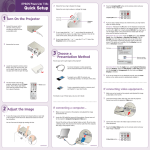
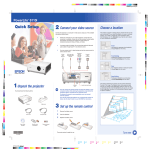
Turn the focus ring to sharpen the image.
Turn the zoom ring to reduce or enlarge the image.
1 Turn On Your Equipment
1
2
Zoom
Focus
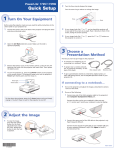
Connect the power cord to the back of the projector and plug the other
end into an electrical outlet.
3
If your image looks like
or
, you’ve placed the projector off
to one side of the screen at an angle. Place it directly in front of the
screen, facing the screen squarely.
4
If your image looks like
or
the projector to correct it.
or
buttons on
Remove the lens cover.
3
3
, press the
Remove the battery cover on the remote control. Locate the batteries
that came with the projector and insert them as shown. Then replace
the battery cover.
Choose a
Presentation Method
How do you want to get images to the projector?
•
To connect to a notebook, see “If connecting
to a notebook” below.
•
To project over an 802.11g/b network, see
“If projecting wirelessly” on the back of this sheet.
Computer cable
You must have installed the projector’s EasyMPTM
software and configured your projector and
computer before you can project wirelessly.
See your User’s Guide for instructions.
4
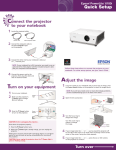
To turn the projector on, press the red Power button on the
projector or the remote control. The projector beeps once, and the
projector’s Power light flashes green and then stays on.
Wireless card
•
To give a presentation stored on a memory card,
see Chapter 5 in your User’s Guide.
CAUTION: Before unplugging the projector...
If connecting to a notebook...
Shut the projector down properly:
1
Make sure you’ve turned on the projector and adjusted the image
as described in sections 1 and 2.
2
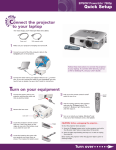
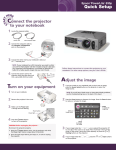
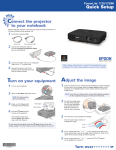
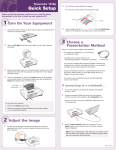
Locate the computer cable that came with the projector. Connect
one end to the projector’s blue Computer/Component Video port.
1. Press the
Power button twice. Let the projector cool while the
Power light flashes orange (about 30 seconds).
2. Once the light stops flashing and the projector beeps, it’s safe to
unplug the projector.
Connect the other end to your notebook’s video-out port or
monitor port. If you can’t connect the cable to your
PowerBook®, you may need to use an adapter. See your
PowerLite 745c User’s Guide for instructions.
2
1
Adjust the Image
To raise the image, press the blue foot release button for the front
adjustable foot and lift the front. Release the button to lock the
foot in position.
3
Press the Source Search button on the projector until your
computer image is displayed.
Turn over