1
Epson MovieMate® 62
Quick Setup
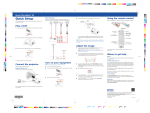
Other Connections
Before using the projector, make sure you read the safety instructions in the
on-screen User’s Guide.
4
Press the
power button on the projector or remote control.
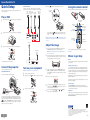
Connect up to 3 video devices and use the remote control to switch
between them. You can also connect a microphone or USB thumb drive.
RCA video cable
HDMI
(composite video)
cable
(optional)
(optional)
Audio cable
(optional)
Using the remote control
Make sure the batteries are installed as shown (two AA batteries included).
Power light
and button
Component
video cable
(optional)
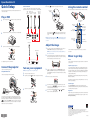
Play a DVD
1
Plug in the projector. The
power light on the projector turns orange.
Function/numerics
toggle switch
Turn projector
on and off
Project from
external equipment
2
Insert your DVD into the slot. The projector will power on automatically.
The projector beeps, the
power light flashes green, and the projector
warms up. When the
power light stays green, the projector is ready
to use.
Fix image shape
(if the projector
is tilted)
Microphone
Adjust picture for
different lighting
Pause movie and
turn on light
Control playback
NOTE: To shut down the projector, press the
power button, wait for the two
confirmation beeps, then unplug it. You don’t have to wait for the projector to
cool down.
3
Eject DVD
Control volume
Access DVD features
Adjust the image
Open the lens cover slide all the way. Your movie will be displayed.
1
If you don’t see an image, press the Source button (remote control) or
Source Search button (projector) to select the image source.
NOTE: If you still see a blank screen or have other display problems, see
the on-screen User’s Guide.
2
To raise the image, press the foot adjustment levers and lift the front of
the projector. Release the levers to lock the feet in position. If the image
is horizontally tilted, you can turn the feet to level it.
USB flash drive
For more information on using the remote control, see your on-screen
User’s Guide.
Where to get help
Manual
See “Adjust the image” for more information.
For more information about using the projector, install the User’s Guide from
your projector CD.
Connect the projector
Telephone Support Services
Choose from the following connections:
Turn on your equipment
NOTE: If you’re playing a DVD, see “Play a DVD” instead.
Computer Monitor Port
1
2
Connect a computer using a VGA cable (optional).
3
To reduce or enlarge the image, press the Visual Setup button, select
Signal, and press Enter. Press the up or down arrow buttons until you
see the Zoom menu, then press the left or right arrow buttons to change
the image size.
4
Turn the focus ring to sharpen the image.
Turn on your computer or video source.
Plug in the projector. The
power light on the projector turns orange.
(562) 276-4394 (U.S.) or (905) 709-3839 (Canada), 6 AM to 6 PM, Pacific Time,
Monday through Friday
Days and hours of support are subject to change without notice. Toll or long
distance charges may apply.
PC port
Internet Support
5
If your image looks like
or
, you’ve placed the projector off to
one side of the screen at an angle. Place it directly in front of the center
of the screen, facing the screen squarely.
6
If your image looks like
or
, press the
button on the remote control to correct it.
3
If you are using a notebook, switch it to external display. If you’re using a
PC notebook, hold down the Fn key on the keyboard and press the function
key that lets you display on an external monitor. It may have an icon such as
, or it may be labelled CRT/LCD. Allow a few seconds for the projector
to sync up after pressing it. Check your notebook’s manual or online help for
details. You can also connect an audio cable.
To use the Epson PrivateLine® Support service, call (800) 637-7661 and enter
the PIN on the Epson PrivateLine Support card included with your projector.
This service is available 6 AM to 6 PM, Pacific Time, Monday through Friday, for
the duration of your warranty period. You may also speak with a projector
support specialist by dialing:
Open the lens cover slide all the way.
or
Keystone
Visit epson.com/support for solutions to common problems. You can
download utilities and documentation, get FAQs and troubleshooting advice,
or e-mail Epson with your questions.
Registration
Register today to get product updates, special promotions, and customer-only
offers. You can use the CD included with your projector or register online at
www.epson.com/webreg.
Epson is a registered trademark and Epson Exceed Your Vision is a registered logomark of Seiko Epson
Corporation. Epson MovieMate and PrivateLine are registered trademarks of Epson America, Inc.
General Notice: Other product names used herein are for identification purposes only and may be trademarks of
their respective owners. Epson disclaims any and all rights in those marks.
*411950100*
*411950100*
This information is subject to change without notice.
© 2010 Epson America, Inc. 7/10
Printed in XXXXXX
CPD-28088