1
PowerLite® Home Cinema 3000/3500/3510/3600e
Quick Setup
3
Before using the projector, make sure you read the safety instructions in the
online User’s Guide.
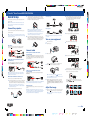
onnect the HDMI cables to your video input devices and the HDMI ports
C
on the side and back of the WirelessHD Transmitter. You can connect up
to five input devices to the transmitter. See “Viewing WirelessHD content”
for information on switching between input sources
Home theater system
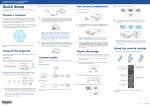
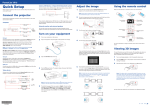
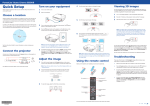
F or the best image quality, place the projector directly in front of the
center of the screen, facing the screen squarely. If this is not possible,
turn the horizontal and vertical lens shift dials to adjust the image
position and center it on the screen.
3
If the image is tilted, adjust the front feet as shown below.
4
Turn the zoom ring to reduce or enlarge the image.
5
Turn the focus ring to sharpen the image.
6
If your image is uneven on the sides, you can use the keystone correction
feature to adjust the image. To use this feature, you must first set the
lens to the center-top position using the lens shift dials.
Video source
Note: These illustrations show the PowerLite Home Cinema 3600e, but the
instructions are the same for the PowerLite Home Cinema 3000/3500/3510
unless otherwise noted.
Video cable
Surround sound
Connect the projector
Receiver
Projector
Powered speakers
ote: You can connect tablets, smartphones and other devices that
N
support the MHL standard to the HDMI port on the side of the
WirelessHD Transmitter. Some devices may require an adapter or may not
require an MHL cable. Not all features or functions may be supported.
Check your device’s documentation for more information.
Choose from the following connections. For additional connection types, see
the online User’s Guide.
Note: To access the rear ports on the PowerLite Home Cinema 3600e, remove
the cable cover by using coins or your fingernails to lift up and out on the gaps
at the bottom of the cable cover.
2
4
o use the transmitter as a pass-through device to a television or other
T
display, connect an HDMI cable to the display device and the HDMI output
port on the rear of the transmitter. See “Viewing WirelessHD content” for
information on switching between wireless and wired display modes.
Video cable
External speakers
Projector
Note: See your home theater receiver documentation for more information
on connections.
Turn on your equipment
1
2
Video device
Video source
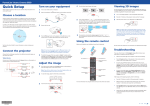
Turn on your video source.
Plug in the projector.
Connect up to 4 video devices and use the Source buttons on the remote
control or the
button on the projector to switch between them.
HDMI cable
RCA video cable
Component video cable
Mobile media device (PowerLite Home Cinema
3500/3510/3600e)
Connect audio
Built-in speaker (PowerLite Home Cinema
3500/3510/3600e)
3 Remove the lens cap.
The projector has a built-in speaker that can play audio from a connected video
source (DVD player, streaming device, etc.) using an HDMI connection. If you do
not use an HDMI connection, you can connect your device’s audio output to the
projector’s audio input.
Connect tablets, smartphones, and other devices that support the MHL™
standard to the HDMI 1/MHL port using a MHL compatible cable.
HDMI cable
4 Press the
power button on the projector or the On button on the
remote control. The power light flashes blue, then stays on.
Audio cable
MHL cable
Note: Some devices may require an adapter or may not require an MHL
cable. Not all features or functions may be supported. Check your device’s
documentation for more information.
Audio Out port (PowerLite Home Cinema
3500/3510/3600e)
You can connect the projector to external self-powered speakers through the
Audio Out port.
Note: To shut down the projector, press the
power button on the
projector or the Standby button on the remote control twice. You don’t
have to wait for the projector to cool down.
WirelessHD (PowerLite Home Cinema 3600e)
Follow these steps to set up the included WirelessHD Transmitter.
1
lace the transmitter within 32 feet (10 m) of the projector. Make sure the
P
front of the transmitter faces the front of the projector. See the online
User’s Guide for more information on the WirelessHD transmission range.
Note: Do not place the transmitter on a metal surface, as this may
interfere with the signal. Make sure there are no obstructions between
the transmitter and the projector.
2
3.5 mm stereo mini
cable
5 The default language of the menu system is English. To select another
language, press the Menu button on the projector or remote control.
Select Settings and press Enter. Select Language and press Enter. Select
your language and press Enter. Press the Menu button to exit the menu
system.
Note: You can also connect external self-powered speakers to the Optical Out
port on the WirelessHD Transmitter (PowerLite Home Cinema 3600e).
Press the
or
buttons to display the keystone correction screen.
Then press the
,
,
, or
buttons to correct for horizontal and
vertical keystone distortion.
External speakers
Connect your device’s audio output to your home theater receiver or powered
speakers.
Adjust the image
Note: When outputting sound through an external source, you may need to
reduce the projector volume to zero or make sure that the correct audio output
is selected on your device to prevent duplicate sound from being heard from
the projector (PowerLite Home Cinema 3500/3510/3600e).
1
Plug the AC adapter into the transmitter and a wall outlet.
If you don’t see an image, press one of the Source buttons on the remote
control or the
button on the projector to select the image source.
ote: If you still see a blank screen or have other display problems,
N
see “Troubleshooting.”
4127732Rev.0
1-F C
4127732Rev.0
1-F M
4127732Rev.0
1-F Y
4127732Rev.0
1-F K
PowerLite® Home Cinema 3000/3500/3510/3600e
Quick Setup
3
Before using the projector, make sure you read the safety instructions in the
online User’s Guide.
onnect the HDMI cables to your video input devices and the HDMI ports
C
on the side and back of the WirelessHD Transmitter. You can connect up
to five input devices to the transmitter. See “Viewing WirelessHD content”
for information on switching between input sources
Home theater system
F or the best image quality, place the projector directly in front of the
center of the screen, facing the screen squarely. If this is not possible,
turn the horizontal and vertical lens shift dials to adjust the image
position and center it on the screen.
3
If the image is tilted, adjust the front feet as shown below.
4
Turn the zoom ring to reduce or enlarge the image.
5
Turn the focus ring to sharpen the image.
6
If your image is uneven on the sides, you can use the keystone correction
feature to adjust the image. To use this feature, you must first set the
lens to the center-top position using the lens shift dials.
Video source
Note: These illustrations show the PowerLite Home Cinema 3600e, but the
instructions are the same for the PowerLite Home Cinema 3000/3500/3510
unless otherwise noted.
Video cable
Surround sound
Connect the projector
Receiver
Projector
Powered speakers
ote: You can connect tablets, smartphones and other devices that
N
support the MHL standard to the HDMI port on the side of the
WirelessHD Transmitter. Some devices may require an adapter or may not
require an MHL cable. Not all features or functions may be supported.
Check your device’s documentation for more information.
Choose from the following connections. For additional connection types, see
the online User’s Guide.
Note: To access the rear ports on the PowerLite Home Cinema 3600e, remove
the cable cover by using coins or your fingernails to lift up and out on the gaps
at the bottom of the cable cover.
2
4
o use the transmitter as a pass-through device to a television or other
T
display, connect an HDMI cable to the display device and the HDMI output
port on the rear of the transmitter. See “Viewing WirelessHD content” for
information on switching between wireless and wired display modes.
Video cable
External speakers
Projector
Note: See your home theater receiver documentation for more information
on connections.
Turn on your equipment
1
2
Video device
Video source
Turn on your video source.
Plug in the projector.
Connect up to 4 video devices and use the Source buttons on the remote
control or the
button on the projector to switch between them.
HDMI cable
RCA video cable
Component video cable
Mobile media device (PowerLite Home Cinema
3500/3510/3600e)
Connect audio
Built-in speaker (PowerLite Home Cinema
3500/3510/3600e)
3 Remove the lens cap.
The projector has a built-in speaker that can play audio from a connected video
source (DVD player, streaming device, etc.) using an HDMI connection. If you do
not use an HDMI connection, you can connect your device’s audio output to the
projector’s audio input.
Connect tablets, smartphones, and other devices that support the MHL™
standard to the HDMI 1/MHL port using a MHL compatible cable.
HDMI cable
4 Press the
power button on the projector or the On button on the
remote control. The power light flashes blue, then stays on.
Audio cable
MHL cable
Note: Some devices may require an adapter or may not require an MHL
cable. Not all features or functions may be supported. Check your device’s
documentation for more information.
Audio Out port (PowerLite Home Cinema
3500/3510/3600e)
You can connect the projector to external self-powered speakers through the
Audio Out port.
Note: To shut down the projector, press the
power button on the
projector or the Standby button on the remote control twice. You don’t
have to wait for the projector to cool down.
WirelessHD (PowerLite Home Cinema 3600e)
Follow these steps to set up the included WirelessHD Transmitter.
1
lace the transmitter within 32 feet (10 m) of the projector. Make sure the
P
front of the transmitter faces the front of the projector. See the online
User’s Guide for more information on the WirelessHD transmission range.
Note: Do not place the transmitter on a metal surface, as this may
interfere with the signal. Make sure there are no obstructions between
the transmitter and the projector.
2
3.5 mm stereo mini
cable
5 The default language of the menu system is English. To select another
language, press the Menu button on the projector or remote control.
Select Settings and press Enter. Select Language and press Enter. Select
your language and press Enter. Press the Menu button to exit the menu
system.
Note: You can also connect external self-powered speakers to the Optical Out
port on the WirelessHD Transmitter (PowerLite Home Cinema 3600e).
Press the
or
buttons to display the keystone correction screen.
Then press the
,
,
, or
buttons to correct for horizontal and
vertical keystone distortion.
External speakers
Connect your device’s audio output to your home theater receiver or powered
speakers.
Adjust the image
Note: When outputting sound through an external source, you may need to
reduce the projector volume to zero or make sure that the correct audio output
is selected on your device to prevent duplicate sound from being heard from
the projector (PowerLite Home Cinema 3500/3510/3600e).
1
Plug the AC adapter into the transmitter and a wall outlet.
If you don’t see an image, press one of the Source buttons on the remote
control or the
button on the projector to select the image source.
ote: If you still see a blank screen or have other display problems,
N
see “Troubleshooting.”
4127732Rev.0
1-F C
4127732Rev.0
1-F M
4127732Rev.0
1-F Y
4127732Rev.0
1-F K
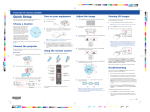
Using the remote control
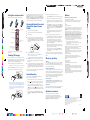
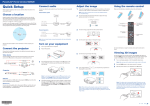
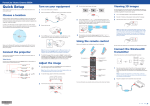
Make sure the batteries are installed as shown (two AA batteries).
You can also automatically convert 2D HDMI content to 3D (PowerLite Home
Cinema 3500/3510/3600e). To enable the 2D-to-3D Conversion option, press
the Menu button on the projector or remote control. Select Signal and press
Enter, then select 3D Setup and press Enter. Select 2D-to-3D Conversion and
press Enter. Select the Weak, Medium, or Strong setting, then press Enter.
See the online User’s Guide for more information on adjusting 3D images.
Turn projector on
Turn projector off
Choose which source to
display
Switch between 2D
and 3D
If 3D images aren’t displaying properly, check the following:
••
••
••
Viewing WirelessHD content
(PowerLite Home Cinema
3600e)
••
1
2
3
4
••
Navigate projector
menus
Turn on your video device and begin playback.
Turn on the power switch on the side of the WirelessHD Transmitter.
If you have connected a television or other display to the output port on
the transmitter and want to switch between wired and wireless display
modes, press the Output button on the remote control or transmitter.
The WiHD light on the transmitter will light up when the wireless display
mode is active.
••
••
Control WirelessHD functions
(PowerLite Home Cinema
3600e only)
••
5
Viewing 3D images
To view 3D content, you must first connect a 3D-compatible video device to
one of the HDMI ports on your projector. You will also need a pair of Epson®
(part number V12H548006) or Epson-compatible RF 3D active shutter glasses
(included with PowerLite Home Cinema 3500/3510/3600e).
1
Turn on and begin playback on the 3D-compatible video device.
7
Note: Make sure you set the video device to play content in 3D mode.
2
3
Press the 3D Format button on the remote control, if necessary.
Slide the power switch on your 3D glasses to the On position.
Press the WirelessHD button on the remote control.
ote: If the WirelessHD connection fails, press the Setup button on
N
the bottom of the transmitter, then try again.
6
If you have connected multiple input devices to the transmitter, press
the Input button on the remote control or transmitter once to display
the sub-screen menu, then press the button again to switch between the
input devices.
o display two WirelessHD input devices simultaneously, press the P-in-P
T
button on the remote control to enable picture-in-picture mode. Press and
hold the P-in-P button for three seconds to switch the main image and
sub-screen, or press the P-in-P button again to disable picture-in-picture
mode.
See the online User’s Guide for more information on adjusting and configuring
the WirelessHD connection and display modes.
Troubleshooting
If you see a blank screen or the No signal message after turning on your
video device or computer, check the following:
Note: If the glasses don’t automatically display 3D content, you may
need to pair them with the projector. Move the glasses within 10 feet
(3 m) of the projector, then press and hold the Pairing button on the
3D glasses for at least 3 seconds. The status light on the glasses will
alternately flash green and red, then remain green for 10 seconds if
pairing is successful.
••
••
••
••
M
ake sure to wear the 3D glasses within 32 feet (10 m) of the projector.
C
heck that your 3D glasses have not entered standby mode. Slide the
power switch on the 3D glasses into the Off position, then back to the On
position.
P
ress the Menu button on your remote control, select the Signal menu,
then 3D Setup, then select 3D Format. Make sure that the Auto option
is selected. You may also need to set the 3D Depth and Diagonal Screen
Size setting in the Signal menu. See the online User’s Guide for more
information.
C
heck that your video device and media are both 3D-compatible. Refer
to the documentation that came with your video device for more
information.
If WirelessHD content isn’t displaying properly, check the following:
Turn on the projector.
Access projector menus
For more information on using the remote control, see the online
User’s Guide.
Press the 3D Format button to switch to 3D viewing mode, if necessary.
Make sure the power light on the projector is blue and not flashing.
Check that the Link light on the transmitter is lit. If the light is flashing
slowly, the transmitter could not connect with the projector and has
entered standby mode. Verify that the projector is turned on and
that all cables are properly connected as shown in the “Connect the
projector” section. You may also need to press the Input button several
times before the Link light turns on.
M
ake sure the WirelessHD Transmitter is within 32 feet (10 m) of the
projector, is facing the front of the projector, isn’t obstructed by any large
objects, and is not placed on a metal surface.
If you are viewing wireless content, make sure that the WiHD light on
the transmitter is lit. If it isn’t, press the Output button on the remote
control or transmitter.
If the keystone correction feature doesn’t correct the image, make sure you
first set the lens to the center-top position using the horizontal and vertical lens
shift dials.
Where to get help
Manuals
For more information about using the projector, click the icons on your desktop
to access the online manuals (requires an Internet connection). If you don’t
have icons to the manuals, you can install them from the projector CD or go to
the Epson website, as described below.
Telephone support services
To use the Epson® PrivateLine® Support service, call (800) 637-7661. This service
is available for the duration of your warranty period. You may also speak with a
support specialist by calling (562) 276-4394 (U.S.) or (905) 709-3839 (Canada).
U.S.
FCC Notices
Contains FCC ID: BKMAE-E207
This device complies with Part 15 of the FCC Rules. Operation is subject to the following
two conditions: (1) This device may not cause harmful interference, and (2) this device
must accept any interference received, including interference that may cause undesired
operation.
This equipment has been tested and found to comply with the limits for a Class B
digital device, pursuant to Part 15 of the FCC Rules. These limits are designed to provide
reasonable protection against harmful interference in a residential installation. This
equipment generates, uses and can radiate radio frequency energy and, if not installed
and used in accordance with the instructions, may cause harmful interference to radio
communications. However, there is no guarantee that interference will not occur in a
particular installation. If this equipment does cause harmful interference to radio or
television reception, which can be determined by turning the equipment off and on, the
user is encouraged to try to correct the interference by one of the following measures:
•
•
•
Reorient or relocate the receiving antenna.
•
Consult the dealer or an experienced radio/TV technician for help.
Increase the separation between the equipment and receiver.
onnect the equipment into an outlet on a circuit different from that to which
C
the receiver is connected.
Caution: Changes or modifications not expressly approved by the party responsible for
compliance could void the user’s authority to operate this equipment.
This transmitter must not be co-located or operating in conjunction with any other
antenna or transmitter.
Properly shielded cables must be used for connections to LCD Projector in order to meet
FCC emission limits. The cable for peripheral with a ferrite core must be used for RF
interference suppression.
Radiation Exposure Statement:
This equipment complies with FCC radiation exposure limits set forth for an
uncontrolled environment. This equipment should be installed and operated with
minimum distance 20cm between the radiator & your body.
This Class B digital apparatus complies with Canadian ICES-003.
CAN ICES-3(B)/NMB-3(B)
This device complies with RSS-210 of the Industry Canada Rules. Operation is subject to
the following two conditions: (1) This device may not cause harmful interference, and
(2) this device must accept any interference received, including interference that may
cause undesired operation.
Radiation Exposure Statement:
This equipment complies with IC radiation exposure limits set forth for an uncontrolled
environment. This equipment should be installed and operated with minimum distance
20 cm between the radiator & your body.
Support hours are 6 am to 8 pm, Pacific Time, Monday through Friday, and 7 am
to 4 pm, Pacific Time, Saturday. Days and hours of support are subject to change
without notice. Toll or long distance charges may apply.
Internet support
Registration
Displays. Click the Arrangement tab and select the Mirror Displays
checkbox.
This document provides safety instructions and describes the specifications. Read this
document carefully before use to ensure your safety and product performance.
Contains IC: 1052D-E207
If you’re using a Windows
If you’re using a Mac laptop, open System Preferences and select
Contains Bluetooth module model: DBUB-E207
Industry Canada (IC) Notices
ress the
P
button on the projector or one of the Source buttons on
the remote control to switch to the correct image source, if necessary.
laptop, press the function key on your
keyboard that lets you display on an external monitor. It may be labeled
CRT/LCD or have an icon such as
. You may have to hold down the
Fn key while pressing it (such as Fn + F7). Wait a moment for the display
to appear.
Bluetooth Safety and Specifications
Canada
Visit epson.com/support (U.S.) or epson.ca/support (Canada) for solutions to
common problems. You can download utilities and documentation, get FAQs
and troubleshooting advice, or e-mail Epson.
®
Notices
Register today to get product updates and exclusive offers. You can use the CD
included with your projector or register online at epson.com/webreg.
Optional accessories
For a list of optional accessories, see the online User’s Guide.
You can purchase RF 3D glasses (part number V12H548006) or other
accessories from an Epson authorized reseller. To find the nearest reseller,
call 800-GO-EPSON (800-463-7766). Or you can purchase online at
epsonstore.com (U.S. sales) or epson.ca (Canadian sales).
EPSON and PowerLite are registered trademarks, and EPSON Exceed Your Vision is a registered logomark of
Seiko Epson Corporation. PrivateLine is a registered trademark of Epson America, Inc.
Mac is a trademark of Apple Inc., registered in the U.S. and other countries.
General Notice: Other product names used herein are for identification purposes only and may be trademarks
of their respective owners. Epson disclaims any and all rights in those marks.
This information is subject to change without notice.
© 2014 Epson America, Inc., 7/14
Printed in XXXXXX
CPD-41443
4127732Rev.0
1-B
C
4127732Rev.0
1-B
M
4127732Rev.0
1-B
Y
4127732Rev.0
1-B
K
Using the remote control
Make sure the batteries are installed as shown (two AA batteries).
You can also automatically convert 2D HDMI content to 3D (PowerLite Home
Cinema 3500/3510/3600e). To enable the 2D-to-3D Conversion option, press
the Menu button on the projector or remote control. Select Signal and press
Enter, then select 3D Setup and press Enter. Select 2D-to-3D Conversion and
press Enter. Select the Weak, Medium, or Strong setting, then press Enter.
See the online User’s Guide for more information on adjusting 3D images.
Turn projector on
Turn projector off
Choose which source to
display
Switch between 2D
and 3D
If 3D images aren’t displaying properly, check the following:
••
••
••
Viewing WirelessHD content
(PowerLite Home Cinema
3600e)
••
1
2
3
4
••
Navigate projector
menus
Turn on your video device and begin playback.
Turn on the power switch on the side of the WirelessHD Transmitter.
If you have connected a television or other display to the output port on
the transmitter and want to switch between wired and wireless display
modes, press the Output button on the remote control or transmitter.
The WiHD light on the transmitter will light up when the wireless display
mode is active.
••
••
Control WirelessHD functions
(PowerLite Home Cinema
3600e only)
••
5
Viewing 3D images
To view 3D content, you must first connect a 3D-compatible video device to
one of the HDMI ports on your projector. You will also need a pair of Epson®
(part number V12H548006) or Epson-compatible RF 3D active shutter glasses
(included with PowerLite Home Cinema 3500/3510/3600e).
1
Turn on and begin playback on the 3D-compatible video device.
7
Note: Make sure you set the video device to play content in 3D mode.
2
3
Press the 3D Format button on the remote control, if necessary.
Slide the power switch on your 3D glasses to the On position.
Press the WirelessHD button on the remote control.
ote: If the WirelessHD connection fails, press the Setup button on
N
the bottom of the transmitter, then try again.
6
If you have connected multiple input devices to the transmitter, press
the Input button on the remote control or transmitter once to display
the sub-screen menu, then press the button again to switch between the
input devices.
o display two WirelessHD input devices simultaneously, press the P-in-P
T
button on the remote control to enable picture-in-picture mode. Press and
hold the P-in-P button for three seconds to switch the main image and
sub-screen, or press the P-in-P button again to disable picture-in-picture
mode.
See the online User’s Guide for more information on adjusting and configuring
the WirelessHD connection and display modes.
Troubleshooting
If you see a blank screen or the No signal message after turning on your
video device or computer, check the following:
Note: If the glasses don’t automatically display 3D content, you may
need to pair them with the projector. Move the glasses within 10 feet
(3 m) of the projector, then press and hold the Pairing button on the
3D glasses for at least 3 seconds. The status light on the glasses will
alternately flash green and red, then remain green for 10 seconds if
pairing is successful.
••
••
••
••
M
ake sure to wear the 3D glasses within 32 feet (10 m) of the projector.
C
heck that your 3D glasses have not entered standby mode. Slide the
power switch on the 3D glasses into the Off position, then back to the On
position.
P
ress the Menu button on your remote control, select the Signal menu,
then 3D Setup, then select 3D Format. Make sure that the Auto option
is selected. You may also need to set the 3D Depth and Diagonal Screen
Size setting in the Signal menu. See the online User’s Guide for more
information.
C
heck that your video device and media are both 3D-compatible. Refer
to the documentation that came with your video device for more
information.
If WirelessHD content isn’t displaying properly, check the following:
Turn on the projector.
Access projector menus
For more information on using the remote control, see the online
User’s Guide.
Press the 3D Format button to switch to 3D viewing mode, if necessary.
Make sure the power light on the projector is blue and not flashing.
Check that the Link light on the transmitter is lit. If the light is flashing
slowly, the transmitter could not connect with the projector and has
entered standby mode. Verify that the projector is turned on and
that all cables are properly connected as shown in the “Connect the
projector” section. You may also need to press the Input button several
times before the Link light turns on.
M
ake sure the WirelessHD Transmitter is within 32 feet (10 m) of the
projector, is facing the front of the projector, isn’t obstructed by any large
objects, and is not placed on a metal surface.
If you are viewing wireless content, make sure that the WiHD light on
the transmitter is lit. If it isn’t, press the Output button on the remote
control or transmitter.
If the keystone correction feature doesn’t correct the image, make sure you
first set the lens to the center-top position using the horizontal and vertical lens
shift dials.
Where to get help
Manuals
For more information about using the projector, click the icons on your desktop
to access the online manuals (requires an Internet connection). If you don’t
have icons to the manuals, you can install them from the projector CD or go to
the Epson website, as described below.
Telephone support services
To use the Epson® PrivateLine® Support service, call (800) 637-7661. This service
is available for the duration of your warranty period. You may also speak with a
support specialist by calling (562) 276-4394 (U.S.) or (905) 709-3839 (Canada).
U.S.
FCC Notices
Contains FCC ID: BKMAE-E207
This device complies with Part 15 of the FCC Rules. Operation is subject to the following
two conditions: (1) This device may not cause harmful interference, and (2) this device
must accept any interference received, including interference that may cause undesired
operation.
This equipment has been tested and found to comply with the limits for a Class B
digital device, pursuant to Part 15 of the FCC Rules. These limits are designed to provide
reasonable protection against harmful interference in a residential installation. This
equipment generates, uses and can radiate radio frequency energy and, if not installed
and used in accordance with the instructions, may cause harmful interference to radio
communications. However, there is no guarantee that interference will not occur in a
particular installation. If this equipment does cause harmful interference to radio or
television reception, which can be determined by turning the equipment off and on, the
user is encouraged to try to correct the interference by one of the following measures:
•
•
•
Reorient or relocate the receiving antenna.
•
Consult the dealer or an experienced radio/TV technician for help.
Increase the separation between the equipment and receiver.
onnect the equipment into an outlet on a circuit different from that to which
C
the receiver is connected.
Caution: Changes or modifications not expressly approved by the party responsible for
compliance could void the user’s authority to operate this equipment.
This transmitter must not be co-located or operating in conjunction with any other
antenna or transmitter.
Properly shielded cables must be used for connections to LCD Projector in order to meet
FCC emission limits. The cable for peripheral with a ferrite core must be used for RF
interference suppression.
Radiation Exposure Statement:
This equipment complies with FCC radiation exposure limits set forth for an
uncontrolled environment. This equipment should be installed and operated with
minimum distance 20cm between the radiator & your body.
This Class B digital apparatus complies with Canadian ICES-003.
CAN ICES-3(B)/NMB-3(B)
This device complies with RSS-210 of the Industry Canada Rules. Operation is subject to
the following two conditions: (1) This device may not cause harmful interference, and
(2) this device must accept any interference received, including interference that may
cause undesired operation.
Radiation Exposure Statement:
This equipment complies with IC radiation exposure limits set forth for an uncontrolled
environment. This equipment should be installed and operated with minimum distance
20 cm between the radiator & your body.
Support hours are 6 am to 8 pm, Pacific Time, Monday through Friday, and 7 am
to 4 pm, Pacific Time, Saturday. Days and hours of support are subject to change
without notice. Toll or long distance charges may apply.
Internet support
Registration
Displays. Click the Arrangement tab and select the Mirror Displays
checkbox.
This document provides safety instructions and describes the specifications. Read this
document carefully before use to ensure your safety and product performance.
Contains IC: 1052D-E207
If you’re using a Windows
If you’re using a Mac laptop, open System Preferences and select
Contains Bluetooth module model: DBUB-E207
Industry Canada (IC) Notices
ress the
P
button on the projector or one of the Source buttons on
the remote control to switch to the correct image source, if necessary.
laptop, press the function key on your
keyboard that lets you display on an external monitor. It may be labeled
CRT/LCD or have an icon such as
. You may have to hold down the
Fn key while pressing it (such as Fn + F7). Wait a moment for the display
to appear.
Bluetooth Safety and Specifications
Canada
Visit epson.com/support (U.S.) or epson.ca/support (Canada) for solutions to
common problems. You can download utilities and documentation, get FAQs
and troubleshooting advice, or e-mail Epson.
®
Notices
Register today to get product updates and exclusive offers. You can use the CD
included with your projector or register online at epson.com/webreg.
Optional accessories
For a list of optional accessories, see the online User’s Guide.
You can purchase RF 3D glasses (part number V12H548006) or other
accessories from an Epson authorized reseller. To find the nearest reseller,
call 800-GO-EPSON (800-463-7766). Or you can purchase online at
epsonstore.com (U.S. sales) or epson.ca (Canadian sales).
EPSON and PowerLite are registered trademarks, and EPSON Exceed Your Vision is a registered logomark of
Seiko Epson Corporation. PrivateLine is a registered trademark of Epson America, Inc.
Mac is a trademark of Apple Inc., registered in the U.S. and other countries.
General Notice: Other product names used herein are for identification purposes only and may be trademarks
of their respective owners. Epson disclaims any and all rights in those marks.
This information is subject to change without notice.
© 2014 Epson America, Inc., 7/14
Printed in XXXXXX
CPD-41443
4127732Rev.0
1-B
C
4127732Rev.0
1-B
M
4127732Rev.0
1-B
Y
4127732Rev.0
1-B
K