1
XP-320/XP-420/XP-424 Small-in-One® Printer
Start Here
1
English
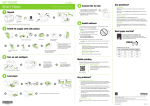
Read these instructions before using your product.
Note for Spanish speakers/Nota para hispanohablantes: Para obtener instrucciones de configuración
en español, consulte la Guía de instalación en epson.com/support/xp320sp, epson.com/support/xp420sp
o epson.com/support/xp424sp (requiere una conexión a Internet).
5
Install software
Note: If your computer does not have a CD/DVD drive or you are using a Mac, an Internet
connection is required to obtain the printer software.
Unpack
1Make sure the printer is NOT CONNECTED to your computer.
2Insert the product CD or download and run your product’s software package:
Turn on and configure
1
2
If you want to change the language, press
it, then press OK.
(562) 276-4382 (U.S.) or (905) 709-3839 (Canada), 6 am to 8 pm, Pacific Time, Monday
through Friday, and 7 am to 4 pm, Pacific Time, Saturday. Days and hours of support
are subject to change without notice. Toll or long distance charges may apply.
XP-320: epson.com/support/xp320 (U.S.) or epson.ca/support/xp320 (Canada)
Recycling
XP-420: epson.com/support/xp420 (U.S.) or epson.ca/support/xp420 (Canada)
XP-424: epson.com/support/xp424 (U.S.) or epson.ca/support/xp424 (Canada)
Epson offers a recycling program for end of life hardware and ink cartridges. Please
go to epson.com/recycle for information on how to return your products for proper
disposal.
your product.
to select
Note: You can change the language later using the product’s
control panel. For more information, see the online User’s Guide.
Caution: Do not lower the control
panel without first squeezing the
release bar underneath or you may
damage the product.
Caution: Do not connect to your computer yet.
or
epson.com/support (U.S.) or epson.ca/support (Canada)
OS X: Make sure you install Software Updater to receive firmware and software updates for
To select English as your language, press OK.
1
Technical support
3 Follow the instructions on the screen to run the setup program.
2
4 When you see the Select Your Connection screen, select one of the following:
•
•
Install ink cartridges
Wireless connection
In most cases, the software installer automatically attempts to set up your
wireless connection. If setup is unsuccessful, you may need to enter your
network name (SSID) and password.
Need paper and ink?
ry Epson specialty papers with DURABrite® Ultra Ink T
for professional results. You can purchase them at epson.com/ink3 (U.S. sales) or epson.ca (Canadian sales).
You can also purchase supplies from an Epson authorized
reseller. Call 800-GO-EPSON (800-463-7766).
Direct USB connection
Make sure you have a USB cable (not included).
Mobile printing
To print from a mobile device, your product must be set up for wireless printing or
Wi-Fi Direct®. See the online User’s Guide for instructions.
iOS/Android™ Epson Connect™
Connect wirelessly from your tablet, smartphone, or
computer. Print documents and photos from across the
room or around the world.
epson.com/connect
Press
to prime the ink delivery system. Priming takes
about 4 minutes.
1
Note:
• The printer is designed for use with Epson® cartridges only,
not third-party cartridges or ink.
4 minutes
2
• T
he cartridges included with the printer are designed for
printer setup and not for resale. After some ink is used for
priming, the rest is available for printing.
Caution: Don’t turn off the printer while it is priming or you’ll
waste ink.
XP-320/XP-420/XP-424 replacement ink cartridges
Color
Standard-capacity
High-capacity
Black
220
220XL
Cyan
220
220XL
Magenta
220
220XL
Yellow
220
220XL
epson.com/iprint
Any problems?
Network setup was unsuccessful.
•
Make sure you select the right network name (SSID).
•If you see a firewall alert message, click Unblock or Allow to let setup continue.
Load paper
3
1
User’s Guide
If you don’t have a User’s Guide icon, go to the Epson website, as described below.
cable.
4
Basic information and troubleshooting.
OS X: Click the icon in Applications/Epson Software/Guide to access the online
User’s Guide.
Windows®: If you see a Found New Hardware screen, click Cancel and disconnect the USB
3
Quick Guide
Windows: Click the icon on your desktop or Apps screen to access the online User’s
Guide.
Note: Do not open ink cartridge packages until
you are ready to install the ink. Cartridges are
vacuum packed to maintain reliability.
2
Any questions?
•
If your network has security enabled, make sure you enter your network password
(WEP key or WPA passphrase) correctly. Passwords must be entered in the
correct case.
The printer’s screen is dark.
4
8½ × 11 inch
(216 × 279 mm)
2
Press any button to wake your product from sleep mode.
Setup is unable to find my printer after connecting it with a USB cable.
Make sure it is securely connected as shown:
1
2
4 × 6 inch
(102 × 152 mm)
Check the current paper settings on the
control panel.
To use these settings, press OK. If you
or
want to change the settings, press
to select Change, then press OK. Select
paper size, press OK, select paper type,
then press OK to confirm settings.
EPSON and DURABrite are registered trademarks, Epson Connect is a trademark, and EPSON Exceed Your Vision is a registered
logomark of Seiko Epson Corporation. Small-in-One is a registered trademark and Designed for Excellence is a trademark of Epson
America, Inc.
Mac and OS X are trademarks of Apple Inc., registered in the U.S. and other countries.
Android is a trademark of Google Inc.
Wi-Fi Direct® is a registered trademark of Wi-Fi Alliance®.
General Notice: Other product names used herein are for identification purposes only and may be trademarks of their respective owners.
Epson disclaims any and all rights in those marks.
This information is subject to change without notice.
© 2014 Epson America, Inc., 11/14
Printed in XXXXXX
CPD-42270