1
EPSON Stylus C82
CPD14293R1_Marg_SH_E.qxd
9/24/02
01:45 PM
Page 1
EPSON Stylus C82
®
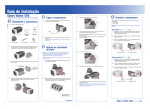
2 Power On
4 Connect the Printer
1
Plug the printer’s power cord into a grounded electrical outlet.
Printer cables are not included with your printer. You need only one
of the following cables:
2
Press the printer’s
• USB cable (PC or Macintosh®) or
power button until the green power light comes on.
• Parallel cable (PC only).
Start
Here
NOTE: If you have Windows® 95 or NT 4.x, you must use a parallel cable.
Power button
USB Cable Users (PC or Mac)
1
CAUTION: Use only the printer’s
1
Leave your computer turned off until section 6.
power button to turn the printer on or off.
3 Load Ink
2
Plug the
square end of the cable into the USB port on the side of the printer.
(It’s right above the parallel port.)
3
Plug the
flat end of the cable into your computer’s USB port until it stops.
(You can use any open USB port.)
Lower the printer’s output tray
and open the cover.
CPD-14293R1
4025621-01
Flat end
2
1 Unpack
1
Shut down your computer. In Windows, click Start and select your Shut Down
or Turn Off option.
Square end
Shake the package of ink cartridges four or five times. Then remove the cartridges
from the package. (Don’t shake them after removing the packaging.)
Parallel Cable Users (PC only)
Don’t touch the
green circuit boards
or remove any labels
1
Shut down your computer. Click Start and select your Shut Down or Turn Off option.
Remove everything from the box.
Leave your computer turned off until section 6.
3
Paper support
Lower each ink cartridge into its holder with the green circuit board facing the back.
Then gently push each ink cartridge down until it is firmly seated.
2
Plug the end of the cable with the slotted connector into the parallel port on the side
of the printer, then secure it with the wire clips.
The color of the cartridge label should match the marker on the holder.
3
Plug the end of the cable with the screws on the side into your computer’s
parallel port and secure it.
Manual
Printer
CD-ROM
Ink cartridges
2
Remove all the blue tape and packing material inside and around the printer.
The tape may be in slightly different places on your printer, so check carefully.
4
Press the
ink button and close the printer cover.
Ink button
3
Slide the paper support into the
grooves on either side of the sheet
feeder. The paper support should
fit securely.
End with screws
Slotted end
The green power light flashes as your printer charges ink for about 90 seconds.
CAUTION: Don’t turn off the printer while the green power light is flashing,
unless the printer hasn’t moved or made any noise for more than 5 minutes.
Turn over
CPD14293R1_Marg_SH_E.qxd
9/24/02
01:45 PM
Page 2
5 Load Paper
1
Windows Me and 98
Macintosh OS 8.6 through 9.x
1
1
Turn on your Macintosh. Then put the
EPSON CD-ROM in your drive.
2
Double-click
EPSON in your CD-ROM window.
(You may have to double-click
EPSON on your
desktop to open the window.)
3
Read and agree to the license agreement to
continue the installation.
4
Click Install Printer Driver and follow the
on-screen instructions.
5
After your Macintosh restarts, register your
printer with EPSON as instructed.
6
Open the Chooser and select your
C82 Series printer icon.
7
Select your USB port and turn on background
printing. Then close the Chooser.
8
Optionally, click Install EPSON Software Film Factory on the Main Menu and
follow the on-screen instructions to install the software.
Turn on your computer. (Make sure your printer is still on.) Wait until you see the
Add New Hardware Wizard.
Fan a few sheets of paper and place them against the right edge guide.
Don’t push the paper in.
Don’t load paper
above this arrow
Windows Me
2
2
Slide the left edge guide against the paper, but not too tightly.
3
Pull out the output tray extensions.
3
6 Install Software
Follow the appropriate section below to install the printer software on Windows XP,
Windows Me, Windows 98, or Macintosh OS 8.6 through 9.x.
Put the EPSON CD-ROM in your drive.
After a moment, click Next on the
Add New Hardware Wizard screen.
Me
If you’re running Windows Me,
go to step 7.
98
If you’re running Windows 98,
continue with step 4.
4
When you see this screen, click Next again.
5
You see a screen asking where you want
Windows to search. Click CD-ROM drive.
Then click Next.
6
Click Next on the following screen.
7
When you see a screen like this one,
click Finish.
8
Do one of the following:
For instructions on installing the software on Windows 2000, 95, or NT 4.x,
or on Macintosh OS X, see your Printer Basics book.
Windows 98
2
9
Turn on your computer. (Make sure your printer is still on.)
Wait for this screen to appear.
Me
Click Next on the next screen.
98
Click Next on each of the four screens
that follow.
3
Put the EPSON CD-ROM in your drive.
4
Wait while the files are copied to your computer.
5
Click Finish when you see this screen.
6
Click Finish when you see this screen.
11
You see the license agreement.
Read the agreement and click Agree
to continue installation.
You see the Options Menu. Continue with
the instructions below under “Finishing
Windows Installation” to complete your
software installation.
Finishing Windows Installation
1
When you see this screen, make sure you have
paper in the printer, then click Print a Test Page
to check that your printer is set up correctly.
2
Optionally, click Install EPSON Software
Film Factory and follow the on-screen instructions.
3
Click Install Manual and Printer Movies and follow
the on-screen directions to install the EPSON Printer
Information Center on your desktop.
4
When you’re finished, click Exit to close the Options Menu.
5
When you see the EPSON Product Registration screen, register your
printer as instructed, then remove your CD-ROM.
You see the license agreement.
Read the agreement and click Agree.
You see the Options Menu. Continue with the
“Finishing Windows Installation” instructions to
the right to complete your software installation.
Continued in next column
When you see this screen, click Finish. Then
wait while the files are copied to your
computer.
10
NOTE: If you don’t see the Found New
Hardware screen, make sure your printer
is on and your cable is securely connected
to your printer’s port.
EPSON in your CD-ROM window
9
Click Install Manual and Printer Movies and follow the on-screen instructions to
install the EPSON Printer Information Center on your desktop.
10
When you’re finished, click Exit. Then remove the CD-ROM and keep it in case
you need to reinstall any software later.
You’re ready to print! For more information, see section 7.
Windows XP
1
NOTE: You may have to double-click
to open the Main Menu.
You’re ready to print! See the details in section 7.
7 Print
Now you’re ready to print. For instructions, use these resources:
• Your Printer Basics book
Learn about loading paper, printing, maintaining your
printer, solving problems, and contacting EPSON.
•
EPSON Printer Information Center on your desktop
Click Print Show to view helpful animations that show you
how to change ink cartridges and perform other tasks.
Click Reference Guide to view more information about
your printer.
Use genuine EPSON inks and paper to get the best results
from your printer. You can purchase ink cartridges, paper,
and accessories from your local retailer or from the EPSON
StoreSM at (800) 873-7766, or visit www.epsonstore.com
(U.S. sales only). In Canada, please call (800) 463-7766 for
dealer referral.
EPSON and EPSON Stylus are registered trademarks of SEIKO EPSON CORPORATION. EPSON Software is a trademark and EPSON PhotoCenter and
EPSON Store are service marks of Epson America, Inc.
General Notice: Other product names used herein are for identification purposes only and may be trademarks of their respective owners. EPSON disclaims
any and all rights in those marks.
Copyright © 2002 by Epson America, Inc. Printed on recycled paper. Printed in USA. 08/02