1
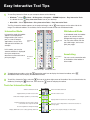
1 Connect Your Computer and
Turn on the Projector
1
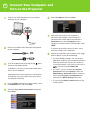
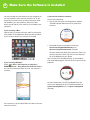
onnect the USB cable directly to any available
C
USB port on your computer.
6
Select Use Source and press Enter.
7
elect the source where your computer is
S
connected. For example, if your computer is
connected with a VGA cable to the projector’s
Computer1 port, select Computer1. If your
computer is connected with an HDMI cable, select
HDMI.
If you don’t know which source to select, check
with your school’s tech coordinator.
8
isplay an image from your computer. If the image
D
doesn’t appear, try one of the following:
• On some Windows laptops, you may need to
USB cable
2
onnect an HDMI or VGA cable from the projector
C
to your computer.
HDMI
hold down the Fn key on the keyboard and press
F7 or the function key that lets you display on
an external monitor. It may have an icon such as
, or it may be labelled CRT/LCD.
VGA
3
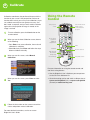
urn on the projector by pressing the red
T
button on the remote control.
In Windows®, you may see messages about device
drivers or new hardware.
power
epending on how your computer is connected to
D
the projector, you may need to select your source
for computer interaction.
4
ress the Menu button on the remote control, select
P
the Extended menu, and press Enter.
5
elect the Easy Interactive Function setting and
S
press Enter.
• On a Mac®, you may need to open System
Preferences and select Displays. Select the
VGA Display or Color LCD option if necessary,
then click the Arrange or Arrangement tab,
and select the Mirror Displays check box.
• Try pressing the Source Search button on the
remote control.