1
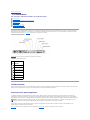
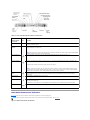
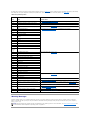
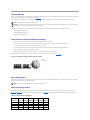
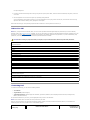
 Table 2-6. NIC Indicators Link
indicator
Activity
indicator
Description
Off
Off
The NIC is not connected to the network or the NIC is disabled in the System Setup screen. See "Using the System Setup
Program" in the User's Guide.
Green
Off
Indicates that the network adapter is connected to a valid link partner on the network, but data is not currently being sent
or received.
Green
Blinking amber
Indicates that network data is being sent or received.
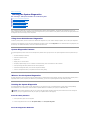
System Messages
System messages appear on the screen during system boot to notify you of a possible problem with the system. Table 2-7 lists the system messages that can
occur and the probable cause and corrective action for each message.
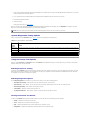
NOTE: If you receive a system message that is not listed in Table 2-7, check the documentation for the application that is running when the message
appears or the operating system's documentation for an explanation of the message and recommended action.
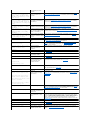
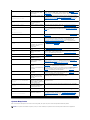
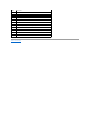
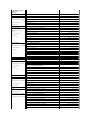
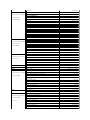
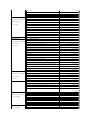
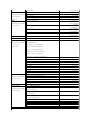
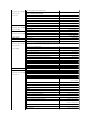
Table 2-7. System Messages Message
Causes
Corrective Actions
Alert! Redundant memory disabled!
Memory configuration does not support
redundant memory.
The current memory
configuration does not
support redundant memory.
Install a memory configuration that supports redundant memory (spare bank
feature). See "General Memory Module Installation Guidelines" in "Installing
System Components."
Disable the Redundant Memory option in the System Setup program. See
"Using the System Setup Program" in your User's Guide.
Amount of available memory limited to
245MB!
OS Install Mode is enabled in
the System Setup program.
Disable OS Install Mode in the System Setup program. See "Using the System
Setup Program" in your User's Guide.
Attempting to update Remote
Configuration. Please wait....
Remote Configuration is in
progress
Wait until the process is complete.
BIOS Update Attempt Failed
BIOS remote update failed
Retry update
Caution! NVRAM_CLR jumper is installed
on system board.
NVRAM_CLR jumper is
installed.
Remove the NVRAM_CLR jumper. See Figure A-2 for the jumper location.
CD-ROM drive not found
Improperly connected or
missing CD drive.
If no optical drive is installed, disable the IDE controller. See "Using the System
Setup Program" in the User's Guide.
If an optical drive is installed, see "Troubleshooting an Optical Drive" in
"Troubleshooting Your System."
CPUs with different cache sizes
detected.
Mismatched processors are
installed.
Install a correct version of the microprocessor so that both microprocessors
have the same cache size. See "Replacing the Processor" in "Installing System
Components."
Decreasing available memory
Faulty or improperly installed
memory modules.
Ensure that all memory modules are properly installed. See "Troubleshooting
System Memory," in "Troubleshooting Your System."
Diskette drive 0 seek failure
Incorrect configuration
settings in System Setup
program.
Run the System Setup program to correct the settings. See "Using the System
Setup Program" in your User's Guide.
Faulty or improperly installed
diskette, loose diskette drive
or optical drive interface
cable, or loose power cable.
Replace the diskette. Ensure that the diskette drive and optical drive cables are
properly connected. See "Troubleshooting a Diskette Drive," and
"Troubleshooting an Optical Drive," in "Troubleshooting Your System."
Diskette read failure
Faulty or improperly inserted
diskette.
Replace the diskette.
Diskette subsystem reset failed
Faulty diskette drive or optical
drive controller.
Ensure that the diskette drive and optical drive cables are properly connected.
See "Troubleshooting a Diskette Drive," "Troubleshooting an Optical Drive," in
"Troubleshooting Your System." If the problem persists, see "Getting Help."
Drive not ready
Diskette missing or improperly
inserted in diskette drive.
Reinsert or replace the diskette.
Embedded RAID error
An error has been generated
by the firmware used by the
optional integrated RAID
controller (when available)
Update the RAID firmware using the Dell Support website at support.dell.com.
Embedded RAID firmware is not present
The firmware used by the
optional integrated RAID
controller (when available) is
Restore the RAID firmware using the Dell Support website at support.dell.com.