Download Dell FX160 Setup and Quick Reference Guide

Transcript
A program is designed for an earlier Microsoft Windows operating system
RUN THE PROGRAM COMPATIBILITY WIZARD —
1 Click Start
→Control Panel→Programs→Use an older program with
this version of Windows.
2 In the welcome screen, click Next.
3 Follow the instructions on the screen.
A solid blue screen appears
TU R N T H E C O M P U T E R O F F — If you are unable to get a response by pressing a
key on your keyboard or moving your mouse, press and hold the power button
for at least 6 seconds (until the computer turns off), and then restart your
computer.
Other software problems
CHECK THE SOFTWARE DOCUMENTATION OR CONTACT THE SOFTWARE
MANUFACTURER FOR TROUBLESHOOTING INFORMATION —
•
Ensure that the program is compatible with the operating system installed
on your computer.
•
Ensure that your computer meets the minimum hardware requirements
needed to run the software. See the software documentation for
information.
•
Ensure that the program is installed and configured properly.
•
Verify that the device drivers do not conflict with the program.
•
If necessary, uninstall and then reinstall the program.
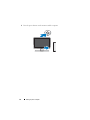
Dell Technical Update Service
The Dell Technical Update service provides proactive e-mail notification of
software and hardware updates for your computer. To enroll for the Dell
Technical Update service, go to support.dell.com/technicalupdate.
Dell Support Utility
NOTE: The Dell Support Utility is not supported on Linux or Windows XP embedded
operating systems.
20
Troubleshooting Tips