1
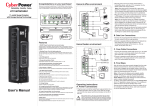
LINK Indicator
Ethernet connector
RX/TX Indicator
Link
RX/TX
RMCARD202
Definitions for LED Indicators
Link LED color
Off
QUICK INSTALLATION GUIDE
Remote Management Card
On(Yellow)
Condition
The Remote Management Card is not
connected to the Network or the Remote
Management Card power is OFF
The Remote Management Card is
connected to the Network
TX/RX LED color
RMCARD202
Intelligent Remote Management Card allows a UPS
system to be managed, monitored, and configured
Off
The Remote Management Card power is OFF
On(Green)
The Remote Management Card power is ON
Flash
- Receiving/transmitting data packet
- Reset finished
Step 2. Configure the IP address for the CyberPower
Remote Management Card.
Method 1: Using the Power Device Network Utility Tool
K09-0000064-01
INSTALLATION GUIDE
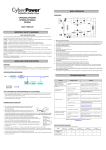
Step 1. Hardware Installation
1. Turn off the UPS before
removing the expansion port
cover on the UPS.
1. Install the Power Device Network Utility Tool from the included CD. It is
located on the CD in the \tools\network folder. Double click the “Power
Device Network Utility” installation file, “Setup.msi”to begin the
installation.
2. After installation is complete, run the “Power Device Network Utility”
. (Under “All Programs”, select “CyberPower Power Device Network
Utility”).
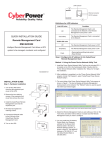
3. The main dialog of the Power Device Network Utility Tool program is
shown in Figure 1. The tool will display all Remote Management
Cards present on the network. The "Refresh" button is used to
search the entire local network again.
2. Remove the two retaining
screws of the expansion port
cover , then remove the cover.
3. Install the CyberPower
Remote Management Card
into the expansion port.
4. Re-install and tighten the
retaining screws.
5. Connect the Ethernet cable
to the LAN port of the
CyberPower Remote
Management Card.
6. Turn on the UPS.
Figure 1. The main window of the “Power Device Network Utility” program.
4. Select the Remote Management Card you are setting up. Click on the
Tools manual and select “Device Setup” or double click the Remote
Management Card you want to configure.
5. You can modify the IP
Address, Subnet Mask, and
Gateway address for the
Device MAC Address listed in
the Device Network Settings
window, as shown in Figure 2.
6. Modify the IP, subnet mask
or gateway address. Enter
the new addresses into the
corresponding fields.
Figure 2. The Device Network setting window.
7. You will need to enter a
User Name and Password
for the Remote Management
Card in the authentication
window, as shown in
figure 3.
*Default user name: cyber ;
Default password: cyber.
Figure 3. Authentication window.
8. If IP address is
successful, you will
see a message that the IP
set up is OK, as shown in
Figure 4.
Figure 4. Setup IP Address successfully message.
Method 2: Using a command prompt
1. Obtain the MAC address from the label on the Remote Management
Card . Each Remote Management Card has a unique MAC address.
2. Use the ARP command to set the IP address.
Example:
To assign the IP Address 192.168.20.240 for the Remote Management
Card, which has a MAC address of 00-0C-15-00-00-01 you will type in
the following command prompt from a PC connected to the same
network as the Remote Management Card.
(1) Type in “arp-s 192.168.20.240 00-0C-15-00-00-01” then press
Enter.
3. Use the Ping command to assign a size of 123 bytes to the IP.
(1) Type in “ping 192.168.20.240 -l 123” then press Enter
(2) If the replies are received, your computer can communicate with the
IP address.
WEB INTERFACE Login Account
There are two user account types.
- Administrator (default username : cyber; default password : cyber)
- Viewer (default username : device; default password : cyber)
The administrator can access full functions, including enable/disable the
Viewer account, and the view can access the read function but can not
control or change any setting.
Trouble Shooting
Problem
Solution
Unable to configure
the Remote
Management Card
by method1 or
method2
1. Check the LED status , the normal condition
is both yellow and green led is on.
If green led is off :
=> Check if Remote Management Card is
properly seated in the UPS and the UPS
power is on.
If yellow led is off :
=>Check if the network connection is valid.
2. Check if the operated PC is on the same
physical network as Management Card is .
Unable to ping the
Management Card.
1. Use method1 and method2 to get correct IP
address of the Management Card.
2. If the operated PC is on the different physical
network from the Management Card, verify
the setting of subnet mask and the IP
address of gateway.
Lost the user name
and password
Please refer to the “Reset to Default Setting /
Recover from a Lost Password
“part in the user’s manual.
CyberPower North America
CyberPower Systems (USA), Inc.
4241 12th Avenue East Suite 400 Shakopee, MN 55379
Tel: 877-297-6937
Fax: 952-403-0009
Website: CPSww.com E-mail: [email protected]
CyberPower Europe
CyberPower Systems B.V.
Flight Forum 3545,5657 DW Eindhoven,The Netherlands
Tel: +31 (0)40 2348170 Fax: +31 (0)40 2340314
Website: http://eu.cyberpowersystems.com
E-mail: [email protected]
Cyber Power Systems France
Z.I. Saint Séverin 28220 CLOYES sur le Loir – France
Tél : +33(0)2 37 98 61 50
E-mail : [email protected]